Approval workflows
A workflow is the approval flow one kind of request follows: the steps (called states), the actions that move a request from one state to the next, and who may take each action. This page is for organization administrators. Anyone your administrator has given access to read workflows can open the screens; changing a draft and publishing it each need further access, and without it everything is read-only.
The Workflows list
Section titled “The Workflows list”Open Workflows under Manage.
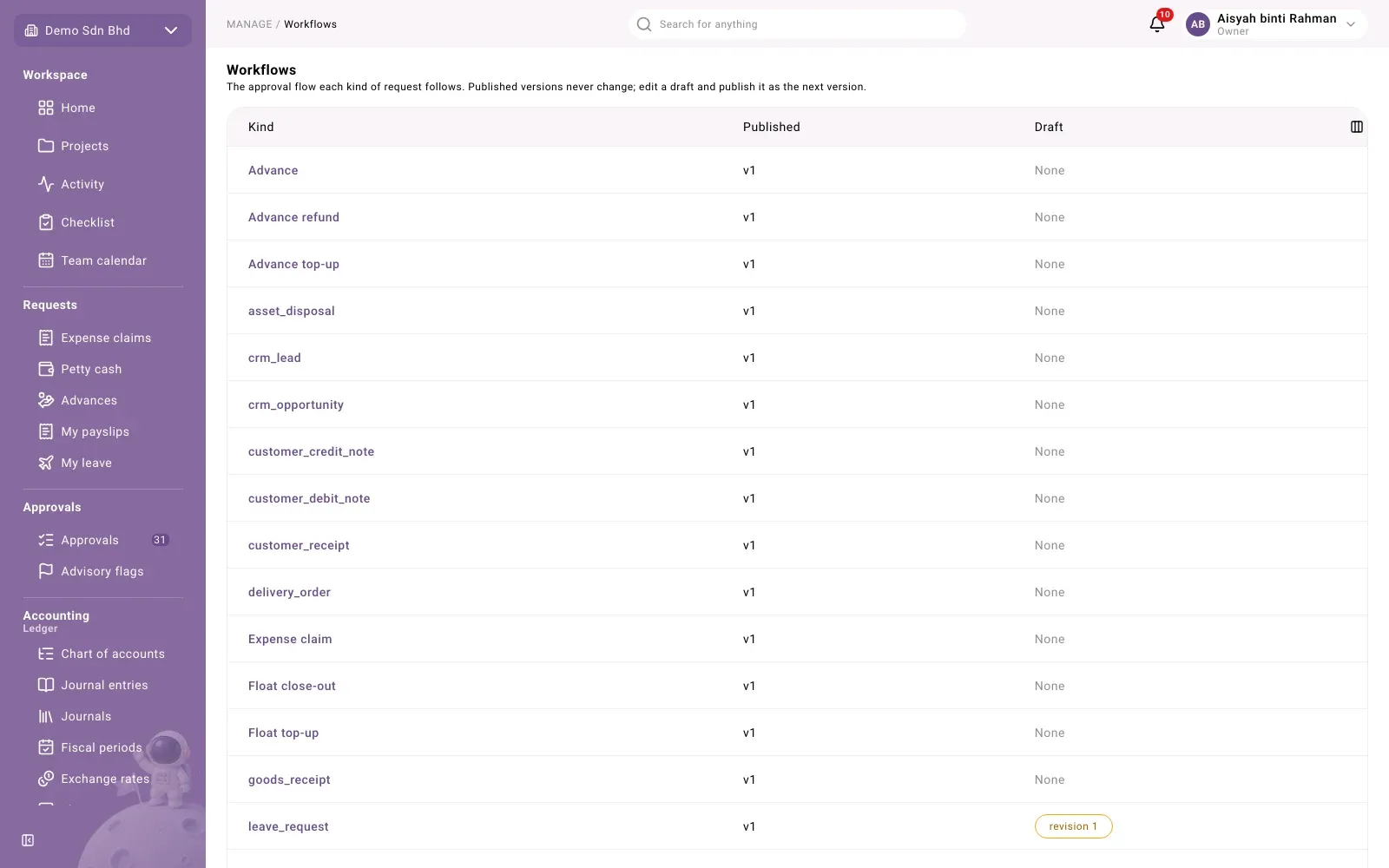
There is one row per kind of request, such as Expense claim, Advance, Advance
top-up, Advance refund, Petty cash spend, Float top-up and Float close-out. Other
modules add their own rows, some of which are shown by their internal name, for example
crm_lead or customer_receipt.
| Column | What it shows |
|---|---|
| Kind | The kind of request. Select it to open the editor. |
| Published | The version requests use now, for example v3 |
| Draft | The draft being worked on, for example “revision 2”, or None |
The editor
Section titled “The editor”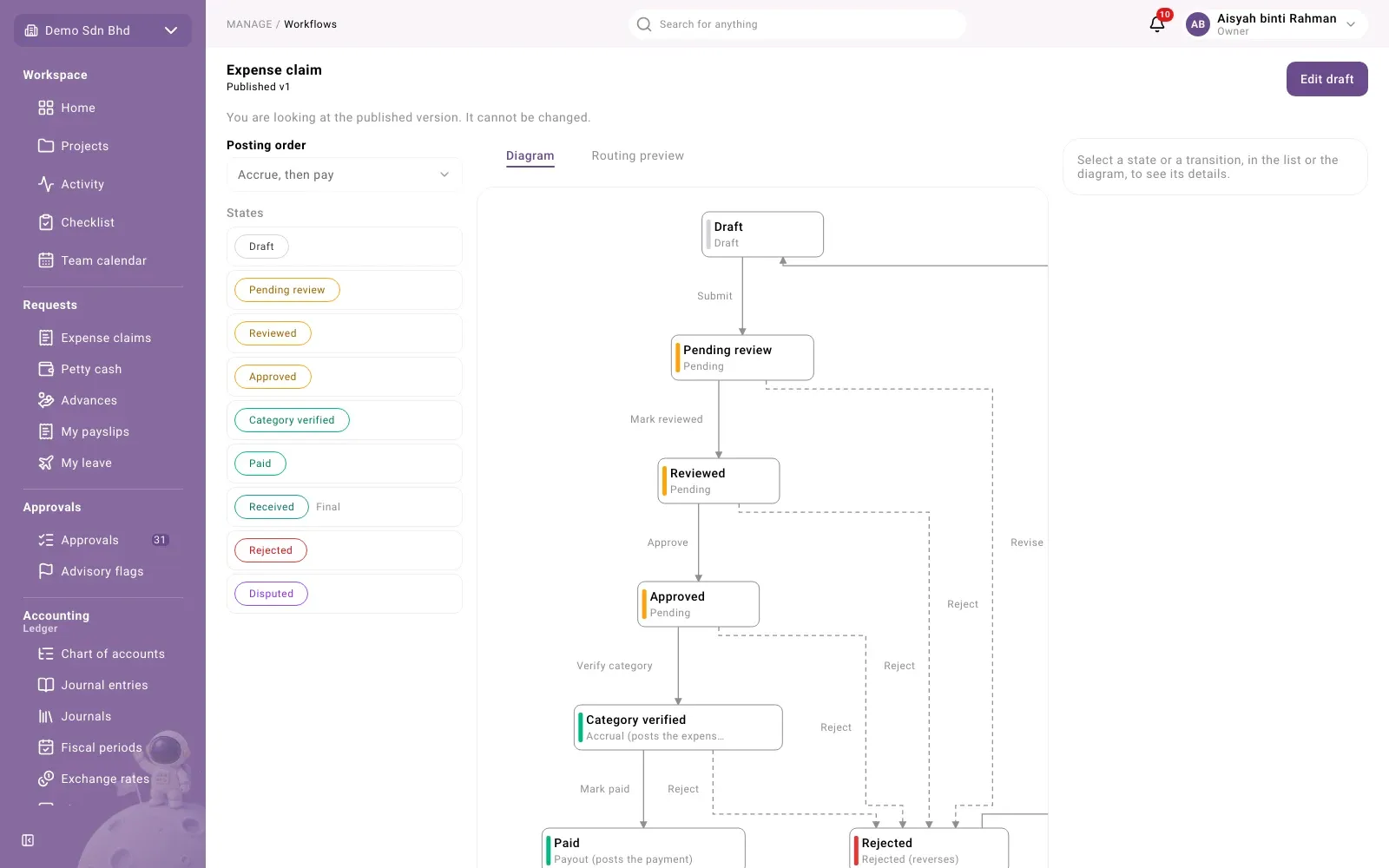
The editor has three parts:
- On the left, Posting order and the list of States, in order. A state marked Final is a final state; one marked Has a problem needs fixing before you can publish.
- In the middle, two tabs: Diagram draws the states and the actions between them, and Routing preview shows who would approve a request (see Who approves each step).
- On the right, Details for what you selected. Select a state or an action, in the list or the diagram.
With no draft open, the page says “You are looking at the published version. It cannot be changed.”
A state
Section titled “A state”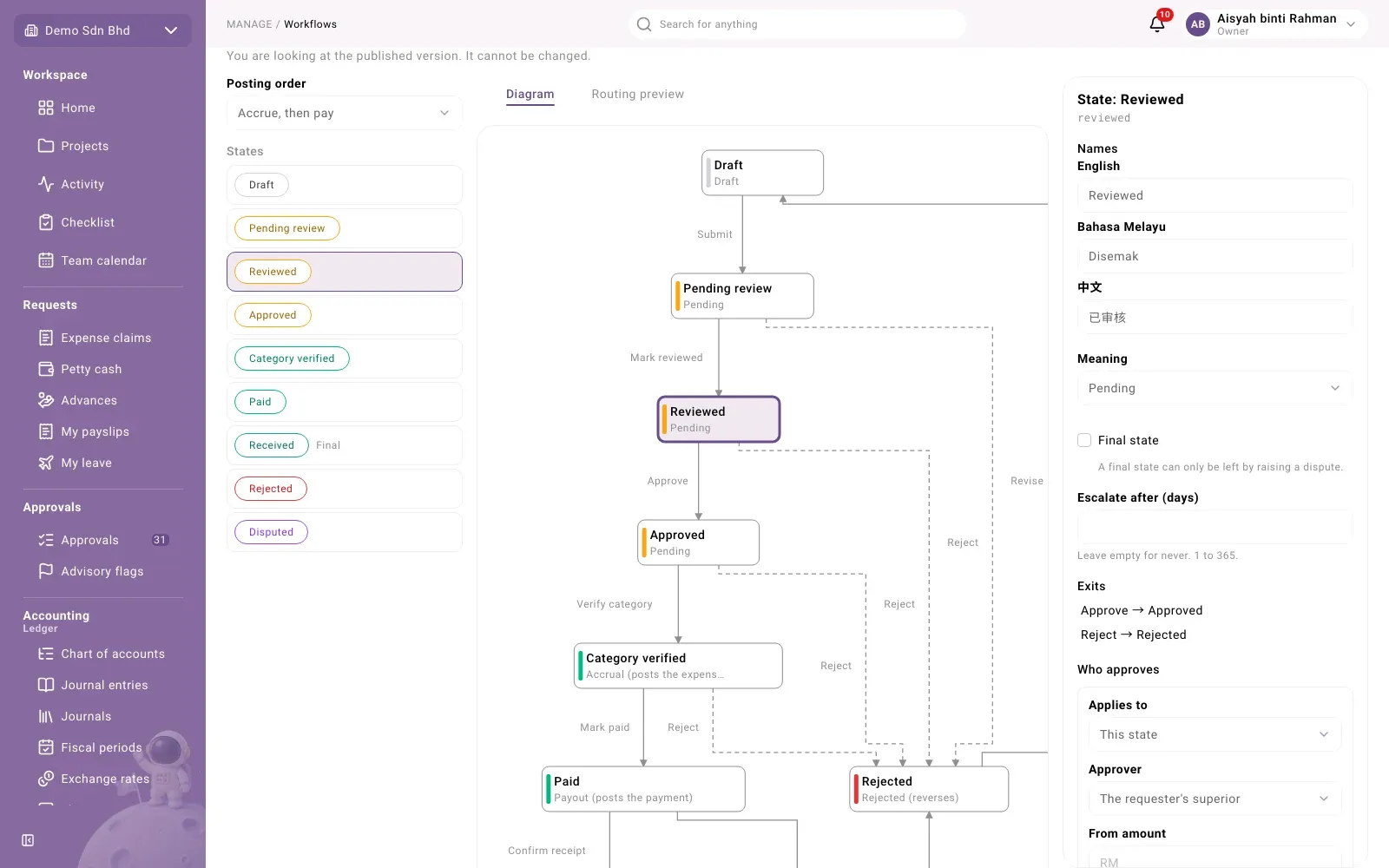
| Field | What it means |
|---|---|
| Names | What the state is called in English, Bahasa Melayu and 中文. Renaming a state changes only what people see. |
| Meaning | What the state stands for, for example Pending, Accrual (posts the expense) or Payout (posts the payment). |
| Control account | Only for an accrual state: the account the accrual credits, for example Accounts payable. |
| Final state | A final state can only be left by raising a dispute. |
| Escalate after (days) | How many days a request may wait in this state before it escalates, 1 to 365. Leave empty for never. |
| Exits | The actions out of this state, in the order they are offered. Use Add exit to… to add one. |
| Who approves | Who may approve this state. See Who approves each step. |
An action between states
Section titled “An action between states”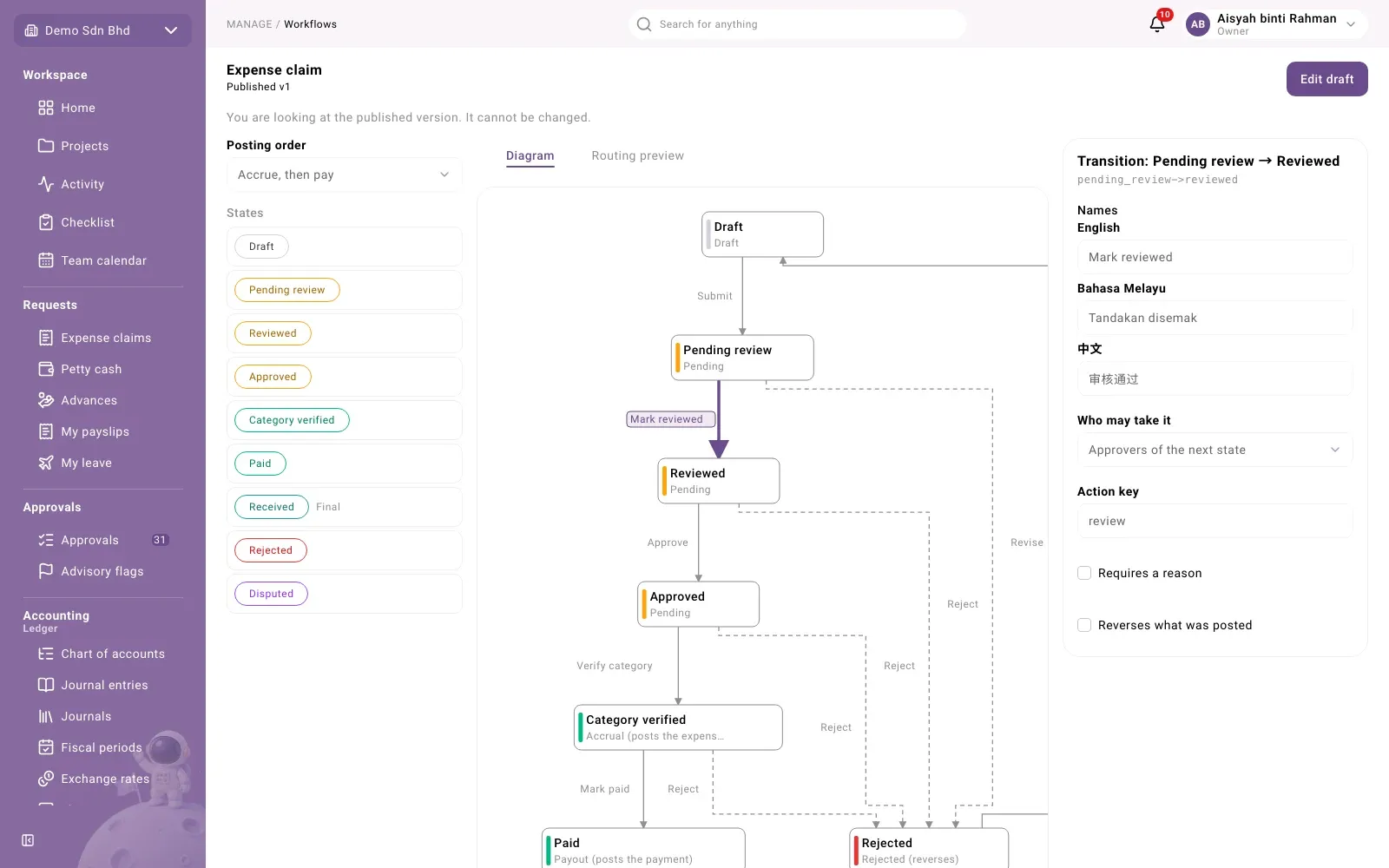
Select an action (a Transition) to see:
| Field | What it means |
|---|---|
| Names | The button’s label, in each language |
| Who may take it | The requester, Approvers of the next state, Approvers of this state, or Whoever could approve the forward step |
| Action key | The action’s fixed key |
| Requires a reason | The person must give a reason, for example when rejecting |
| Reverses what was posted | Taking this action reverses the posting made earlier |
Change a workflow
Section titled “Change a workflow”- Open the workflow and select Edit draft. A draft is made from the published version.
- Make your changes:
- Add a state: in the form under States, enter a Key (lower-case letters, digits and underscores; it cannot be changed later), choose a Meaning and select Add state.
- Reorder states with the arrows or by dragging.
- Add an action with Add exit to… on the state it leaves; remove one with Remove transition.
- Remove a state with Remove state. Its exits, the actions into it and its approvers are removed too.
- Select Save draft. The page shows Unsaved changes until you do, and asks before you leave with unsaved changes.
Each save is checked. If anything is wrong, a red box says how many problems block publishing, with each problem and a Show button that takes you to it. When the draft is clean it says “No problems. This draft can be published.”
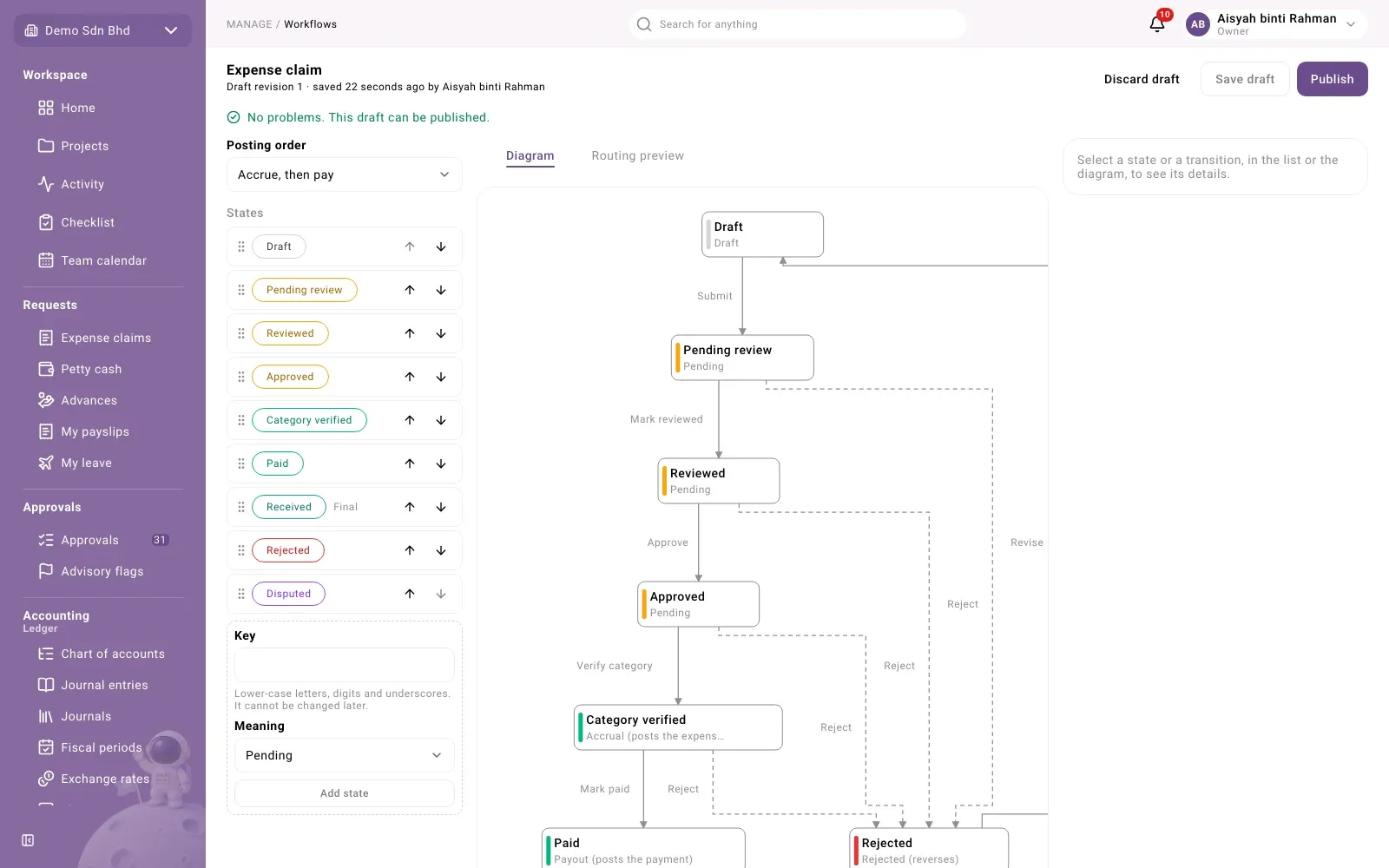
Discard draft throws the draft and its unsaved edits away. The published version is not affected.
If someone else saved or discarded the draft while you were editing, you will see “This draft changed while you were editing”. Select Reload to see their version; your unsaved edits are lost.
Publish a version
Section titled “Publish a version”- Save the draft and fix every problem. Publish stays disabled until you have: hover it to see why.
- Select Publish, read the message and select Publish again.
- You will see “Published version …”.
What publishing changes
Section titled “What publishing changes”- New requests use the new version from now on.
- Requests already in flight stay on the version they started on, to the end. A claim submitted last week keeps last week’s steps and approval rules, even if you removed a step today.
- A draft changes nothing for anyone until it is published.
- You cannot undo a publish. To go back, edit a new draft and publish it as the next version.
Problems
Section titled “Problems”| You see | What to do |
|---|---|
| Publish is disabled with “Save your changes before publishing.” | Select Save draft first. |
| “Fix the problems listed above before publishing.” | Use Show on each problem in the red box. |
| “The diagram could not be drawn.” | The lists on the left still work; use them instead. |