CRM leads
A lead is someone who may buy from you but is not yet an account: a website enquiry, a referral, a business card from an event. You record the lead, find out whether it is worth pursuing, and then either convert it into an account (with a contact, and optionally an opportunity) or disqualify it.
This page is for people your administrator has given access to CRM leads. You find it under Operations → Sales → Leads.
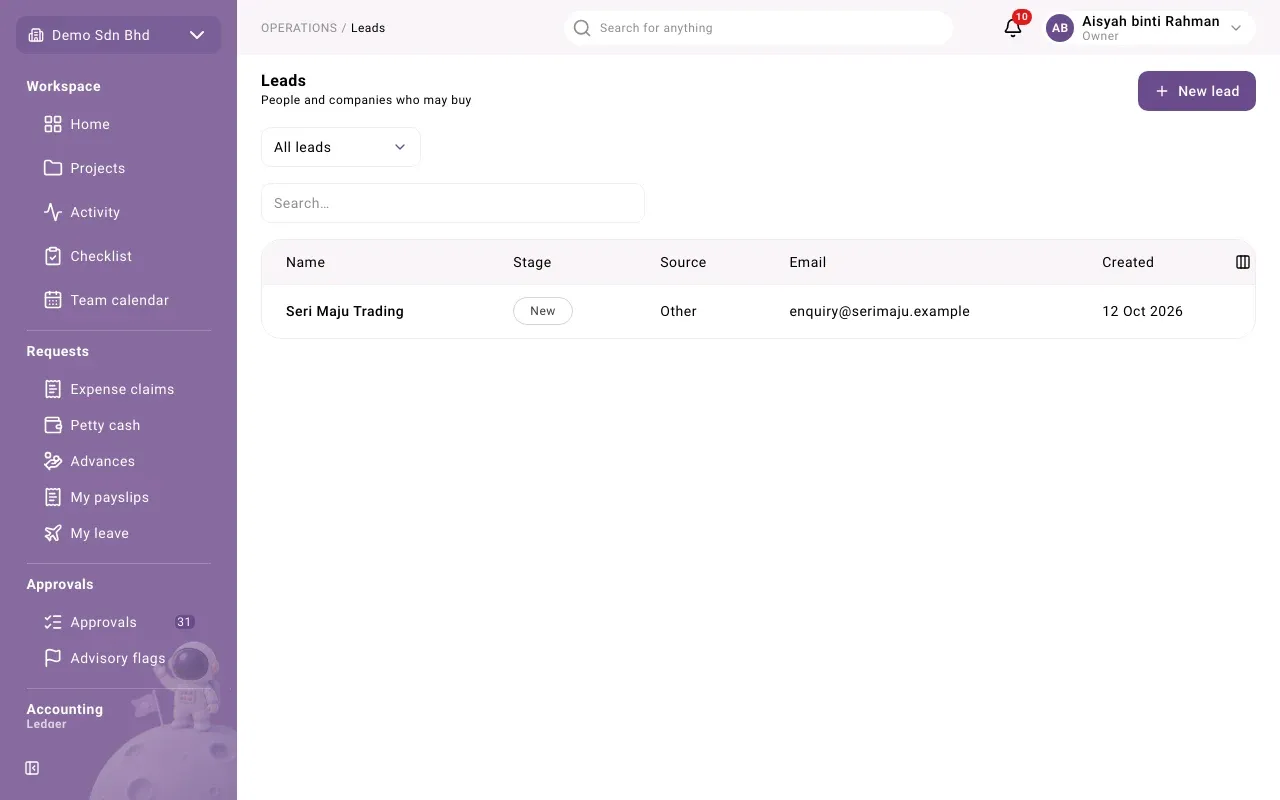
The list shows each lead’s Name, Stage, Source, Email and the date it was Created. Search by name, or use the Stage filter: All leads, New, Qualified, Converted or Disqualified. Select a row to open the lead.
Stages
Section titled “Stages”A new lead moves through these stages. Your administrator can rename, add or reorder stages, so your names may differ; the filter above still finds them by what they mean.
| Stage | Meaning | What you can do |
|---|---|---|
| New | Just recorded | Qualify it, or Disqualify it |
| Qualified | Worth pursuing | Convert it, or Disqualify it |
| Converted | Turned into an account | Nothing more: the lead is closed |
| Disqualified | Not worth pursuing | Nothing more: the lead is closed |
The stage buttons appear at the bottom of the lead’s panel, and only the moves you are allowed to make are shown. Normally that is the person who created the lead. Changing the lead’s Owner later does not change who may move it.
Add a lead
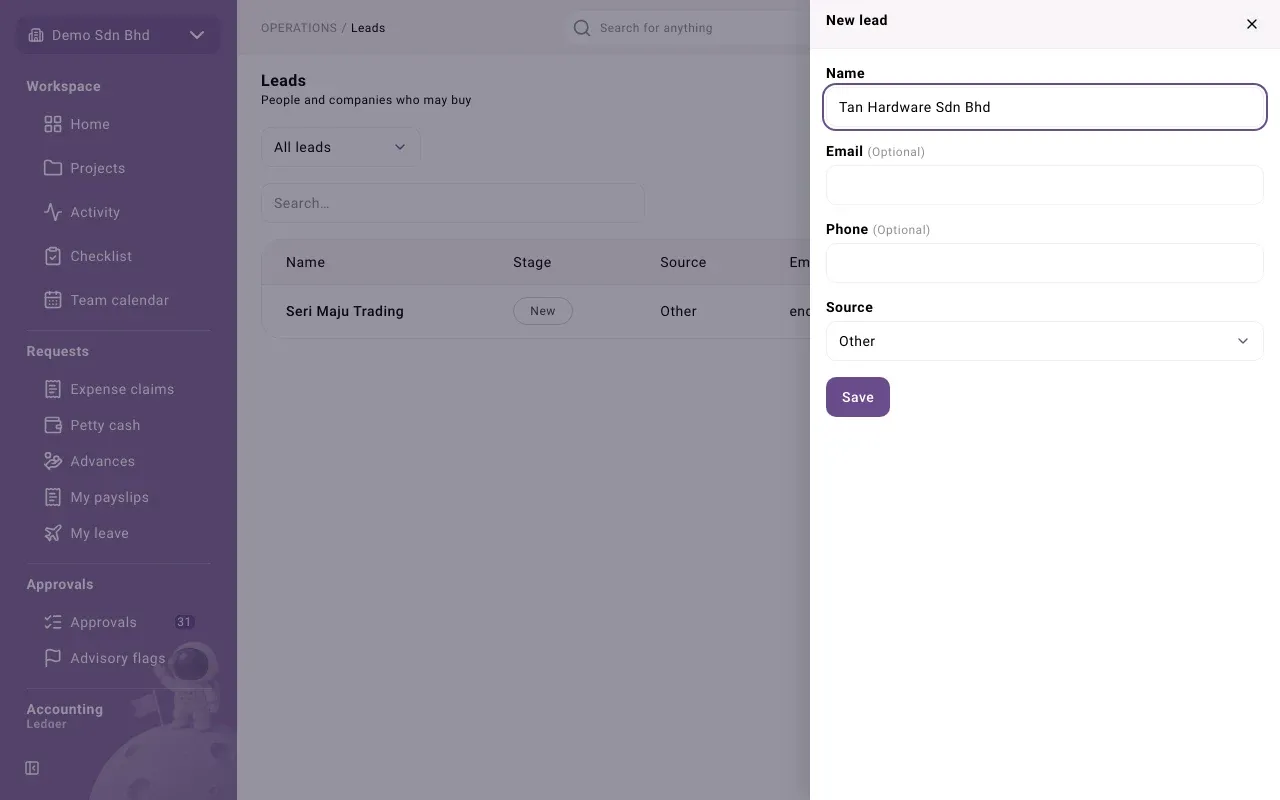
Section titled “Add a lead”- Select New lead.
- Fill in the form and select Save. The lead starts at New, owned by you.
| Field | What to enter |
|---|---|
| Name | The person’s or company’s name |
| Optional | |
| Phone | Optional |
| Source | Where the lead came from: Website, Referral, Event, Phone call or Other |
Work a lead
Section titled “Work a lead”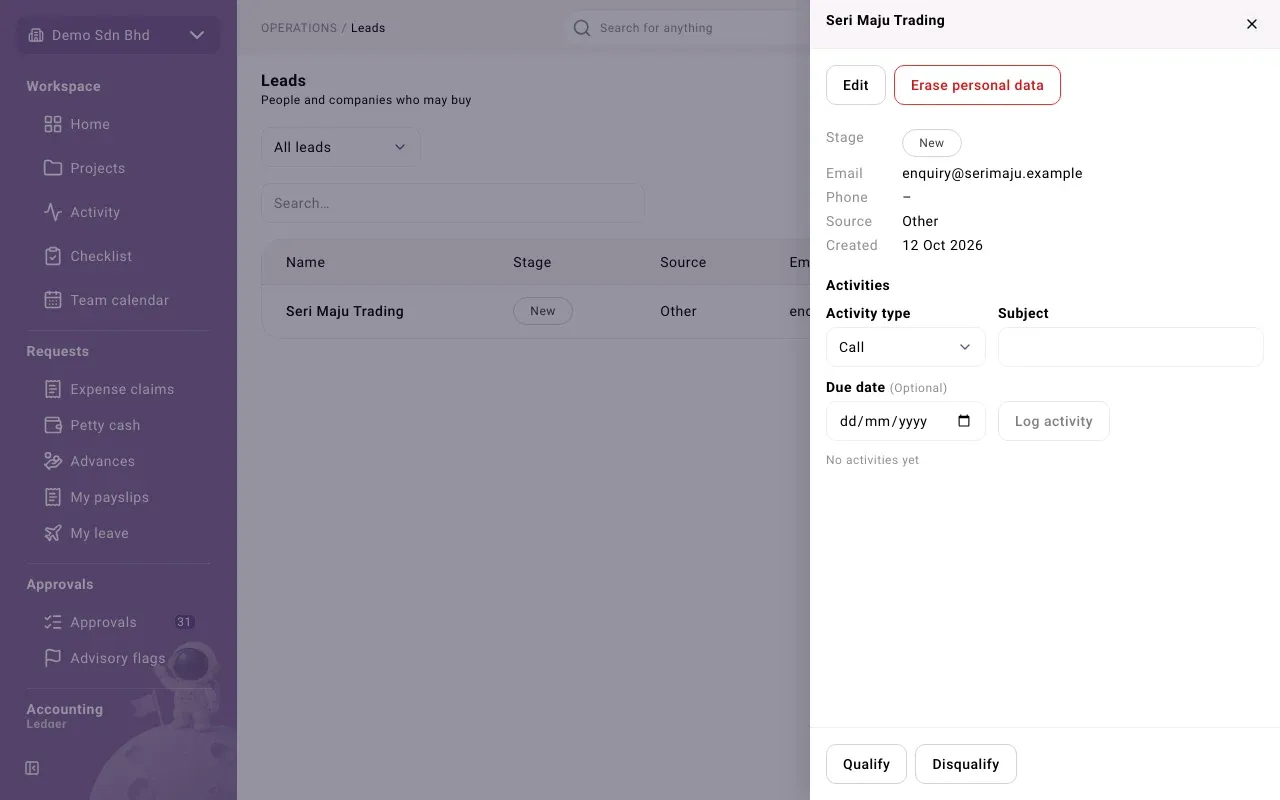
Open the lead to see its Stage, contact details, Source and Created date, and its Activities. Log calls and meetings there as you would on an account (see CRM accounts and contacts).
To change its details, select Edit. When editing you can also hand the lead to someone else with Owner. Select Save, or Cancel to leave it unchanged. A converted or disqualified lead can no longer be edited.
Disqualify a lead
Section titled “Disqualify a lead”- Select Disqualify.
- Write the Reason, in English or Bahasa Malaysia, and select Confirm.
Convert a lead
Section titled “Convert a lead”When a qualified lead is ready to become a customer relationship:
-
Open the lead and select Convert.
-
The Convert lead dialog “Creates an account and a contact from this lead.” Check the fields:
Field What to enter Account name Filled in from the lead; change it if the company’s name is different Type Company or Person Also create an opportunity Tick it if there is already a deal to track Opportunity name Shown when ticked. For example “Office fit-out 2027” Amount Shown when ticked. The deal’s expected value, in your organization’s currency Expected close Optional: when you expect to win or lose it -
Select Convert. You will see “Lead converted”.
The new account appears under Accounts, with a contact made from the lead. If you created an opportunity, it appears on the Pipeline. The lead itself moves to Converted and is closed.
Problems
Section titled “Problems”| Message | What to do |
|---|---|
| “This lead is closed and can no longer be edited.” | It was converted or disqualified. Work with the account it became, or record a new lead. |
| “This record has changed since you opened it. Reload it and try again.” | Someone moved or changed it first. Reload and check its stage. |
| No stage buttons at the bottom | You may not move this lead, or it is closed. Ask its creator. |