Importing data
The Import page brings data from your previous system, or from a spreadsheet, into mcomtask in bulk. “Each file is checked first and saved only if every row is right”: if one line has a problem, nothing is saved, and you are told which line and why.
If you are moving your whole set of books from another system, follow the steps on Migration; it sends you to this page for each file in the right order.
This page is for people your administrator has given access to imports, usually during set-up. You find it under Manage → Data → Import. Some imports also need the access you would need to do the same thing on its own screen; for example, journal entries need permission to post journals.
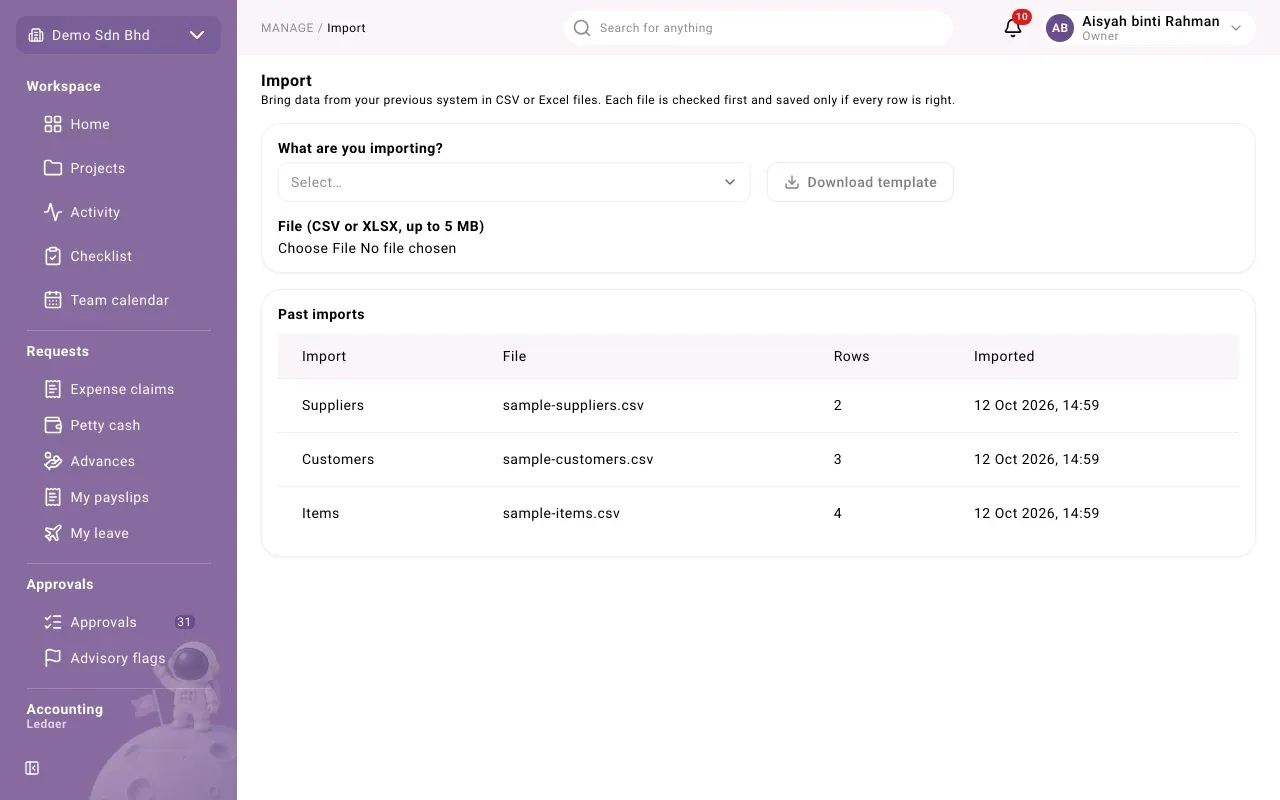
What you can import
Section titled “What you can import”Choose from What are you importing?. The list shows only what your organization uses:
| Import | What it brings in |
|---|---|
| Chart of accounts | Your accounts, their types and parents |
| Customers / Suppliers | Your customer and supplier records |
| Opening trial balance | Balances at the end of the year before your first year here |
| Period movements | Each month’s movement, from the start of the year to cut-over |
| Open sales documents / Open purchase documents | Unpaid invoices, unapplied credit notes and unallocated payments at cut-over |
| Archive: sales documents / Archive: purchase documents | Documents already settled in the old system, kept read-only for reference |
| Items | Stock and service items |
| Opening fixed assets | Assets in service at cut-over, with their depreciation to date |
| Employees | Employee records |
| Journal entries | Manual journal entries in bulk |
Use the template
Section titled “Use the template”- Choose what you are importing.
- Select Download template. You get a CSV file whose first row has one column for each field mcomtask understands. The chart of accounts and journal entries templates also carry a few example rows; delete them before you import.
- Fill the template in a spreadsheet, one record per row, keeping the header row.
- Save it as CSV or Excel (XLSX). A file can be up to 5 MB; split a larger one.
Your own export from the old system works too, as long as it has a header row: you match its columns in the next step.
Import a file
Section titled “Import a file”- Choose what you are importing and, under File (CSV or XLSX, up to 5 MB), choose the file.
- For an Excel file with several sheets, choose the Sheet.
- Under Match the columns, check that each Field (shown by its template column name,
such as
codeorparent_code) has the right Column in your file. “A column named like the field is matched for you.” Fields marked Required must be matched; choose Not in the file for an optional field you do not have. - Select Check file. This is a trial run: nothing is saved.
- If you see Fix these lines and check again, the table lists each Line, Column and Problem. Correct the file, choose it again and check again. (Problems are described in English.)
- When you see “The file is ready to import: … rows.”, select Import. You will see “Imported … rows.” and what was Created, Unchanged and so on.
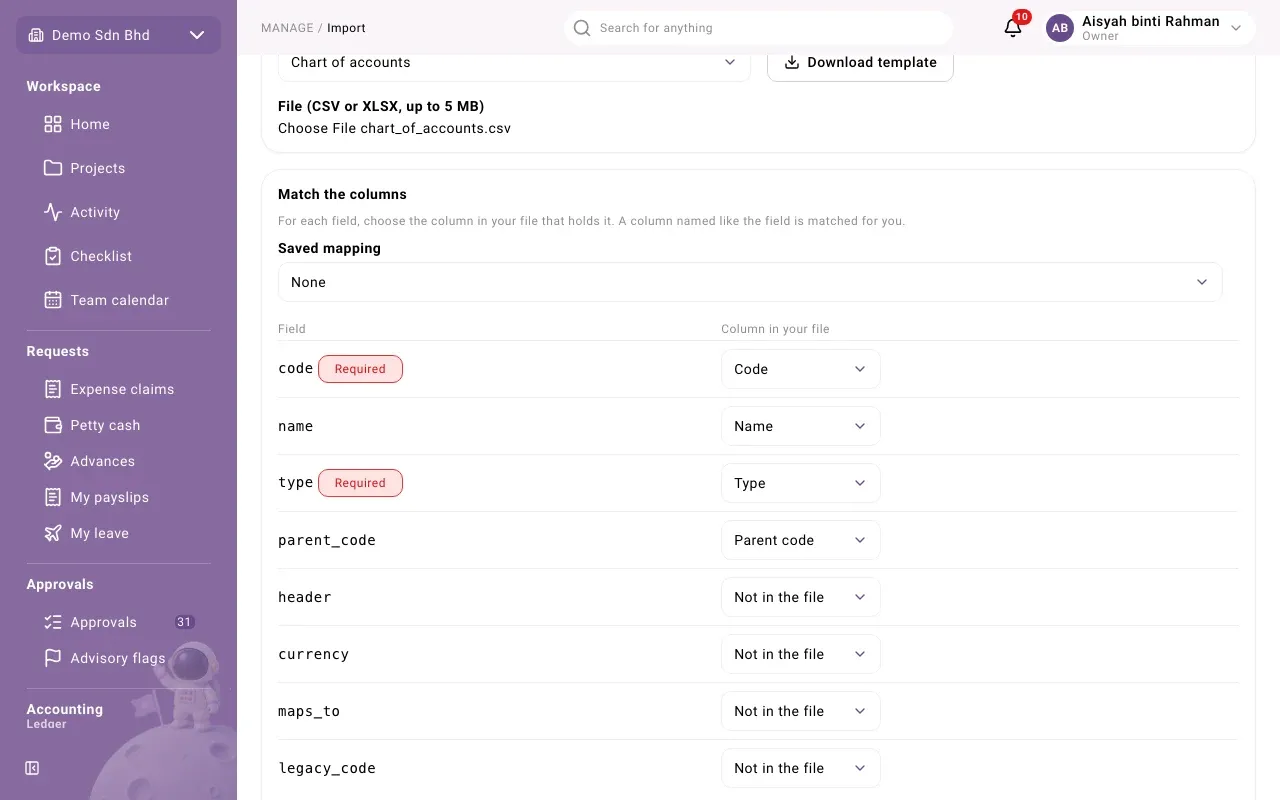
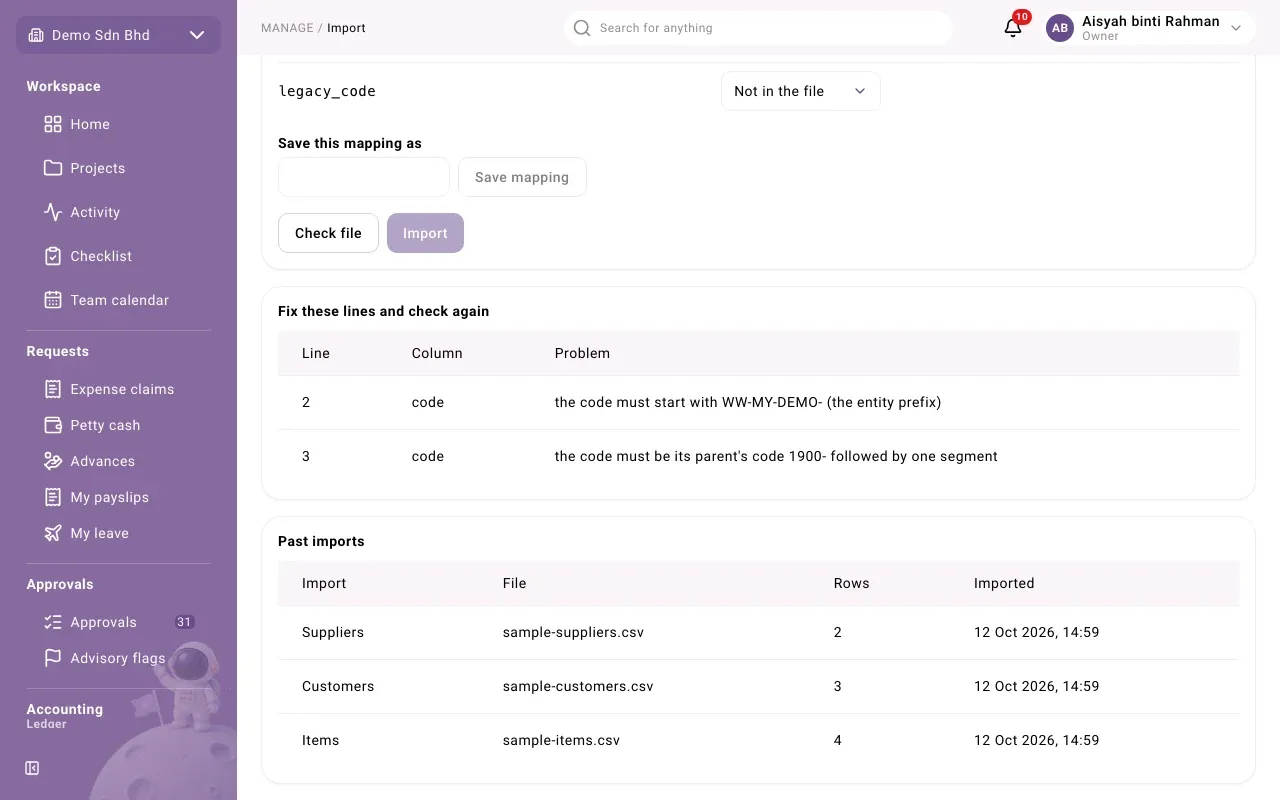
Import stays unavailable until the file has passed Check file. If you change the file or the matching afterwards, “Check the file again after changing it or its mapping.”
Save your column matching
Section titled “Save your column matching”If you will import the same kind of file again, type a name in Save this mapping as and select Save mapping. Next time pick it from Saved mapping. Delete mapping removes one you no longer need.
What happens next
Section titled “What happens next”The import appears under Past imports, with the File, number of Rows and when it was Imported.
Some results to look out for:
- Mapped to an existing account: a row in the chart of accounts matched an account mcomtask already has, and was used instead of creating a duplicate.
- Moved to Migration clearing: amounts on receivables or payables control accounts in a trial balance go to the Migration clearing account; your open documents then clear them. See Migration.
- Bank accounts awaiting verification: bank account details came in with the records and are waiting to be verified, as they would be if typed in by hand.
- Imported anyway: warnings about lines that were saved but deserve a look.