Approving purchase invoices
This page is for finance staff who follow purchase invoices through to posting, and for the people your organization has set up to approve them (by default, the owner).
Every purchase invoice, credit note and debit note follows the same steps. Approving one posts it: it is recorded in the ledger as money owed to the supplier, and it can then be paid.
Statuses
Section titled “Statuses”These are the standard statuses. Your administrator can rename or add steps, so yours may differ slightly.
| Status | What it means | What happens next |
|---|---|---|
| Draft | Saved but not sent. Only its preparer can change it. | The preparer selects Submit, or Withdraw to drop it. |
| Pending review | Waiting for approval | An approver selects Approve and post or Reject. |
| Posted | Approved and recorded in the ledger as owed | It can be paid. It stays Posted while it is paid; watch Outstanding fall to zero. |
| Rejected | Sent back, with a reason | The preparer selects Revise to turn it back into a draft. |
| Withdrawn | Dropped before it was submitted | Final |
| Voided | Cancelled after posting; the ledger entry is reversed | Final |
Open an invoice
Section titled “Open an invoice”Select a row on Payables → Purchase invoices. The invoice opens in a side panel with its reference and supplier’s number, its status, dates, the amount and what is Outstanding.
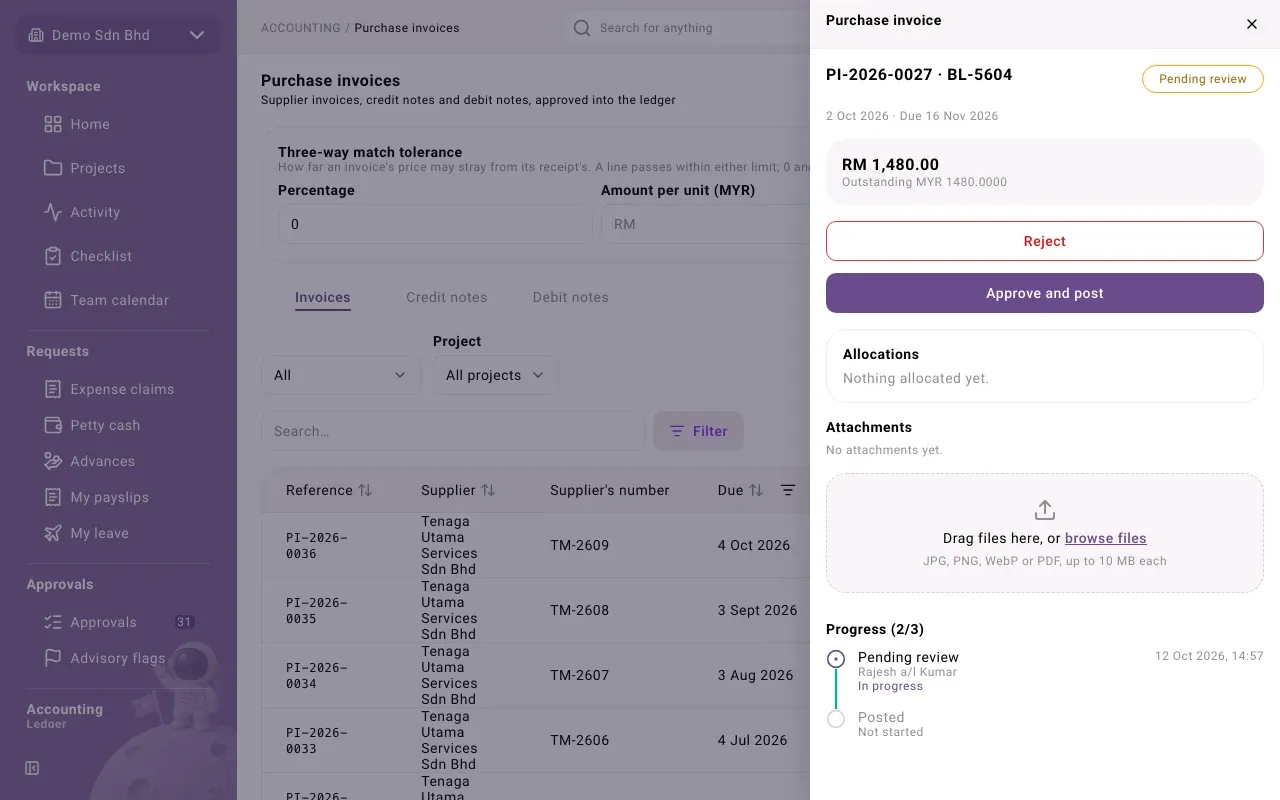
The buttons are the next steps from the current status. A greyed-out button is one you cannot take now; point at it to see why. An action that needs a reason, such as Reject or Void, asks for a Reason first, which is kept on the record; select Confirm.
Lower down are:
- Allocations: the payments and credit notes that have settled this invoice
- Attachments: supporting documents. You can add one here at any stage.
- Progress: who did each step and when, with any reason given
A self-billed invoice also shows the state of its e-Invoice.
Approve and post
Section titled “Approve and post”- Open the invoice and check it against the supplier’s document.
- Select Approve and post. The status becomes Posted.
When the invoice does not match what was received
Section titled “When the invoice does not match what was received”If a matched line’s quantity or price is outside what was received and the tolerance, approval is refused with “The invoice does not match what was received.”
People with the override access (by default the owner) then see a Three-way mismatch section:
- Check why the invoice differs, for example with the person who received the goods.
- Enter Why approve past the mismatch?
- Select Override and post. The reason is recorded.
You cannot override an invoice you prepared yourself. Otherwise, reject the invoice and have it corrected.
Reject
Section titled “Reject”Select Reject and give a reason. The preparer sees it, selects Revise, corrects the draft and submits it again.
Void a posted invoice
Section titled “Void a posted invoice”Select Void and give a reason. The posting is reversed and the status becomes Voided. This cannot be undone.
You cannot void an invoice that has payments or credit notes applied to it (“This document has payments or credit notes applied to it. Void those payments or reverse the offsets first.”), or one an approved payment batch is paying.
Use a credit note against an invoice
Section titled “Use a credit note against an invoice”A posted credit note reduces what you owe only once you apply it to an invoice.
- Open the posted credit note.
- Under Allocations, choose the Invoice (open invoices of the same supplier, currency and exchange rate are listed, with what is outstanding).
- Enter the Amount and select Offset. You see “Offset recorded”.
The invoice’s Outstanding falls by that amount. To undo an offset, select Reverse beside it; the line then shows (Reversed). The original offset stays on record.
Problems
Section titled “Problems”| Message | What to do |
|---|---|
| “That is more than the invoice has outstanding, or than the credit note has left.” | Lower the amount. |
| “A credit note can only offset an invoice at the same exchange rate.” | Pick an invoice at the credit note’s rate. |
| “Approving past a mismatch needs the override permission, which the Owner holds.” | Ask the owner, or reject the invoice. |
| A greyed-out button showing “You can’t take this action right now.” | Someone else is set up to take this step, or the invoice has moved on. Reload it, or ask your administrator who approves. |