Purchase invoices
This page is for people your administrator has given access to enter purchase invoices in Payables, usually finance staff.
A purchase invoice is a bill from a supplier. Entering it is the first step to paying it: you enter it, someone else approves it, and approving it posts it to the ledger as money owed. Open Payables → Purchase invoices.
The Purchase invoices page
Section titled “The Purchase invoices page”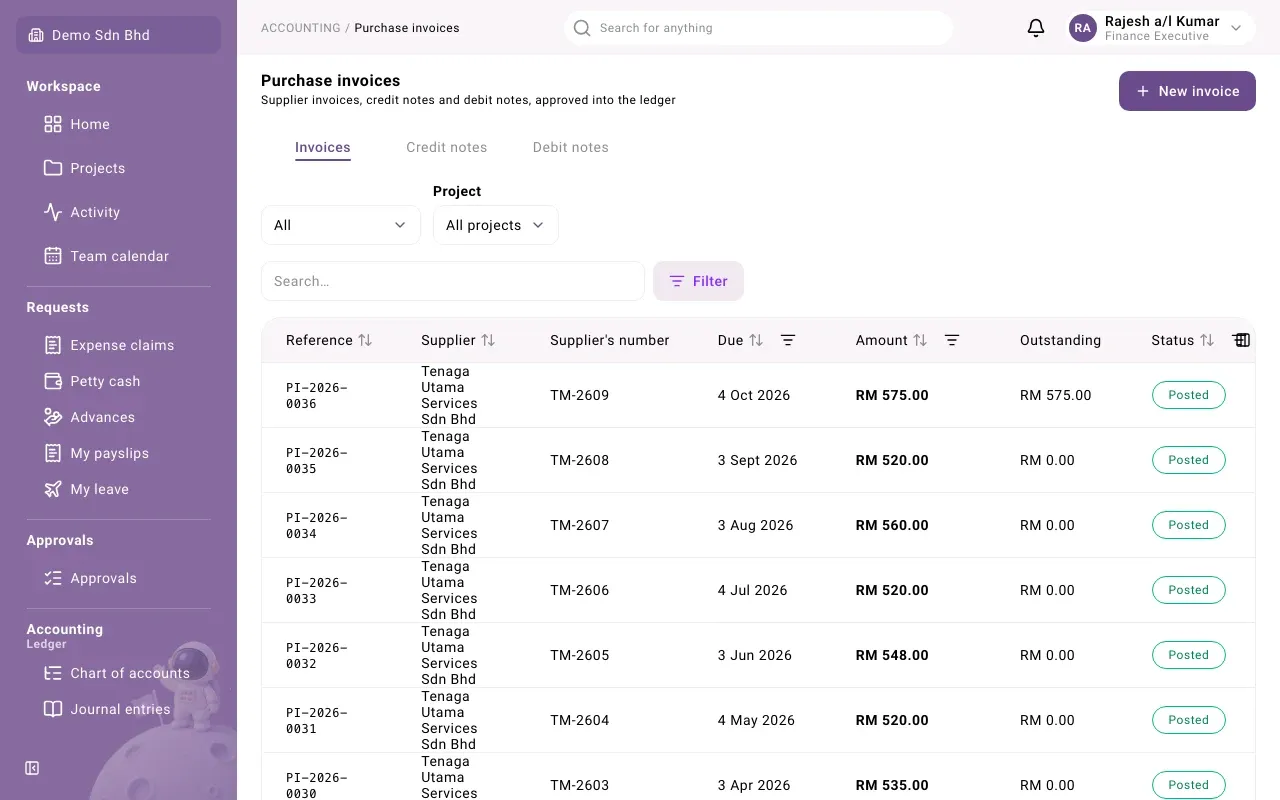
The page has three tabs:
| Tab | Use it for |
|---|---|
| Invoices | Bills from suppliers |
| Credit notes | A supplier reducing what you owe, for example for returned goods or an overcharge |
| Debit notes | A supplier billing you more after the original invoice, for example for an undercharge |
Each row shows the Reference (the number mcomtask gives the document, e.g. PI-…), the Supplier, the Supplier’s number, the Due date, the Amount, what is still Outstanding and the Status. A foreign-currency amount also shows its value in your base currency underneath.
Use Search…, the column headings or Filter (by Status, Date, Due or Amount), the Group filter and the Project picker to narrow the list. Load more fetches the next page. Export downloads the list you are looking at; see Payables reports.
Enter an invoice
Section titled “Enter an invoice”- On the Invoices tab, select New invoice.
- Fill in the top of the form (below).
- Add the Lines.
- Select Submit to send it for approval, or Save draft to finish later.
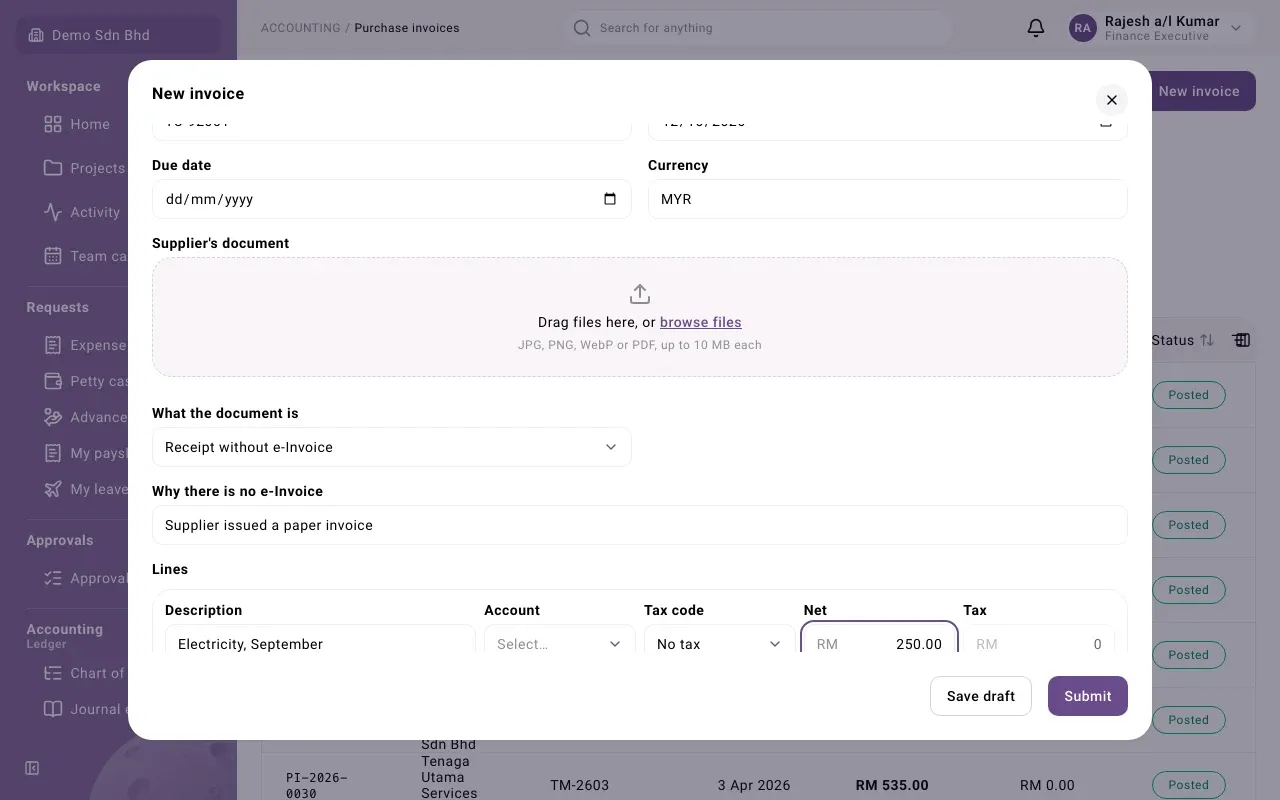
| Field | What to enter |
|---|---|
| Supplier | Choose the supplier. Only active suppliers are listed. The currency follows the supplier’s. |
| Project | The project this bill is charged to, or No project. Shown only if you can see projects. |
| Supplier’s document number | The number printed on the supplier’s invoice. Required. The same number cannot be entered twice for one supplier. |
| Document date | The date on the invoice |
| Due date | Leave it empty to use the document date plus the supplier’s payment terms. It cannot be before the document date. |
| Currency | A three-letter code, such as MYR |
| Exchange rate to MYR | Only for a foreign currency: the rate to your base currency (the label names it) |
| Supplier’s document | Upload the supplier’s invoice: JPG, PNG, WebP or PDF, up to 10 MB |
| What the document is | See below |
What the document is records the kind of evidence you hold:
| Choice | Use when | Asks for |
|---|---|---|
| e-Invoice to the company | The supplier issued an e-Invoice to the company | Supplier’s TIN and e-Invoice unique identifier |
| Foreign supplier’s document | The supplier is outside Malaysia | — |
| Receipt without e-Invoice | You only have an ordinary invoice or receipt | Why there is no e-Invoice |
| Self-billed e-Invoice (we issue it for the supplier) | Your organization issues the e-Invoice on the supplier’s behalf. Offered only when your organization issues e-Invoices. | A Classification on each line |
Which of these applies to a given supplier is a tax question; ask your adviser if you are unsure.
Each line has:
| Field | What to enter |
|---|---|
| Description | What was bought, e.g. “Printer toner” |
| Account | The expense or asset account it is charged to |
| Tax code | The tax on this line, or No tax |
| Net | The amount before tax, e.g. 250.00 |
| Tax | Filled in for you from the tax code and the net amount. You can correct it to match the supplier’s invoice. |
Select Add line for another line (up to 200), or the Remove line cross to delete one.
Matching to goods received
Section titled “Matching to goods received”If your organization records goods received against purchase orders, an invoice line can be matched to what was received. When the supplier has received lines waiting, each line shows Receipt line:
- Choose the receipt line. Its quantity and price fill in, and Account is replaced by Quantity (base units).
- Change the quantity if the supplier billed for less than was received.
- Leave Not matched for a line that has no receipt, such as a delivery charge.
When the invoice is approved, each matched line is checked against what was received. See Approving purchase invoices for what happens on a mismatch.
Attachments and extra fields
Section titled “Attachments and extra fields”Under Attachments you can add supporting documents, such as a quote. You can add more later but not remove them. Your organization may have added extra fields above them.
Credit notes
Section titled “Credit notes”On the Credit notes tab, select New credit note. The form is the same as an invoice. A credit note’s lines can be matched to a Return line (goods sent back) instead of a receipt line. Its due date defaults to its own date.
For a self-billed credit note, choose the Original self-billed invoice it corrects.
Once a credit note is posted, you use it to reduce an invoice; see Approving purchase invoices.
Debit notes
Section titled “Debit notes”On the Debit notes tab, select New debit note. The form is the same as an invoice, without matching. You may choose the Original invoice (optional) it adds to, or leave No original invoice. A posted debit note is owed and paid like an invoice.
Drafts
Section titled “Drafts”Only the person who prepared a draft can change it. Open it from the list and select Save draft at the bottom of the panel to reopen the form, change it and Submit it.
Three-way match tolerance
Section titled “Three-way match tolerance”People who manage the organization’s settings see a Three-way match tolerance card on this page. It sets how far an invoice’s price may differ from its receipt’s before the line counts as a mismatch: a Percentage and an Amount per unit. A line passes if it is within either limit; 0 and 0 allow an exact match only. Select Save tolerance to keep a change.
Problems
Section titled “Problems”| Message | What to do |
|---|---|
| “This supplier’s document number is already recorded.” | The invoice may already be entered. Search for the number before entering it again. |
| “That bills more than was delivered and not yet invoiced.” | Lower the matched Quantity (base units), or check whether another invoice already billed those goods. |
| “This credit note would take the invoice’s credit notes past the invoice total.” | Check the amount against the original invoice. |
| A message beside one line | Correct that line; the rest of the form is kept. |