Budgets
A budget plans income and spending by account and month for one fiscal year. Finance prepares it, someone else approves it, and you can then compare it with the actual figures. Everyone with access to the accounting books can view budgets. Preparing them is for people allowed to manage budgets (Finance, by default); approving is a separate permission (the owner, by default).
Open Budgets under Accounting in the sidebar.
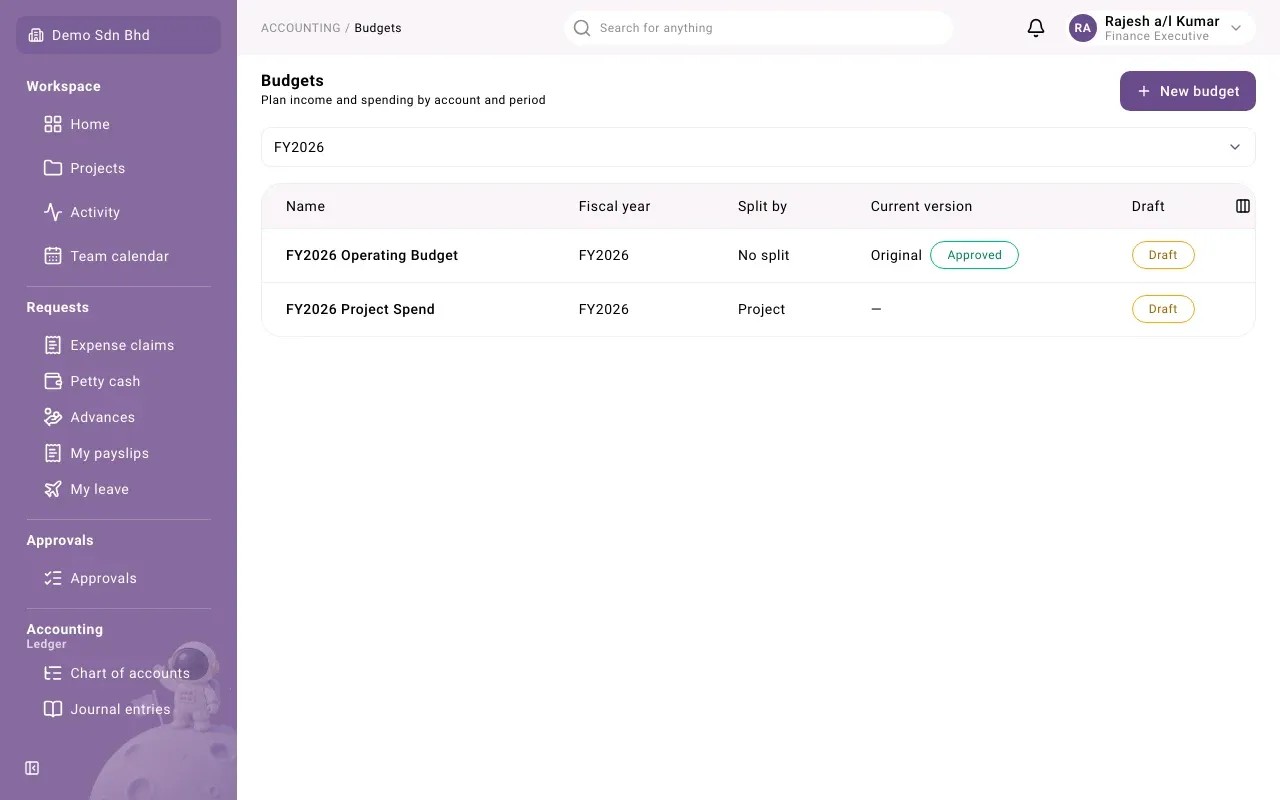
The list shows the budgets of one fiscal year; change the year with the selector above it.
| Column | What it shows |
|---|---|
| Name | The budget’s name |
| Fiscal year | The year it plans |
| Split by | The analytic axis it is split by, such as projects, or No split |
| Current version | The latest approved version, e.g. Original or Revision 1, marked Approved |
| Draft | Draft when a version is being prepared |
Create a budget
Section titled “Create a budget”- Select New budget.
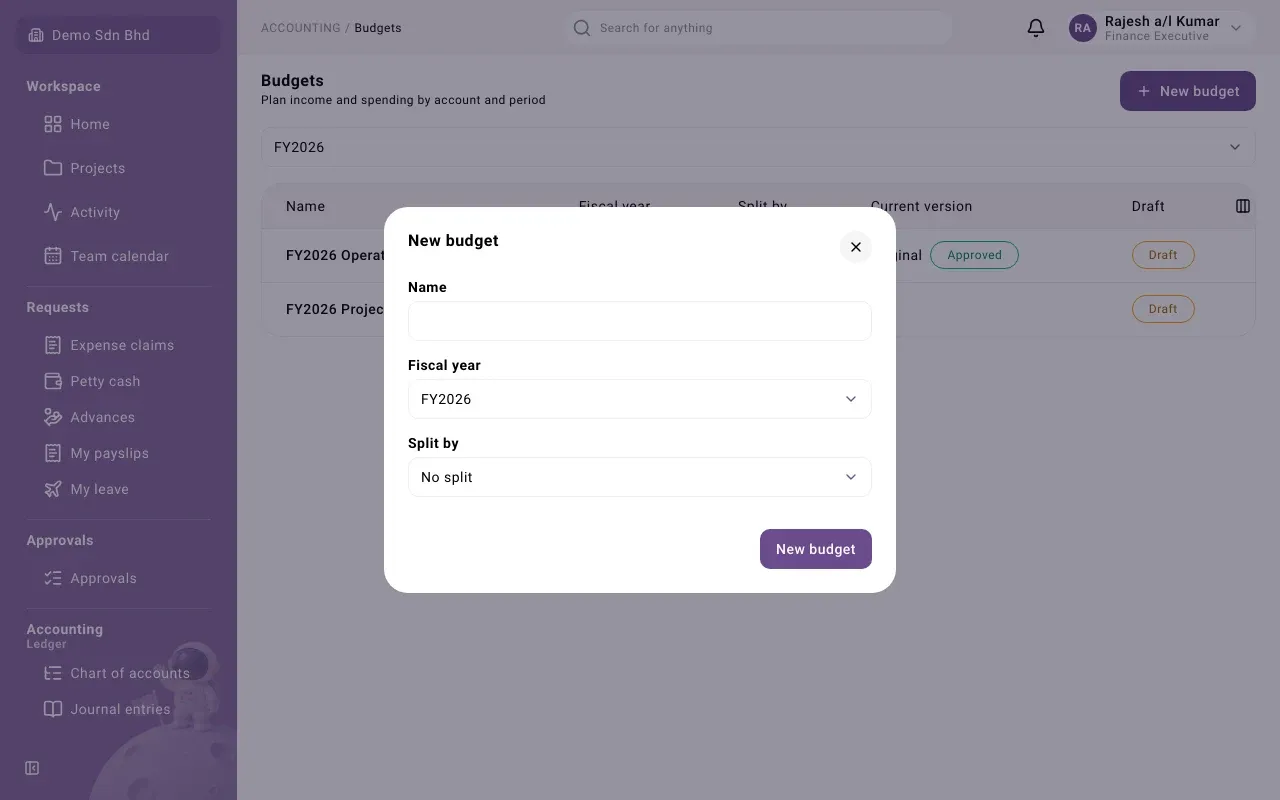
- Enter the Name, choose the Fiscal year and, if you plan by project or another axis, choose it under Split by. Otherwise leave No split.
- Select New budget at the bottom of the form. The budget opens with an empty draft.
Enter the amounts
Section titled “Enter the amounts”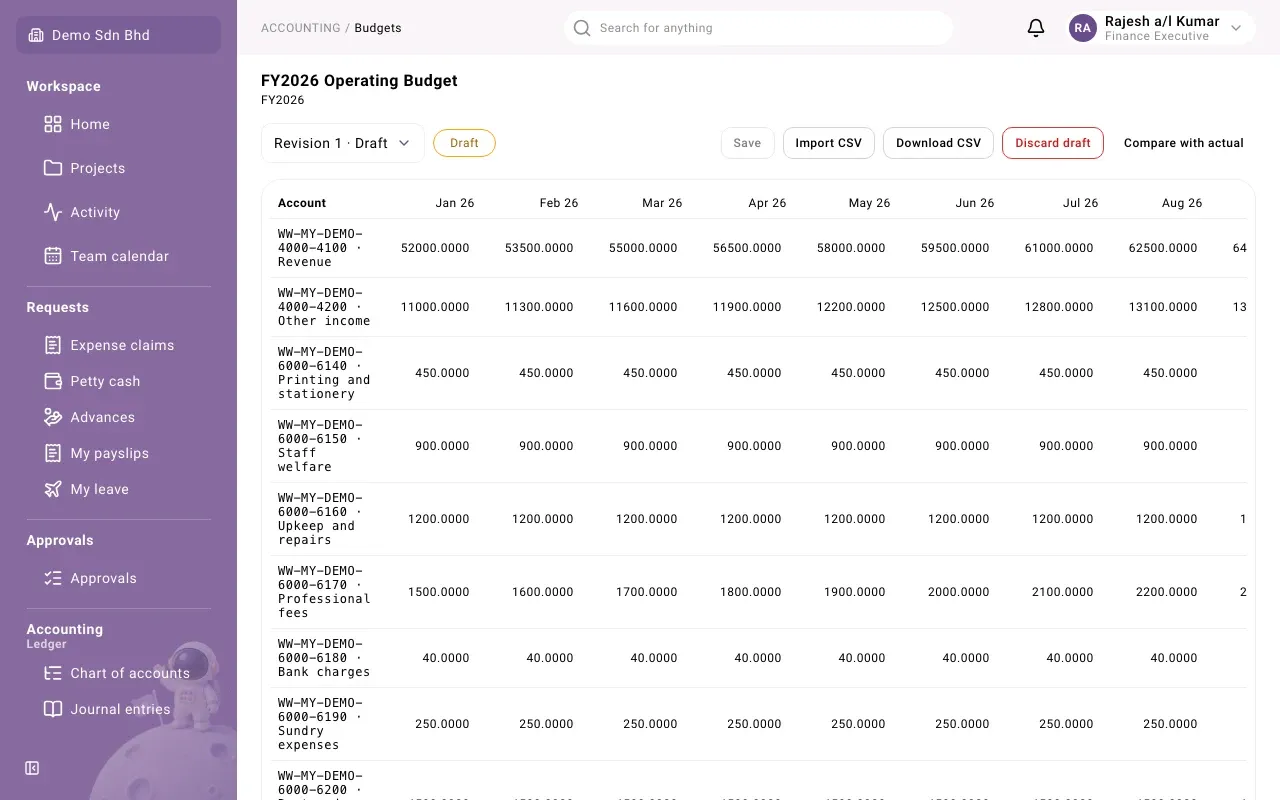
The budget is a grid: one row per account (and per analytic account, if it is split), one column per month of the fiscal year (for example Jan 26), and a Total. Amounts are shown to four decimal places.
- Choose an Account below the grid and select Add row. Only active income and expense posting accounts can be budgeted. If the row is already there you will see “This row is already in the budget”.
- Type an amount in each period’s cell, e.g. 1200.50. Amounts cannot be negative; a cell with a mistake is marked, and its tooltip says what is wrong.
- Select Save.
Work in a spreadsheet instead
Section titled “Work in a spreadsheet instead”- Download CSV saves the version you are looking at. The file has an
account_codecolumn, ananalytic_codecolumn and one column per period,P01toP12. - Import CSV loads a file in the same format into the draft. If any row is wrong, nothing is imported and you see “The file was not imported. Fix these rows and try again:” with the row, column and reason for each problem.
Approve a version
Section titled “Approve a version”When the draft is ready, someone with approval rights opens the budget and selects Approve, then Approve again to confirm. Save any changes first; Approve is disabled while there are unsaved changes.
In an organization with only one member, that member may approve their own version, but must give a reason, recorded as a sole-owner exception.
Revise an approved budget
Section titled “Revise an approved budget”Select New revision to start a new draft from the approved version. It is numbered Revision 1, Revision 2 and so on. Use the Version selector to look at any version and its status: Draft, Approved or Discarded.
To abandon a draft, select Discard draft and confirm. “The draft is kept for the record but can no longer be edited or approved.”
Compare with actual
Section titled “Compare with actual”Select Compare with actual to open the budget-versus-actual report for the version you are looking at, covering the budget’s whole year.
Problems
Section titled “Problems”| You see | What to do |
|---|---|
| “Someone else changed this budget. Reload to see their changes.” | Select Reload. Your unsaved edits are replaced by theirs, so note them first. |
| “No budgets for this year yet” | Check the year selector, or create one. |
| “Add a row, or import a CSV, to start” | The draft has no rows yet. |