Chart of accounts
The chart of accounts is the list of every account your books post to: assets, liabilities, equity, income and expenses. Everyone with access to the accounting books can view it. Adding, changing and retiring accounts is for people your administrator has allowed to manage the chart; everyone else sees it read-only, with the note “You can view the chart but not change it.”
Open Chart of accounts under Accounting in the sidebar.
Read the chart
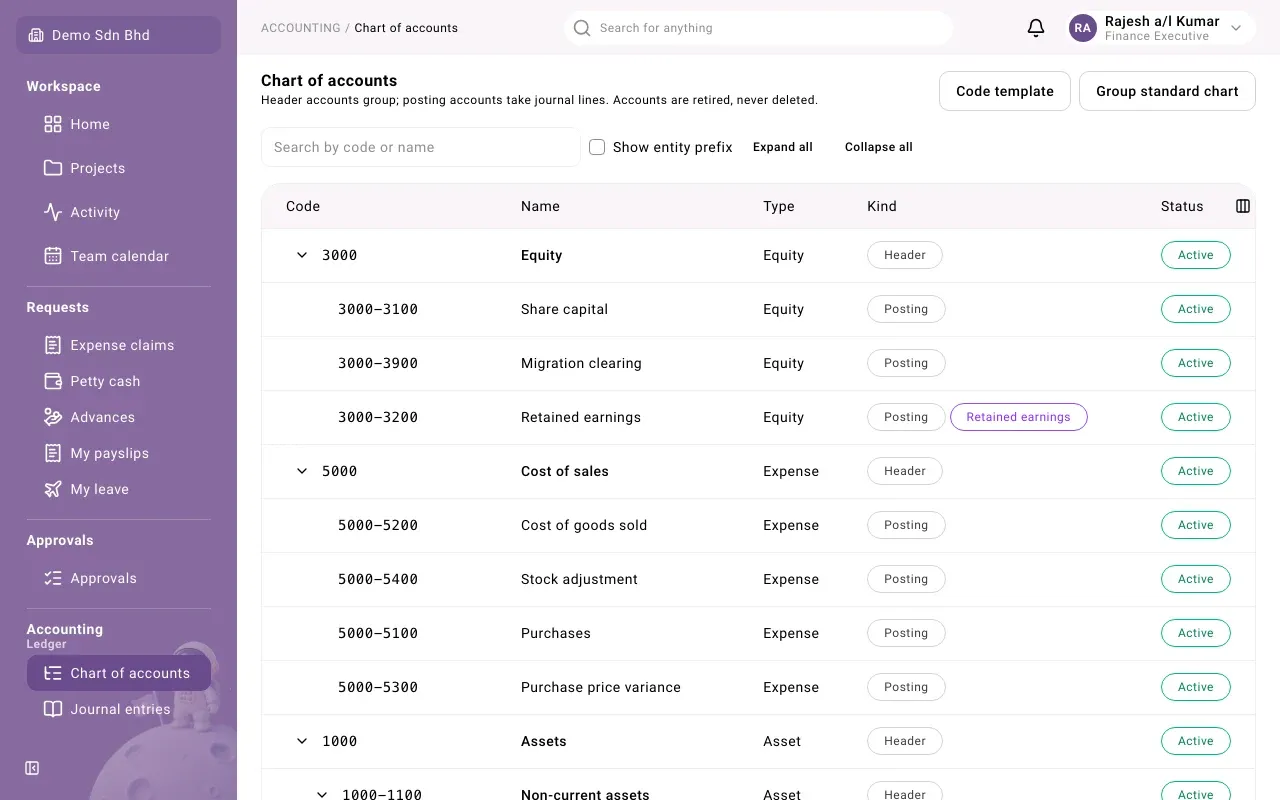
Section titled “Read the chart”The chart is a tree. Header accounts group the accounts beneath them and take no postings; Posting accounts are the ones journal lines go to.
| Column | What it shows |
|---|---|
| Code | The account code. Use the arrow beside a header account to open or close it. |
| Name | The account name. Header accounts are shown in bold. |
| Type | Asset, Liability, Equity, Income or Expense |
| Kind | Header or Posting, plus any tags described below |
| Status | Active, or Retired for an account no longer in use |
Tags in the Kind column:
- A control kind, such as Accounts payable, Bank or SST payable. Other parts of mcomtask find their accounts by this tag.
- Retained earnings on the account the year-end close moves the year’s result to.
- Owned by Petty cash with a lock on an account Petty cash created for one float. Only Petty cash posts to it; it cannot be renamed, re-mapped or retired here.
To find an account, type in Search by code or name. Expand all and Collapse all open or close every header at once. If your codes start with an entity prefix, it is hidden to keep the list short; tick Show entity prefix to see the full code.
Look at or change an account
Section titled “Look at or change an account”Select a row. The account opens in a side panel.
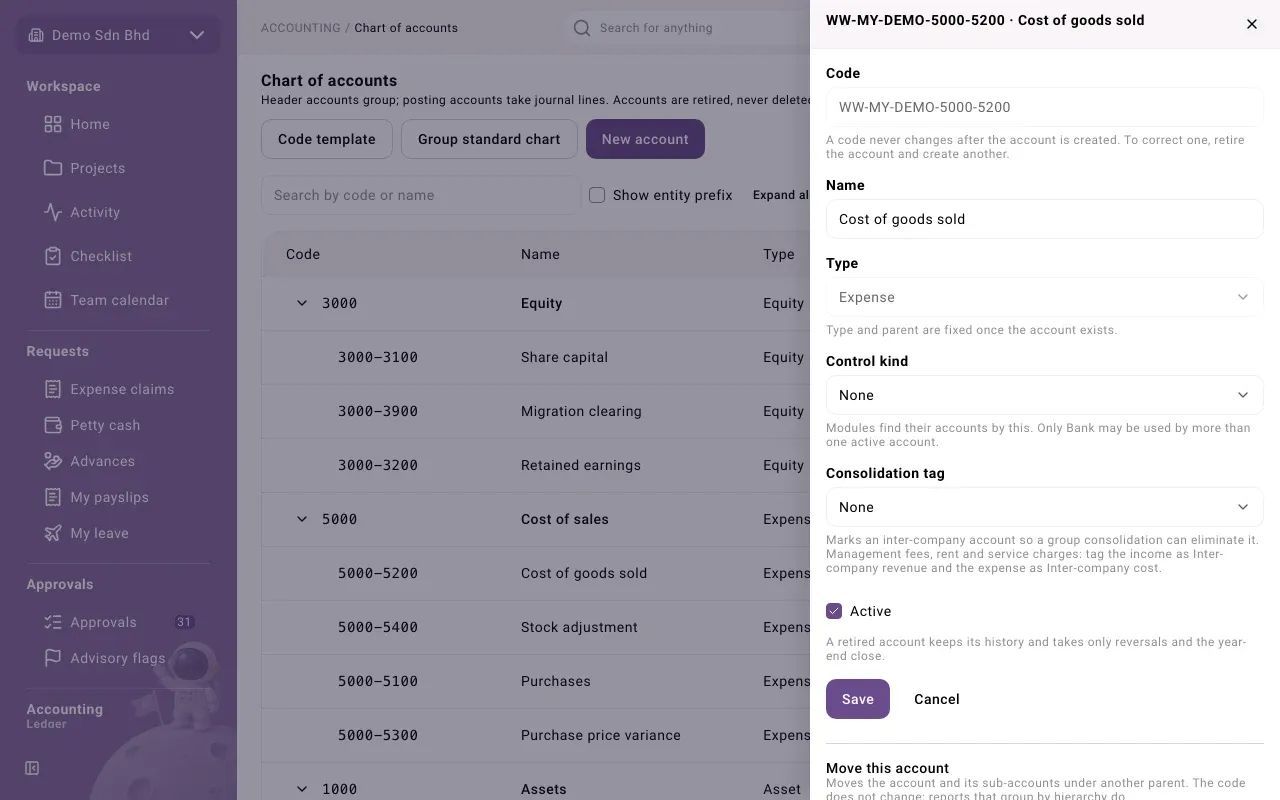
You can change:
| Field | What to enter |
|---|---|
| Name | The account name |
| Control kind | Leave None unless the account is one a module needs, such as a bank account. Only Bank may be used by more than one active account. |
| Consolidation tag | Only for an account that records dealings with another company in your group, so a group consolidation can eliminate it |
| Currency | Assets and liabilities only. Leave it empty to accept any currency. |
| Active | Untick to retire the account |
The Code, Type and Parent cannot be changed once the account exists. To correct a code, retire the account and create another.
Select Save. You will see “Account saved”.
Move an account
Section titled “Move an account”For an ordinary posting or header account, the panel also has Move this account. Choose the New parent, give a Reason (it is recorded in the audit trail) and select Move account. The code does not change; reports that group by the tree do.
Add an account
Section titled “Add an account”- Select New account.
- Fill in the form and select Save. You will see “Account created”.
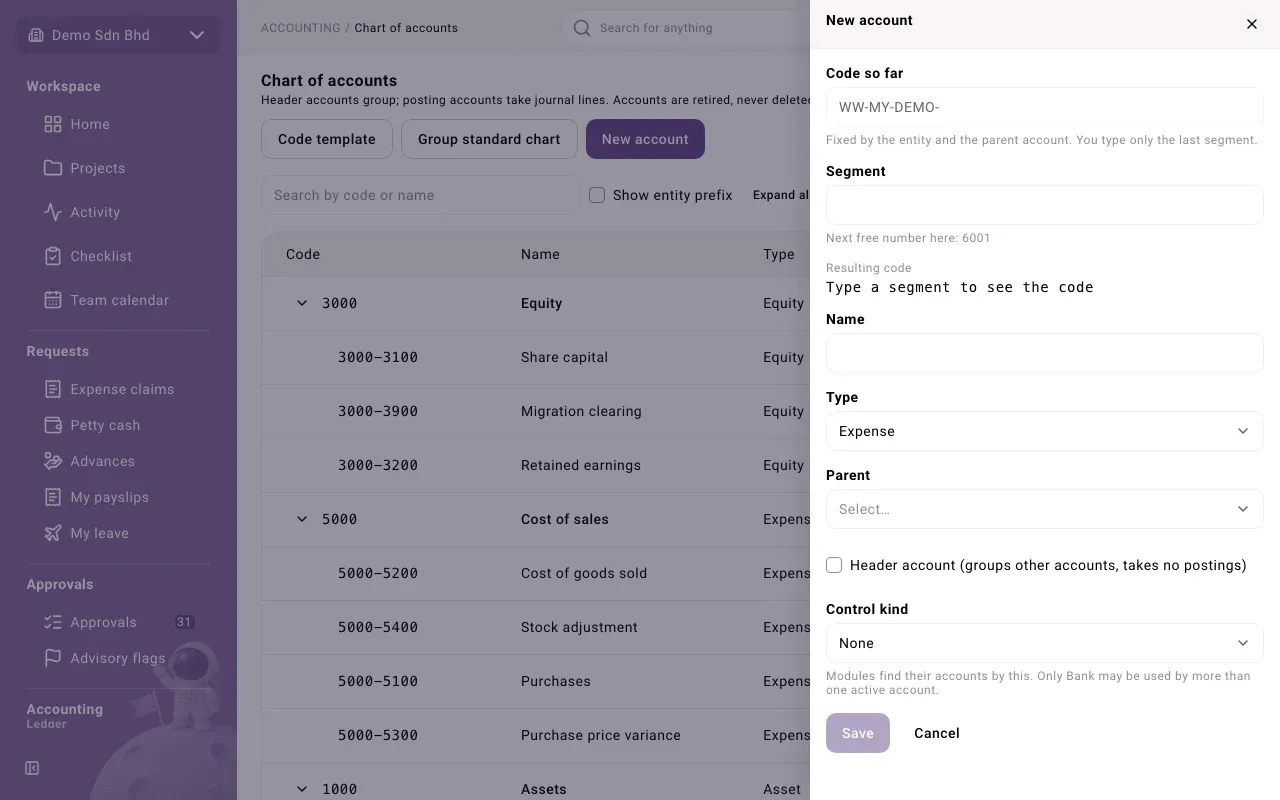
| Field | What to enter |
|---|---|
| Code or Segment | If your organization uses a code template, you type only the last Segment; the panel shows the Code so far and the Resulting code, and suggests the next free number. Otherwise type the whole Code. |
| Name | Write account names in English or Bahasa Melayu; they are records. |
| Type | Asset, Liability, Equity, Income or Expense |
| Parent | The header account it sits under, or None (a top-level account) |
| Header account (groups other accounts, takes no postings) | Tick for a grouping account |
| Control kind | As above |
| This is the retained earnings account | Equity accounts only |
| Currency | As above |
Code template and group standard chart
Section titled “Code template and group standard chart”Two buttons at the top of the chart lead to setup pages, normally used once by an administrator:
-
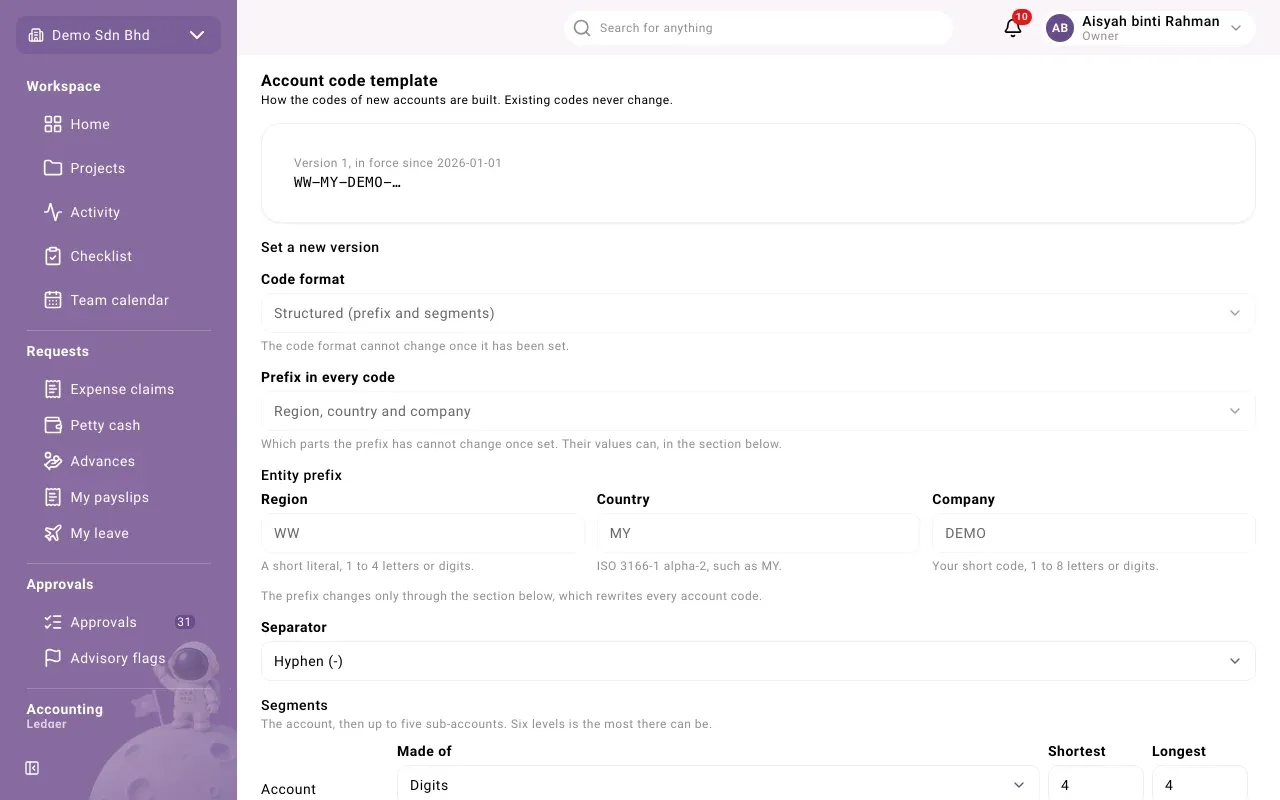
Code template shows how the codes of new accounts are built (Account code template): the entity prefix, the separator and the segments. A change takes effect as a new version; existing codes never change. The code format, once set, cannot change.
-
Group standard chart applies when a group owner offers your organization a standard set of top-level accounts. Adopt standard chart creates and locks them, and Differences from the standard lists where your chart differs. If no group has offered one, the page says so.