Bank reconciliation
Reconciling a bank account means showing that the bank’s balance and the ledger’s balance agree, once you allow for items that are in one but not yet the other. In mcomtask you do it in two steps: match each bank line with what the ledger recorded, then lock the reconciliation for the statement date.
You need access to Banking. Matching, posting from a bank line and locking each need their own permission, so you may not see every button below. Open Bank accounts and select the account.
Match lines
Section titled “Match lines”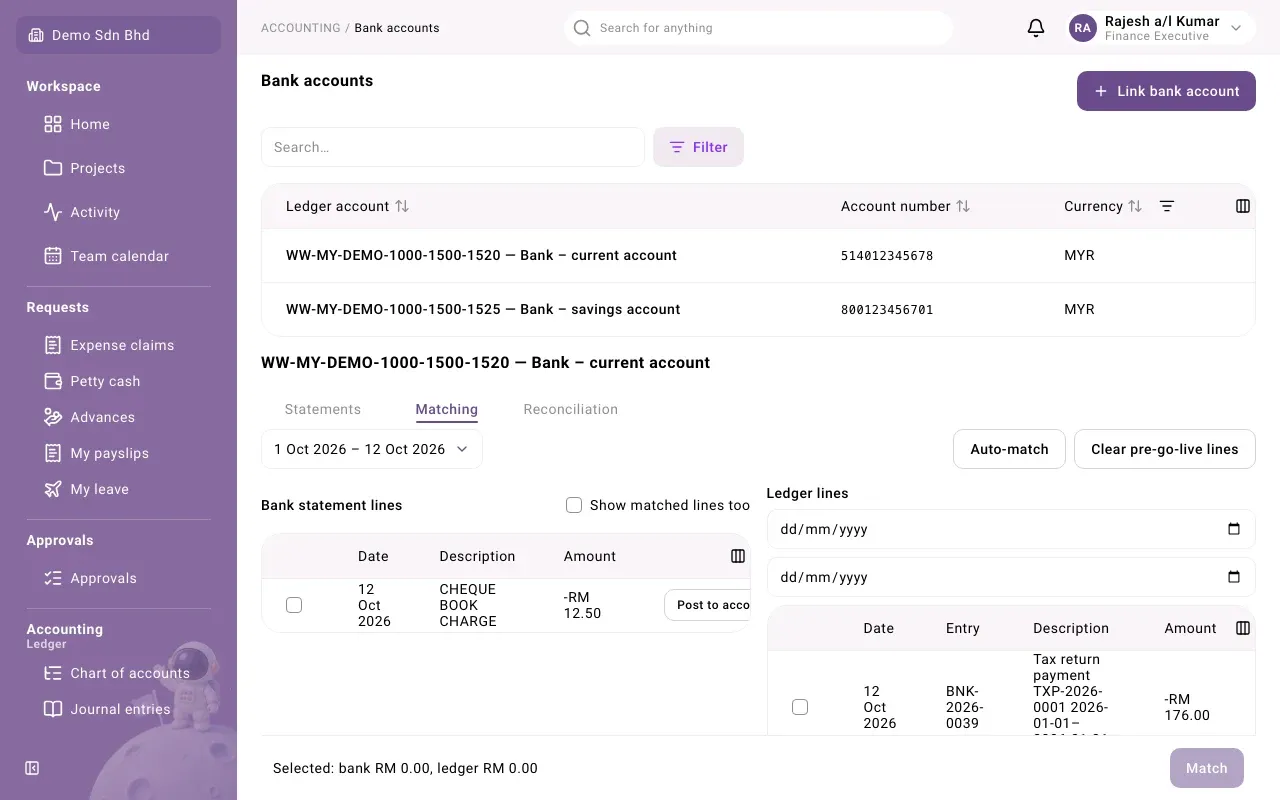
Open the Matching tab.
- At the top, choose the Statement to work on. The latest is shown first.
- On the left, Bank statement lines shows the statement’s lines still to be matched. Tick Show matched lines too to see all of them.
- On the right, Ledger lines shows the ledger’s lines on this bank account. Use the two date boxes to narrow them. If you see “Showing the first 2,000 lines — narrow the dates to see the rest.”, narrow the dates.
Auto-match
Section titled “Auto-match”Select Auto-match to let the system match what it safely can. It pairs one bank line with one ledger line of the same amount, dated within the account’s match window, when the ledger line’s reference appears in the bank line. If the account allows Match on amount and date alone, it also pairs lines with the same amount within the window, without a reference. A line with more than one possible partner is left for you, and a wrong automatic match can be undone (see below). You see “… lines matched automatically”.
Auto-match also runs every time a statement is imported.
Match by hand
Section titled “Match by hand”- Tick the lines that belong together: one or more bank lines, and one or more ledger lines.
- The bar at the bottom shows “Selected: bank …, ledger …”. The two totals must agree; if they do not, it says “The two totals must agree.”
- Select Match.
You can also match bank lines with each other, or ledger lines with each other, when they cancel out to zero, for example a bank error and its correction. Your selection is kept when you switch statement; the bar says how many selected lines are on other statements.
Post a bank line to the ledger
Section titled “Post a bank line to the ledger”Some bank lines, such as bank charges or interest, are not in the ledger yet. Instead of writing a journal yourself:
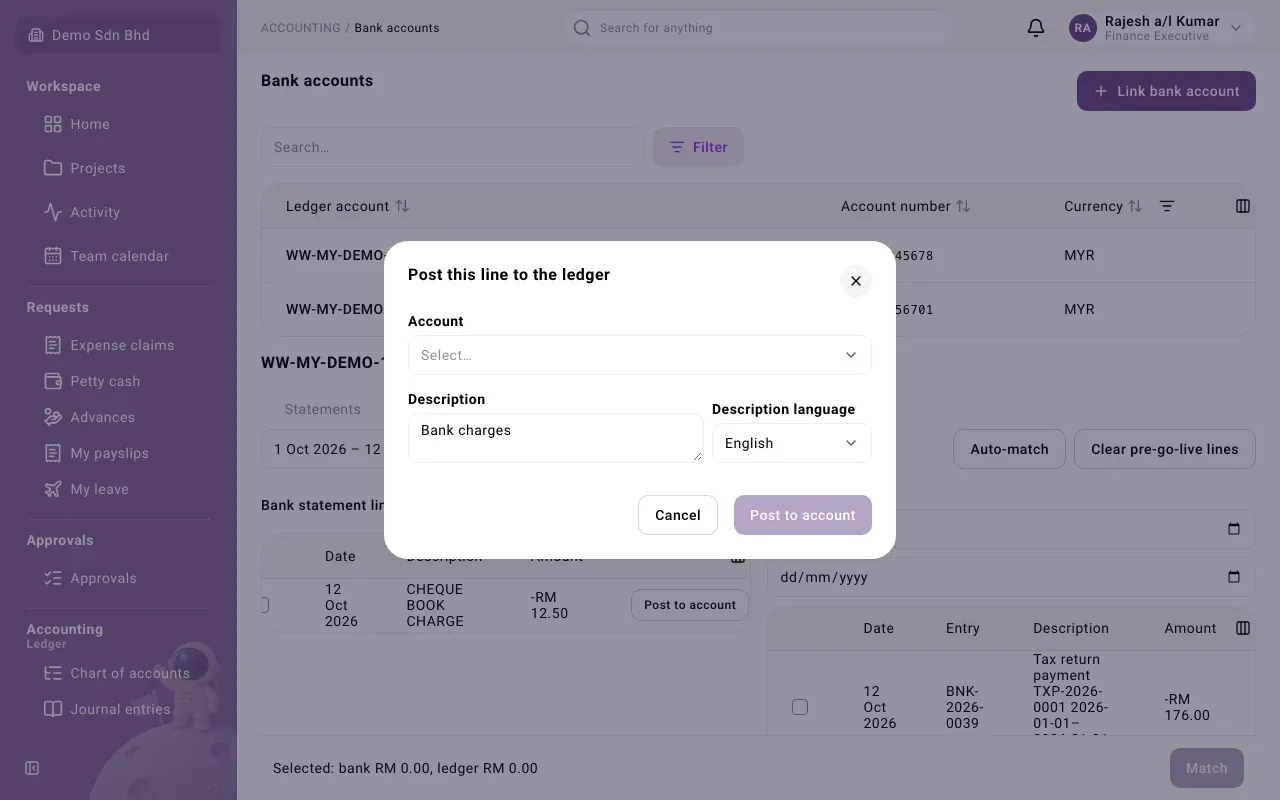
- On the bank line, select Post to account.
- Choose the Account for the other side, for example your bank charges expense account.
- Check the Description. It starts as “Bank charges” for money out or “Bank interest” for money in. Choose the Description language for the record.
- Select Post to account.
See or undo a match
Section titled “See or undo a match”A matched line shows how it was matched: Automatic, Manual, Posted from line or Opening clearance. Select Match history on it to see when it was matched and unmatched, and why. To undo the current match, select Unmatch, answer Why are these being unmatched?, and confirm. The history keeps a record of it.
Lines from before go-live
Section titled “Lines from before go-live”When you start, the ledger may hold bank lines dated before your first imported statement that are already included in that statement’s opening balance. Select Clear pre-go-live lines, tick them and confirm. Only “ledger lines dated before the first statement, already reflected in its opening balance” are offered.
The reconciliation statement
Section titled “The reconciliation statement”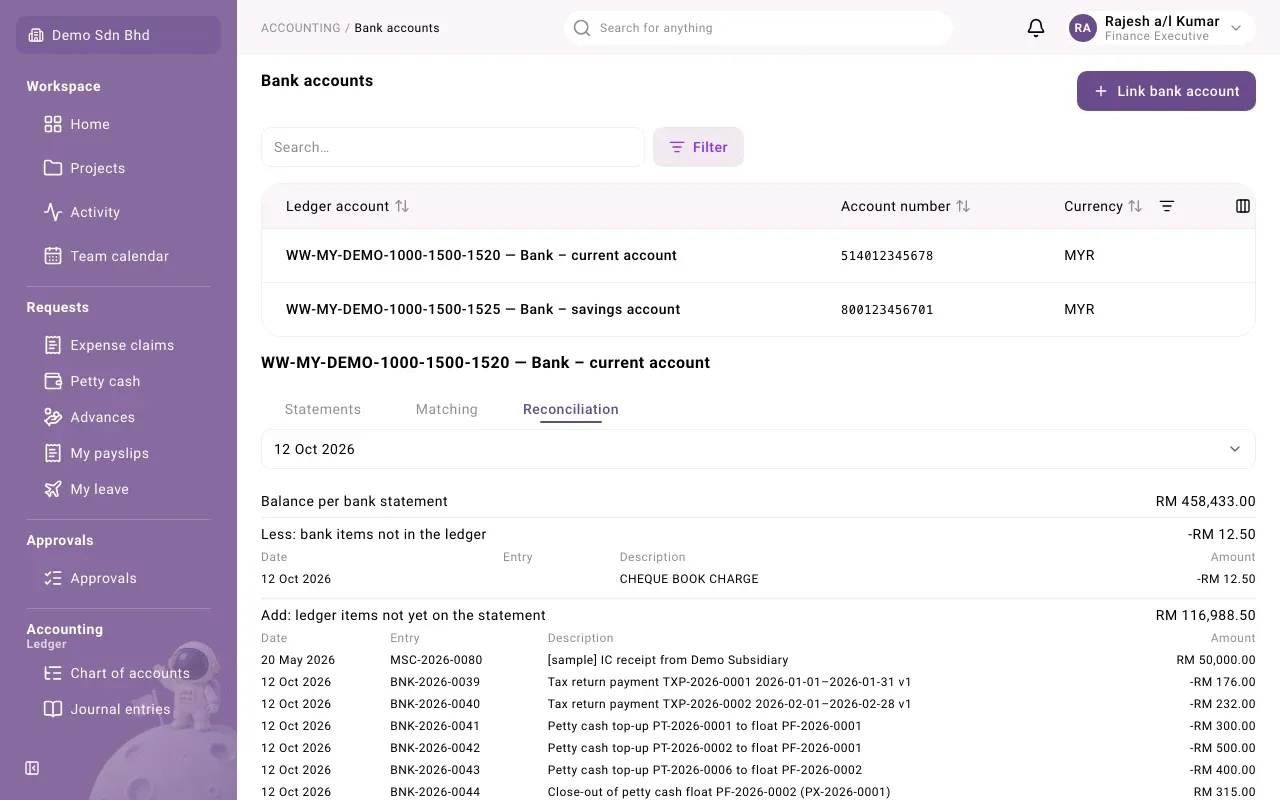
Open the Reconciliation tab and choose the Statement date. You see:
| Line | Meaning |
|---|---|
| Balance per bank statement | The statement’s closing balance |
| Less: bank items not in the ledger | Bank lines not matched yet, listed below it |
| Add: ledger items not yet on the statement | Ledger lines not matched yet, such as cheques not yet presented |
| Adjusted bank balance | The bank balance after those items |
| Balance per ledger | The ledger’s balance on that date |
| Difference | Should be zero |
If the tab says “Import a statement to reconcile.”, no statement has been imported yet.
Lock the reconciliation
Section titled “Lock the reconciliation”When the Difference is zero, select Lock reconciliation and confirm. “Once locked, matches up to this date cannot change until the reconciliation is unlocked, with a reason.” The tab then shows “Locked by … on …”.
- Someone who matched or cleared items in the reconciliation cannot lock it. The app says “You matched or cleared items in this reconciliation, so another member must lock it.”
- If you are the organization’s only member, you may lock it yourself but must give a reason, which is recorded.
- Dates must be locked in order: you cannot lock a date earlier than one already locked.
Once locked, Export gives you the reconciliation as CSV, Excel (XLSX) or PDF: the locked snapshot, as signed off.
Unlock
Section titled “Unlock”If a locked reconciliation must change (for example the bank corrected its statement), someone with permission selects Unlock reconciliation and answers Why is this reconciliation being unlocked?. “The locked record is kept. Matches up to this date can change again, and the date can be locked again.” Only the latest lock can be unlocked.