Selling: quotations to returns
Selling runs through four screens under Operations → Sales: Quotations, Sales orders, Deliveries and Sales returns. The invoice itself is issued in Receivables. See From request to invoice for the whole chain and Working with trade documents for the parts every list and panel shares.
Each screen needs its own access, which your administrator gives.
Quotations
Section titled “Quotations”A quotation is an offer to a customer, valid until a date.
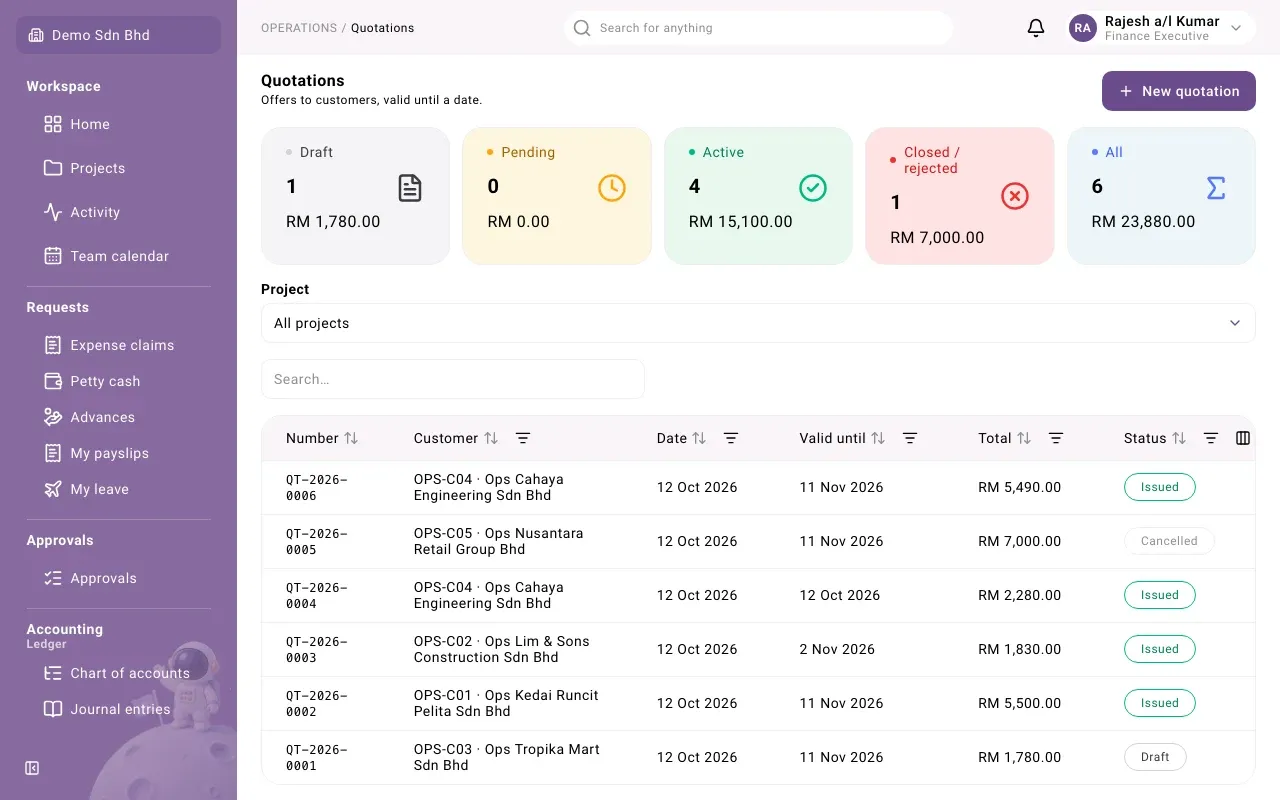
- Open Quotations and select New quotation.
- Choose the Customer. The Currency follows the customer; if it is not your base currency, enter the Exchange rate to your base currency.
- Enter Valid until and the lines: Item (or No item (text line)), Description, Quantity, Unit, Unit price and Tax code. Lines work as described in Buying.
- Select Submit, or Save draft.
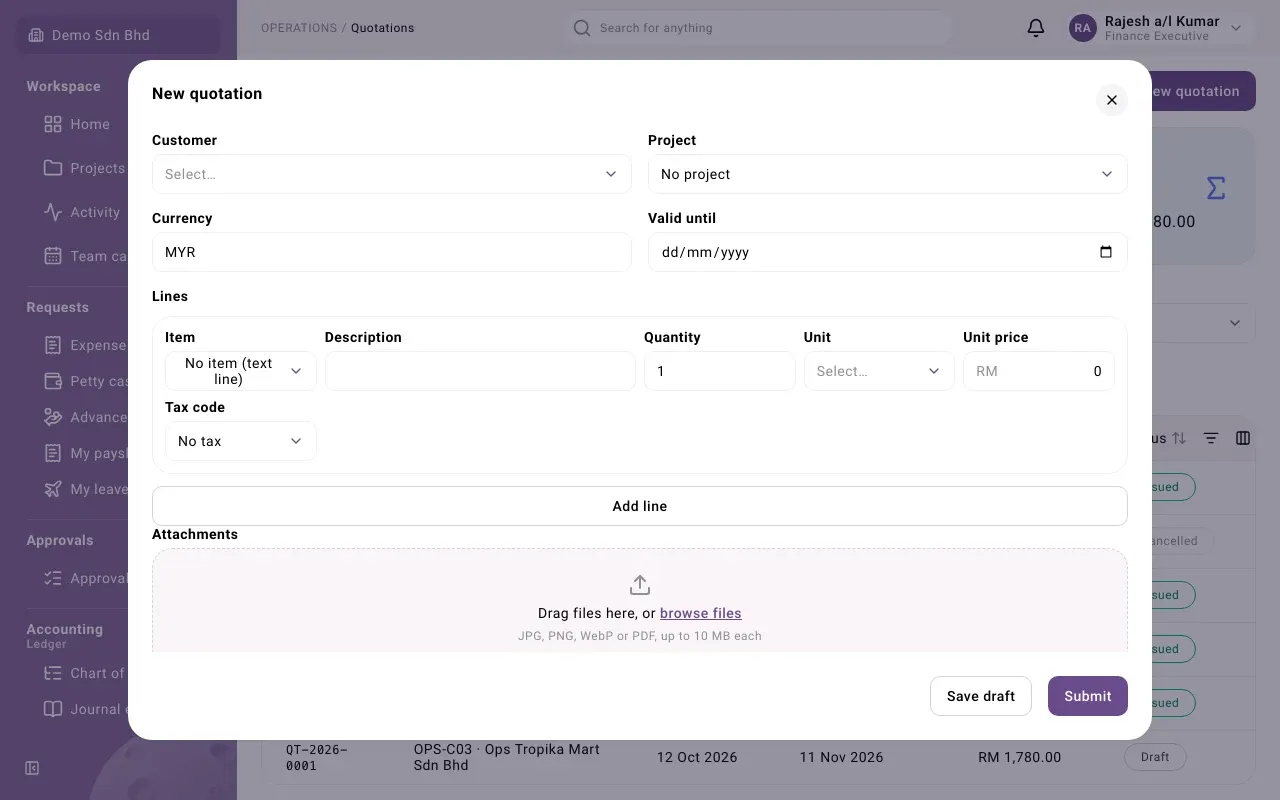
Submit issues the quotation straight away: there is no approval step. It shows Issued, and PDF in its panel downloads a copy for the customer.
Once the Valid until date has passed, the quotation says “This quotation’s validity has passed. Issue a new one.” and can no longer be turned into a sales order.
Sales orders
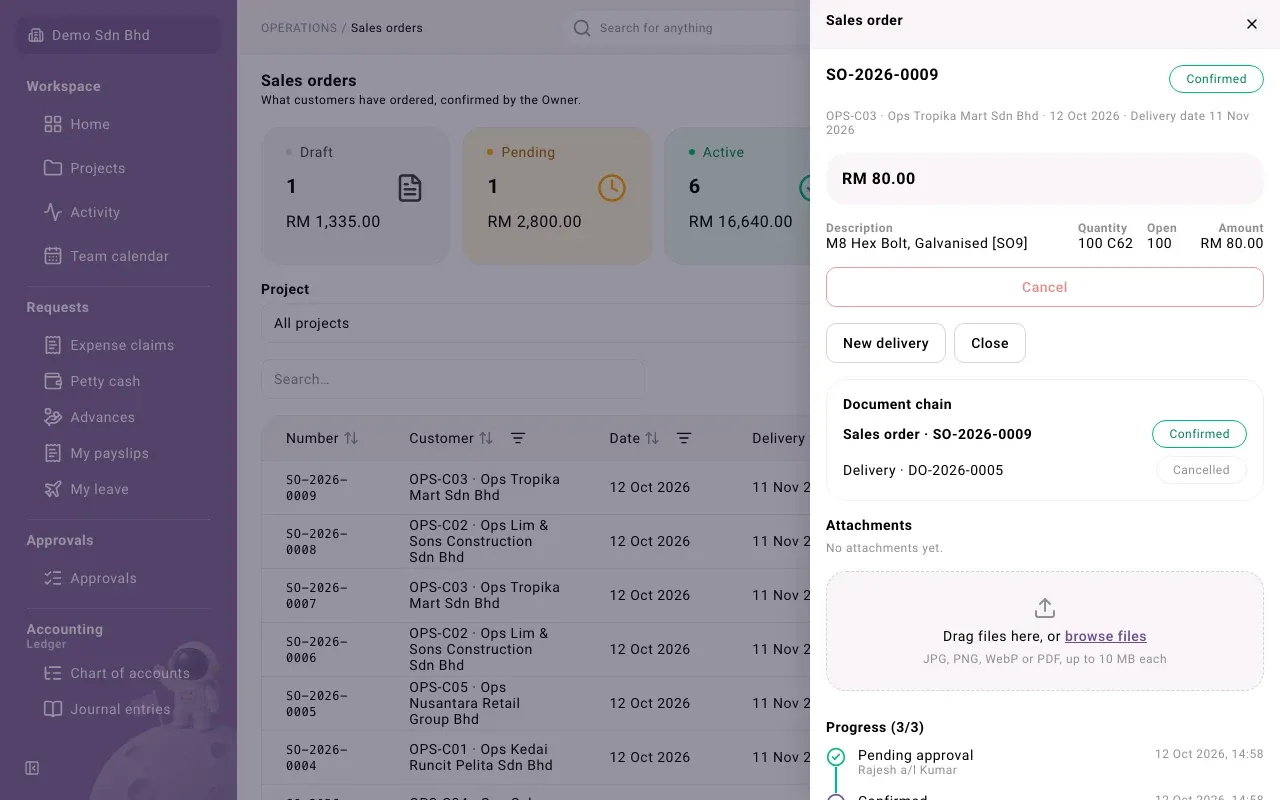
Section titled “Sales orders”A sales order is what the customer has ordered. The Owner confirms it.
- Open an issued quotation and select New sales order, or open Sales orders and select New sales order.
- If you started from the list, use Start from a Quotation to copy a quotation’s open lines, or leave it empty for a direct order.
- Check the Customer, the Delivery date and the lines.
- Select Submit. The order shows Pending approval until the Owner selects Approve; it then shows Confirmed.
Deliveries
Section titled “Deliveries”A delivery records goods sent to a customer against a sales order. Delivering posts straight away: the goods leave stock at the location you choose.
- Open the confirmed sales order and select New delivery. (From Deliveries, select New delivery and choose the Sales order.)
- Choose the Location the goods leave from.
- For each line, enter the Quantity going out, in the item’s base unit. The form shows how much is still open.
- For a tracked item, enter the Serial numbers, separated by commas, or the Batch number.
- Select Deliver, or Save draft.
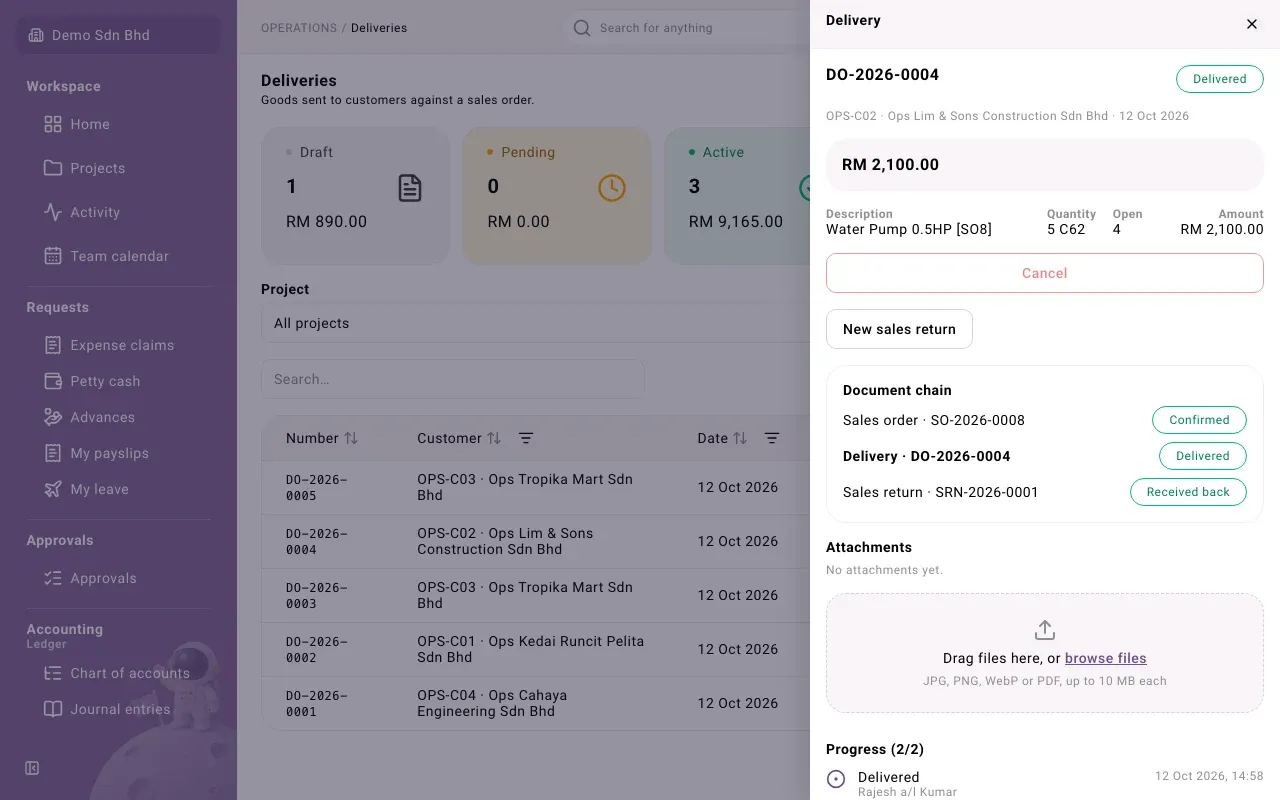
The delivery shows Delivered. Whatever is still open on the sales order can be delivered later, or the order can be closed.
Invoicing the delivery
Section titled “Invoicing the delivery”Finance issues the sales invoice in Receivables, linking each invoice line to its Delivery line. You cannot bill more than was delivered: “That bills more than was delivered and not yet invoiced.” Until the invoice is issued, the delivery appears under Delivered not invoiced in Operations reports.
Sales returns
Section titled “Sales returns”A sales return records goods a customer sent back from a delivery. It posts straight away and puts the goods back into stock.
- Open the delivery and select New sales return, or select New sales return on the Sales returns list and choose the Delivery.
- Choose the Location the goods come back into.
- Enter the Quantity for each line, with serial or batch numbers if the item is tracked.
- Select Receive back, or Save draft.
The return shows Received back. Finance then issues a customer credit note in Receivables on the Sales return line.
Drafts and cancelling
Section titled “Drafts and cancelling”A draft delivery or return can be posted later from its panel, or thrown away with Discard, which asks for a reason. A posted delivery or return can only be cancelled by the Owner, with a reason; the stock and the ledger entry are reversed, not erased. A delivery that has an invoice posted against it cannot be cancelled until the invoice is voided.