Setting up your organization
This page is for the Owner of a new organization: the person your service provider named when the organization was created. Only the Owner can complete company setup.
Accept the invitation you were sent, then sign in. Because your organization is new, you go straight to Set up your company. Nothing else in the app opens until setup is finished, and nobody else can be invited yet, so you do this on your own.
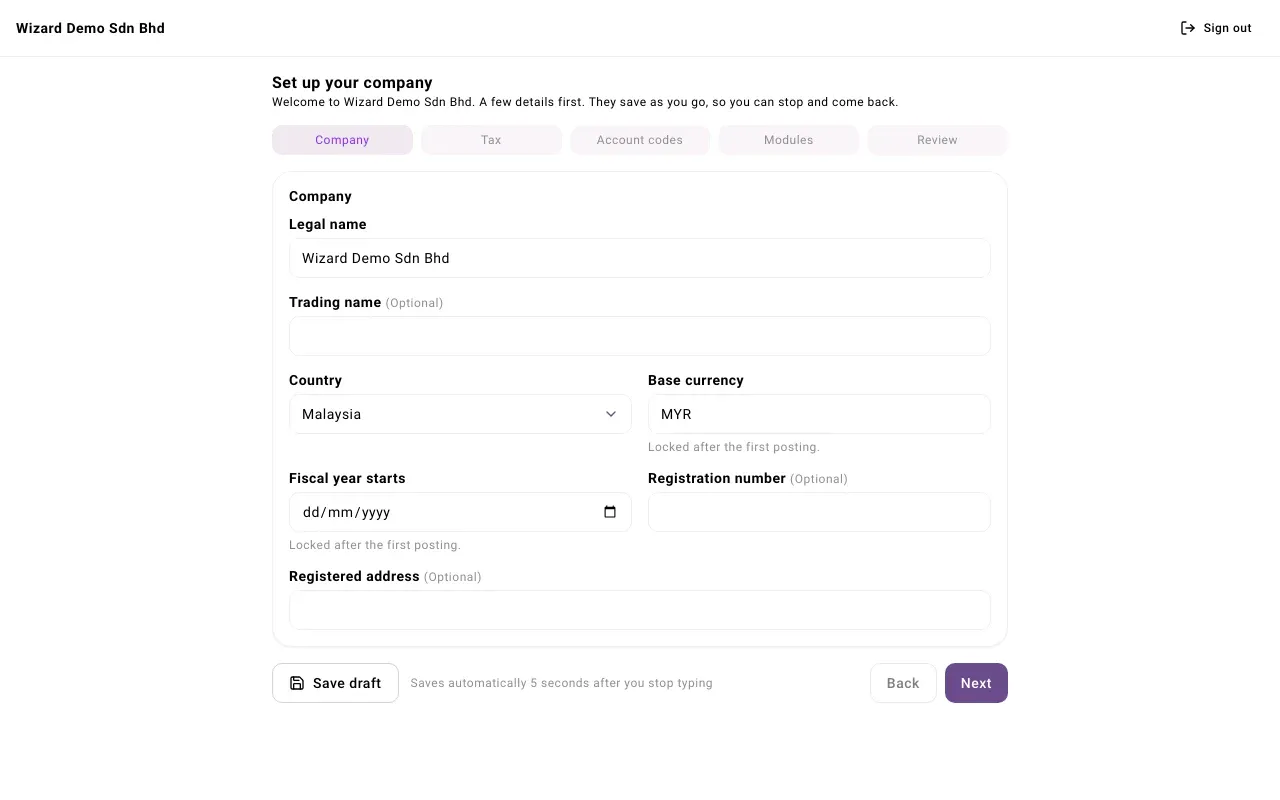
How the wizard works
Section titled “How the wizard works”The wizard has five steps, shown along the top: Company, Tax, Account codes, Modules and Review. A finished step shows a tick. Use Next and Back to move between them. Next checks the step first and marks anything missing.
Your answers save as you go, so you can stop and come back later, even on another device:
- They save automatically 5 seconds after you stop typing, when you change step, and when you switch to another browser tab. If you try to close the page with changes not yet saved, your browser asks you to confirm.
- Select Save draft to save at once. You see “Draft saved”.
- The note beside Save draft tells you where you are: “Saves automatically 5 seconds after you stop typing”, “Unsaved changes”, “Saving…”, “Saved at” a time, “Couldn’t save. Retrying” or “Changed in another tab”.
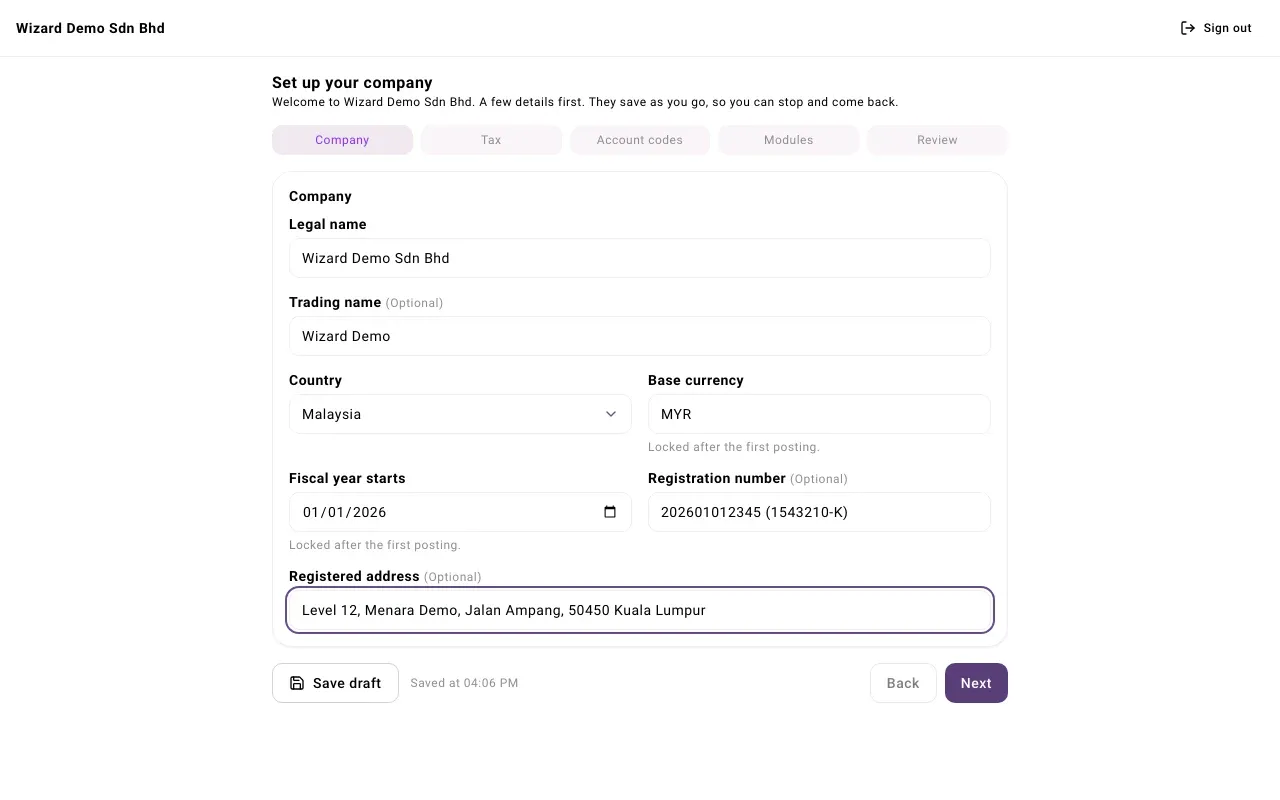
If you have the wizard open in two tabs and the other tab saved first, you see “This draft changed in another tab.” Choose Load the latest to take what the other tab saved, or Keep mine to save what is on your screen over it.
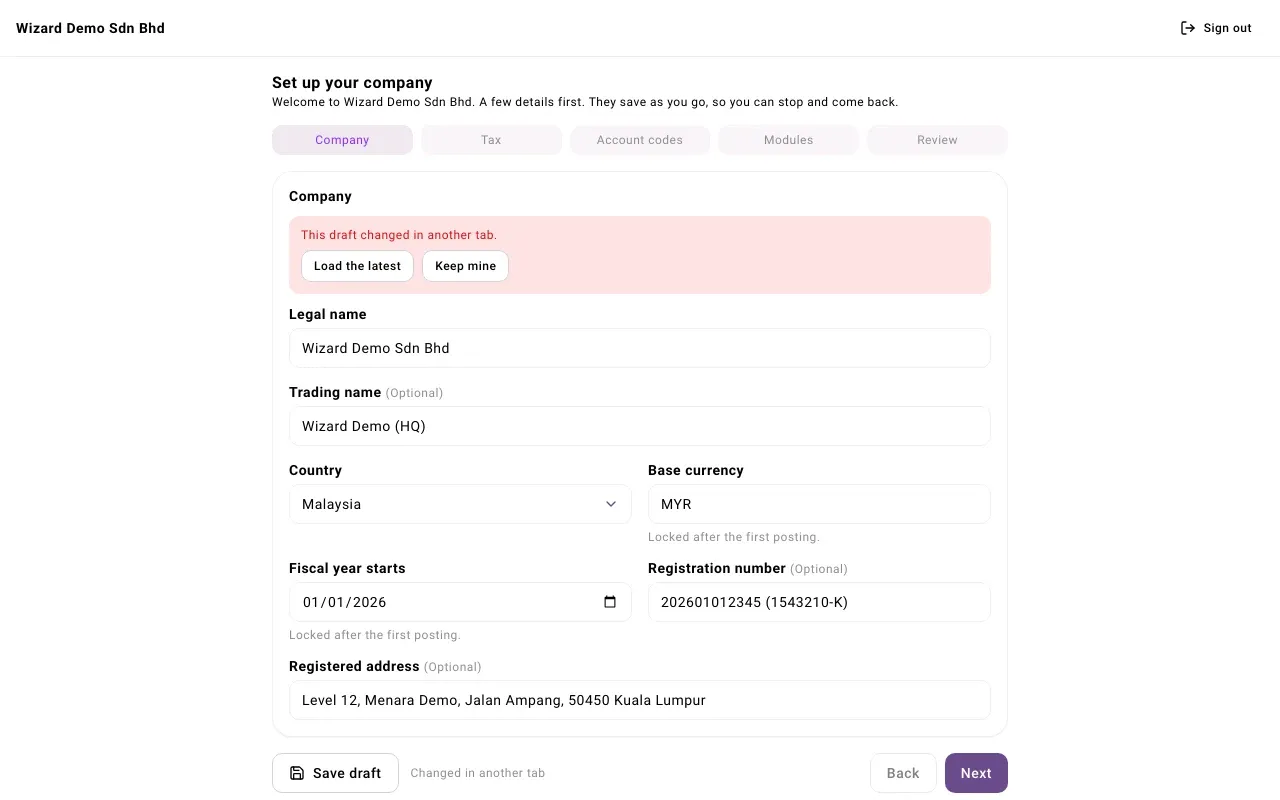
To leave, select Sign out at the top right.
Step 1: Company
Section titled “Step 1: Company”| Field | What to enter |
|---|---|
| Legal name | Your company’s registered name. It starts as the organization’s name; correct it if needed. Required. |
| Trading name | The name you trade under, if different. Optional. |
| Country | Where the company is registered. Required. |
| Base currency | A three-letter code, such as MYR. It is filled in from the country. Required. |
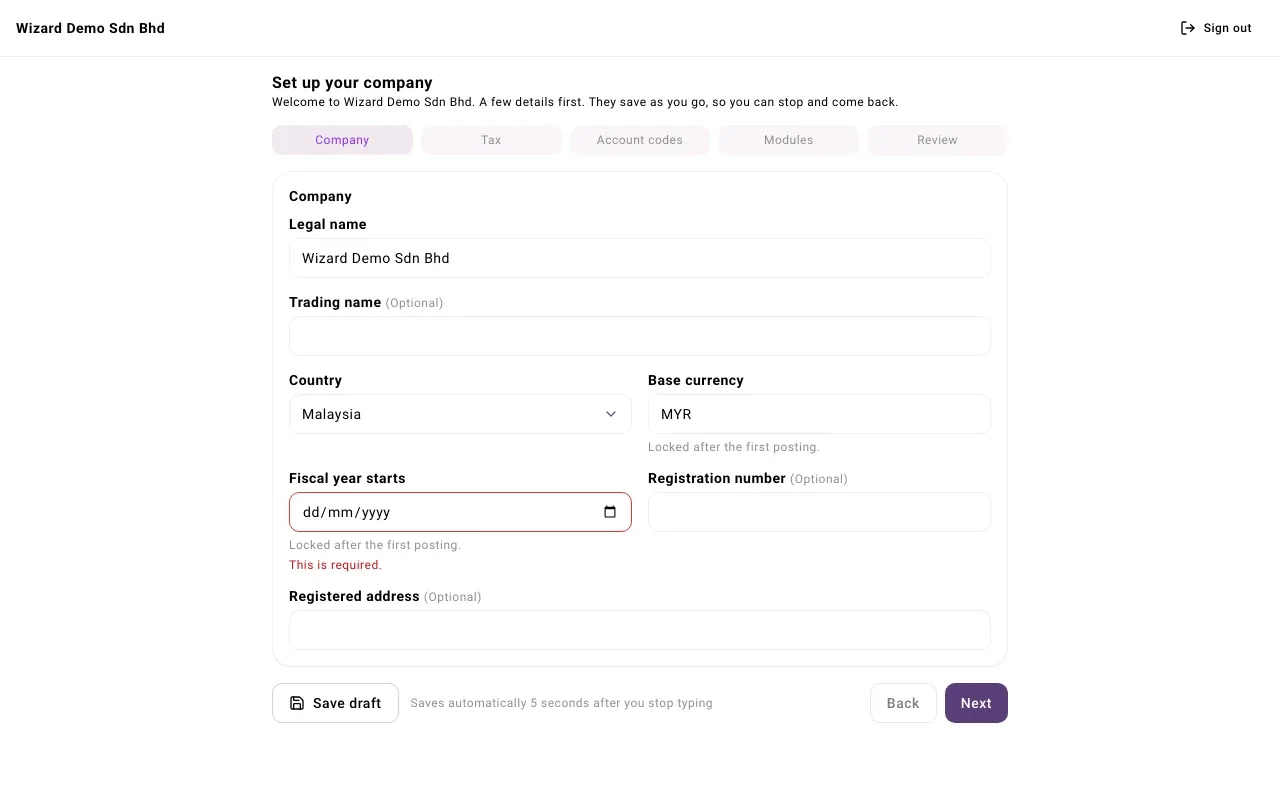
| Fiscal year starts | The first day of your financial year. Required. |
| Registration number | Your company registration number. Optional. |
| Registered address | Optional. |
Step 2: Tax
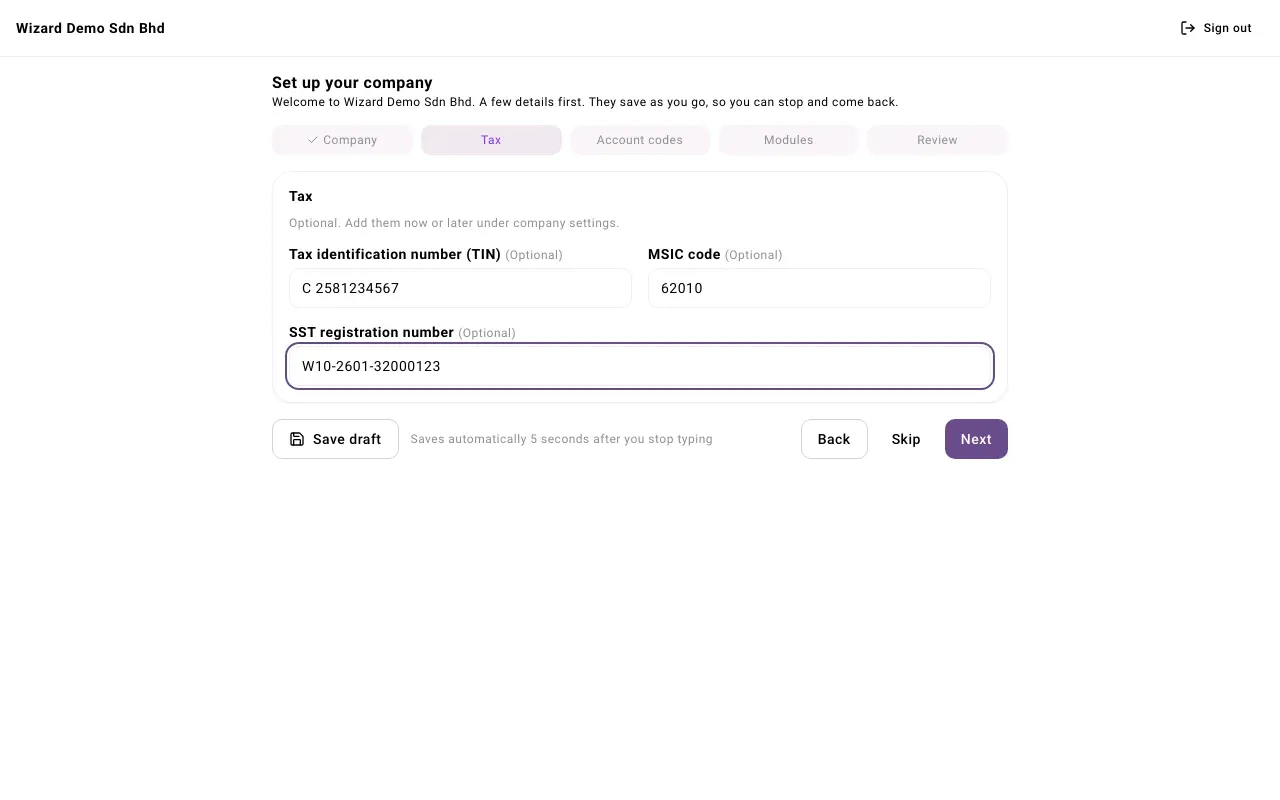
Section titled “Step 2: Tax”This step is optional: “Add them now or later under company settings.” Enter any of Tax identification number (TIN), MSIC code and SST registration number, then select Next, or select Skip to move on to Account codes. Your tax adviser can tell you which ones apply to your company.
Step 3: Account codes
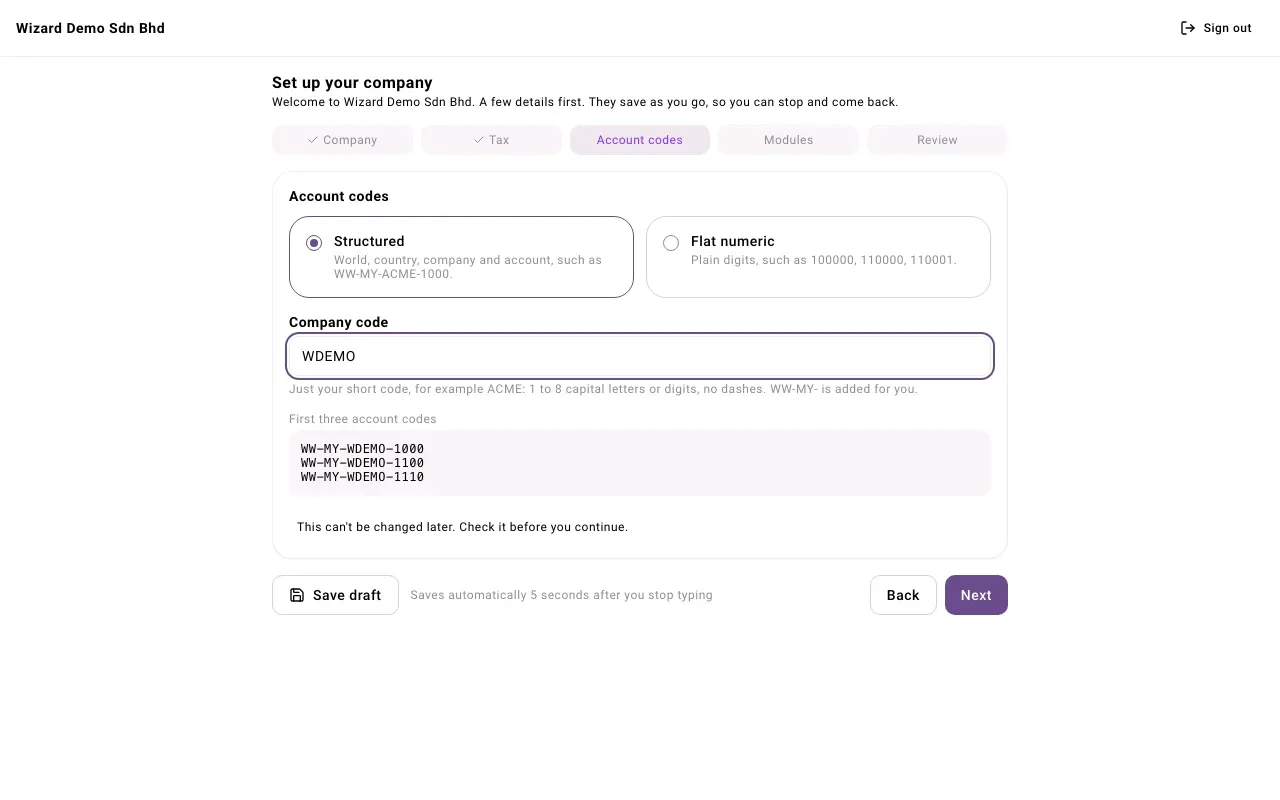
Section titled “Step 3: Account codes”Choose how your account codes look. Structured is selected to start with.
| Choice | What it gives you |
|---|---|
| Structured | Codes that carry world, country, company and account, such as WW-MY-ACME-1000. Enter your Company code: 1 to 8 capital letters or digits, no dashes, for example ACME. The world and country part (WW-MY- for Malaysia) is added for you. |
| Flat numeric | Plain digits, such as 100000, 110000, 110001. Enter the Digits in each code (at least 2; it starts at 6). |
First three account codes shows a preview of what you chose.
Step 4: Modules
Section titled “Step 4: Modules”Tick the parts of the system your company uses. Everything starts ticked, each with a one-line description. Some modules need another one: ticking a module also ticks what it needs, and unticking one also unticks what depends on it. You can change this later on the Modules page, and the data is kept when a module is switched off.
Step 5: Review
Section titled “Step 5: Review”Review lists your Legal name, Country, Base currency, Fiscal year starts, Account codes, Modules and Tax. Tax shows “Added” when you entered a TIN or an SST registration number, otherwise “Skipped. Add later.” Go Back to change anything.
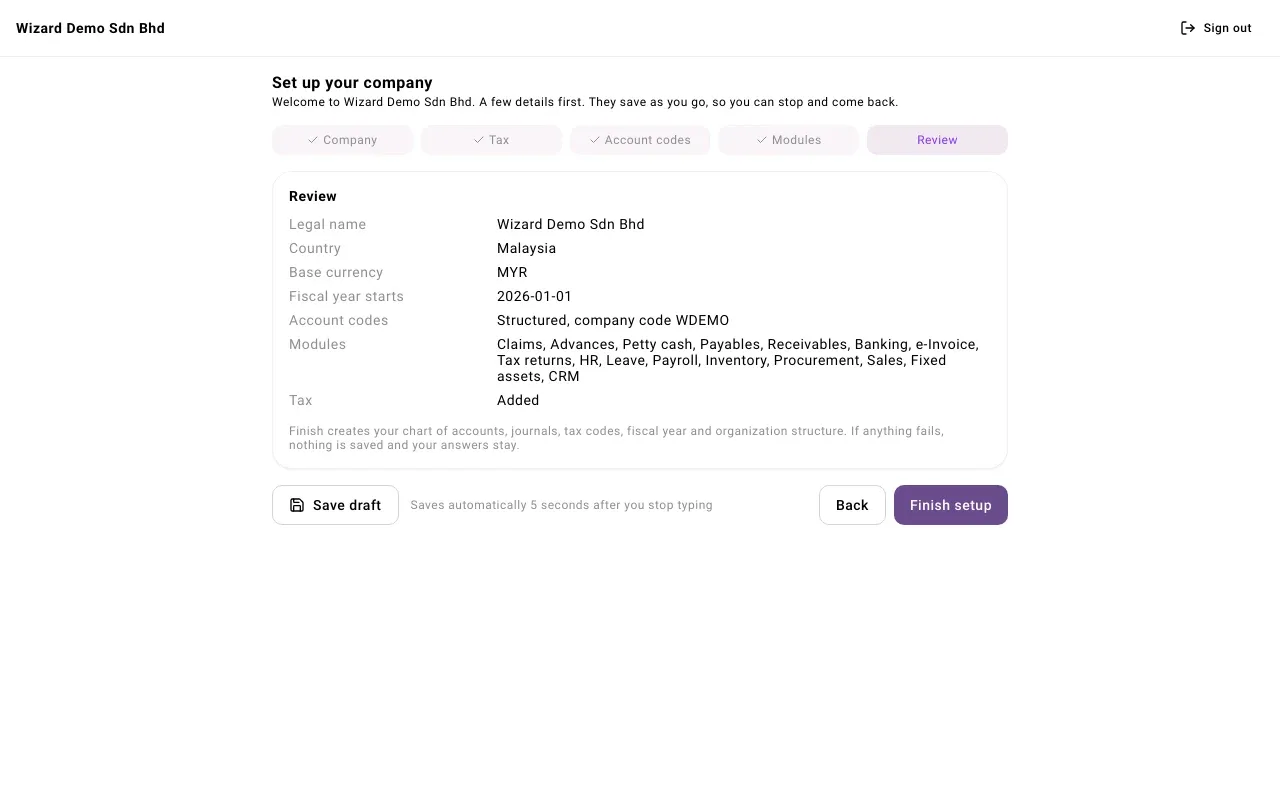
When it is right, select Finish setup. This creates your chart of accounts, journals, tax codes, fiscal year and organization structure, and places you at the top of the organization structure. If anything fails, nothing is saved and your answers stay.
What happens next
Section titled “What happens next”You see “Your company is ready” and land on Finish setting up, a checklist of the next steps. The rest of the app is now open, and you can invite your team. See The setup checklist.
Problems
Section titled “Problems”| Message | What to do |
|---|---|
| This is required. | Fill in the field. |
| Enter a three-letter currency code. | Use a code such as MYR. |
| Use 1 to 8 capital letters or digits. | Shorten the company code and remove dashes or spaces. |
| Enter at least 2 digits. | Raise Digits in each code. |
| Some details need correcting. | Finish setup found a problem. The wizard opens the step to fix and shows the problem under the field; correct it and select Finish setup again. |
| This setup draft changed in another tab. Load the latest and try again. | An answer was saved in another tab after you opened this one. Reload the page, check the answers on Review, and select Finish setup again. |