Payables reports
This page is for people with access to Payables. Exporting needs export access as well; if you do not see Export, ask your administrator.
Use these to answer “what do we owe, to whom, and since when?”.
Supplier statement of account
Section titled “Supplier statement of account”Each supplier’s side panel ends with a Statement of account: everything recorded with that supplier over a period, as a ledger.
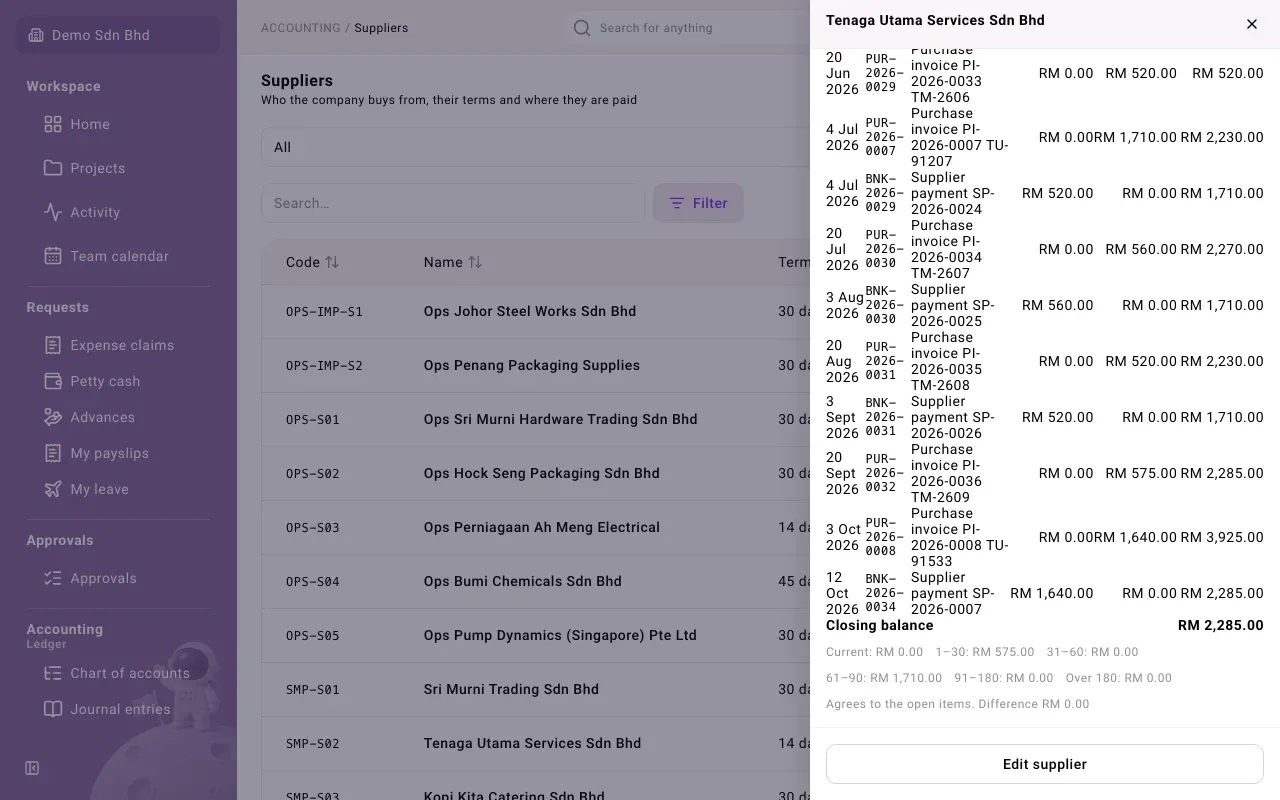
- Open Payables → Suppliers and select the supplier.
- Scroll to Statement of account.
- Set From and To (it starts at the first of this month to today) and the Currency.
The table shows the Opening balance, then each entry’s Date, Entry, Description, Debit, Credit and running Balance owed, then the Closing balance. A positive balance is owed to the supplier. Voids and reversals appear as lines of their own.
Under the table:
- the closing balance by age: Current, 1–30, 31–60, 61–90, 91–180 and Over 180 days past due
- a check line. “Agrees to the open items. Difference RM 0.00” means the ledger and the unpaid documents agree. “Does not agree to the open items” shows in red with the difference; tell your accountant.
Export saves the statement as CSV, Excel (XLSX) or PDF.
If the period has no entries you see “No transactions in this period.”
AP aging
Section titled “AP aging”Reports → AP aging shows what you owe each supplier on a date, by how overdue it is.
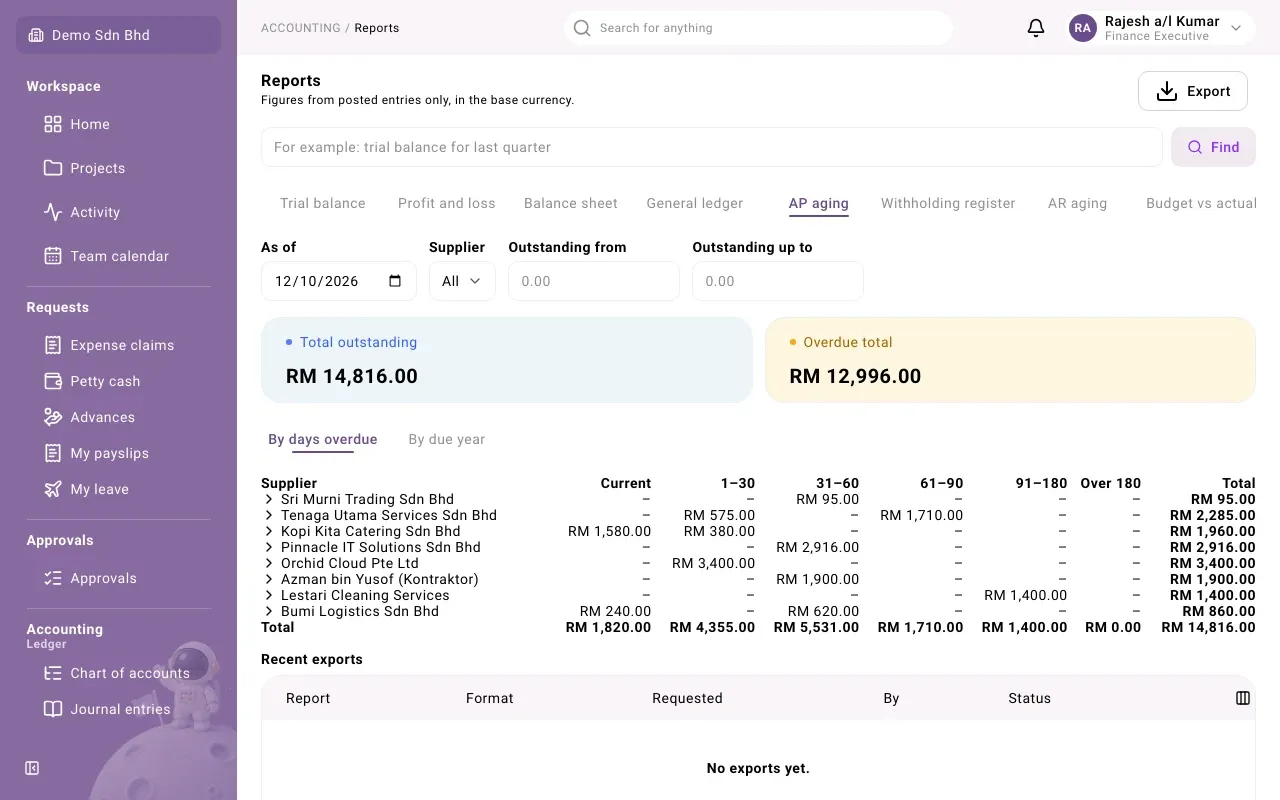
- Set As of.
- Optionally pick a Supplier, or limit to amounts between Outstanding from and Outstanding up to.
Two cards lead: Total outstanding and Overdue total. Two tabs set the columns:
- By days overdue: Current, 1–30, 31–60, 61–90, 91–180, Over 180 and Total. Select a supplier’s name to list its documents, each with its due date and “… days overdue” or “Not yet due”.
- By due year: one column for each year in which amounts fall due.
Select a column heading to sort suppliers by it. Amounts are in your base currency. Export saves the report as CSV, Excel (XLSX) or PDF. “Nothing is owed to suppliers as of this date.” means the aging is empty.
A supplier disappears from AP aging once its posted documents are fully paid or offset.
Finding records in the lists
Section titled “Finding records in the lists”The Suppliers, Purchase invoices, Supplier payments, Payment batches and Withholding tax lists work the same way:
- Search… looks across the list.
- Select a column heading to sort by it; columns that can be filtered offer a filter there. The Filter button opens Filter and sort, which also covers hidden columns.
- Active filters show as chips above the table. Remove one with its cross, or Clear all.
- Customize columns shows, hides and reorders columns; Reset to default undoes it.
- Load more fetches the next page.
Your search, sort and filters are kept in the page address, so you can bookmark or share a filtered list with a colleague who has the same access.
Exporting lists
Section titled “Exporting lists”On Suppliers and Purchase invoices, Export downloads the records you are looking at, with the same search and filters:
- Select Export. The dialog lists the Columns.
- Tick the columns you want, reorder them with the arrows, and change a Heading if needed.
- Choose the Format: CSV or XLSX.
- Select Export.
To reuse a choice, select Save as preset and give it a Preset name. Tick Share with the organization to let colleagues use it. Pick it next time under Preset.
Suppliers also has Download CSV, a quick file of the visible suppliers in a fixed layout, with any extra supplier fields as their own columns. It uses the same headings as the supplier import.