Suppliers
This page is for people your administrator has given access to Payables, usually finance staff. Verifying a supplier’s bank details needs a separate access, normally held by a senior person such as the owner.
A supplier is anyone the company buys from and pays. You need one before you can enter their invoices or pay them. Open Payables → Suppliers.
The Suppliers list
Section titled “The Suppliers list”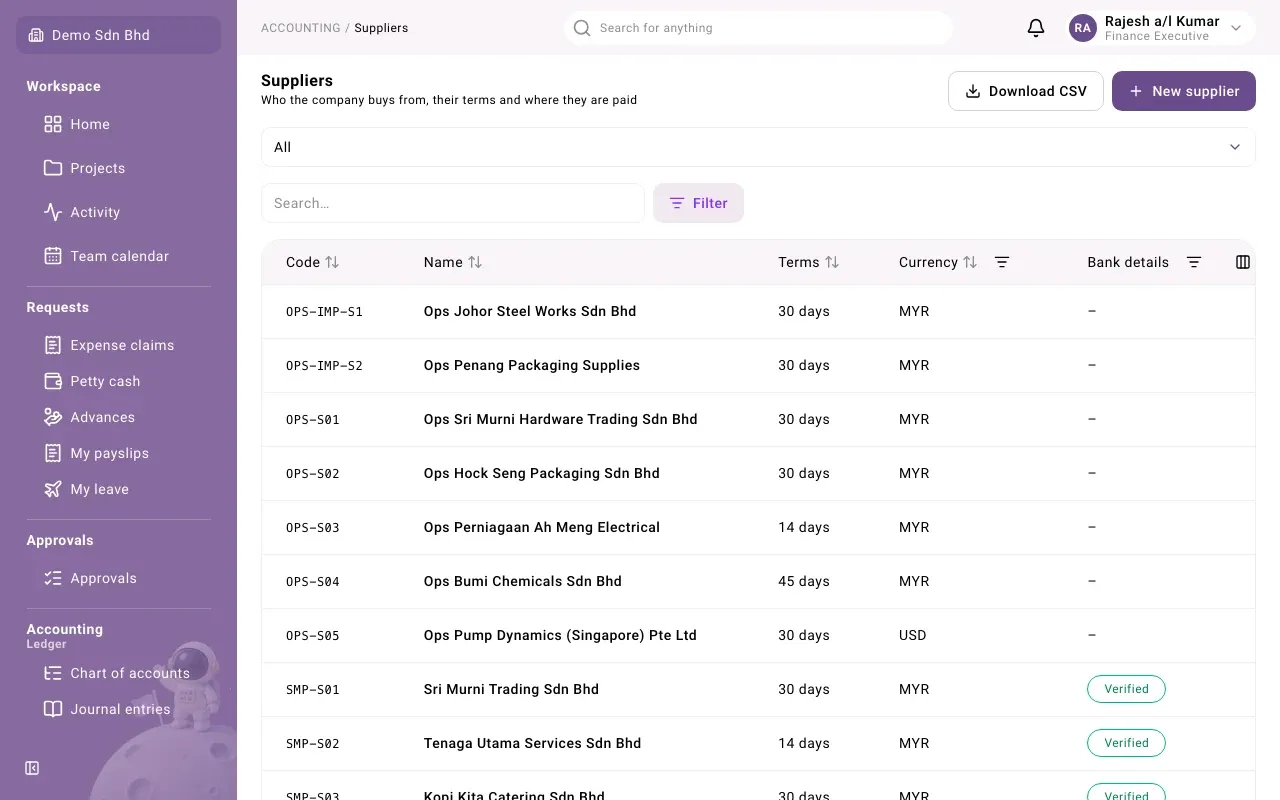
Each row shows the supplier’s Code, Name, Terms, Currency and Bank details. The bank details column shows:
| You see | It means |
|---|---|
| Verified | A second person has checked the bank details. Payments to this supplier can be approved. |
| Not verified | Bank details were entered or changed and still need checking. Payments cannot be approved yet. |
| – | No bank details have been entered. |
To narrow the list, type in Search…, or filter by Currency, Bank details or Status (Active or Inactive) from a column heading or the Filter button. Customize columns shows hidden columns such as TIN and Status. The Group filter (All, Group only, Non-group only) picks out companies in your own group; they carry a Group tag.
Download CSV saves the suppliers you are looking at, including any extra fields your organization has set up. If you have export access, Export opens a dialog where you choose the columns, their order and headings, and the format (CSV or XLSX). You can keep a column choice as a Preset.
Add a supplier
Section titled “Add a supplier”- Select New supplier.
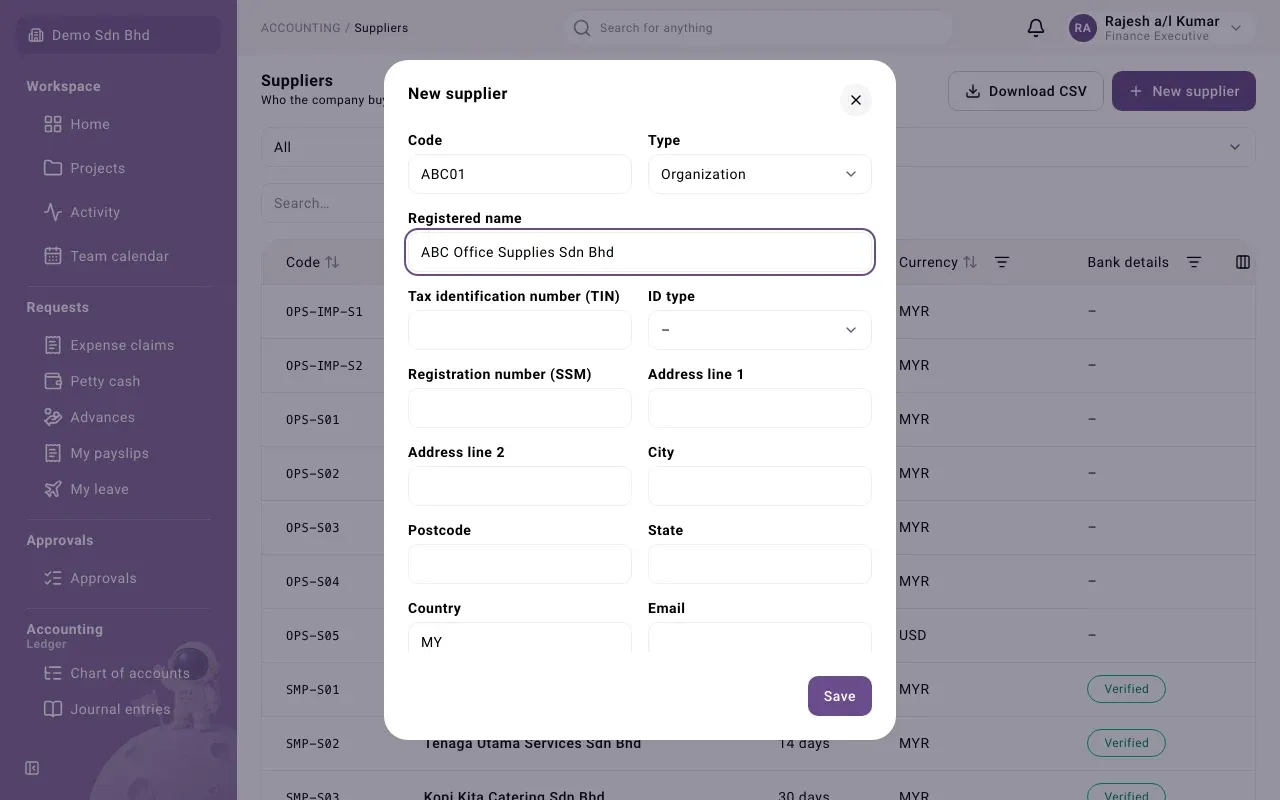
- Fill in the form and select Save. The supplier opens in a side panel.
| Field | What to enter |
|---|---|
| Code | A short code of your choice, unique to this supplier, e.g. ABC01 |
| Type | Organization or Individual |
| Registered name | The supplier’s name as registered |
| Tax identification number (TIN) | The supplier’s TIN, if you have it |
| ID type and Registration number (SSM) | The kind of ID (Business registration, MyKad (NRIC), Passport or Army ID) and its number. If you choose an ID type, the number is required. |
| Address line 1 to Country | The supplier’s address. Country is a two-letter code, such as MY or SG. |
| Email and Phone | Contact details (optional) |
| Payment terms (days) | How many days after the invoice date a bill falls due, e.g. 30. New invoices use it to set the due date. |
| Currency | The three-letter code the supplier normally bills in, such as MYR |
| Default withholding tax | Only for payments to non-residents that need withholding tax. New payments to this supplier start with this code. Leave it at No tax otherwise. |
Your organization may have added more fields at the bottom of the form.
To change a supplier later, open it and select Edit supplier.
Bank details and verification
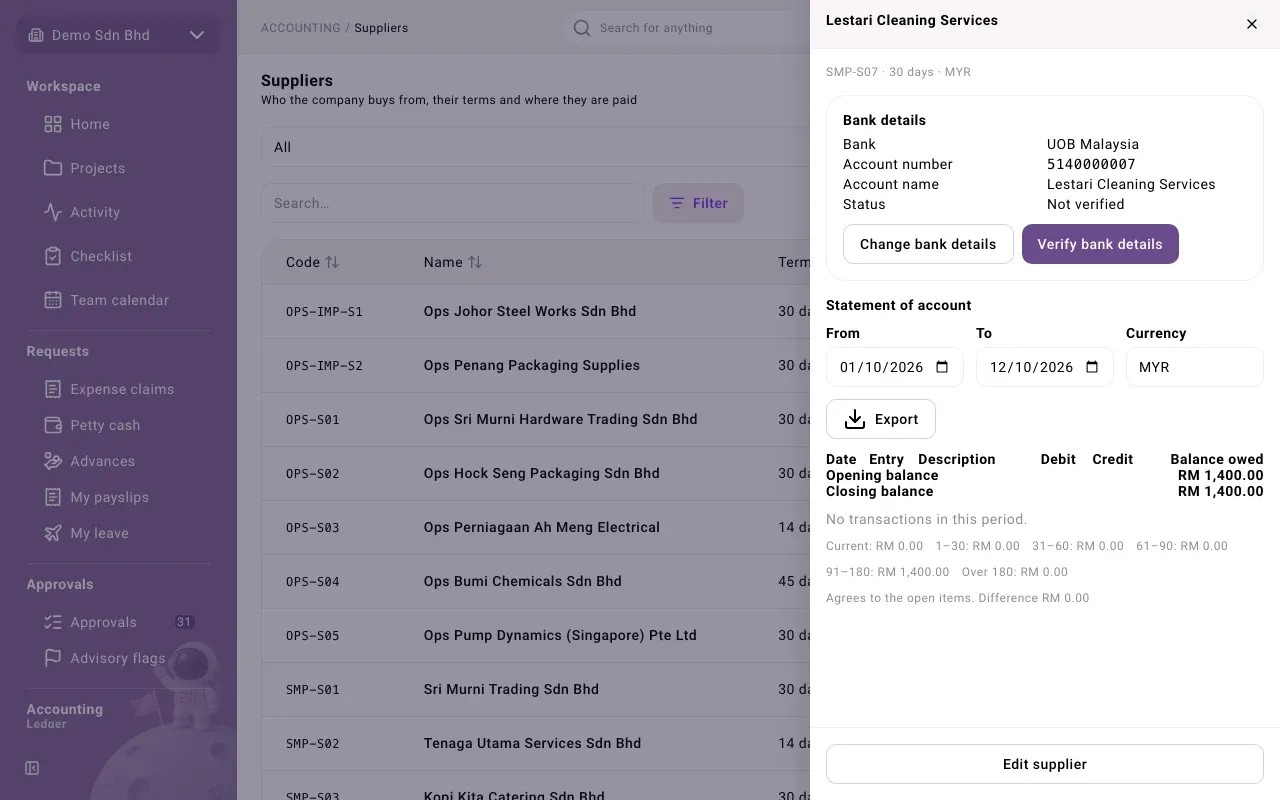
Section titled “Bank details and verification”Bank details are kept apart from the rest of the supplier, and every change must be checked by a second person before money can go out. This protects the company against a changed account number slipping through.
Enter or change bank details
Section titled “Enter or change bank details”- Open the supplier from the list.
- Under Bank details, select Change bank details.
- Choose the Bank, enter the Account number and check the Account name.
- Select Save. You see “Bank details saved — another person must verify them”.
The status becomes Not verified. If the supplier had bank details before, the panel shows what they were, e.g. “Previously Maybank 5140…”, so the verifier can see what changed.
Verify bank details
Section titled “Verify bank details”Ask your administrator what evidence your organization expects the verifier to check the details against.
- Open the supplier.
- Check the Bank, Account number and Account name.
- Select Verify bank details. You see “Bank details verified” and the status becomes Verified.
You cannot verify details you changed yourself; the button is greyed out with “You changed these details, so someone else must verify them.” The one exception is an organization with only one member: that person may verify their own change, but must give a reason, and it is recorded as a sole-owner exception.
What else the supplier panel shows
Section titled “What else the supplier panel shows”- Statement of account: what you owe this supplier over a date range. See Payables reports.
- Archived documents: settled documents brought over from your previous system, if any were imported for this supplier.
Problems
Section titled “Problems”| Message | What to do |
|---|---|
| “Another supplier already has this code.” | Choose a different Code. |
| “The person who changed the bank details can’t verify them. Ask another member.” | Ask someone else with verify access. |
| “This changed while you were editing. Reload to see the latest version.” | Someone else saved the supplier first. Reload, then make your change again. |
An inactive supplier is not offered on a new invoice, but its open invoices can still be paid: it appears in the payment form marked (Inactive).