Vacancies
This page is for people your administrator has given access to Vacancies. Some can only see them; others can also request them, and closing a vacancy by hand needs its own access.
A vacancy is a request to fill a position (a seat in the org chart): either a New position or a Replacement for someone who left. Once approved it is Open until enough people are hired into it.
The Vacancies page
Section titled “The Vacancies page”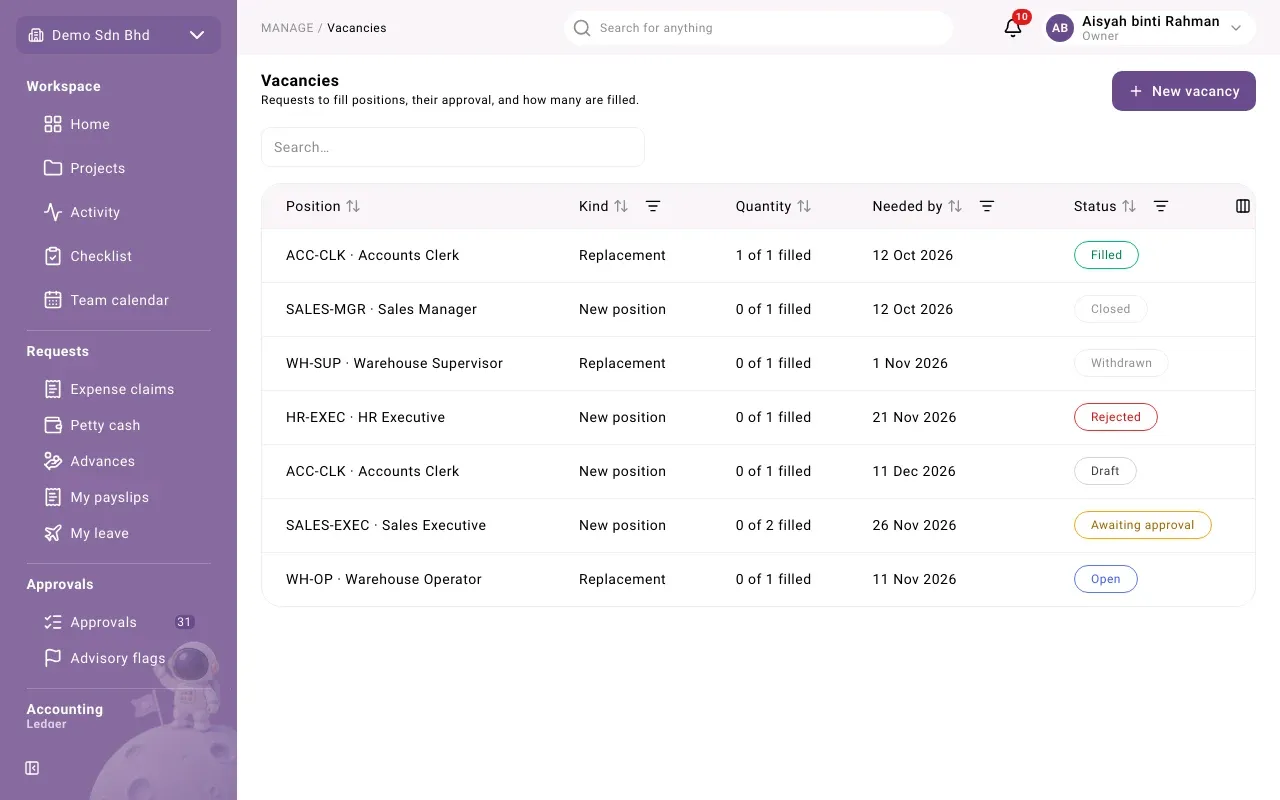
Each row shows the Position, its Kind, the Quantity as “1 of 2 filled”, the Needed by date and the Status. Sort by any column and filter by Kind, Status or a range of needed-by dates. Select a row to open the vacancy.
| Status | Meaning |
|---|---|
| Draft | Saved, not yet submitted |
| Awaiting approval | Submitted and waiting for the approver |
| Rejected | Turned down; the requester can revise it |
| Withdrawn | The requester withdrew it before submitting |
| Open | Approved and still needs people |
| Filled | Enough people have been hired or transferred into it |
| Closed | Closed by hand, with a reason |
Request a vacancy
Section titled “Request a vacancy”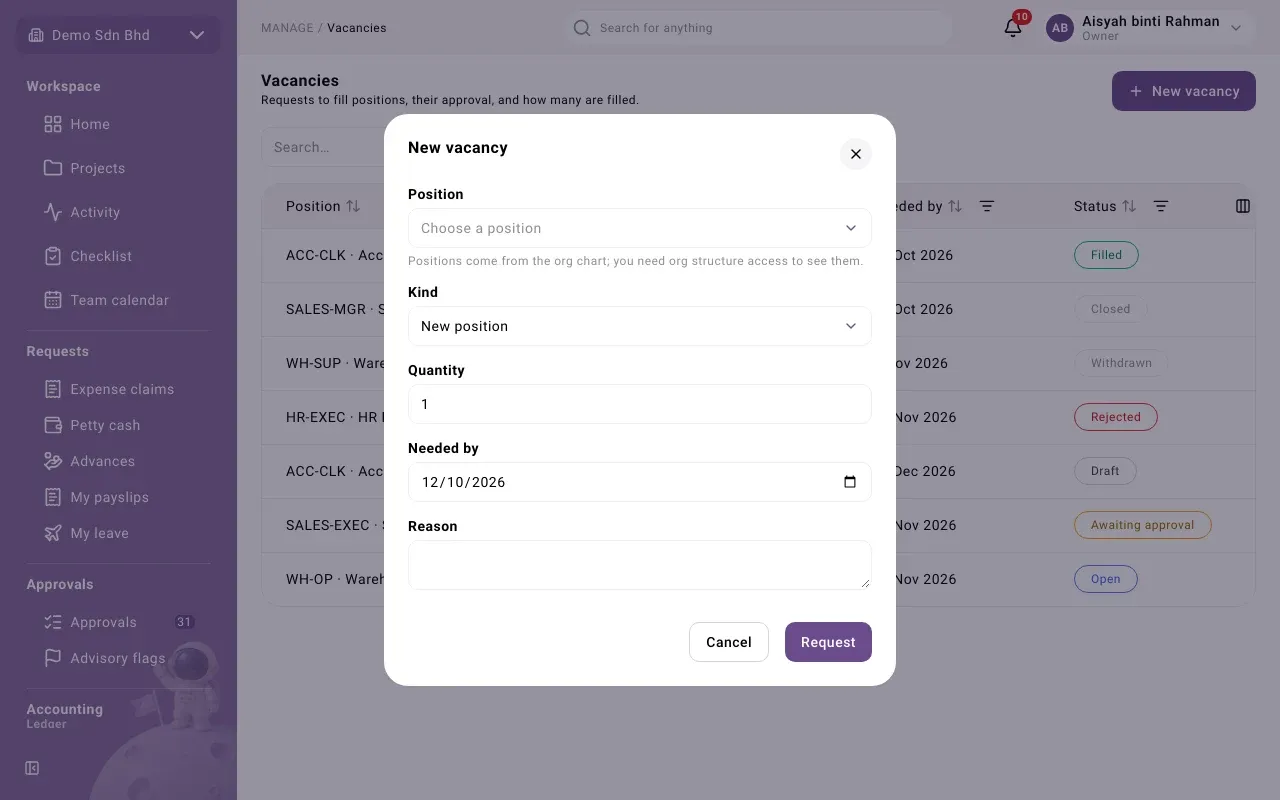
-
Select New vacancy.
-
Fill in:
Field What to enter Position The seat to fill. Positions come from the org chart; you need org structure access to see them. Kind New position or Replacement Quantity How many people, 1 to 999 Needed by Today or a later day Reason Why it is needed, in English or Bahasa Malaysia -
Select Request. You will see “Vacancy requested” and the vacancy opens as a Draft.
Submit, approve and reject
Section titled “Submit, approve and reject”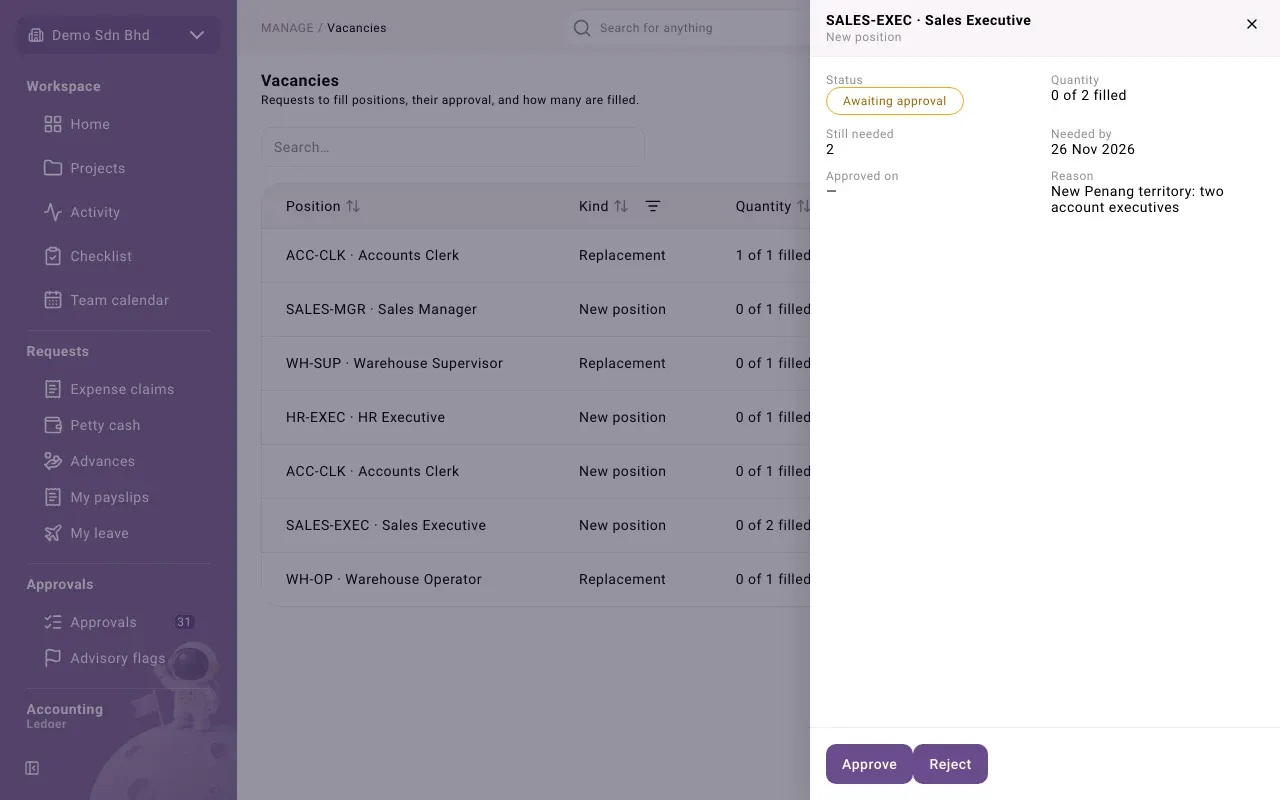
The vacancy opens in a side panel with its Status, Quantity, Still needed, Needed by, Approved on and Reason. The buttons at the bottom are the moves you are allowed to make now. In a standard setup they are:
| Button | Who | What it does |
|---|---|---|
| Submit | The requester | Sends a draft for approval |
| Withdraw | The requester | Withdraws a draft, with a reason |
| Approve | The approver | Approves it; it becomes Open |
| Reject | The approver | Turns it down, with a reason |
| Revise | The requester | Turns a rejected vacancy back into a draft |
When a move needs a reason, a Reason box appears; fill it in and select Confirm. You will see “Vacancy updated”.
You never choose the approver. The system works it out from the approvals your administrator set up, and never routes a vacancy to the person who requested it. Vacancies waiting for you appear on the Approvals page under Vacancies.
Fill a vacancy
Section titled “Fill a vacancy”You fill a vacancy from the employee record, not from the vacancy. When you record a hire or a transfer, choose the vacancy under Fills vacancy (see Employee records). Only Open vacancies are offered; for a transfer, only those for the seat the person moves into. The vacancy counts each one and becomes Filled when nothing is still needed.
Close a vacancy
Section titled “Close a vacancy”If an open vacancy is no longer needed, people with access see Close vacancy. Give the reason under Reason and select Confirm. You will see “Vacancy closed”, and the reason is shown on the vacancy as Closed because.
Problems
Section titled “Problems”- “Only you could approve this vacancy, and nobody approves their own request. Another Owner must approve it.” Ask another Owner.
- “Nobody could approve this vacancy: …” No approver can be found. Ask your administrator to check the approval setup.
- “Vacancies are not set up for this organization yet.” An administrator needs to re-run setup.
- “This vacancy has moved on since you opened it.” Someone acted on it first. Close it, open it again and retry.