Bank statements
Importing a statement brings the bank’s own record of money in and out into mcomtask, so it can be matched against the ledger. You need access to Banking and the permission to import statements. Open Bank accounts, select the account, and stay on the Statements tab.
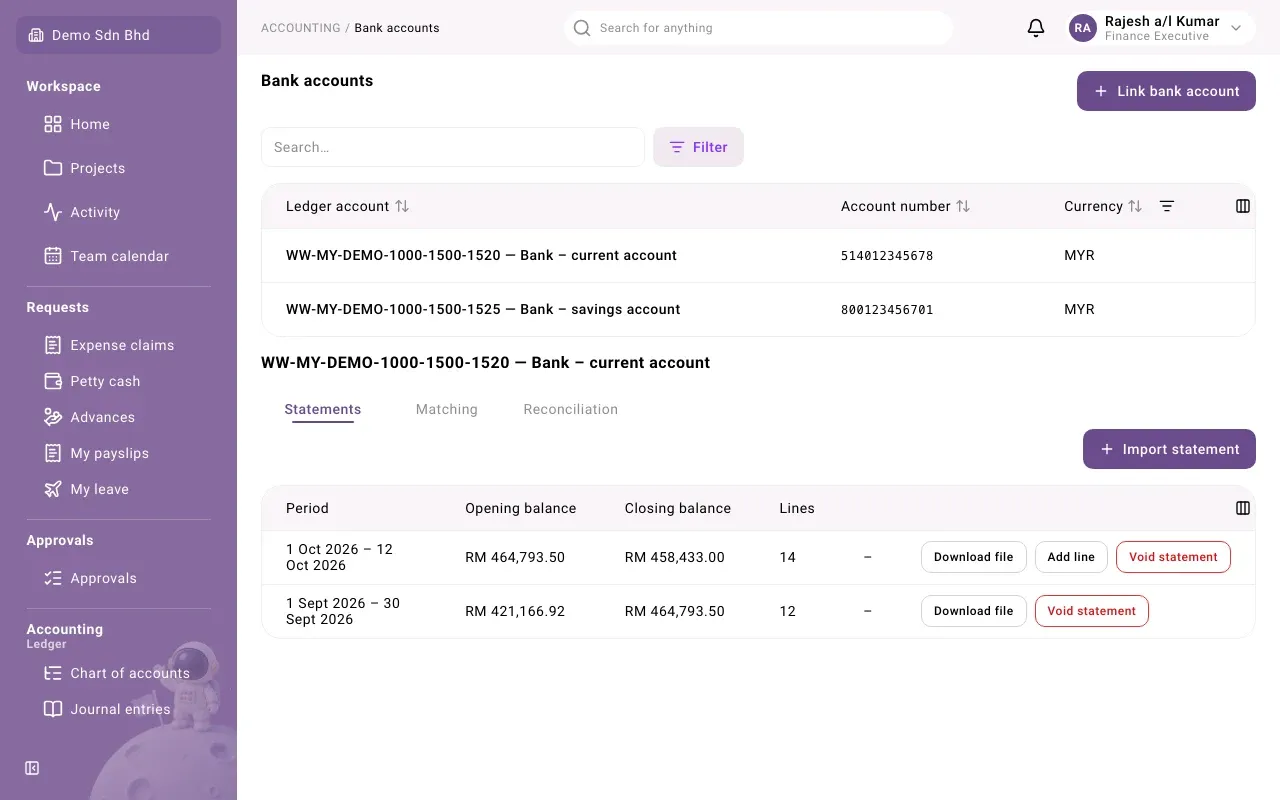
The statements list
Section titled “The statements list”Each imported statement shows its Period, Opening balance, Closing balance and number of Lines. A voided statement is tagged Voided. If lines were added by hand, the closing balance shows a second, smaller figure underneath: the closing balance including those lines.
On each row:
- Download file gives you the original file exactly as it was imported.
- Add line (latest statement only) adds a line the bank file left out.
- Void statement withdraws a wrong import.
Import a statement
Section titled “Import a statement”-
Select Import statement.
-
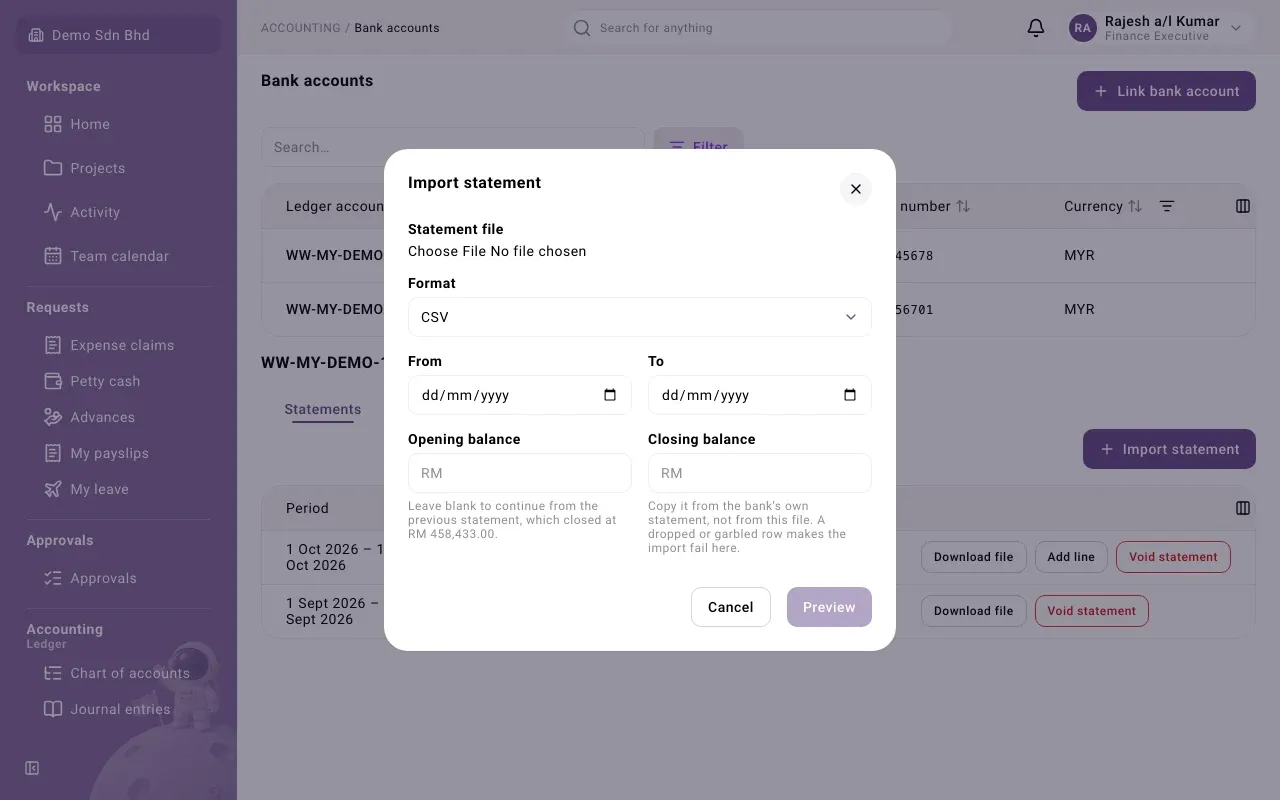
Under Statement file, choose the file from your bank. A file ending in .csv is read as CSV; any other file (such as .sta or .txt) as MT940. Check Format and change it if needed.
-
For a CSV file, also fill in:
Field What to enter From and To The period the statement covers Opening balance “Leave blank to continue from the previous statement”, whose closing balance is shown Closing balance “Copy it from the bank’s own statement, not from this file. A dropped or garbled row makes the import fail here.” -
Select Preview.
The account needs a CSV layout before CSV files can be read. See Bank accounts.
Check the preview
Section titled “Check the preview”The next screen, Check the statement before importing, says “Nothing is saved until you confirm.” It shows the Period, Opening balance, Stated closing balance, Closing balance with added lines and, if there is one, the Previous statement closing, followed by every line in the file.
If the bank left a transaction out of the file, add it here (see the fields below) and select Add line. Added lines are listed under Added lines; select Remove to take one off.
When everything agrees, select Confirm import. Select Back to choose a different file.
After the import you see “… lines matched automatically”: the system has already matched what it safely could. Do the rest on the Matching tab; see Bank reconciliation.
Import problems
Section titled “Import problems”| Message | What to do |
|---|---|
| This file was already imported. | Nothing to do: it is already in the list |
| This file is too large to import. | Ask your bank for a file covering a shorter period |
Add a line the bank file omitted
Section titled “Add a line the bank file omitted”Use this when the statement file is missing a transaction that is on the bank’s printed or PDF statement. You can only add lines to the latest statement.
-
On the latest statement, select Add line.
-
Fill in:
Field What to enter Date Within the statement’s period Amount (negative for a debit) For example -12.50 for a charge, 500.00 for money in Description As the bank describes it Reference The bank’s reference, if any Why is it being added? Required, for example “Charge missing from the bank’s CSV” -
Select Add line.
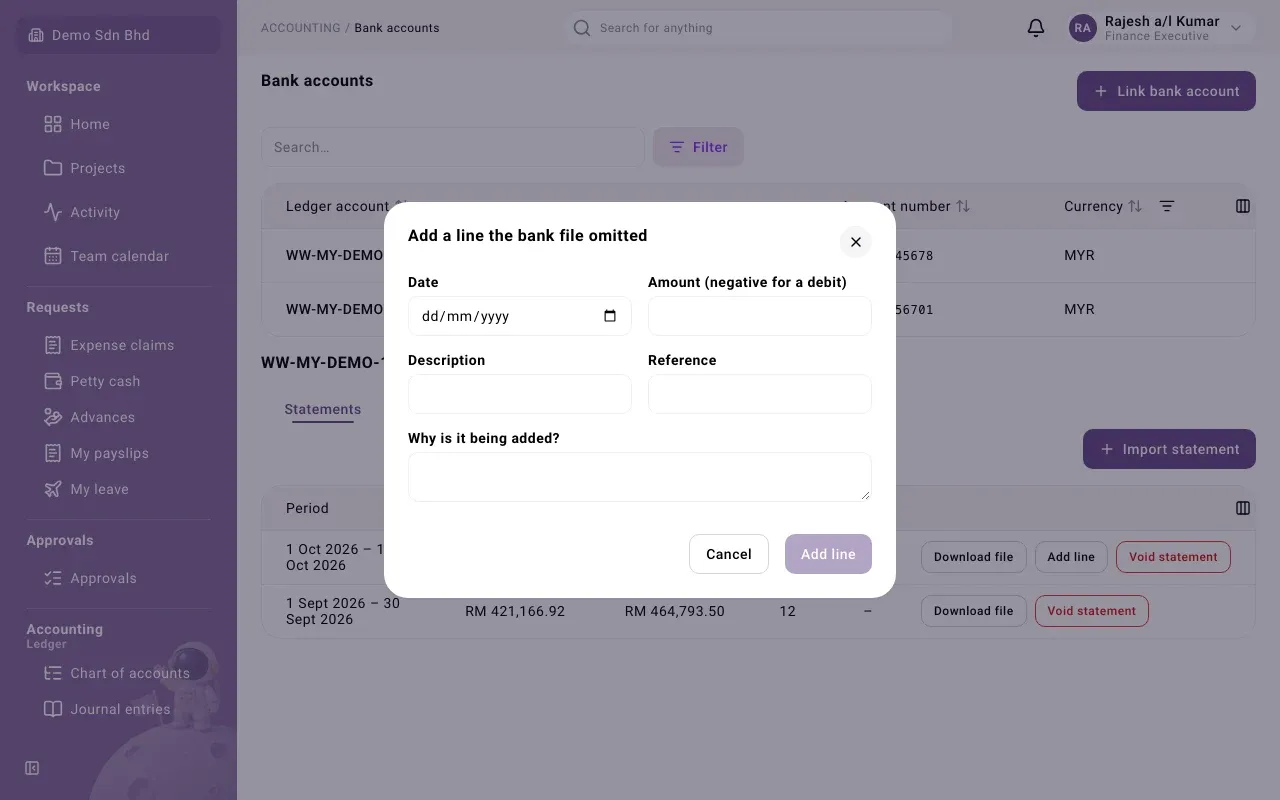
Added lines are tagged Manual on the Matching tab. If you see “A line can only be added to the latest statement.” or “This period is locked.”, the statement is not the latest or its reconciliation is locked.
Void a statement
Section titled “Void a statement”If you imported the wrong file, select Void statement, answer Why is it being voided? and confirm with Void statement. The statement stays in the list tagged Voided, and its file can still be downloaded. Voided statements are no longer offered on the Matching and Reconciliation tabs. You can then import the correct file.