Customer receipts
This page is for people your administrator has given access to Receivables. Recording receipts needs a separate permission; if you do not see New receipt, ask your administrator.
A receipt records money that reached the company’s bank account or cash from a customer. You apply it to the invoices it pays, and anything left over stays on the customer’s account as a credit for later.
The Receipts page
Section titled “The Receipts page”Open Receipts under Receivables.
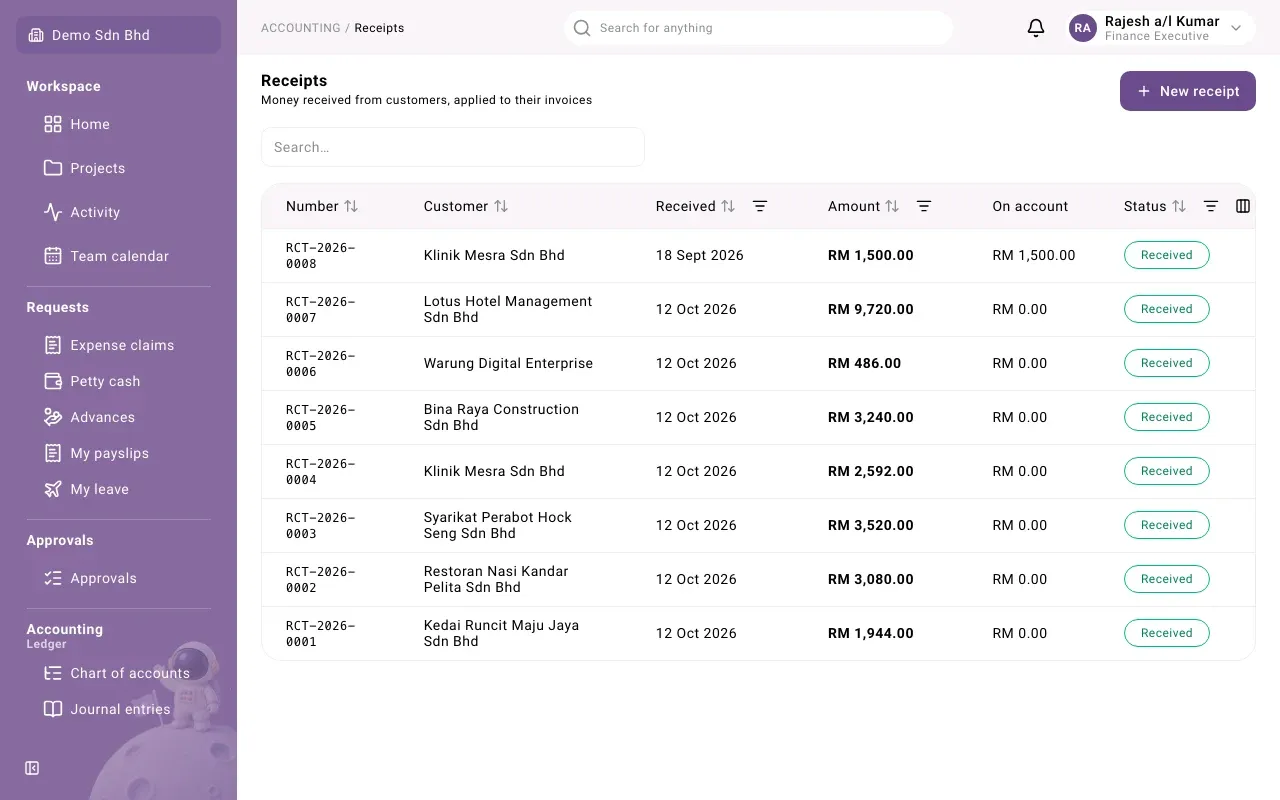
| Column | What it shows |
|---|---|
| Number | The receipt number, such as RCT-2026-0009, or Draft |
| Customer | Who paid |
| Received | The date the money was received |
| Amount | The amount received, with the base-currency amount underneath for a foreign currency |
| On account | The part not yet applied to an invoice |
| Status | Draft, Received, Voided or Withdrawn |
Search with Search…. The filter icons on Received, Amount and Status filter by a date range, an amount range or a status. Select a column title to sort by it. Load more shows older receipts.
Record a receipt
Section titled “Record a receipt”-
Select New receipt.
-
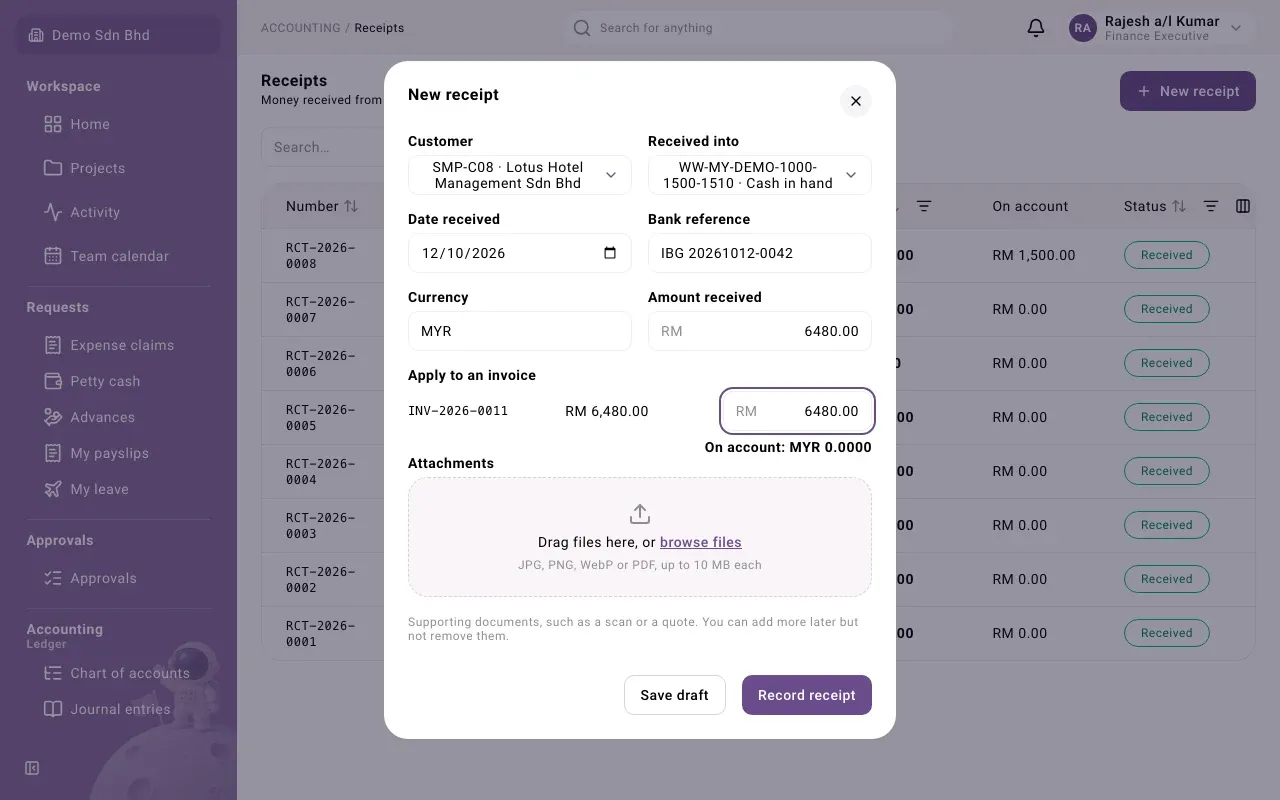
Fill in the details:
Field What to enter Customer Who paid. Inactive customers are listed with “(Inactive)”. Received into The bank or cash account the money reached Date received The date on the bank statement or receipt. It starts as today. Bank reference The bank’s reference for the payment, for example the transfer reference Currency The currency the customer paid in, such as MYR Exchange rate to MYR Only for a foreign currency: the rate for this receipt Amount received The amount that arrived -
Under Apply to an invoice, each open invoice and debit note of the customer in that currency is listed with its number and what is still owed. Type how much of this receipt pays each one into the box beside it. On account below shows what is left over.
-
Attach the bank slip or other proof under Attachments, if you have it.
-
Select Record receipt, or Save draft to finish later.
The receipt shows Received and gets its number. The money is recorded in the books in the account you chose, and each invoice it pays goes down by the amount you applied.
Rules for applying
Section titled “Rules for applying”- You cannot apply more to an invoice than it has outstanding.
- A receipt in a foreign currency must be applied in full when you record it. While anything is left on account you see “A receipt in a foreign currency must be applied in full.” and Record receipt stays unavailable.
- A receipt from an inactive customer must also be applied in full to their open invoices. You see “This customer is inactive: a receipt can only be applied in full to their open invoices.”
- A receipt in your base currency can be left partly or wholly on account, for example a deposit before you invoice, or an overpayment.
Apply money on account later
Section titled “Apply money on account later”When a customer has money on account and you then issue an invoice:
- Open the receipt.
- Under Allocations, choose the Invoice and enter the Amount.
- Select Apply. You see “Allocation recorded”.
This is available for receipts in your base currency that are Received and still have money on account.
Undo an application
Section titled “Undo an application”Next to an application under Allocations (on the receipt or on the invoice), select Reverse.
The amount goes back on account and the invoice is open again for that amount. Nothing is deleted: the original application shows Reversed.
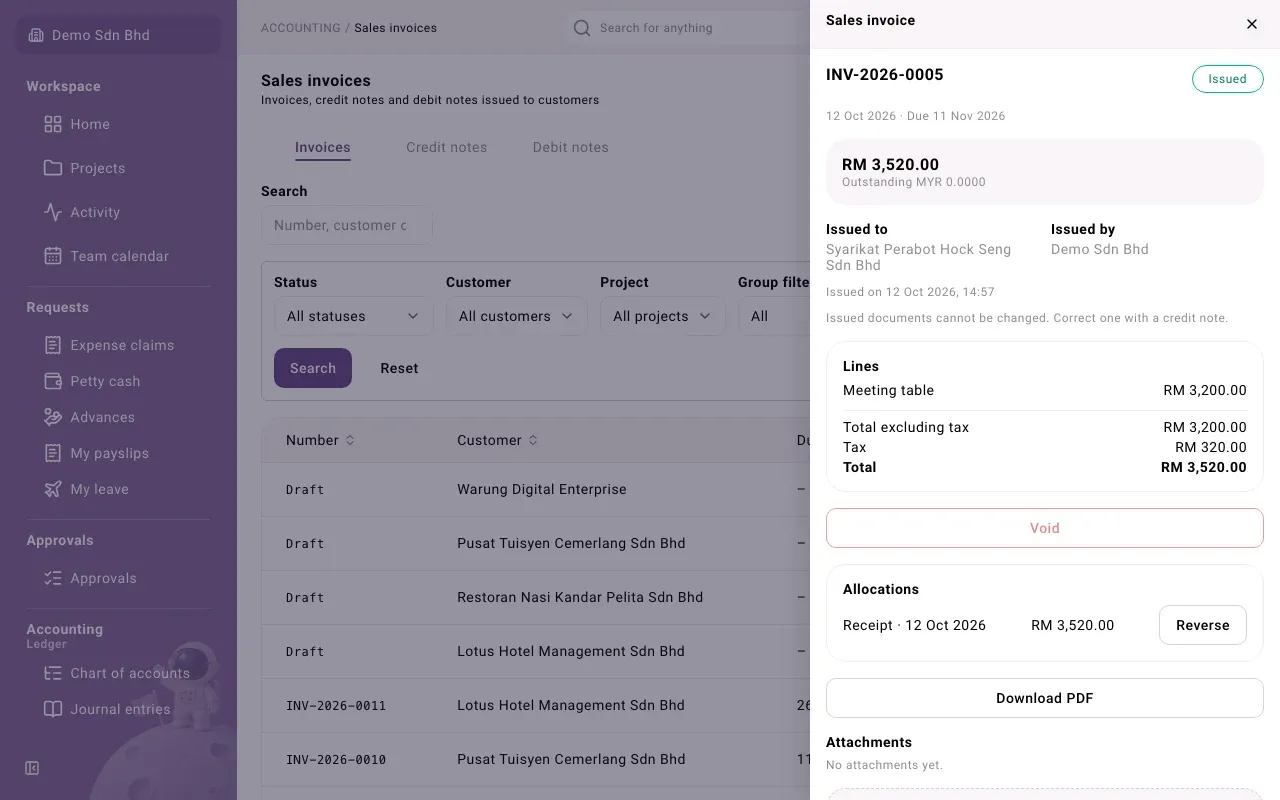
For a receipt in a foreign currency, Reverse is not offered: the only way to undo its applications is to void the receipt.
Void a receipt
Section titled “Void a receipt”Use this when a receipt should never have been recorded, for example a bounced cheque or the wrong customer.
- Open the receipt and select Void.
- Enter Why it is being voided and confirm.
Voiding needs someone other than the person who recorded it; by default that is your organization’s owner. If Void is greyed out, hover over it to see why.
A draft receipt
Section titled “A draft receipt”Open a draft to finish it: Record receipt records it with the amounts you entered, and Withdraw (with a reason) abandons it. A withdrawn receipt shows Withdrawn.