Team and invitations
Team is where administrators see everyone in the organization, invite new people and decide which roles each person holds. It is for people your administrator has allowed to manage roles, invite members or read the org structure; each tab below says what it needs.
Open Team under Manage in the sidebar. It has up to four tabs: Members, Invitations, Roles and Org structure. You only see the tabs your role allows.
Members
Section titled “Members”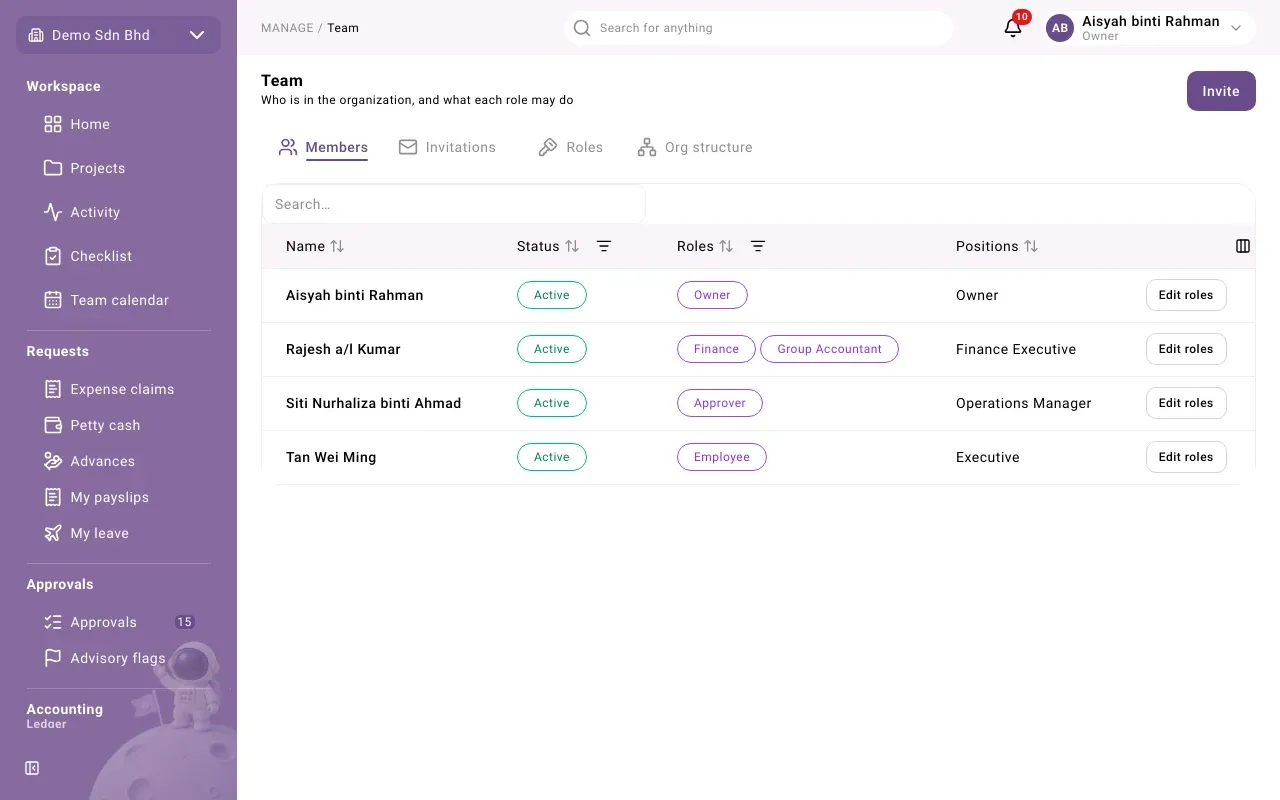
Members lists everyone in the organization.
| Column | What it shows |
|---|---|
| Name | The person’s name |
| Status | Active or Inactive |
| Roles | The roles they hold (only if you can manage roles) |
| Positions | The positions they hold in the org structure (only if you can read it) |
Type in the search box to find someone. Filter by Status, or by role if you can manage roles. Select a column heading to sort.
Change someone’s roles
Section titled “Change someone’s roles”You need the right to manage roles.
- Select Edit roles on the person’s row.
- Tick every role they should hold. “A member holds every permission of every role ticked here.”
- Select Save. You see “Roles saved”.
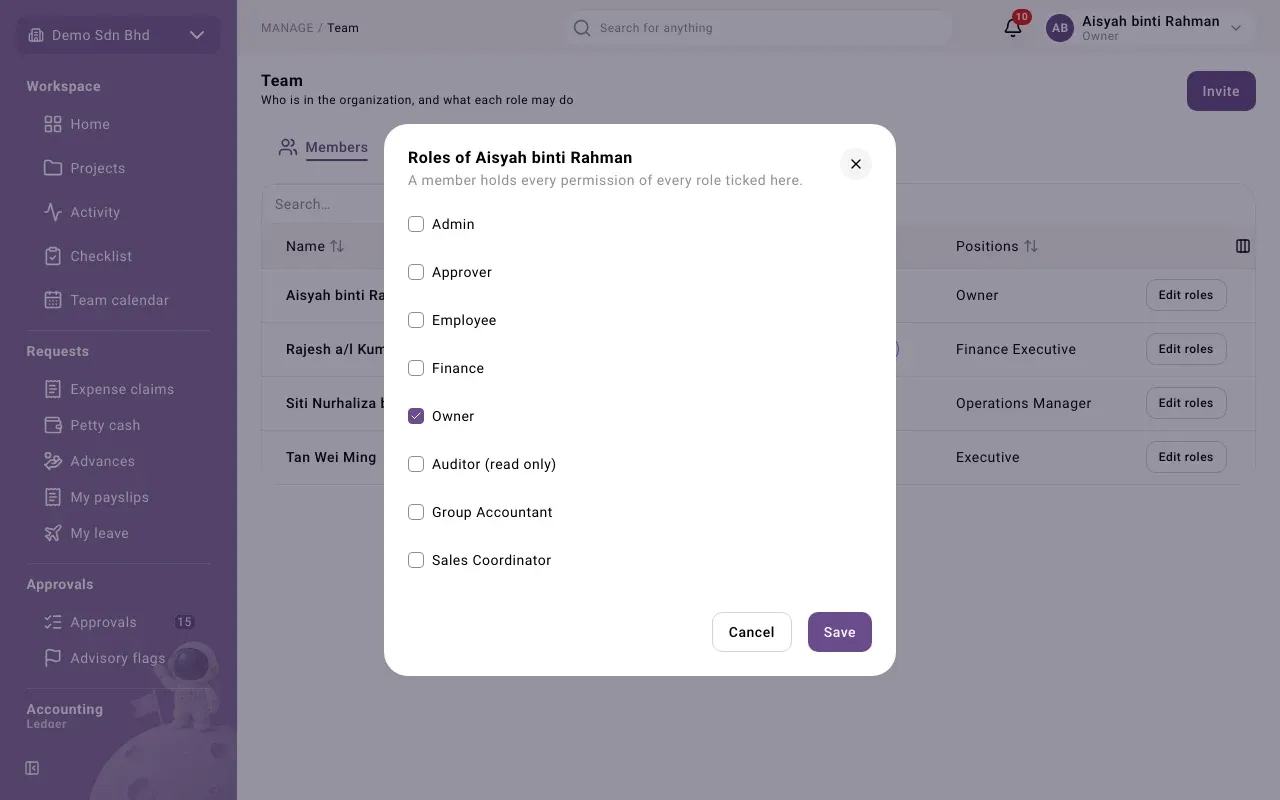
What each role allows is set on the Roles tab. See Roles and permissions.
Invite someone
Section titled “Invite someone”You need the right to invite members.
-
Select Invite at the top right of the Team page.
-
Fill in:
Field What to enter Email The person’s email address Role The role they receive when they accept Valid for 1 day, 3 days or 7 days (the default) -
Select Send invitation.
-
The dialog now shows the Invitation link. Select Copy link and send it to the person yourself, for example by email or chat. The app does not send it for you.
-
Select Done.
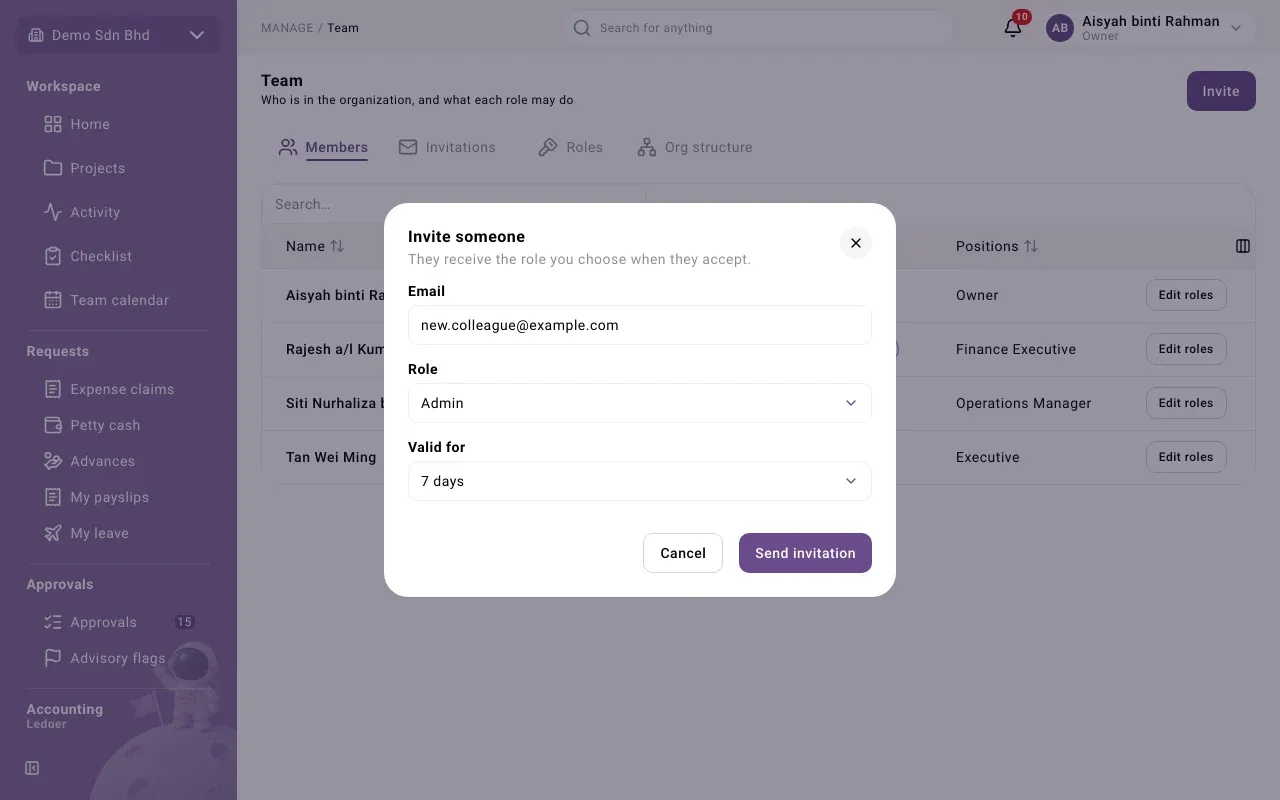
If you cannot choose a role, the form says “Only someone who can manage roles can choose one”. Ask an administrator who manages roles to send the invitation.
The person opens the link, enters their name and a password, and joins with the role you chose. See Getting started for what they see.
Invitations
Section titled “Invitations”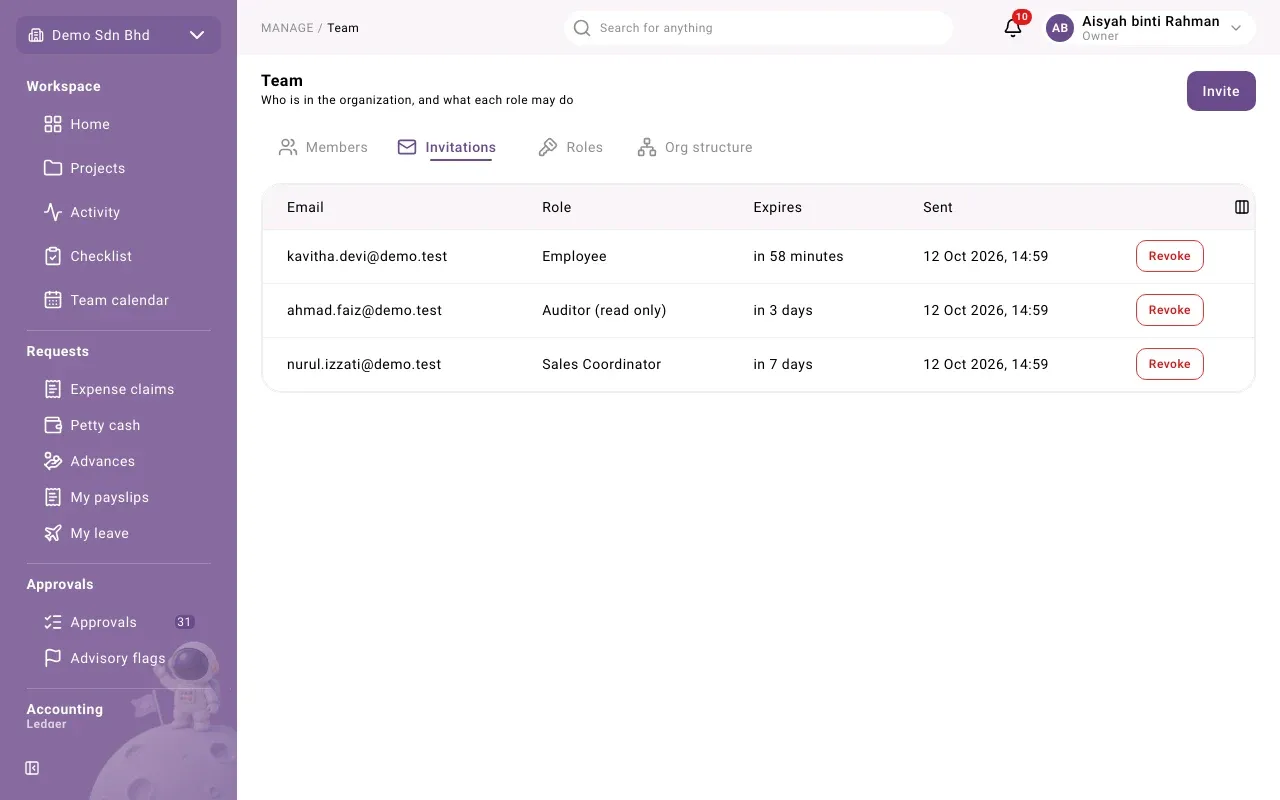
Invitations lists invitations that have not been accepted yet, with the Email, Role, when it Expires and when it was Sent. If there are none, it says “No pending invitations”.
To withdraw one, select Revoke, then Revoke again to confirm. “The link stops working at once.” You see “Invitation revoked”. To invite the same person again, send a new invitation.
Problems
Section titled “Problems”| Message | What to do |
|---|---|
| Enter an email address and choose a role | Both are needed before the invitation can be sent. |
| The person says the link “has expired or was withdrawn” | Send a new invitation. |
| You lost the link before sending it | Revoke the invitation and invite again. The link cannot be shown a second time. |