Sales invoices
This page is for people your administrator has given access to Receivables. Anyone with that access can read invoices; preparing and issuing them needs a separate permission, so if you do not see New invoice, ask your administrator.
A sales invoice tells a customer what they owe you. You prepare it as a draft, then issue it. Issuing gives it its number and date, records the sale in the books, and freezes it.
Prepare an invoice
Section titled “Prepare an invoice”- Open Sales invoices under Receivables. Stay on the Invoices tab.
- Select New invoice.
- Fill in the header and at least one line (below).
- Select Issue invoice to issue it now, or Save draft to finish later.
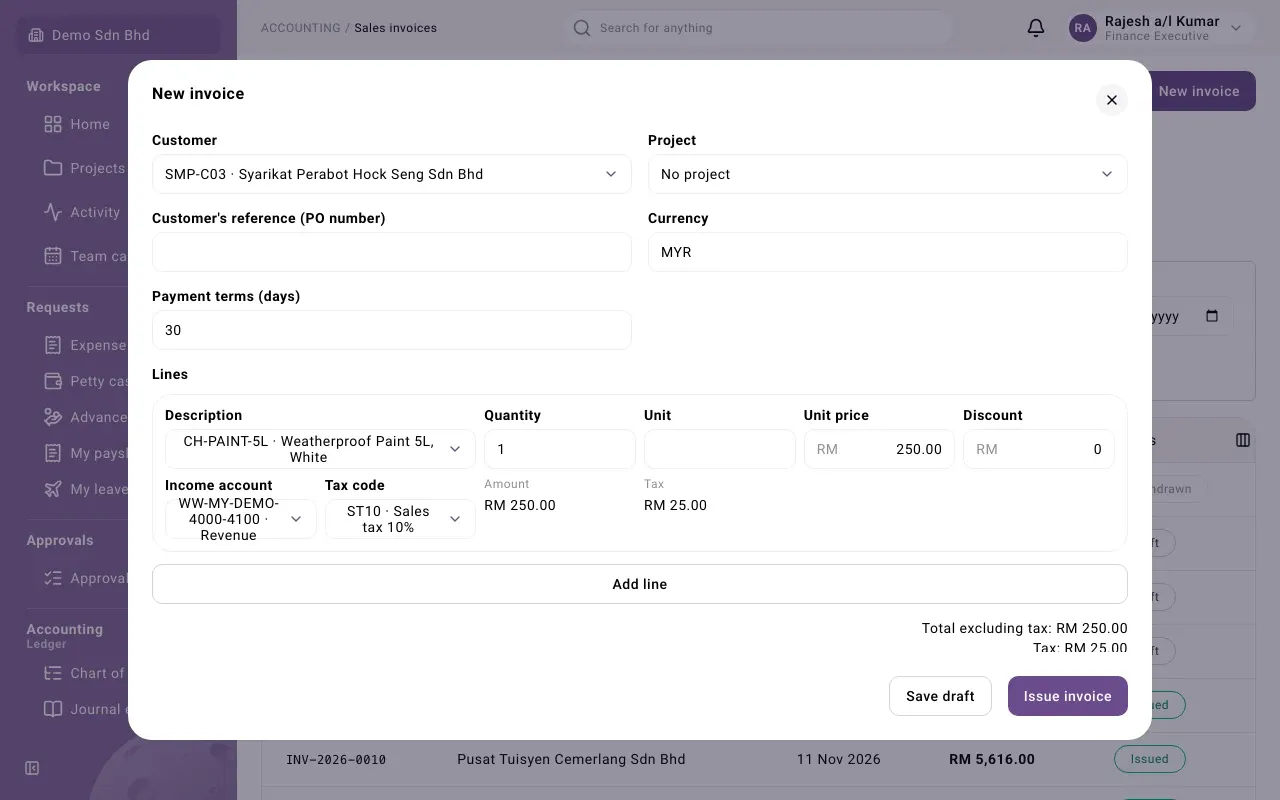
The header
Section titled “The header”| Field | What to enter |
|---|---|
| Customer | Choose the customer. Only active customers are listed. Choosing one fills in its currency and payment terms, and its default income account and tax code on lines that have neither yet. |
| Project | Shown when your organization uses projects. Choose the project this sale belongs to, or No project. If lines belong to different projects it shows Multiple. |
| Customer’s reference (PO number) | The customer’s purchase order number, if they gave one |
| Currency | A three-letter code. It starts as the customer’s currency. |
| Exchange rate to MYR | Only when the currency is not your base currency: the rate to use for this invoice |
| Payment terms (days) | How many days the customer has to pay. The due date is the invoice date plus these days. |
The lines
Section titled “The lines”Each line is one thing you are charging for.
| Field | What to enter |
|---|---|
| Description | Choose an item from the list. The line takes the item’s name, and its income account and tax code when the item has them. |
| Delivery line | Shown only when the customer has delivered goods not yet invoiced. Choose the delivery line this invoice line bills; the quantity and price are filled in from it. Leave Not linked otherwise. |
| Quantity | How many, for example 1 or 2.5 |
| Unit | The unit, if you use one |
| Unit price | The price of one unit, before tax |
| Discount | A discount on the line, as an amount (not a percentage) |
| Income account | Where this income is recorded |
| Tax code | The sales tax code for this line, for example a sales tax, service tax, exempt or out-of-scope code |
| Tax exemption details | Shown only for an exempt tax code: the exemption details |
Amount and Tax under each line show what the line comes to. Below the lines you see Total excluding tax, Tax and Total. These are a preview; the amounts that are kept are calculated when the invoice is saved.
- Add line adds another line.
- The × button (Remove line) removes a line. It appears once there is more than one line.
Which tax code to use is a tax question: your adviser must confirm the codes your organization uses.
Attachments and extra fields
Section titled “Attachments and extra fields”Under the lines you can attach supporting documents, such as a quote or a signed delivery order (JPG, PNG, WebP or PDF, up to 10 MB each). You can add more later but not remove them. If your administrator has added extra fields for sales documents, they appear here too.
Issue the invoice
Section titled “Issue the invoice”When you select Issue invoice, the invoice is saved and issued in one step. The status becomes Issued, and the invoice gets:
- its number, such as INV-2026-0012. Drafts have no number and show Draft;
- its invoice date, which is the day you issue it. You cannot date an invoice in the past;
- its due date, from the payment terms.
There is no approval step before an invoice is issued, unless your administrator has added one to your organization’s invoice workflow.
Work on a draft
Section titled “Work on a draft”Open the draft from the list. The side panel shows its lines and totals, and these buttons:
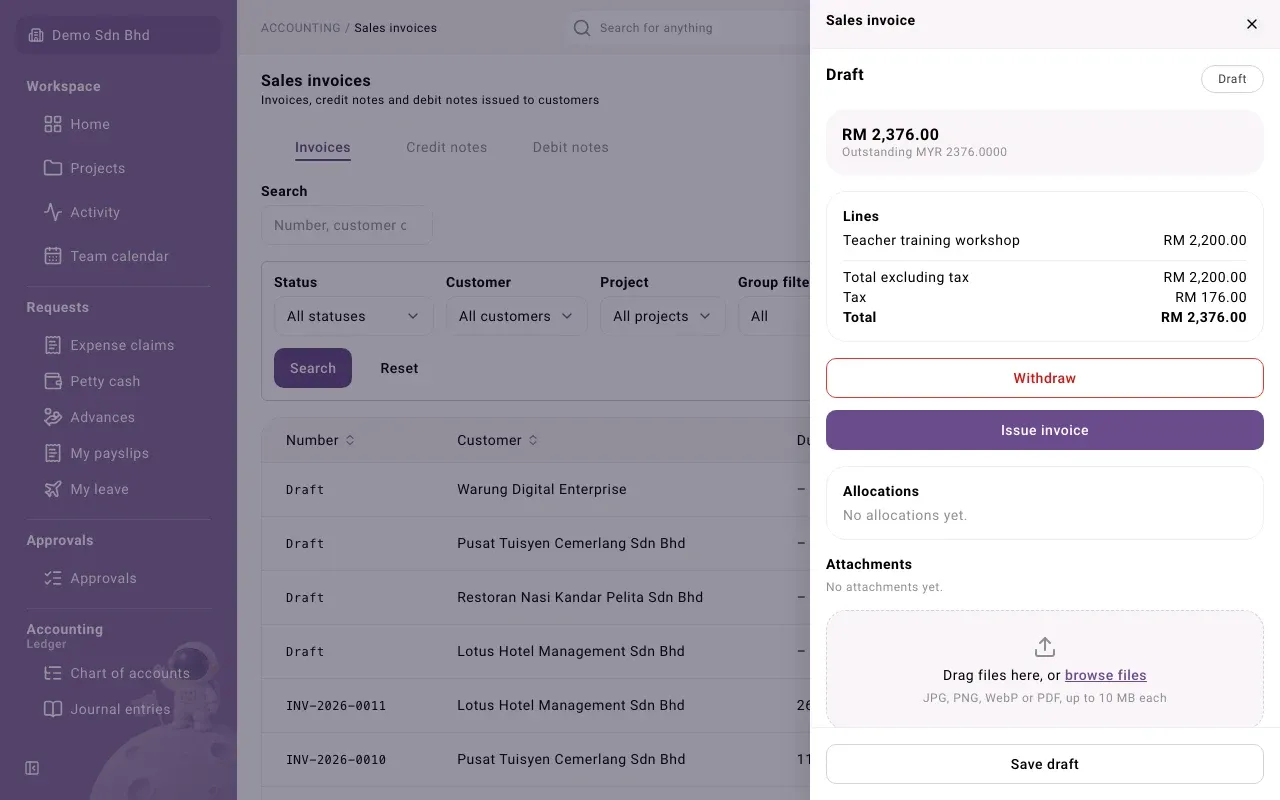
- Issue invoice issues it as it is.
- Withdraw abandons the draft. You are asked for a reason. The draft then shows Withdrawn and cannot be used again.
- Save draft at the bottom opens the draft so you can change it. Only the person who prepared a draft can change it.
An issued invoice
Section titled “An issued invoice”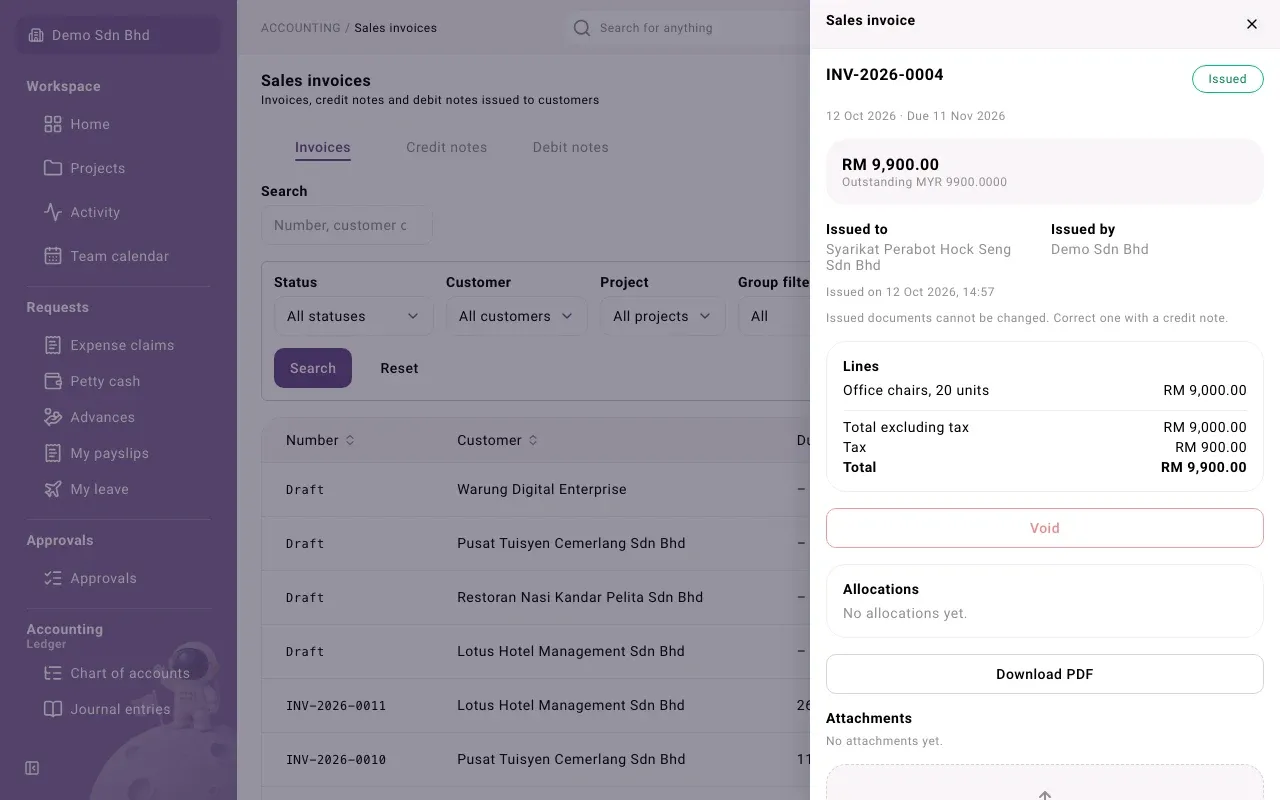
The side panel of an issued invoice shows:
- the number, the status, the invoice date and the due date;
- the total, and what is still Outstanding;
- Issued to (the customer) and Issued by (your organization), with the time it was issued. These are the details as they were at that moment;
- the Lines with Total excluding tax, Tax and Total;
- Allocations: the receipts and credit notes applied to it (see Customer receipts);
- Download PDF, which saves a printable copy of the invoice. Drafts have no PDF;
- Attachments, where you can add more files;
- Progress, the history of who did what and when.
A Void button may also appear. See Sales document statuses for when an invoice can be voided.
Problems
Section titled “Problems”| You see | What to do |
|---|---|
| The customer is not in the Customer list | The customer is inactive or does not exist yet. See Customers. |
| No item fits the line | Lines are chosen from your items list. Ask whoever manages items to add the item. |
| An error under the form when you save | Read the message: usually a line is missing its income account or tax code, or a price is blank. |