Group register
The group register is where the organization at the top of a group of companies records that group: which companies and individuals are in it, who holds shares in whom and from when, and who the beneficial owners are. Consolidation reads the register to decide which companies to combine and how.
The register is kept by the group’s owner: the organization that runs consolidation. A subsidiary does not see the register; it only gives consent for its books to be read (see Group consent).
This page is for people your administrator has given access to the group register. You find it under Manage → Group & consolidation → Group register. Adding and changing entries needs management access; declaring beneficial owners and seeing identity numbers needs a further, separate permission.
Company groups
Section titled “Company groups”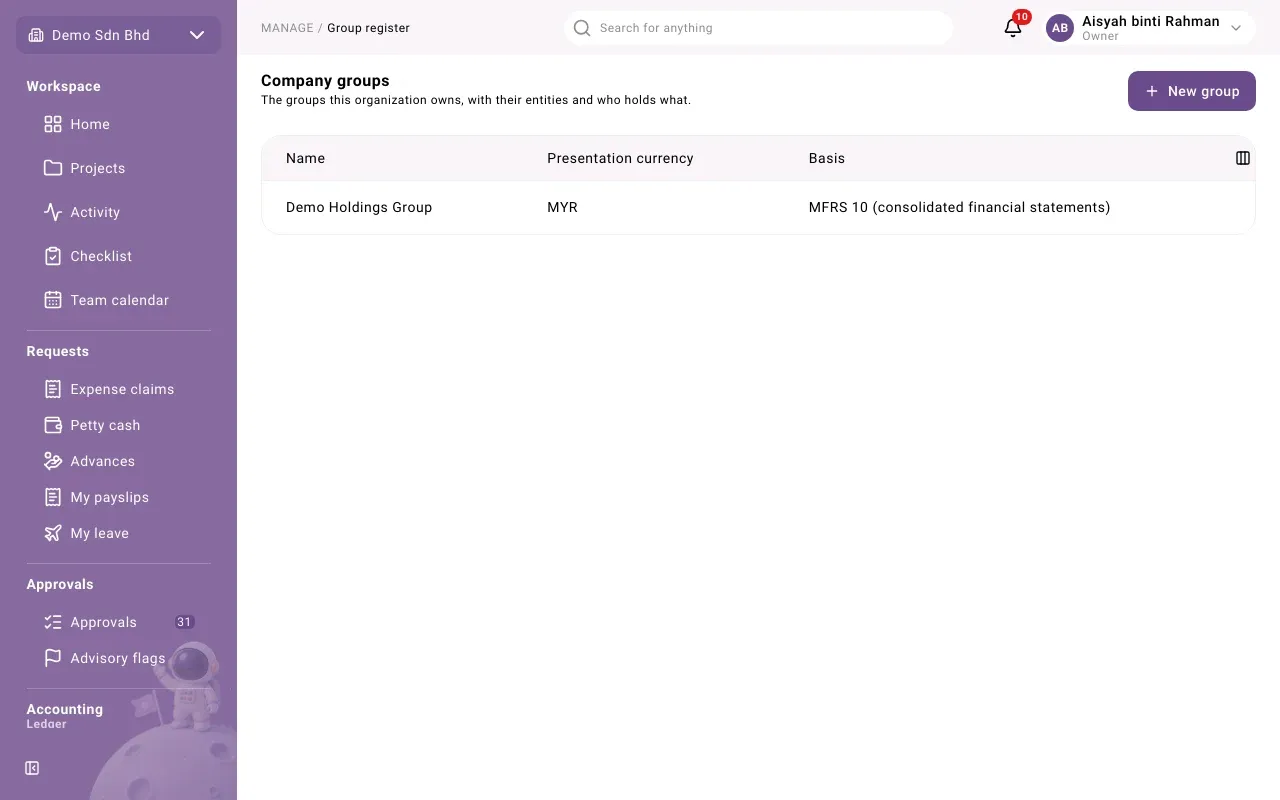
Company groups lists the groups this organization owns, with each group’s Presentation currency (the currency its consolidated figures are shown in) and Basis. The only basis is MFRS 10 (consolidated financial statements).
To add a group, select New group, enter Name (English) (required), and optionally Name (Bahasa Malaysia) and Name (Chinese), then the Presentation currency, three capital letters such as MYR. Select Create.
Select a group to open it. Its page has five tabs.
Entities
Section titled “Entities”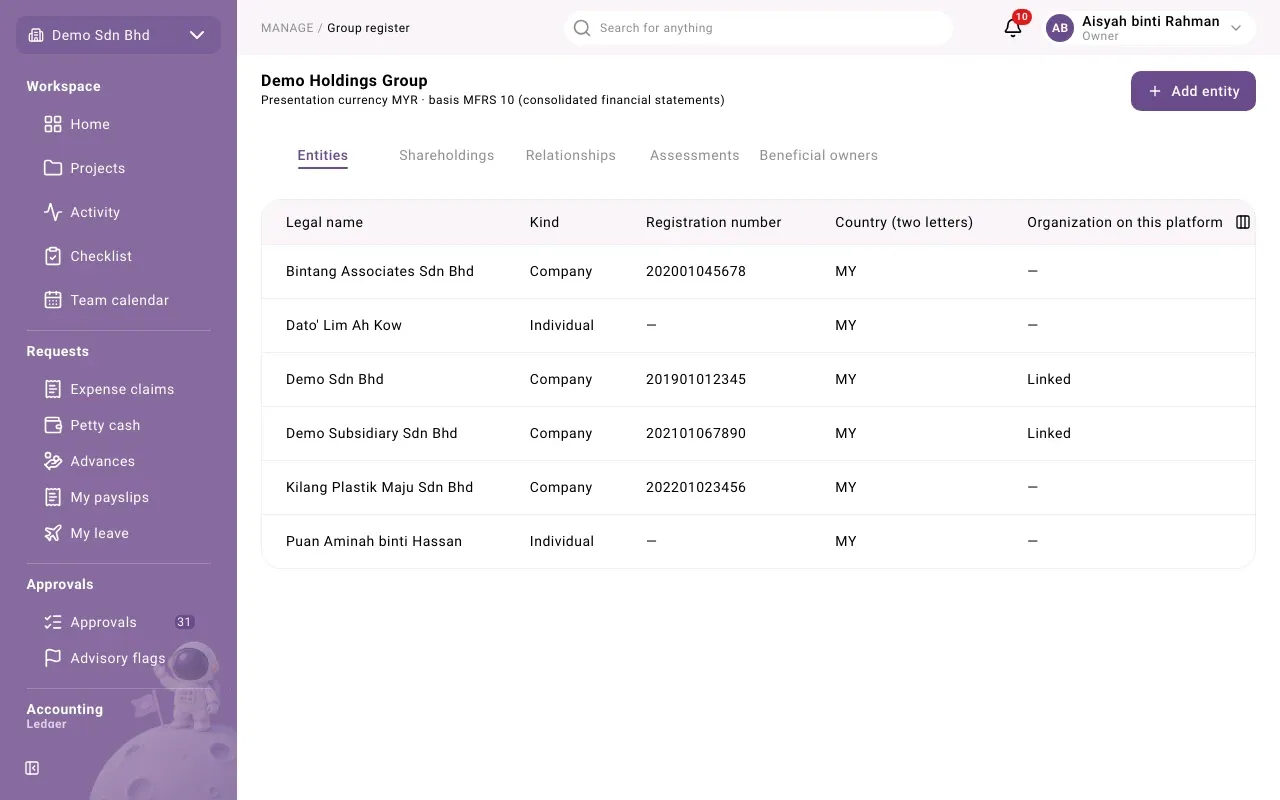
Every company and individual in the group, including holding companies and people who are not on mcomtask. Ownership chains often run through them, so add them all.
Select Add entity and fill in:
| Field | What to enter |
|---|---|
| Kind | Company or Individual |
| Legal name | The registered name |
| Registration number | Optional |
| Country (two letters) | For example MY |
| Organization on this platform | Companies only, optional. “Only if this company is an organization on this platform.” Ask that organization’s administrator for its organization id. |
A company with an organization on this platform shows Linked in the list. Only linked companies can be consolidated from their books.
Shareholdings
Section titled “Shareholdings”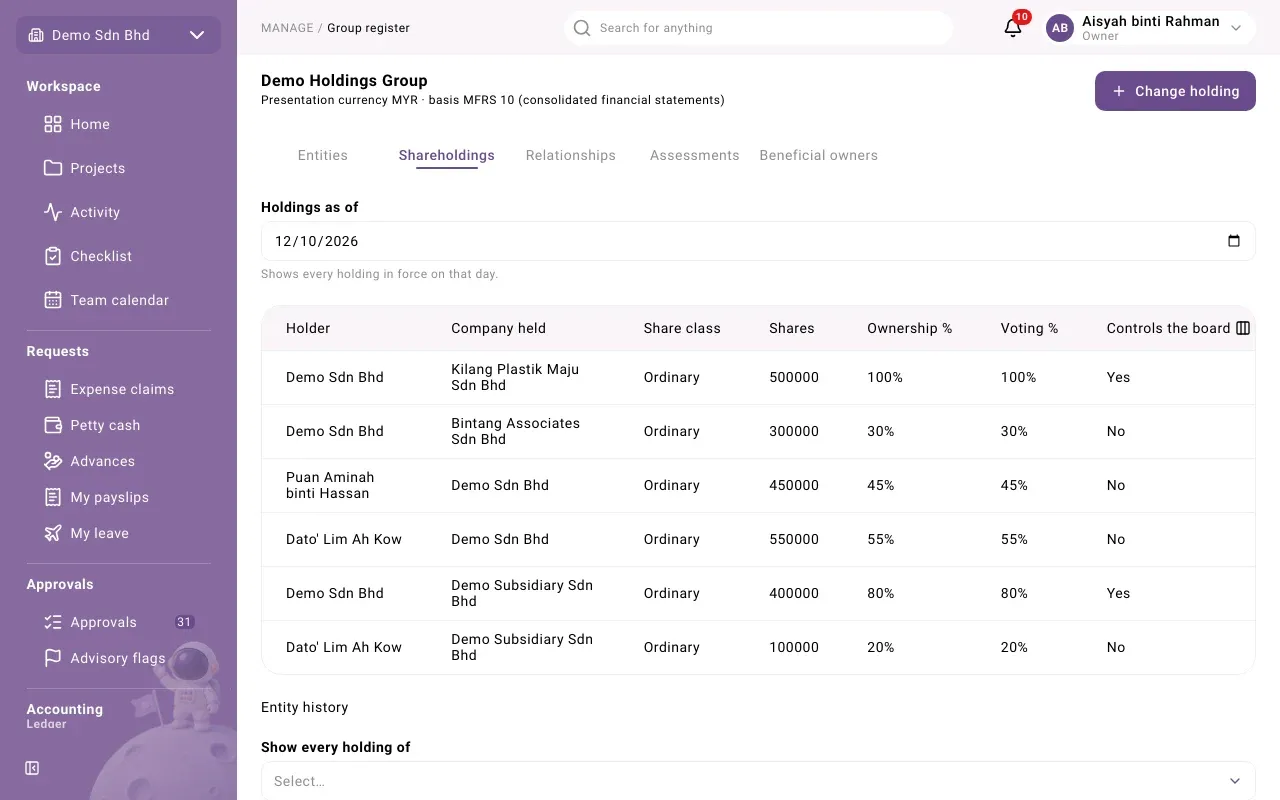
Who holds shares in whom. Holdings as of “Shows every holding in force on that day”; change the date to look back. Under Entity history, choose an entity in Show every holding of to see every holding it has had, with its Period.
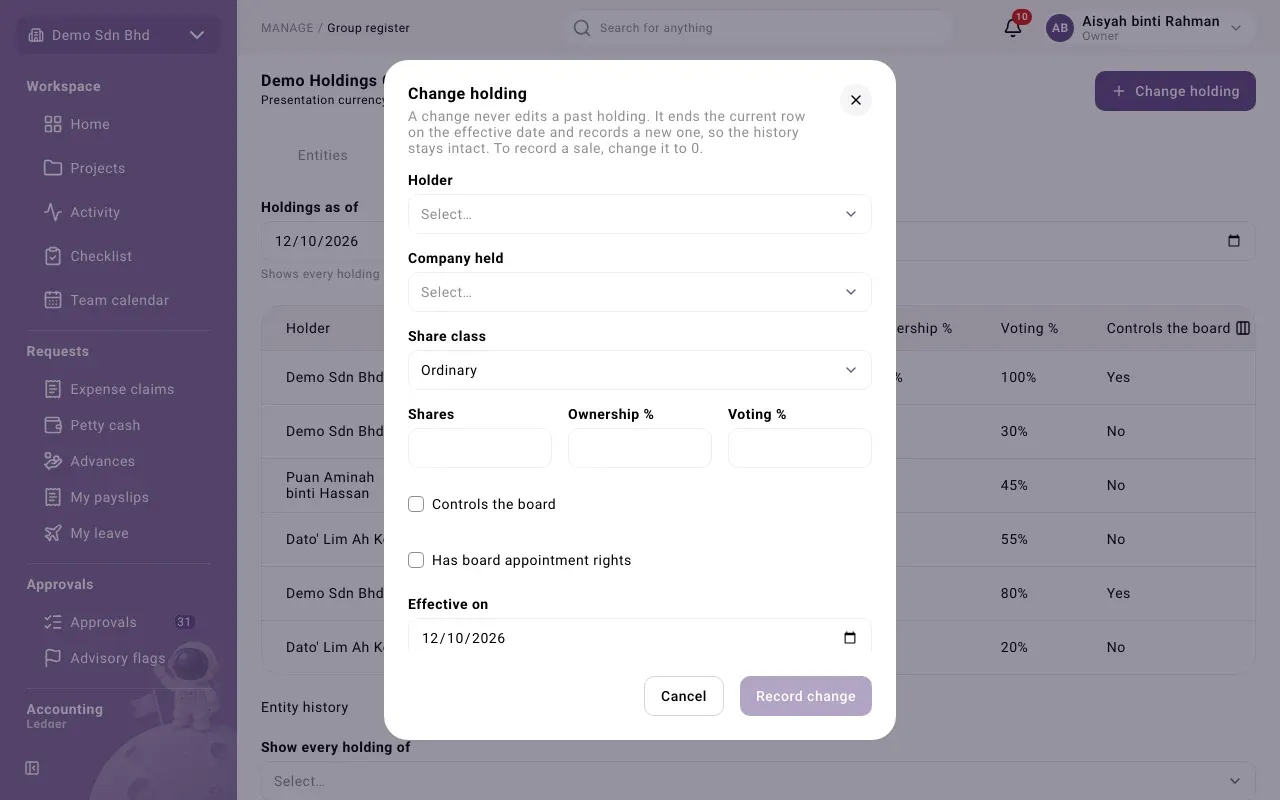
To record a purchase, sale or change, select Change holding:
| Field | What to enter |
|---|---|
| Holder | Who holds the shares |
| Company held | The company whose shares they are |
| Share class | Ordinary or Preference |
| Shares, Ownership %, Voting % | The new figures, as decimals, for example 70 |
| Controls the board / Has board appointment rights | Tick if true |
| Effective on | The date the change took effect |
Select Record change.
Relationships
Section titled “Relationships”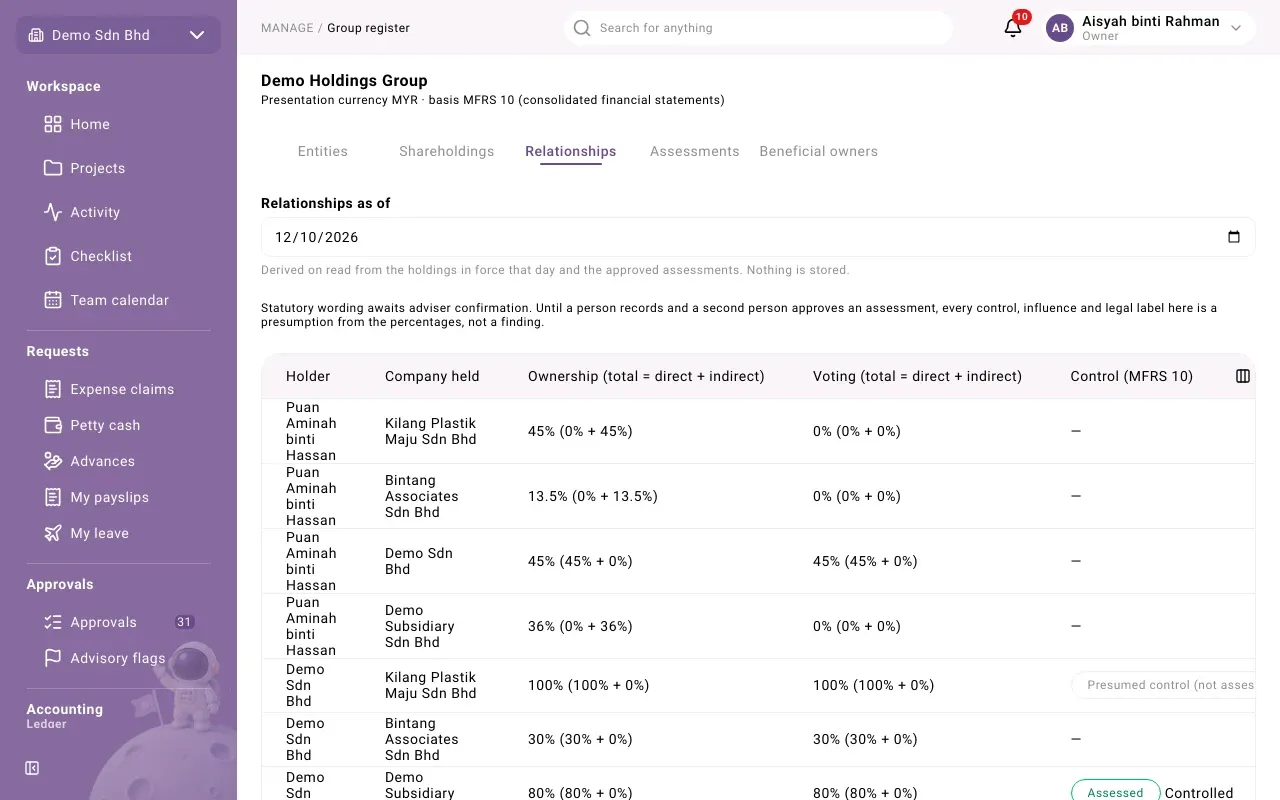
This tab is worked out from the holdings, nothing is stored. For a date (Relationships as of) it shows each holder’s total Ownership and Voting in each company, direct plus through other companies, and three conclusions: Control (MFRS 10), Influence (MFRS 128) and Legal (Companies Act). Warnings flags a Circular holding or a Chain cut at the depth limit.
Below the table, Beneficial owner candidates lists individuals at or above 20% of a company, directly or through a chain, with no declaration covering that day. Nothing is declared automatically: select Declare to open the declaration with their details filled in.
Assessments
Section titled “Assessments”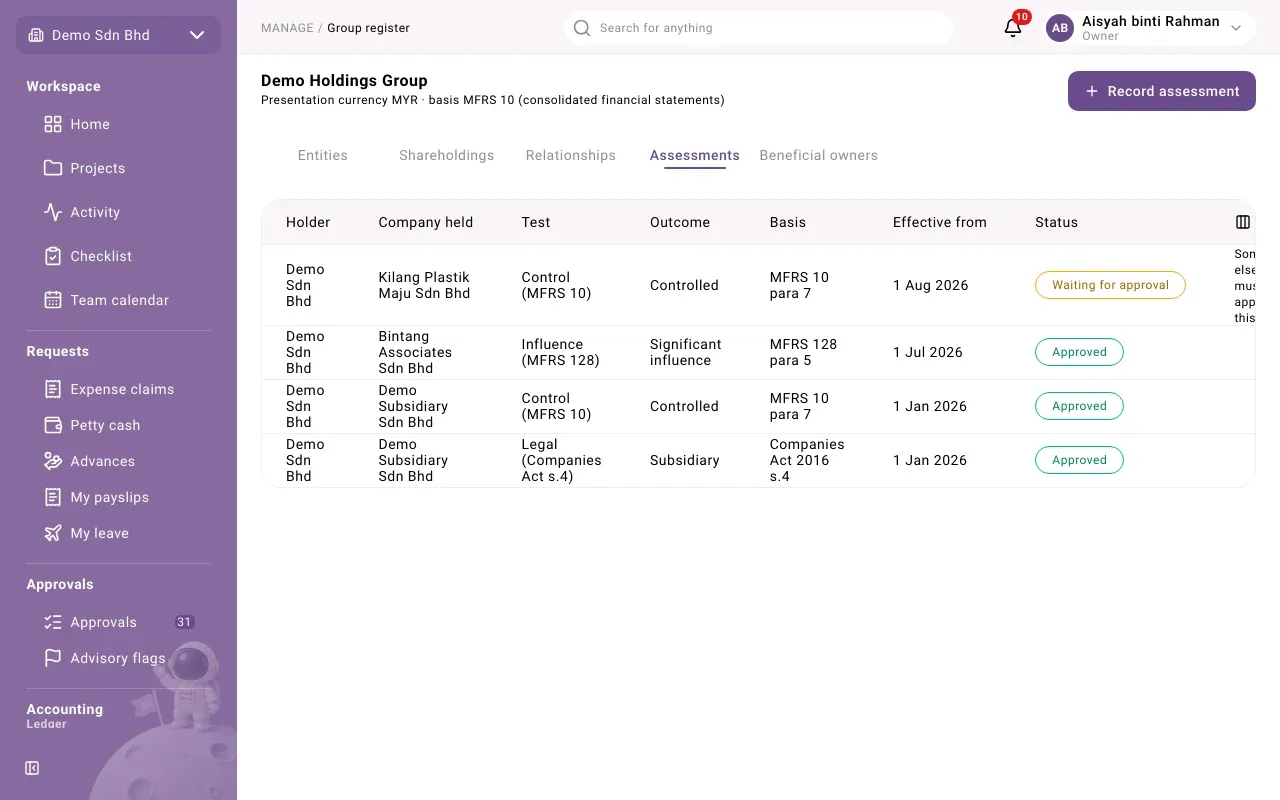
An assessment is a person’s recorded judgement that replaces a presumption, for example that a 40% holding does give control. Select Record assessment and choose the Holder, the Company held, the Test (Legal (Companies Act s.4), Control (MFRS 10) or Influence (MFRS 128)), the Outcome, and write the Basis and Rationale and the Effective from date. Select Record.
An assessment takes effect only after a different member approves it. It shows Waiting for approval until then. Someone else with management access selects Approve; on your own assessment you see “Someone else must approve this.” Approved assessments that override a presumption are listed on Relationships under Influence overrides to disclose.
Beneficial owners
Section titled “Beneficial owners”The individuals who ultimately own or control each company, with Declared %, Nature of control (Shares, Voting or Effective control), identity document and the Period. If you may not see identity numbers, they show Hidden.
To declare one, select Declare beneficial owner and fill in the Individual, Company held, Declared %, Nature of control, Identity document (NRIC, Passport or Other), Identity number and Effective from. Select Declare. The audit trail records that you declared it, never the number.
To end one, select End declaration, choose the date it Ends on, and confirm. The record is kept, never removed.