Custom reports
Custom reports let you build an account balances report the standard reports do not give you: your own period, one branch of the chart of accounts, one project or other analytic account, the columns you want, and how far to roll accounts up. You can save it and run it again later, and share it. It is for the same people who can open Reports. You find it under Reports as Custom reports.
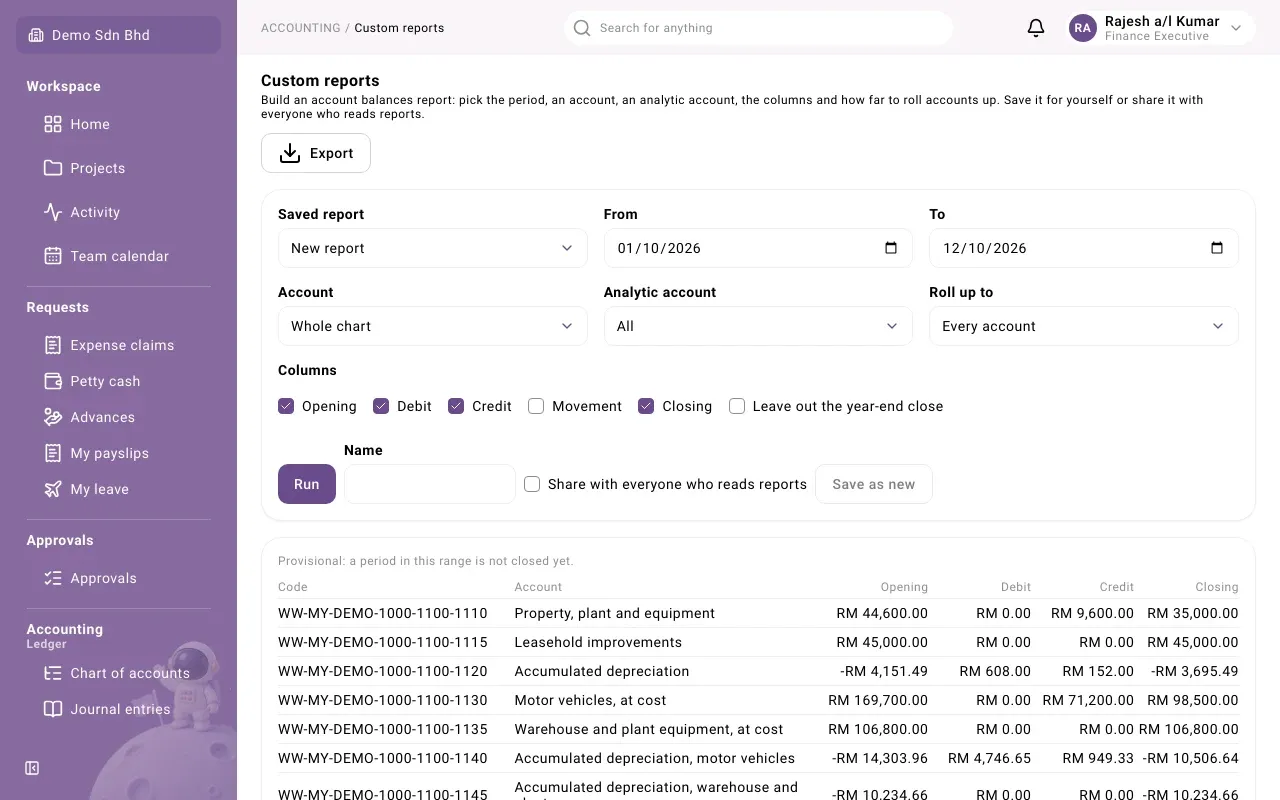
Build and run a report
Section titled “Build and run a report”-
Open Custom reports. Saved report shows New report.
-
Set the fields:
Field What to choose From and To The period. It starts as the first of this month to today. Account Whole chart, or one account to see it and the accounts under it Analytic account All, or one project or other analytic account Roll up to Every account, or 1 to 4 levels to total sub-accounts into their parents -
Under Columns, tick the columns you want: Opening, Debit, Credit, Movement and Closing.
-
Tick Leave out the year-end close to see figures before the year’s closing entry.
-
Select Run.
The report lists each account’s Code and Account with your columns, and a Total row. If nothing moved, it says “Nothing moved in this range.” If a period in your range is still open, it says “Provisional: a period in this range is not closed yet.”
Save a report
Section titled “Save a report”- Build the report as above.
- Type a Name.
- Tick Share with everyone who reads reports if colleagues should see it too.
- Select Save as new. You see “Report saved”.
Your saved reports, and reports others have shared (marked shared), are in the Saved report list. Choosing one fills in its settings; select Run to see the figures.
If the report is your own you can change it and select Save, or delete it with the Delete button (the bin icon). You see “Report deleted”. A report someone else shared can be run and saved as your own copy with Save as new, but not changed or deleted.
Export
Section titled “Export”Once a report has run, an Export button appears at the top right. Choose CSV, Excel (XLSX) or PDF, as on the Reports page. The file holds the report as it is set up on screen, and it is listed under Recent exports on the Reports page.
Good to know
Section titled “Good to know”- Like every report, a custom report reads posted entries only, in the base currency.
- A saved report keeps its settings, not its figures. Running it later shows the figures as they are then.