Closing checklist
The closing checklist keeps the month-end and year-end close in one place: a list of tasks grouped into sections, which the finance team works through and records as done. Some rows tick themselves when the system can see the work is finished, such as a closed period or a reconciled bank account.
Everyone your administrator has given access to the checklist can view it. Filling rows in needs permission to work on checklists; starting runs, changing the layout, signing off sections and locking a run needs permission to manage them.
Open Checklist in the sidebar.
The checklist list
Section titled “The checklist list”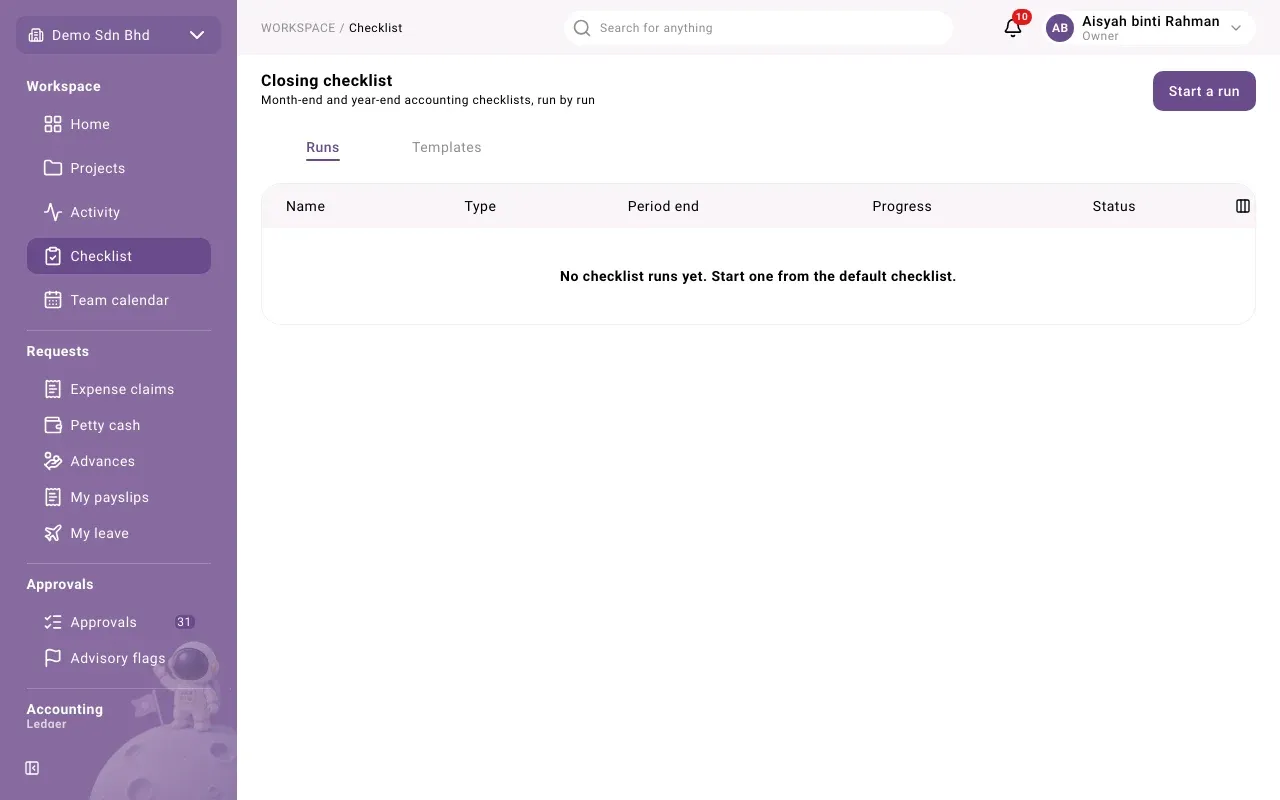
The Closing checklist page has two tabs:
- Runs: one checklist per close, with its Name, Type (Month-end, Year-end or Custom), Period end, Progress (“… of … done”) and Status (Open or Locked).
- Templates: the layouts new runs start from. Starting your first run creates the default one.
Select a row to open it.
Start a run
Section titled “Start a run”- Select Start a run.
- Fill in the form and select Start run.
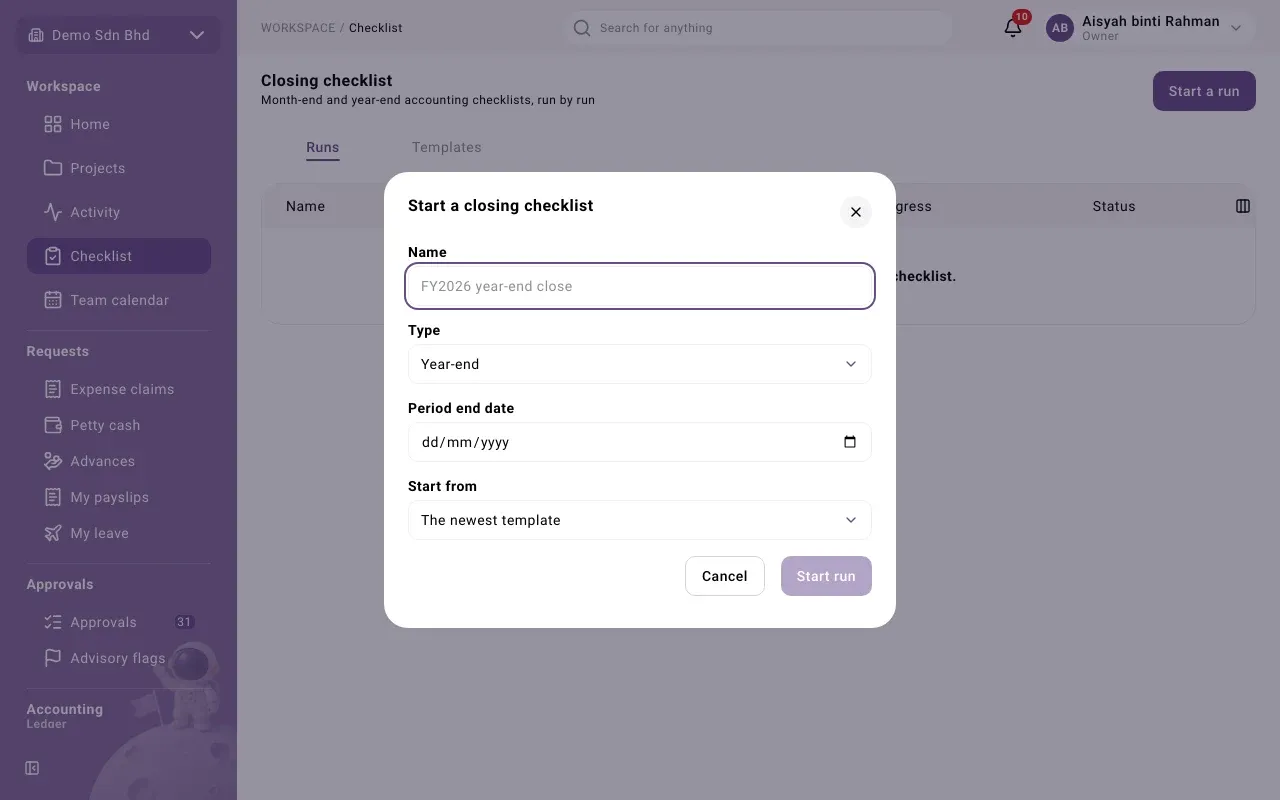
| Field | What to enter |
|---|---|
| Name | e.g. “FY2026 year-end close” |
| Type | Month-end, Year-end or Custom |
| Period end date | The last day of the month or year you are closing |
| Start from | The newest template, or a template you choose |
Work through a run
Section titled “Work through a run”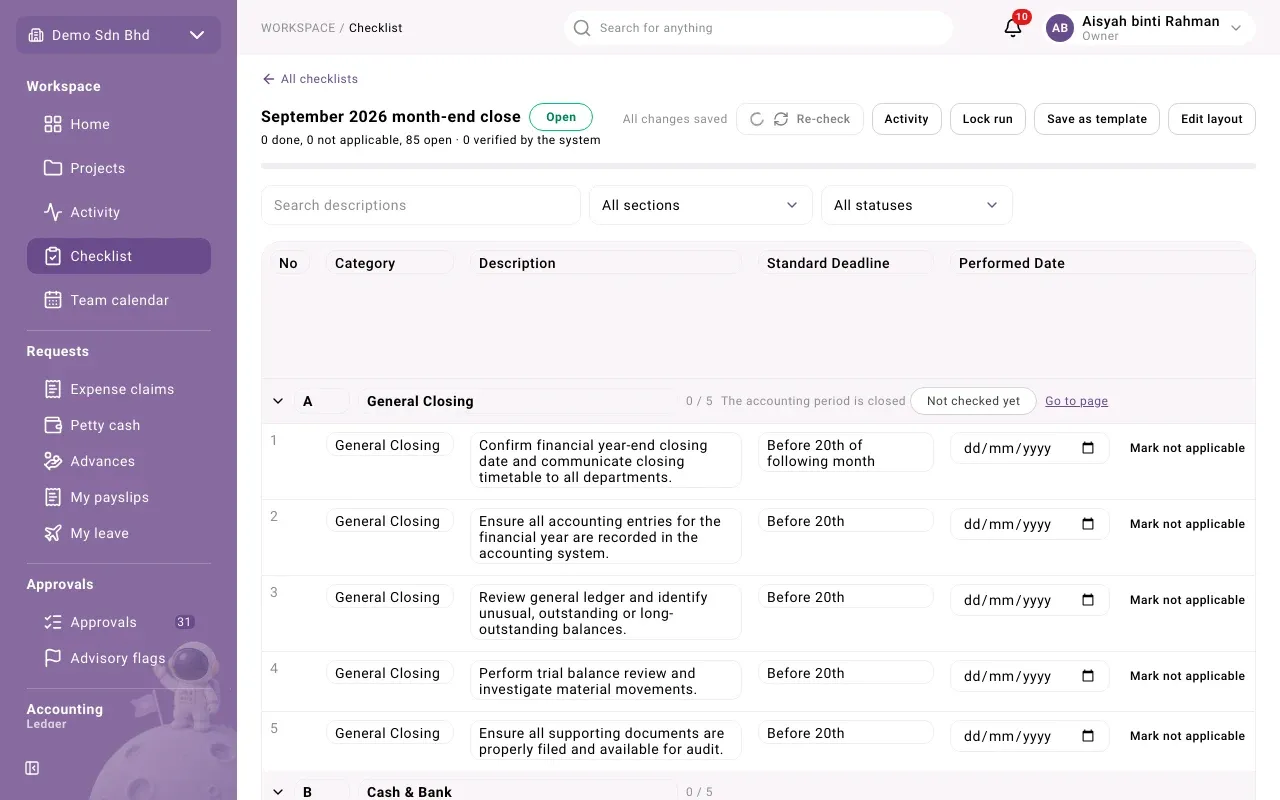
At the top you see the run’s status, a summary (“… done, … not applicable, … open”) and a progress bar. Narrow the rows with Search descriptions, the section filter (All sections) and the status filter (Open, Done, Not applicable).
Each section has a letter and a title, such as A General Closing or B Cash & Bank, with a count of rows done; select its arrow to open or close it. Each row is one task, with columns such as No, Category, Description, Standard Deadline and Performed Date. Your checklist manager may have added or hidden columns. To record your work:
- Set the Performed date when you have done the task. Your name and the time are shown under it.
- Type in the other columns, such as remarks. Changes are saved as you go; the top of the page says All changes saved, Saving…, or “… changes not saved” with Retry.
- If a task does not apply this time, select Mark not applicable and give a reason. It shows N/A. Mark applicable again undoes it.
Changing a performed date that is already set, or removing a row that has one, also asks for a reason. Select History on a row to see every change made to it, or Activity at the top for the whole run.
Rows that tick themselves
Section titled “Rows that tick themselves”A row can be tracked by the system. It then fills its own performed date when the work is done, and shows Verified by system:
| Auto-check | It ticks itself once |
|---|---|
| The accounting period is closed | the period containing the checklist’s period end is closed in Accounting |
| Every bank account is reconciled | every active bank account has a locked reconciliation up to the period end |
| Payroll is approved | the payroll run for the checklist’s month is approved |
| Every bank account has its statement imported | every active bank account has an imported statement up to the period end |
| Depreciation is posted for the period | depreciation has been run for the period containing the period end |
Other states are Not checked yet, Waiting for the work, Could not verify and No longer satisfied (for example after a period is reopened). Select Re-check at the top to check again, and Go to page to open the screen where the work is done.
Sections that need sign-off
Section titled “Sections that need sign-off”A section marked Needs sign-off is signed off by a checklist manager once its rows are done: select Sign off. It then shows “Signed off by …”. Withdraw removes the sign-off, with a reason. If a section’s rows are done but its linked module says otherwise, it shows “Rows are done, but the system disagrees”.
For checklist managers
Section titled “For checklist managers”- Edit layout lets you add, rename, move and remove sections, rows and columns. A column can be Text, Date, Number, Pick-list, Person or Tick box, and can be hidden. A row has a Description, a Category and a Standard deadline. Select Done editing when finished.
- On a row, the tracking button sets its Auto-check, or None (a person ticks it).
- Save as template saves this run’s layout as a template for future runs.
- Lock run freezes the run when the close is finished: “This run is locked. Unlock it to make changes.” Unlock asks for a reason.
Every change, with its reason, is kept in the run’s activity.