Leave and payslips
My leave
Section titled “My leave”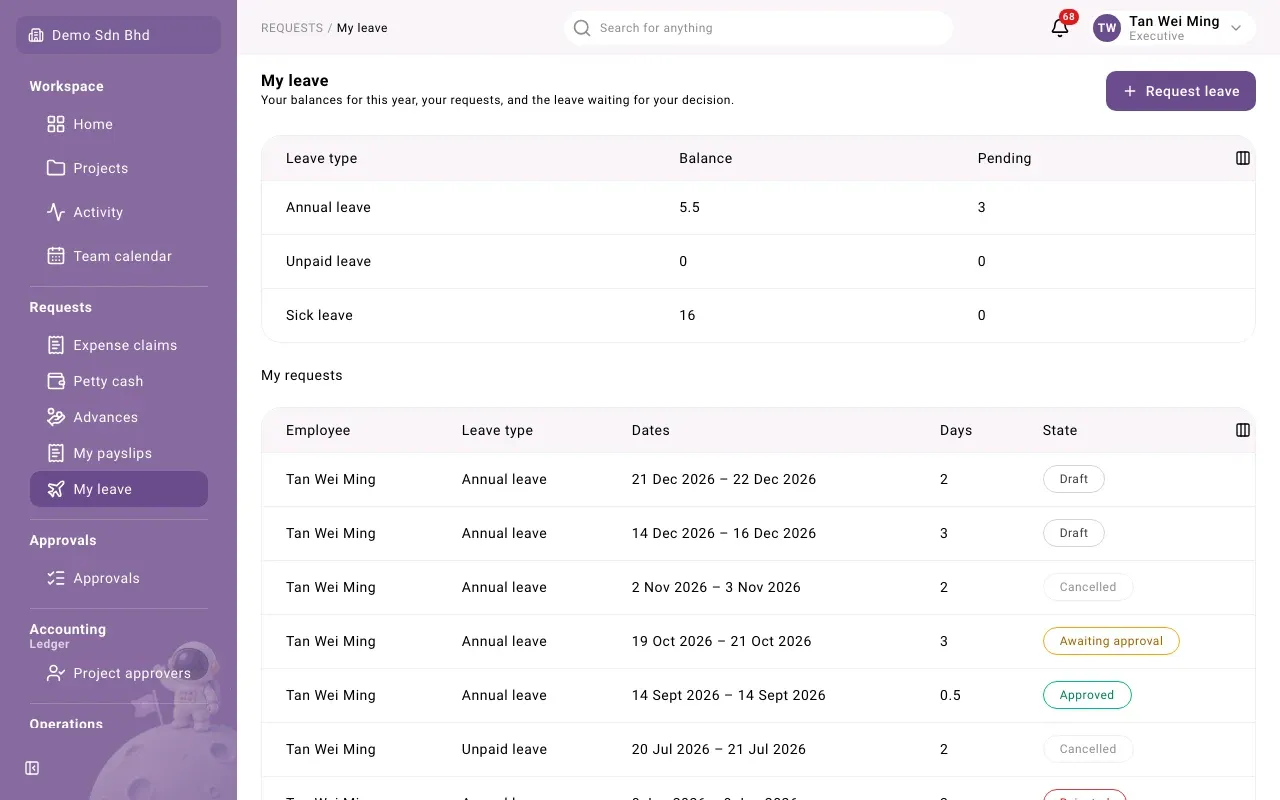
Open My leave from the sidebar. The top table shows your balance for this year:
| Column | Meaning |
|---|---|
| Leave type | Annual, sick, unpaid and any other type your organization offers |
| Balance | Days you have left |
| Pending | Days in requests still waiting for a decision |
Below it, My requests lists every request with its dates, days and State:
| State | Meaning |
|---|---|
| Draft | Saved, not yet submitted. This includes a draft HR entered for you. |
| Awaiting approval | Submitted and waiting for your superior |
| Approved | Granted. It comes off your balance. |
| Rejected | Turned down |
| Cancelled | No longer going ahead |
If you manage people, Awaiting my approval lists the leave waiting for your decision.
If the page says You have no employee record here, you cannot request leave; ask HR.
Request leave
Section titled “Request leave”- Select Request leave.
- Choose the Leave type, then the From and To dates.
- Add a Reason if you like. It is optional; write it in English or Bahasa Malaysia.
- Select Submit. You will see “Leave requested”.
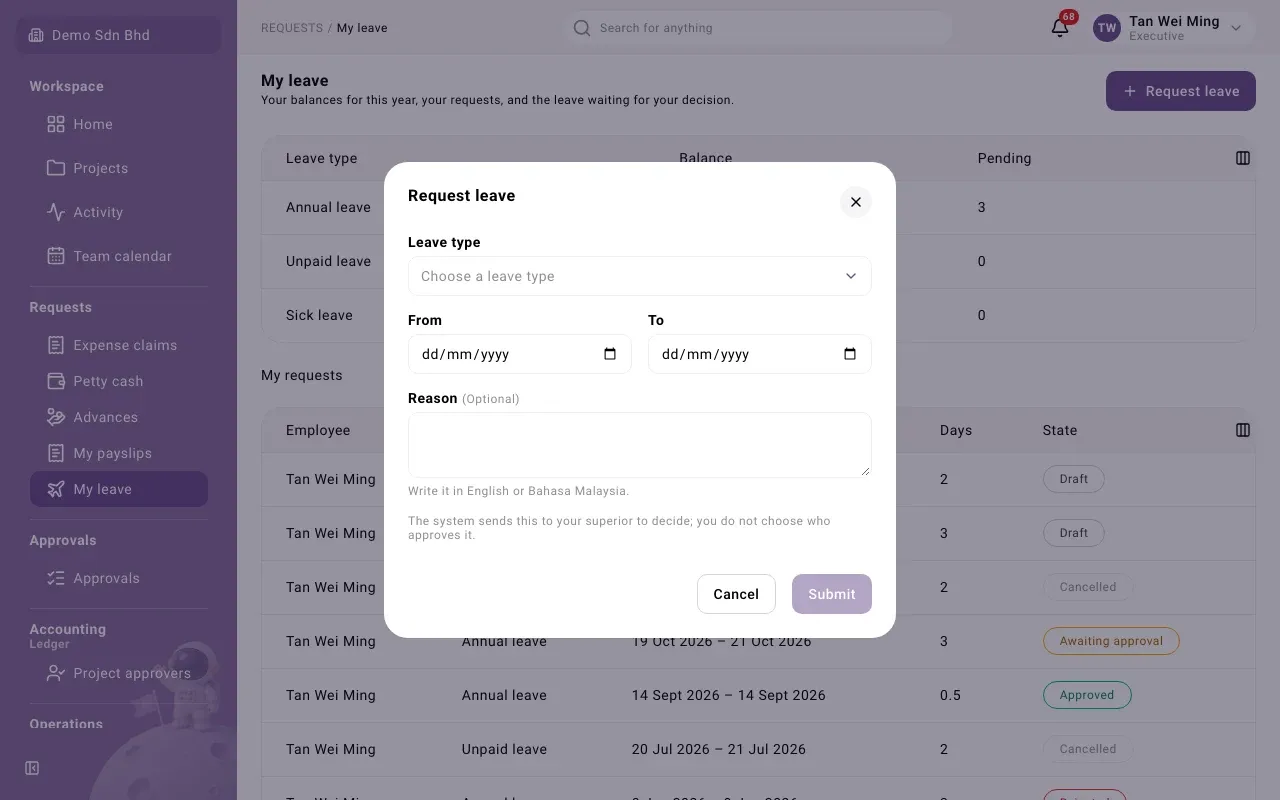
Submit stays greyed out until the request is valid. Things to know:
- Half days: choose First day: afternoon only or Last day: morning only where the form offers them. A half day must fall on a working day, and a single day is one half day, not two. Maternity and paternity leave are whole, consecutive days.
- Medical certificate: sick and hospitalisation leave need one. Attach it as a PDF or a photo. You can only attach a document you uploaded yourself.
- Not enough days: the form tells you how many days are left against how many you requested.
- Dates: leave cannot start before your hire date or end after your last day, and one request stays within one calendar year. Split a request that crosses 31 December.
- Public holidays and weekends are not counted as leave days.
You never choose your approver. The system sends the request to your superior, and if they are on leave it moves past them to someone above.
Team calendar
Section titled “Team calendar”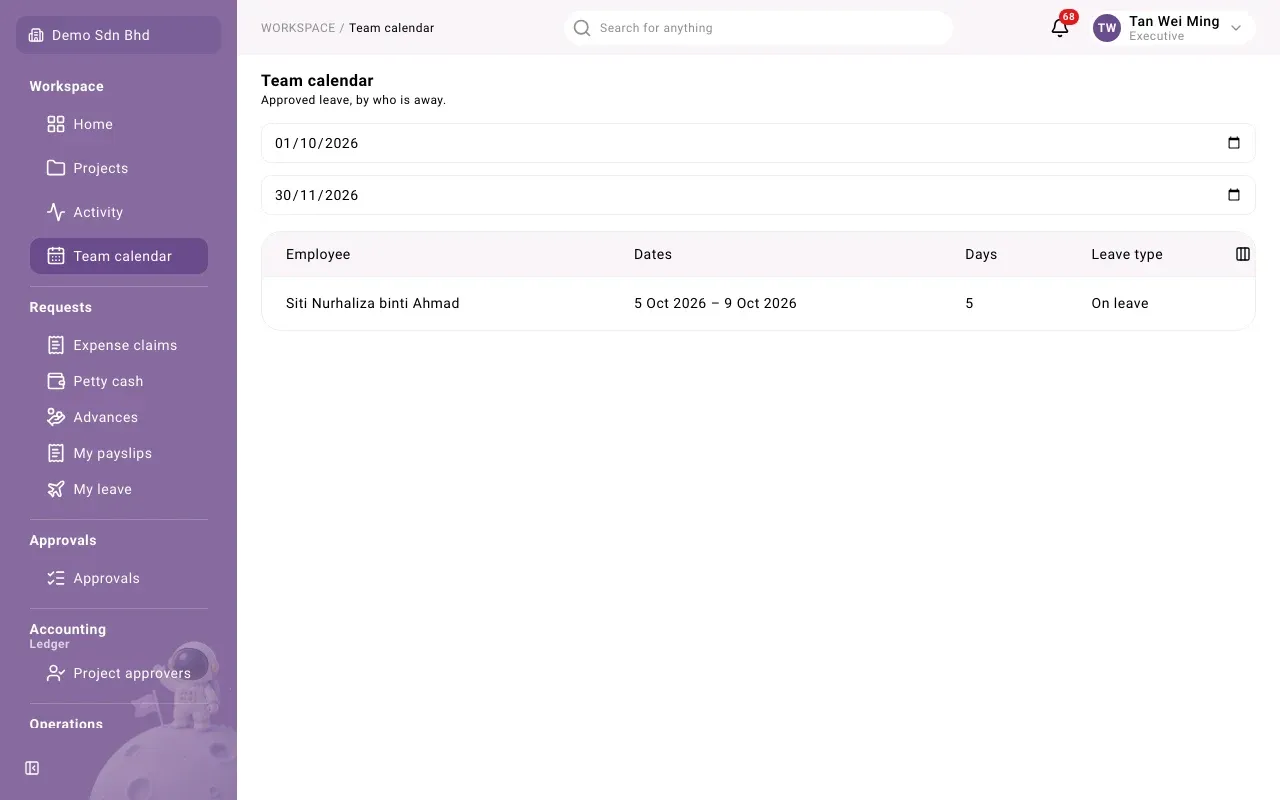
Team calendar shows approved leave: who is away, on which dates and for how many days. Set the two dates at the top to change the period. If nobody is away, it says “Nobody is on leave in this period”.
My payslips
Section titled “My payslips”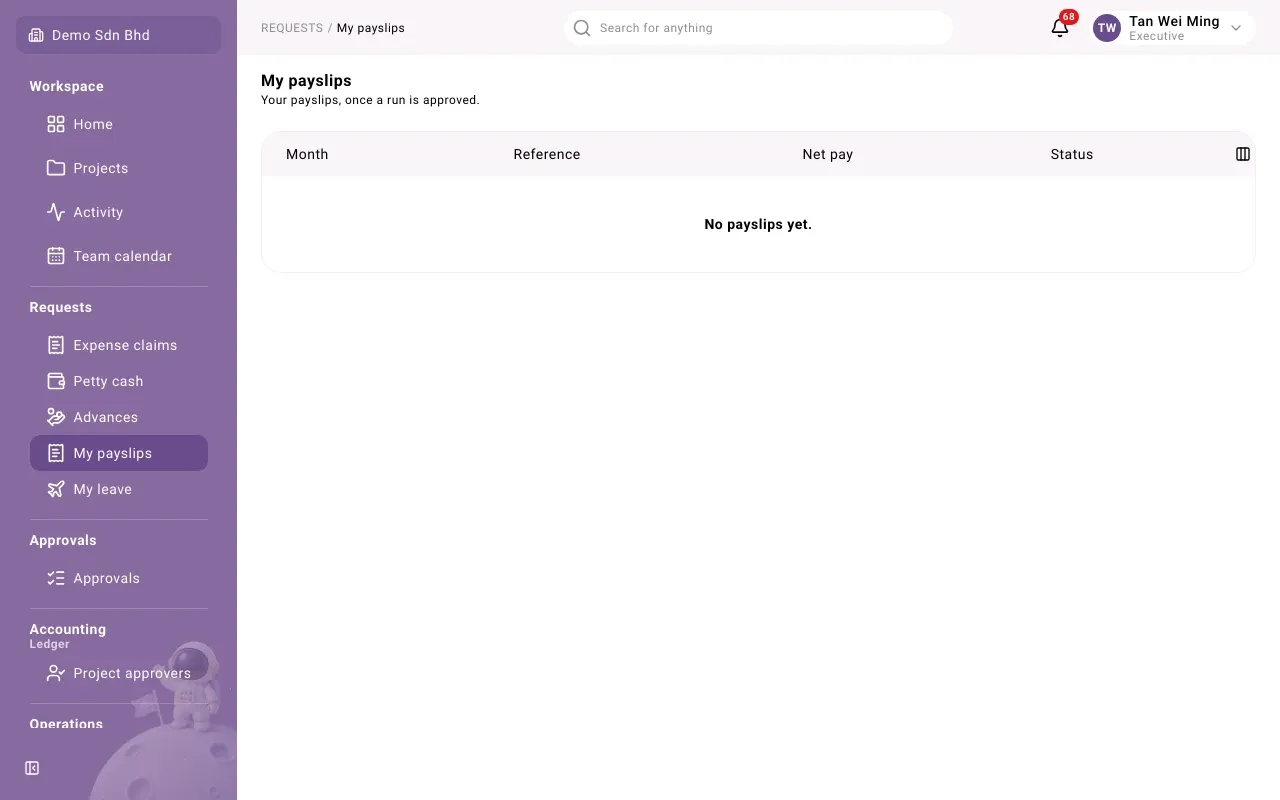
My payslips lists your payslips once a payroll run has been approved. Until then it says “No payslips yet”.
Each row shows the Month, a Reference, your Net pay and whether it is Paid or Unpaid. Open a payslip to see your Gross pay, your Deductions and your Net pay, and Print it if you need a copy.
If a payslip looks wrong, contact your payroll administrator; you cannot change it yourself.