SST returns
Tax returns works out your SST return for each taxable period from the sales and purchase documents already in mcomtask, and keeps track of what has been paid. It is for people your administrator has given access to tax returns; preparing, finalising and paying each need their own permission. You find it under Banking & tax in the accounting part of the menu.
Withholding tax is not a return on this page. To see withholding deducted from supplier payments, use the Withholding register on the Reports page.
If the page says “Tax returns are not available for this organization’s country.”, there is nothing to set up here.
Set up the SST registration
Section titled “Set up the SST registration”Until the registration is set up, the page says “No registration yet. Set up the SST registration to see your taxable periods.”
-
Select Set up registration (later, Edit registration).
-
Fill in:
Field What to enter SST registration number The one SST number returns are filed under Effective from The date the registration starts First taxable period ends The last day of your first taxable period Months per taxable period How many months each period covers SST payable account The ledger account that holds SST owed -
Select Save.
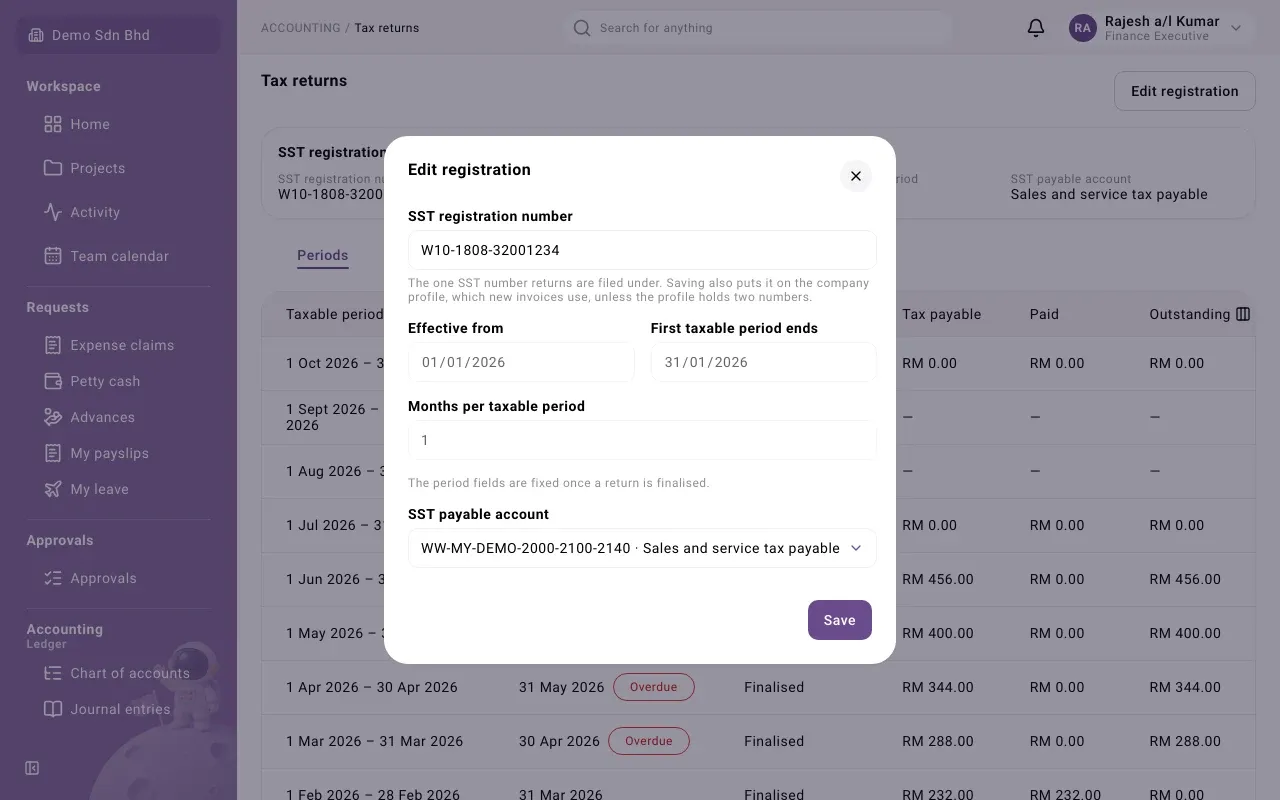
Saving also puts the registration number on the company profile, which new invoices use, unless the profile holds two numbers. “The period fields are fixed once a return is finalised.” If a draft return exists you must finalise or discard it before changing them.
The periods list
Section titled “The periods list”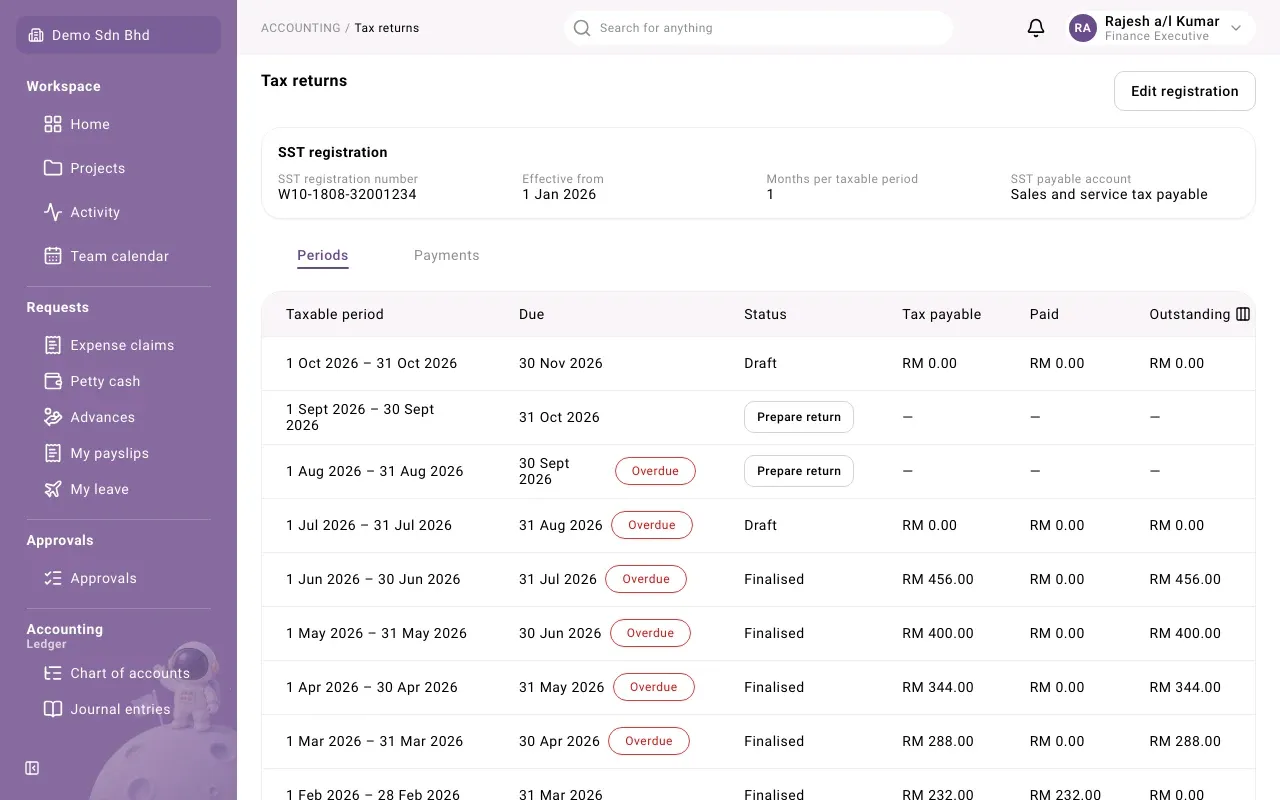
The Periods tab lists each Taxable period with its Due date (tagged Overdue when late), Status, Tax payable, Paid and Outstanding.
| Status | Meaning |
|---|---|
| Not started | No return yet. If you may prepare returns you see Prepare return instead. |
| Draft | Being prepared; the figures still follow the records |
| Finalised | Frozen. Corrections are made by amendment. |
| Discarded | A draft that was thrown away |
Changed since filed means the records no longer agree with a finalised return. A negative tax payable is tagged Credit — claim from the Customs department.
Prepare a return
Section titled “Prepare a return”- On the period, select Prepare return. The return opens.
- Read the figures. A draft says “Draft — figures are recalculated from the records each time you open it.”
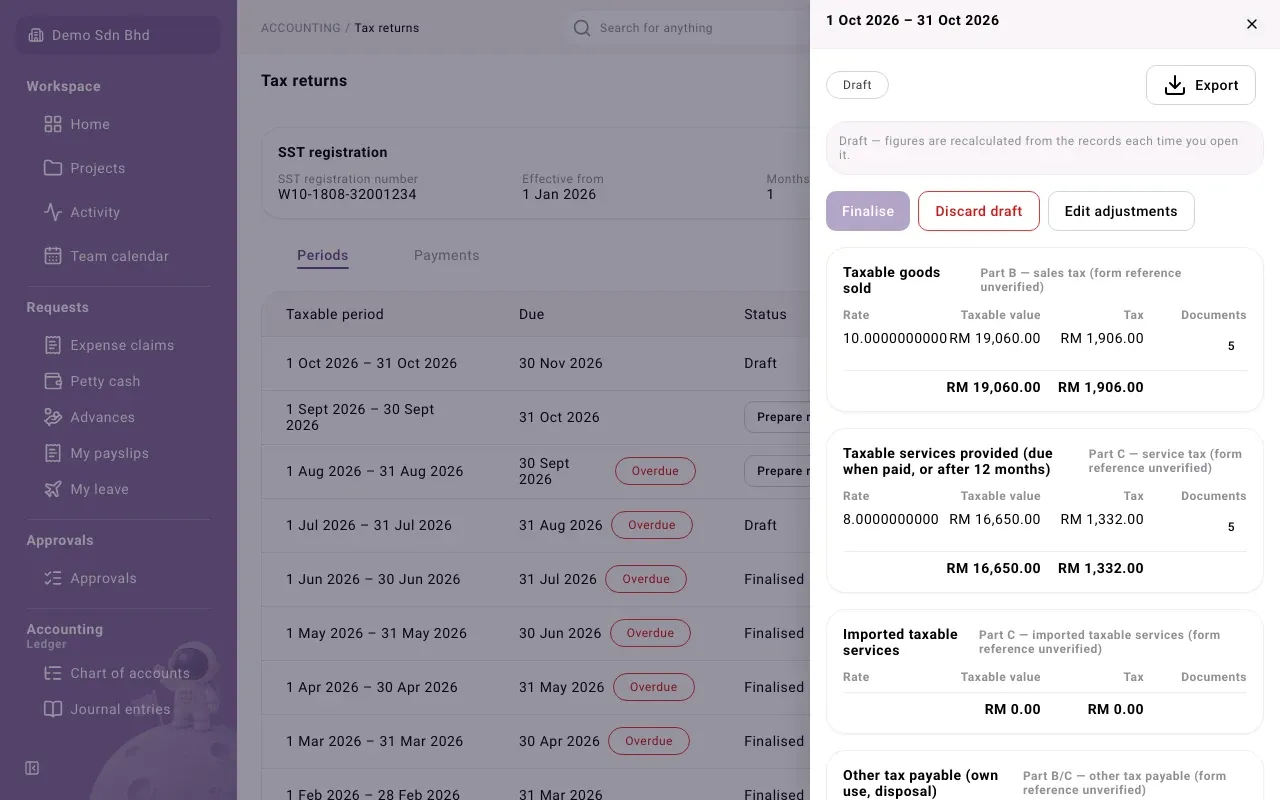
The return is split into sections, such as Taxable goods sold, Taxable services provided (due when paid, or after 12 months), Imported taxable services and Other tax payable (own use, disposal). Beside each title is the part of the official form it belongs to. Each section shows, by Rate, the Taxable value, the Tax and the number of Documents behind it. Select that number to see the documents themselves.
Below the sections are the Total tax and Tax payable, and a Reconciliation with the SST payable account: the Movement on the account in the period, what is Expected from documents and adjustments, and the Difference. A difference means the ledger and the documents disagree; find out why before you finalise.
If you see “Some sales lines use a tax kind this return does not report”, ask an administrator before finalising, as the banner says.
Adjustments
Section titled “Adjustments”Some amounts are not on any document in mcomtask, such as imported taxable services. Select Edit adjustments, then Add adjustment, and fill in the Item, Taxable value, Tax, Reason and, where asked, the Expense account. Select Save. Your adviser should confirm what belongs here.
Finalise
Section titled “Finalise”Finalise stays greyed out until the return can be finalised, for example while the period has not ended yet. Select it and confirm: “Its figures are frozen; corrections are made by amendment.”
If you are amending a return whose tax was booked by a manual journal, the app asks you to reverse that journal first, or the tax is booked twice. Only then select I have reversed it — finalise.
To throw a draft away instead, select Discard draft and give a Reason.
Export the return
Section titled “Export the return”Open the return and use Export to download its figures as CSV, Excel (XLSX) or PDF for filing.
Amend a finalised return
Section titled “Amend a finalised return”If the return shows “The records now differ from this filed return”, select Amend, give a Reason for amendment and confirm. A new draft version opens; check, adjust and finalise it as before.
Record the payment
Section titled “Record the payment”- Open the finalised return and select Record payment.
- Choose Paid from (the bank account), the Payment date, the Payment reference and the Amount. The amount starts as what is outstanding.
- Select Save. The Tax payment opens.
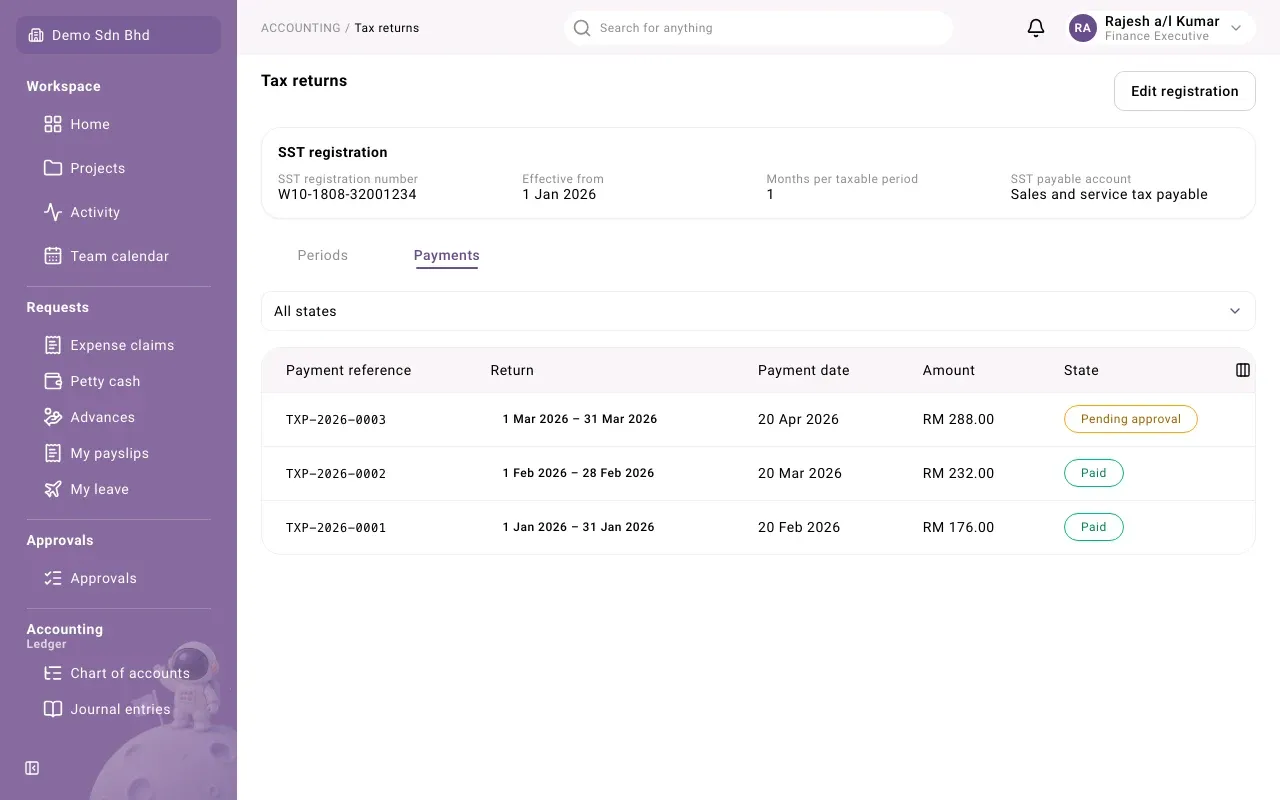
The payment then goes through your organization’s approval steps, shown as buttons on the payment. The Payments tab lists every payment with its Payment reference, Return, Payment date, Amount and State; filter by state.