Roles and permissions
A role is a named set of permissions, such as “File claims” or “Approve claims”. Each person holds one or more roles and can do everything any of their roles allows. This page is for people your administrator has allowed to manage roles.
Open Team under Manage, then the Roles tab.
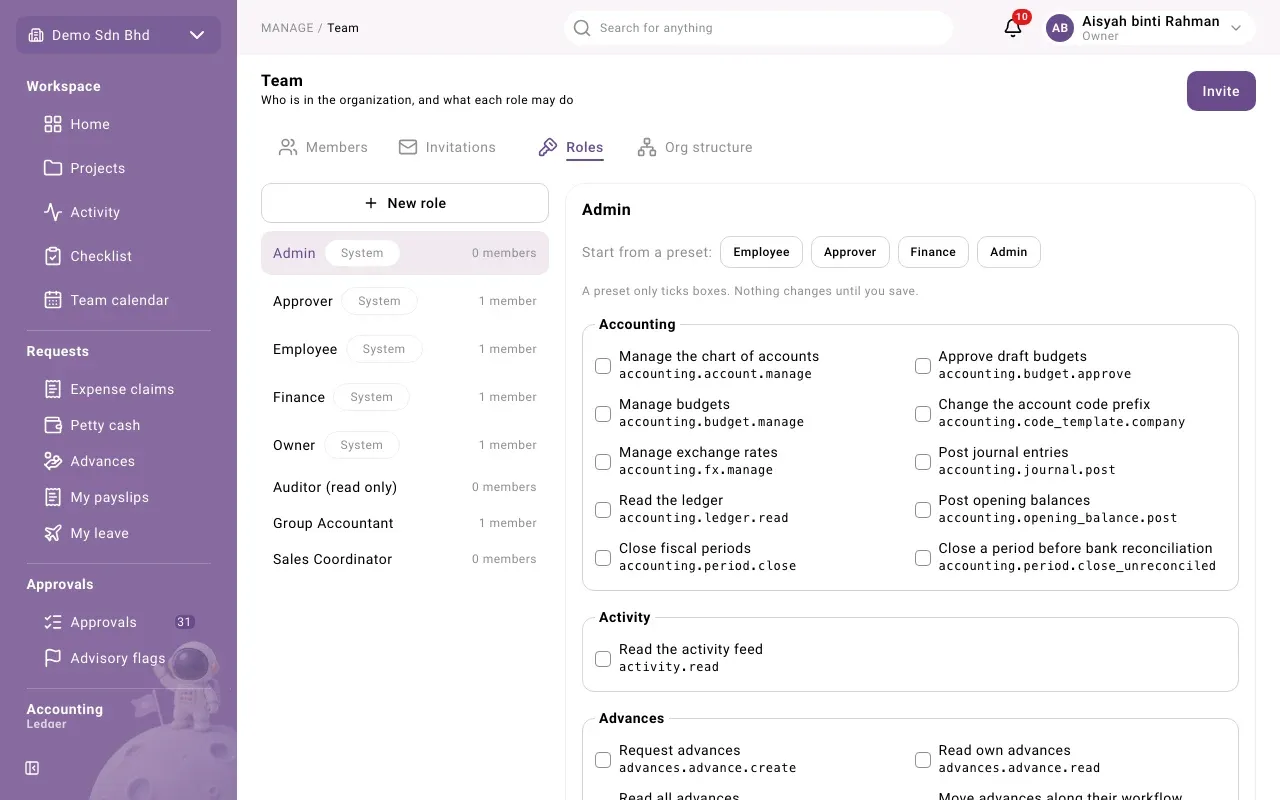
The Roles tab
Section titled “The Roles tab”On the left is the list of roles, with how many members hold each one. Roles marked System come with the app (the Owner role, for example) and cannot be renamed.
Select a role to see its permissions on the right. They are grouped by module, such as Expense claims, Petty cash or Accounting. Each permission has a plain description, for example Approve claims or Close fiscal periods, with its technical name underneath.
Change what a role may do
Section titled “Change what a role may do”- Select the role.
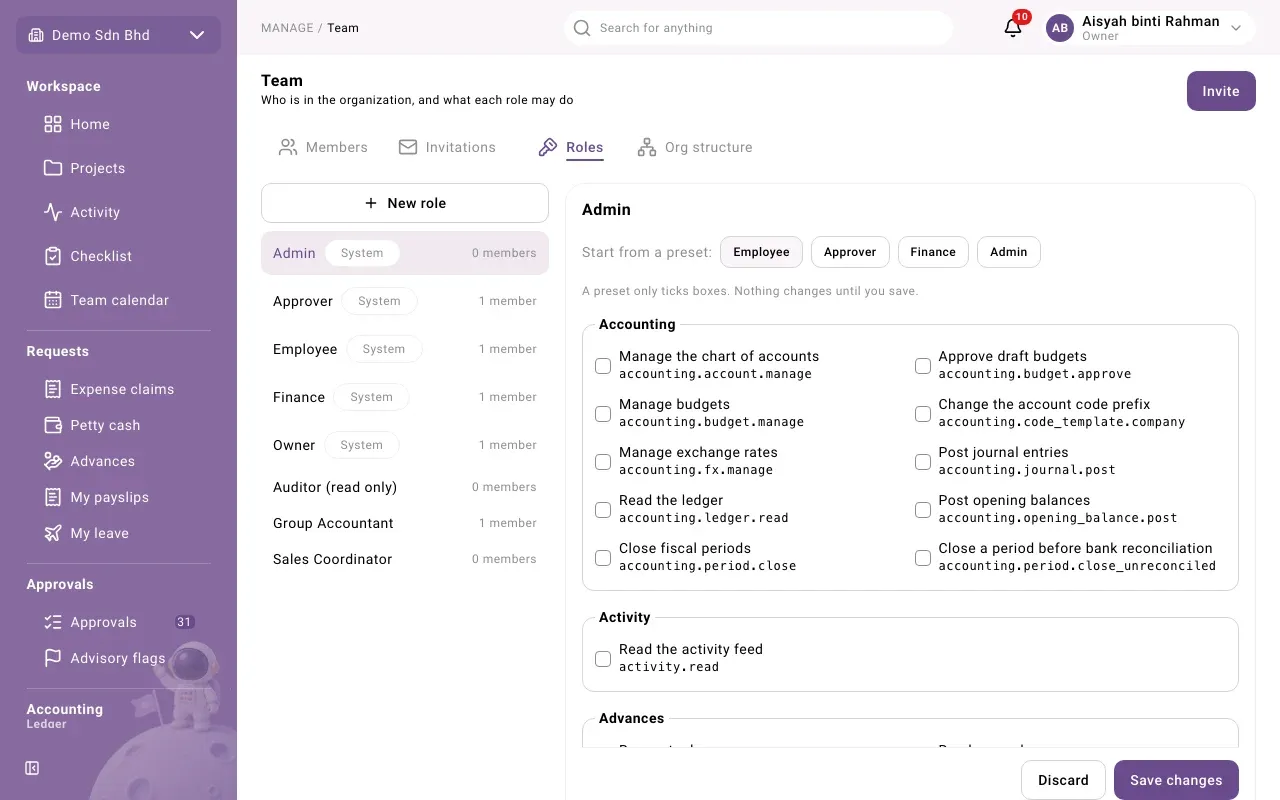
- Tick or untick permissions. To start quickly, use a preset under Start from a preset: Employee, Approver, Finance or Admin. “A preset only ticks boxes. Nothing changes until you save.” Admin ticks every permission.
- Select Save changes. You see “Role saved”. Or select Discard to go back to what was saved.
The change applies to everyone who holds the role.
| Preset | Roughly what it ticks |
|---|---|
| Employee | Filing and following your own claims and advances, uploading documents, reading petty cash, search |
| Approver | Employee, plus delegating approvals, reading decision logs and reviewing petty cash spends |
| Finance | Approver, plus reading all claims and advances, approving and verifying claims, managing floats and payout channels, the ledger, period close, exchange rates, reports and the closing checklist |
| Admin | Every permission |
Check the ticks after applying a preset; adjust them to what the person’s job needs.
Create or rename a role
Section titled “Create or rename a role”- Select New role, enter a Role name (up to 100 characters) and select Save. The new role opens with no permissions ticked.
- To rename a role you created, select it and select Rename.
Then tick its permissions and give it to people from the Members tab (see Team and invitations).
Safety checks
Section titled “Safety checks”The app stops you locking everyone out:
- “The Owner role must keep the right to manage roles, or nobody could fix roles again.”
- “You would lose the right to manage roles. Ask another administrator to make this change.”
If you see one of these, nothing was saved.
Permissions worth knowing
Section titled “Permissions worth knowing”A few permissions control administration itself:
| Permission | What it allows |
|---|---|
| Manage roles | Use this Roles tab and change people’s roles |
| Invite members | Send and revoke invitations |
| Read the org structure, Edit the org structure | View or change units and positions |
| Administer the organization | Switch modules on and off, and see the org structure setup checklist |
| Complete company setup | The setup wizard and the setup checklist (the Owner holds it) |