Document numbering
Code customization sets how the numbers on your documents look, for example EC-2026-0012
for an expense claim, and how project codes look. Open it under Manage. It is for
administrators your organization has given access to numbering.
The list
Section titled “The list”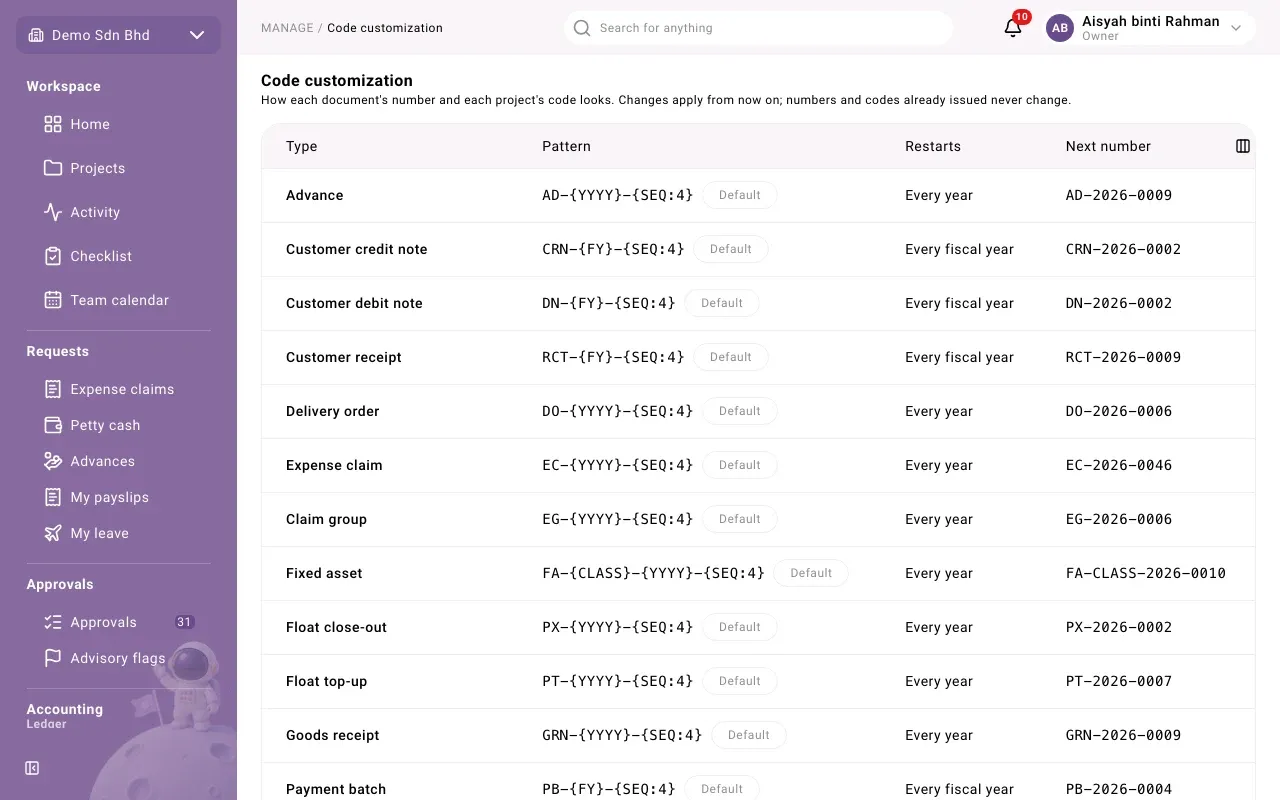
| Column | What it shows |
|---|---|
| Type | The document, for example Expense claim, Sales invoice or Project code. Each journal has its own row, “Journal … — …”. |
| Pattern | The layout of the number. Default means you have not changed it; Changes on … means a change is scheduled. |
| Restarts | When the count goes back to 1: Every year, Every month, Every day, Every fiscal year or Never |
| Next number | The number the next document will get |
Change a pattern
Section titled “Change a pattern”- Select the row. Numbering for … opens.
- Edit the Pattern, or select one of the Common layouts to start from.
- Choose when to Restart the count.
- Check the Next number under the form, then select Save.
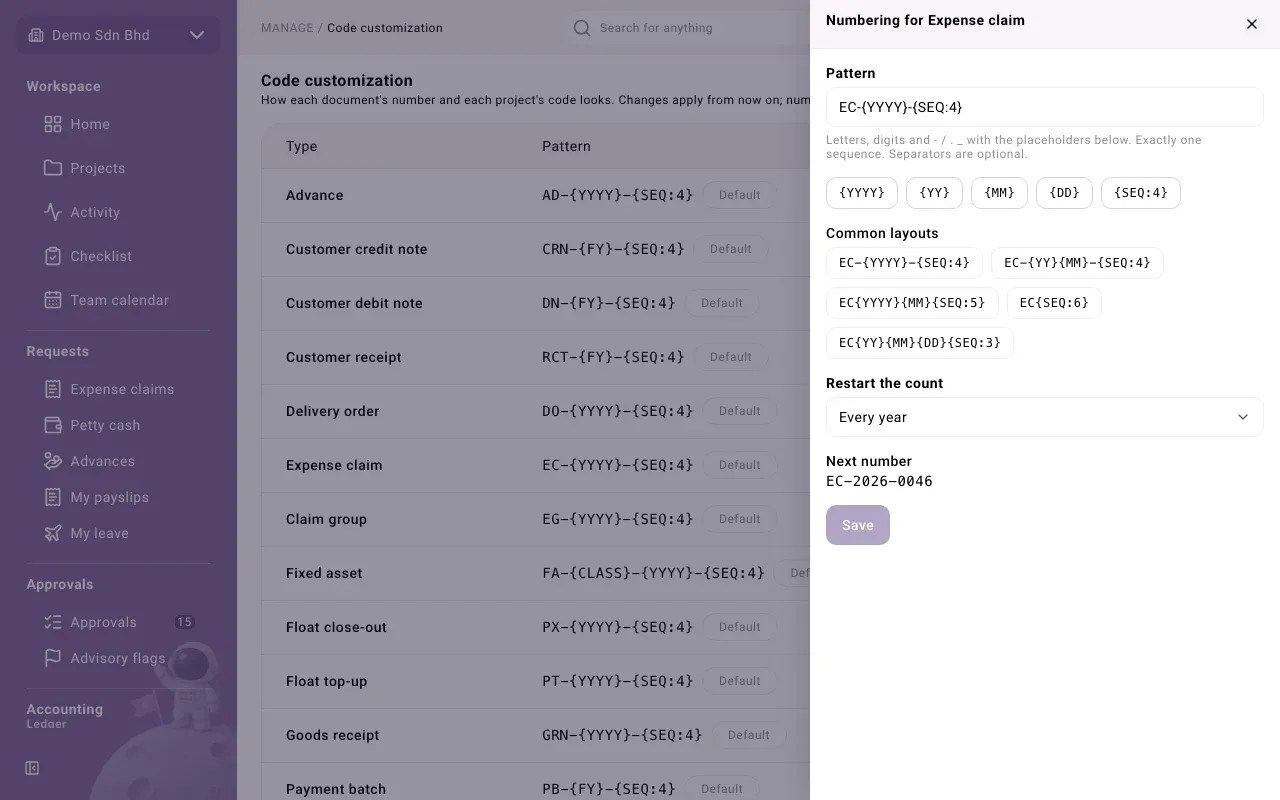
A pattern is made of letters, digits and - / . _, plus placeholders. Select a placeholder
button to insert it where the cursor is:
| Placeholder | Stands for |
|---|---|
{YYYY} |
Year, 4 digits |
{YY} |
Year, 2 digits |
{MM} |
Month |
{DD} |
Day of the month |
{FY} |
Fiscal year (only where offered) |
{SEQ:4} |
Sequence: the running count, here 4 digits |
A pattern needs exactly one sequence. Separators are optional. Fixed assets also offer
{CLASS}, which is part of their default pattern.
Rules to know
Section titled “Rules to know”- Changing when the count restarts does not take effect straight away. The form says “Changing when the count restarts takes effect on …” with the date, and until then the current pattern keeps applying. The list shows Changes on … for that row.
- If the preview says a number “is already used by another document”, pick a different pattern. Save stays disabled until you do.
- A journal’s count always restarts each fiscal year.
- Use the default puts the type back to the standard numbering. It appears only when you have changed it.
Continue from your previous system
Section titled “Continue from your previous system”If you are moving from another system, you can make numbering carry on where it left off.
- Open the type.
- Under Starting number, enter the next number to use, for example
1251. - Select Set starting number.
You can do this only before the first number of the current period is issued; the Starting number field appears only while that is still possible.
Problems
Section titled “Problems”| You see | What to do |
|---|---|
| Save is disabled | The pattern is empty, unchanged, refused, or would repeat a used number. Read the message under Next number. |
| A message in red under Next number | The pattern is not allowed, for example it has no sequence. Fix it and the preview updates. |