CRM pipeline
An opportunity is a deal you are working on with an account: what it is, how much it is worth and when you expect to close it. The Pipeline shows every open and closed opportunity as a board, one column per stage.
This page is for people your administrator has given access to CRM opportunities. You find it under Operations → Sales → Pipeline.
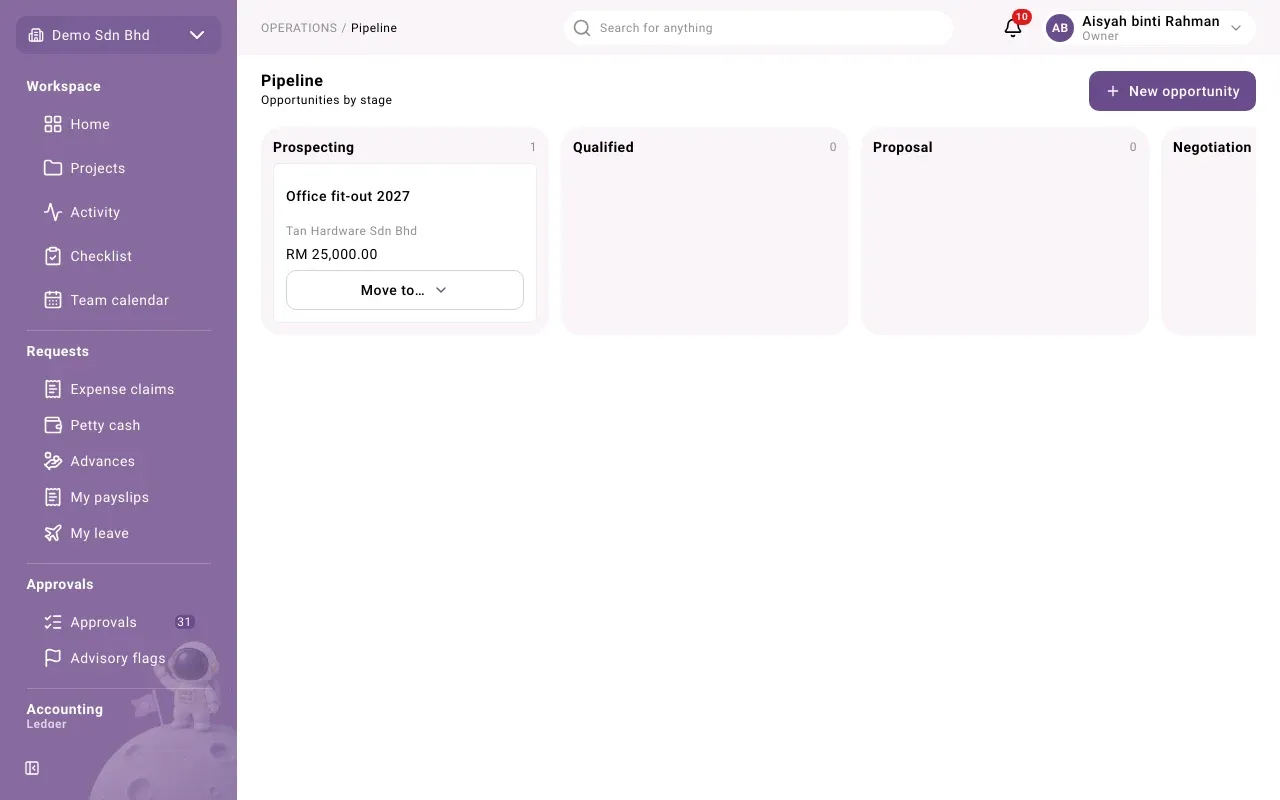
Each column shows the stage’s name and how many opportunities are in it. Each card shows the opportunity’s name, its account, its project code if it has one, its amount, and a Move to… button.
Stages
Section titled “Stages”Out of the box the stages are:
| Stage | Meaning |
|---|---|
| Prospecting | You have identified the deal |
| Qualified | The customer has a real need and budget |
| Proposal | You have sent a proposal or quote |
| Negotiation | You are agreeing terms |
| Won | The customer said yes. Closed. |
| Lost | The customer said no, or the deal died. Closed. |
Your administrator can rename, add or reorder stages, so your board may look different. An open opportunity moves one stage forward (Advance) or back (Move back), and from any open stage it can be marked won (Mark won) or lost (Mark lost). A won or lost opportunity is closed: it cannot be moved or edited again.
Only the moves you are allowed to make are offered. Normally that is the person who created the opportunity; changing its Owner later does not change who may move it.
Add an opportunity
Section titled “Add an opportunity”- Select New opportunity.
- Fill in the form and select Save. It starts in the first stage.
| Field | What to enter |
|---|---|
| Account | Choose an account. Add the account first if it is not there. |
| Name | What the deal is, for example “Office fit-out 2027”. Do not put personal details here: opportunity names are never erased. |
| Amount | The expected value, for example 25000.00 |
| Currency | Three capital letters, filled in with your organization’s currency |
| Expected close | Optional: when you expect it to be decided |
| Project | Optional: the project this deal is for, or No project |
You can also create an opportunity while converting a lead.
Move an opportunity
Section titled “Move an opportunity”There are three ways, and they all do the same thing:
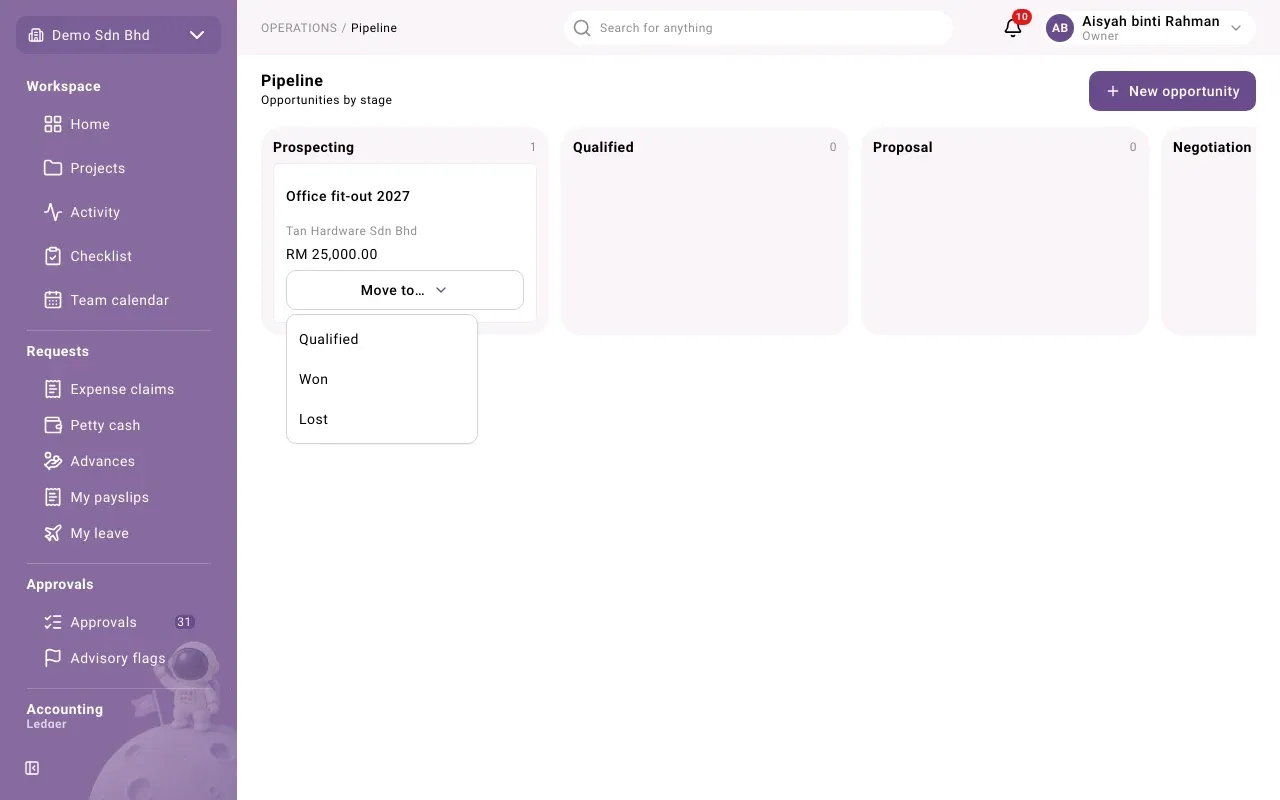
- On the board, select Move to… on the card and choose the stage. If it says No moves available, you may not move it.
- Drag the card to another column. Only the columns it may move to accept it; they are outlined while you drag.
- Open the opportunity and use the buttons at the bottom of its panel.
You will see “Moved”.
Mark it won or lost
Section titled “Mark it won or lost”- Mark won closes the opportunity as Won.
- Mark lost asks for a Reason first, in English or Bahasa Malaysia. Select Confirm.
Open an opportunity
Section titled “Open an opportunity”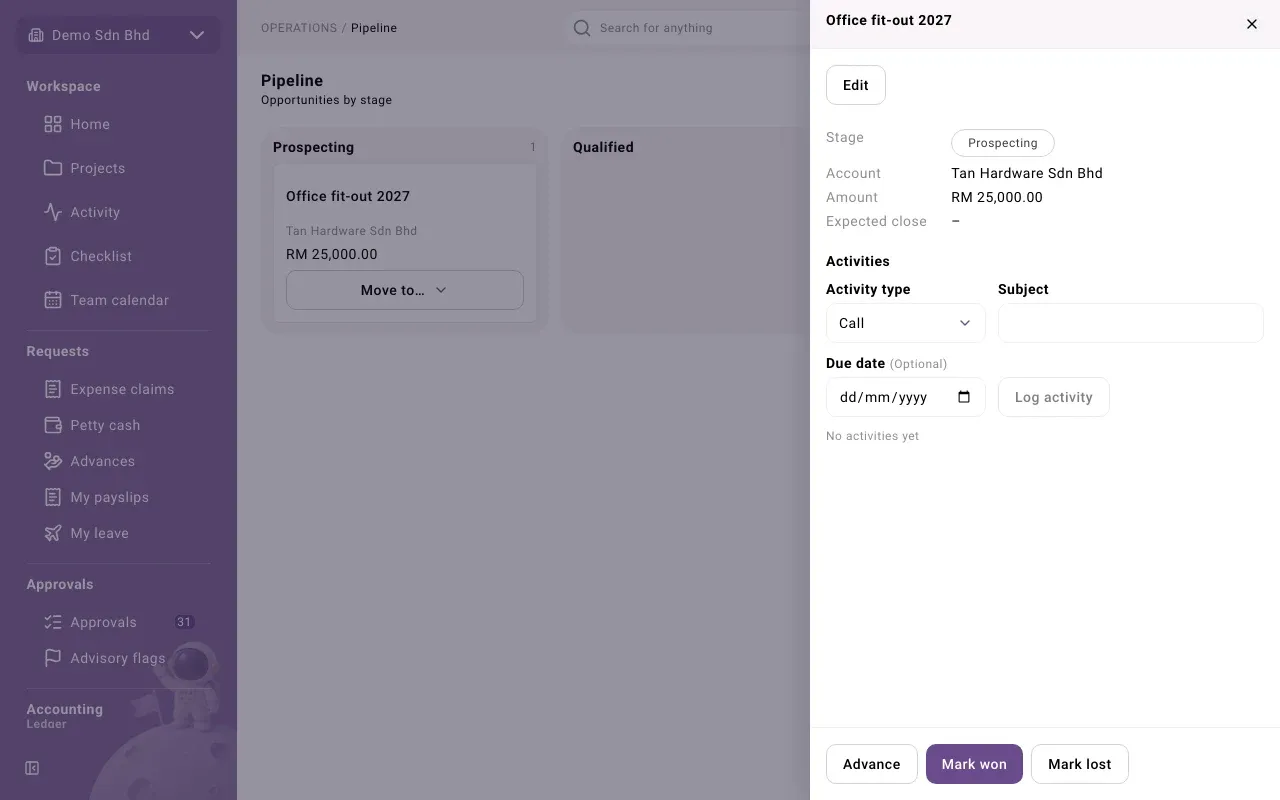
Select the opportunity’s name on its card. The panel shows its Stage, Account, Amount, Expected close and Project, and its Activities, where you log calls, meetings, tasks and notes as on an account.
- Edit changes its details and lets you hand it to someone else with Owner. Select Save or Cancel.
- Create quote appears when the opportunity has a Project and you may create sales quotations. It opens a new quotation for that project.
Problems
Section titled “Problems”| Message | What to do |
|---|---|
| “This record has changed since you opened it. Reload it and try again.” | Someone else moved or changed it first. Reload the page. |
| No Move to… button on a card | The opportunity is won or lost, or you may not move opportunities. |
| A column will not accept a card | That move is not allowed from the card’s stage, for example two stages forward at once. Move it one stage at a time. |