Payment batches
This page is for finance staff who prepare batches, and for the people who approve them. By default finance can prepare a batch, and the owner approves it. The person who prepares a batch can never approve it.
A payment batch gathers submitted supplier payments, and employee claims, advances and payslips waiting to be paid by bank transfer, from one bank account into one bank file. You upload the file to your bank’s portal, and once the bank has paid you mark the batch paid. mcomtask does not send the file to the bank itself.
Open Payables → Payment batches.
Batch statuses
Section titled “Batch statuses”| Status | What it means | What happens next |
|---|---|---|
| Draft | Being prepared. Its preparer can still change it. | A second person selects Approve batch, or it is cancelled. |
| Approved | Approved, and the bank file is ready to download | Upload the file to the bank, then Mark paid. |
| Paid | The bank has paid it; each payment in it is now Paid | Final |
| Cancelled | Dropped, with a reason. Its payments are free for another batch. | Final |
The list shows each batch’s Reference (PB-…), Status, number of Payments, Amount and Value date. Sort and filter from the column headings.
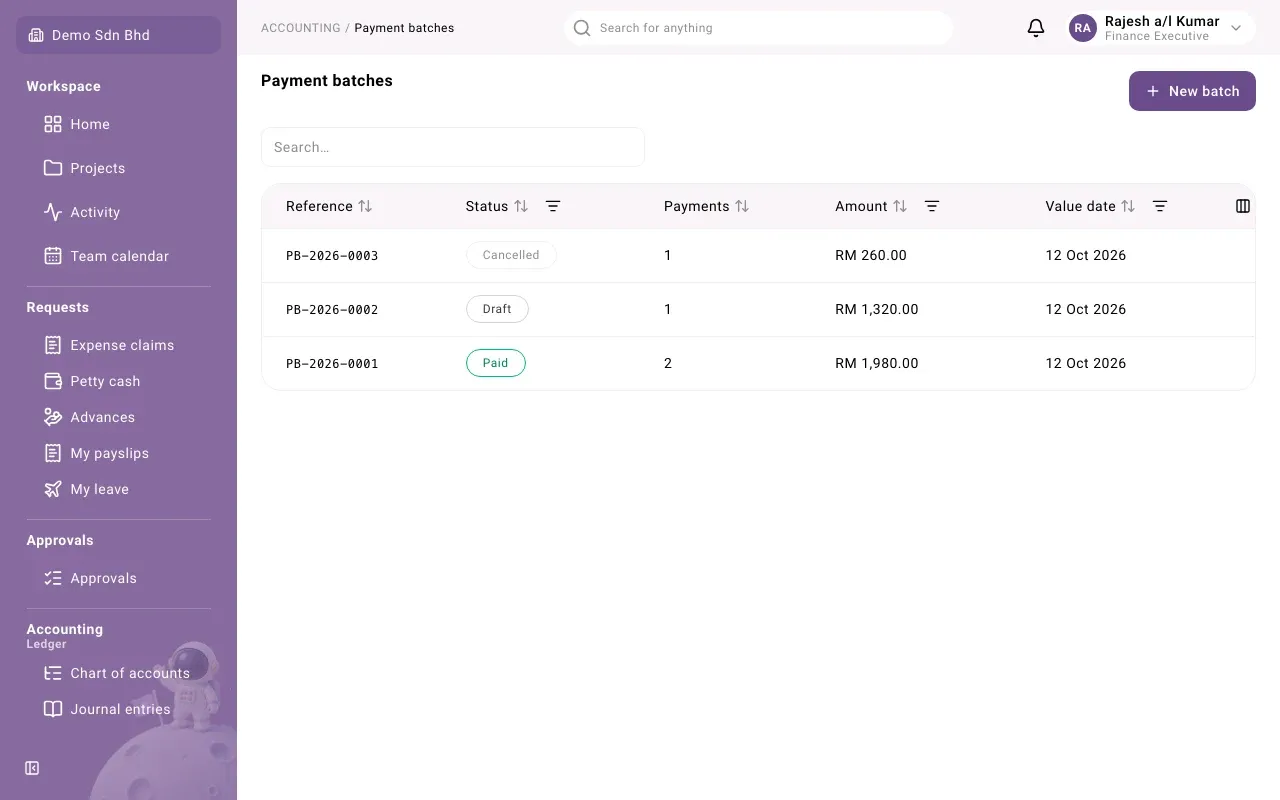
Build a batch
Section titled “Build a batch”- Select New batch.
- Choose Pay from, the bank account the money leaves.
- Set the Value date, the day you ask the bank to pay. It cannot be in the past.
- Under Payments, tick each supplier payment to include. Under Employee payouts, tick any claims, advances and payslips. The count and total show underneath, e.g. “3 payments · MYR 412.50”.
- Select Save draft. The batch opens as Draft.
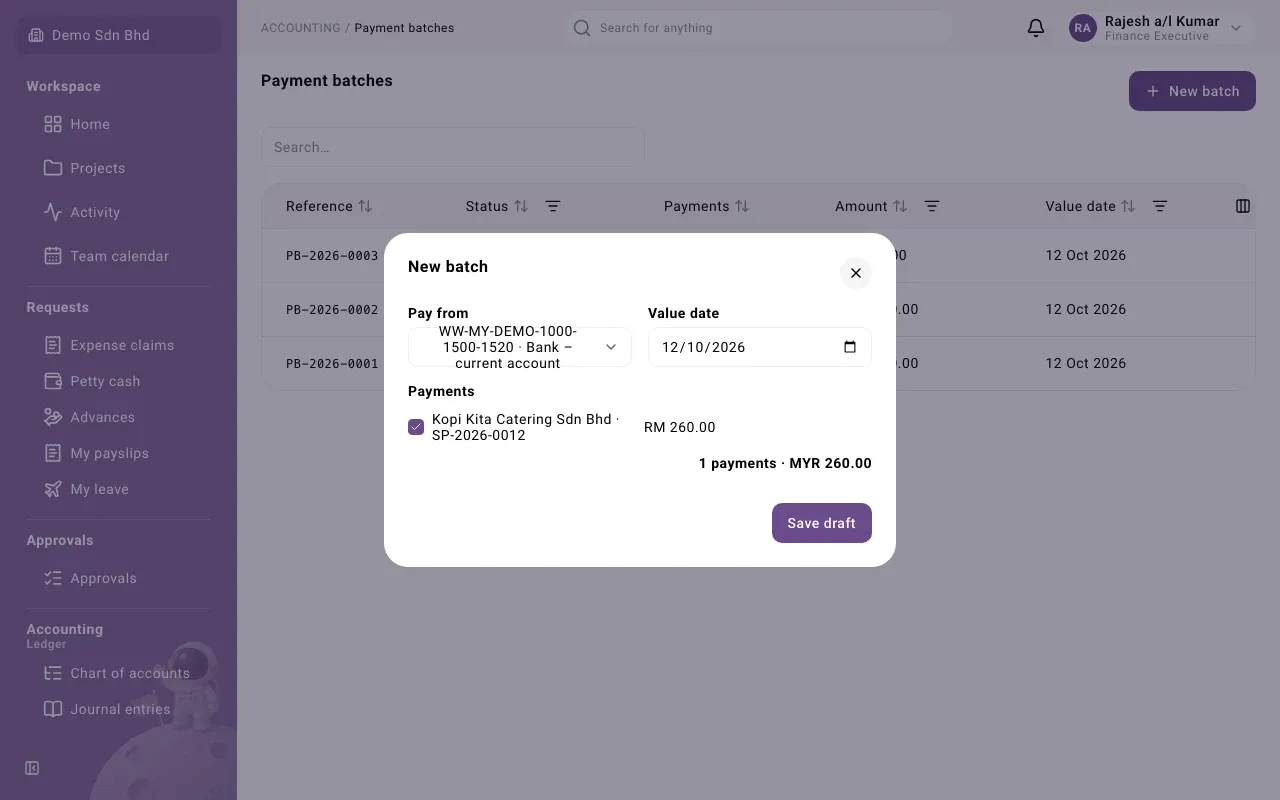
Only supplier payments that have been submitted (Pending approval) and are paid from that account can go in. A line that cannot be ticked says why:
| Note beside the line | What to do |
|---|---|
| Supplier’s bank details not verified | Have the supplier’s bank details verified. |
| Payee’s bank details not verified | Someone with verify access selects Verify bank details on the line, compares the payee’s name, bank and full account number with the employee’s own bank record, and selects Confirm verification. Nobody verifies their own. |
| Paid from another account or Another currency | Use a batch for that account or currency. |
| Amount is finer than one sen | Correct the payment’s amount. |
| Payee has no bank details saved, No payout method chosen and similar | The employee must update their payout details, or the payout is paid another way. |
| Self-billed e-Invoice not yet valid | Wait for the self-billed e-Invoice to be validated. |
If you see “No payments are ready for a batch from this account.”, nothing is waiting for that account. Only the oldest 500 ready payments are listed at once.
To change a draft, open it and select Edit. Only its preparer can.
Approve a batch
Section titled “Approve a batch”The approver must be someone other than the preparer, and must be allowed to approve every payment in it. An organization with only one member may approve their own batch with a reason, recorded as a sole-owner exception. You cannot approve a batch that pays you.
- Open the batch and check its lines and total.
- Select Approve batch.
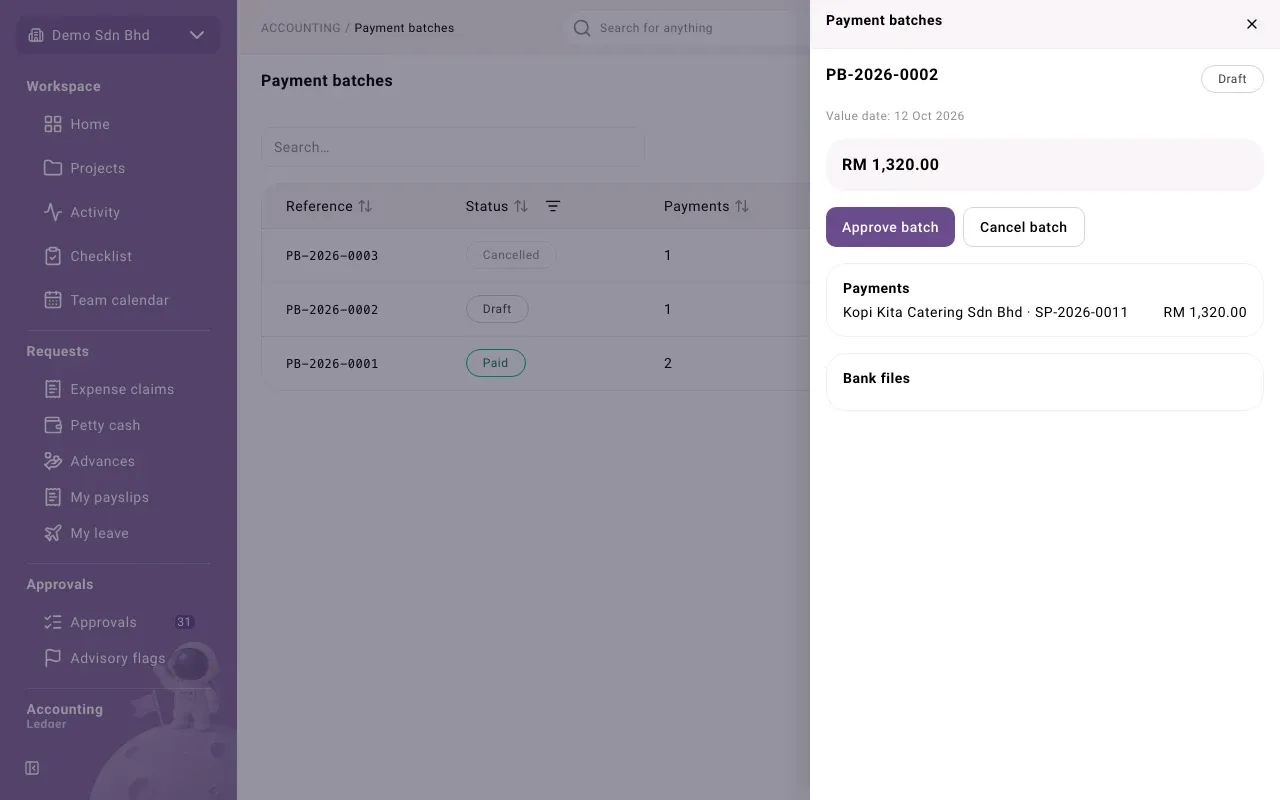
The batch becomes Approved and File 1 appears under Bank files.
Download and upload the bank file
Section titled “Download and upload the bank file”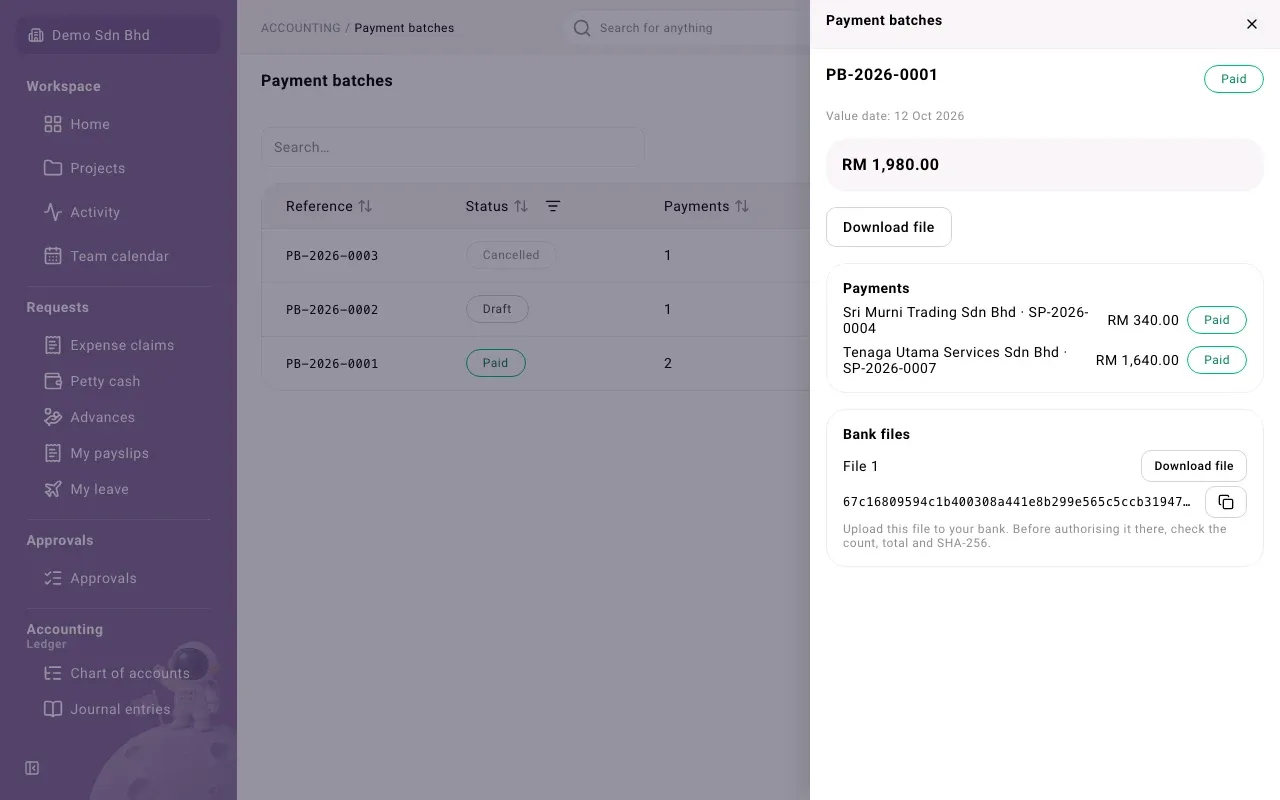
- Select Download file.
- Upload it in your bank’s portal. Before authorising it there, check the count, total and SHA-256, as the panel reminds you. The copy button beside the SHA-256 copies it.
The file is a CSV layout defined by mcomtask, not a bank’s own format. Ask your administrator whether your bank’s portal accepts it.
Regenerate the file
Section titled “Regenerate the file”If the file was lost, refused by the portal, or the value date has passed, a second person selects Regenerate file, enters a Reason and, if needed, a new Value date. A new numbered file is made. Older files show Superseded — do not upload and can no longer be downloaded.
Mark the batch paid
Section titled “Mark the batch paid”Once the bank has paid:
- Open the batch and select Mark paid.
- “The bank paid every payment except the ones ticked below.” Tick any payment the bank rejected and give a Reason for each.
- Select Confirm payment.
The batch becomes Paid. Each payment the bank paid becomes Paid through its own approval flow and is posted to the ledger. A ticked payment shows Failed at the bank and goes back to waiting, so it can go into a new batch. You cannot mark a batch paid before its value date, or if it pays you.
Cancel a batch
Section titled “Cancel a batch”Select Cancel batch, give a Reason and confirm. A draft can be cancelled by its preparer; an approved batch only by someone who may approve batches. Each line shows Cancelled, and the files stay on record.
A paid batch cannot be cancelled. To correct one payment in it, void that payment on its own.
Problems
Section titled “Problems”| Message | What to do |
|---|---|
| “The person who prepared this batch cannot approve it or release its files. Ask another member.” | Ask a second person. |
| “The bank pays this batch on its value date, which is still to come. Mark it paid on or after that date.” | Wait for the value date. |
| “A payment in this batch can no longer be batched. Remove it from the batch or fix it first.” | Edit the draft; the line names what is missing, e.g. “Cannot be batched: Bank name”. |
| “This batch has moved on since you opened it. Reload it and try again.” | Reload. |