Items and locations
Items are the goods and services you buy, sell or keep in stock. Locations are the warehouses where stock is received and kept. Every purchase order, receipt, sales order and delivery line can name an item, so set these up before you start trading.
Anyone with access to Inventory can look at items and locations. Adding or changing them needs the right to manage inventory, which your administrator gives.
The Items list
Section titled “The Items list”Open Operations → Inventory → Items.
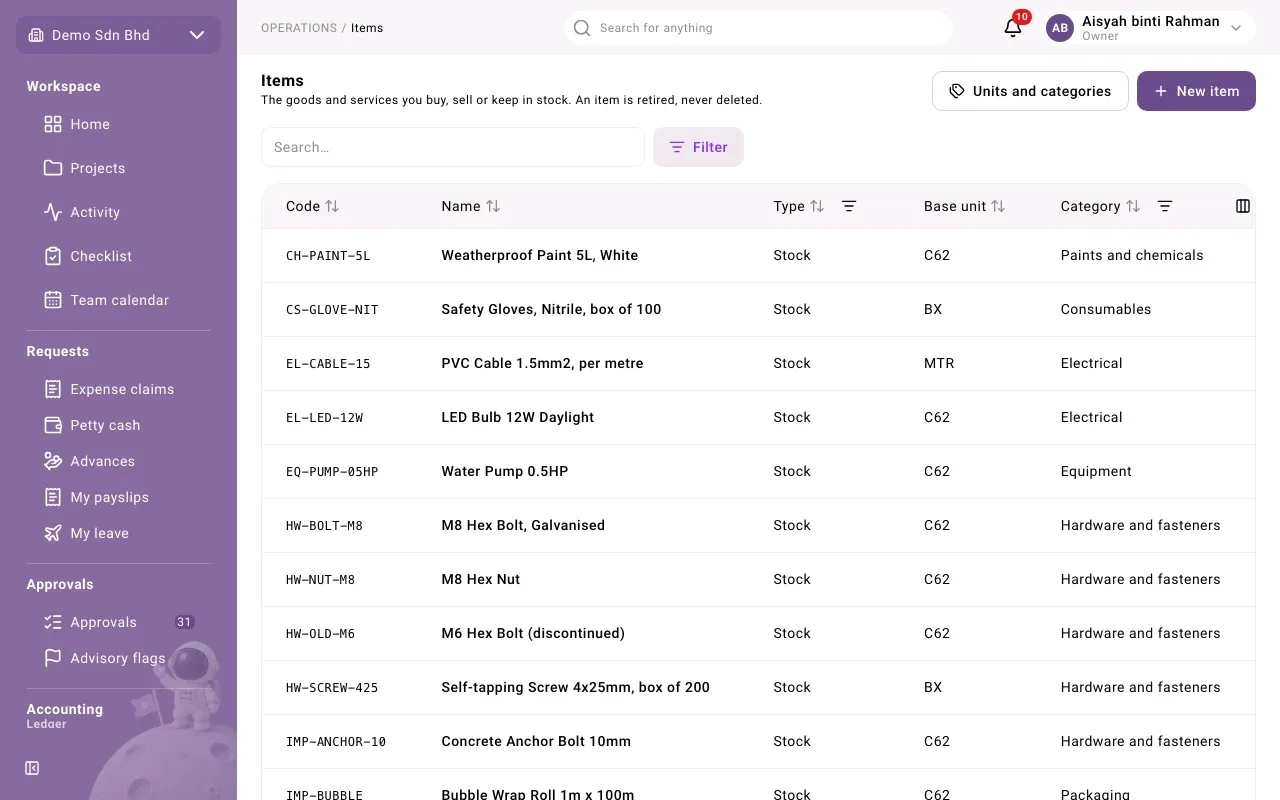
The list shows each item’s Code, Name, Type, Base unit and Category. You can sort by any column and filter by Type, Category and Status (Active or Inactive; the Status column is hidden until you show it). Select a row to open the item.
An item is retired, never deleted. To stop using one, edit it and clear Active.
Item types
Section titled “Item types”| Type | Use it for |
|---|---|
| Stock | Goods you keep and count. Receiving adds to stock, delivering takes from it. |
| Service | Work you buy or sell, such as installation or repairs. |
| Non-stock | Goods you buy or sell but do not count, such as consumables. |
Only a Stock item has an Inventory account, a Cost of sales account and Tracking.
Add or edit an item
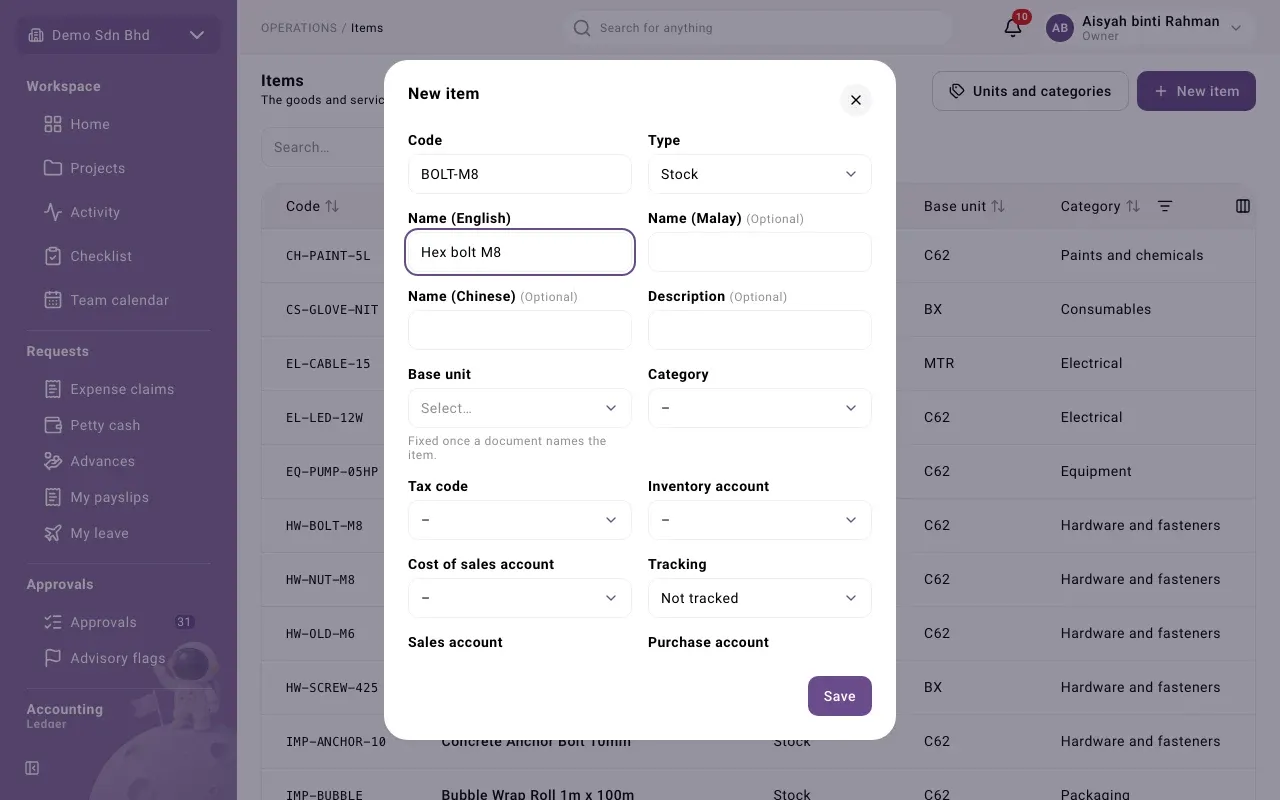
Section titled “Add or edit an item”- Select New item, or open an item and select Edit item.
- Fill in the form and select Save.
| Field | What to enter |
|---|---|
| Code | A short code, unique in your organization, e.g. BOLT-M8 |
| Type | Stock, Service or Non-stock |
| Name (English) | The name people see. Name (Malay) and Name (Chinese) are optional. |
| Description | Optional |
| Base unit | The unit stock is counted in, such as a piece. It is fixed once a document names the item. |
| Category | Optional; used to group and filter items |
| Tax code | Optional; filled in on a document line when you pick the item |
| Inventory account and Cost of sales account | Stock items only. Where the stock value and its cost on sale are kept. |
| Tracking | Stock items only: Not tracked, Serial number or Batch |
| Sales account and Purchase account | Where sales and purchases of the item are recorded |
| Other units | See below |
| Active | Shown when editing. Clear it to retire the item. |
Your organization may also have its own extra fields at the bottom of the form.
Other units
Section titled “Other units”Use Other units when you buy or sell in packs. Select Add unit, pick the Unit and enter how many Base units one of it holds; for example, a box of 12. A document line can then use that unit. Receipts, deliveries and returns are always counted in the base unit.
Tracking by serial number or batch
Section titled “Tracking by serial number or batch”If Tracking is Serial number, each unit received or delivered needs its serial number. If it is Batch, each receipt or delivery line needs a batch number, with an optional batch expiry. You enter them on the receipt or delivery.
The item panel
Section titled “The item panel”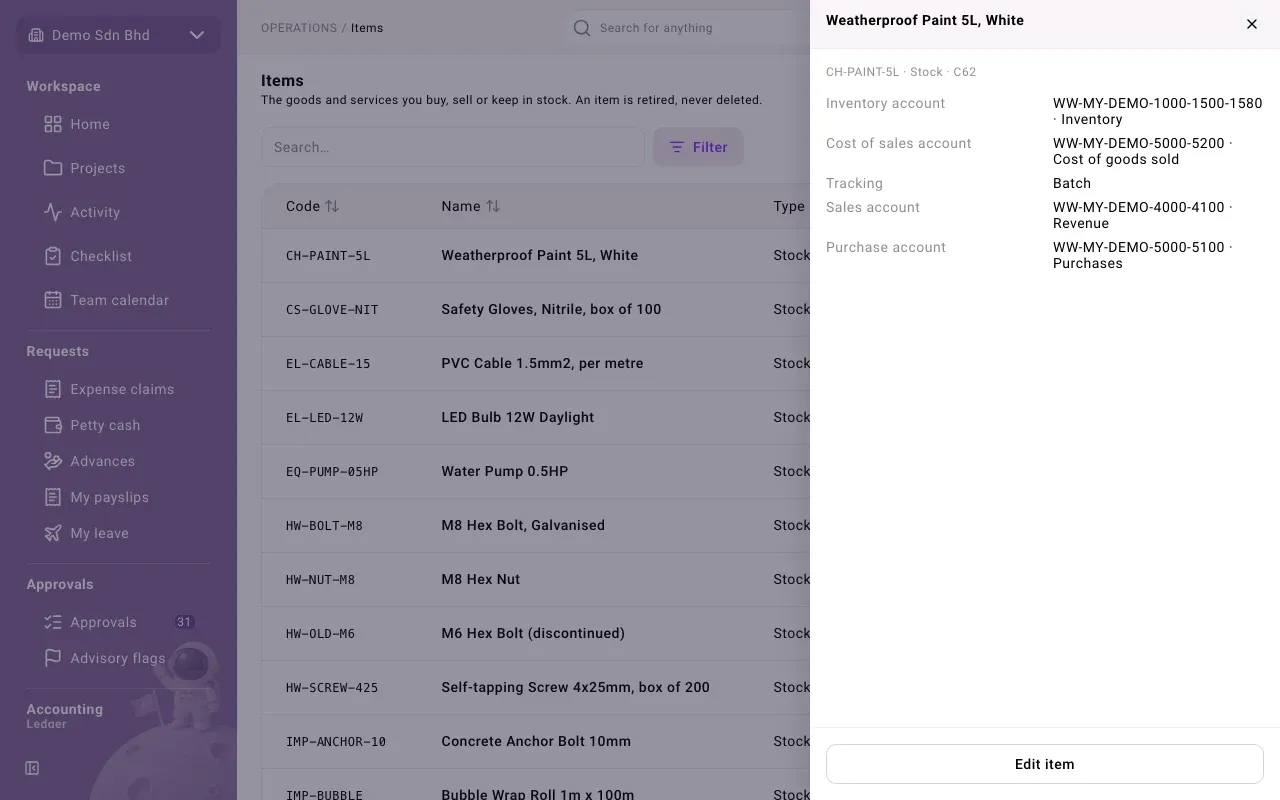
Opening an item shows its code, type and base unit, its accounts, its tracking and its other units, each shown as one of that unit equal to so many base units. Select Edit item to change it.
Units and categories
Section titled “Units and categories”Select Units and categories on the Items page.
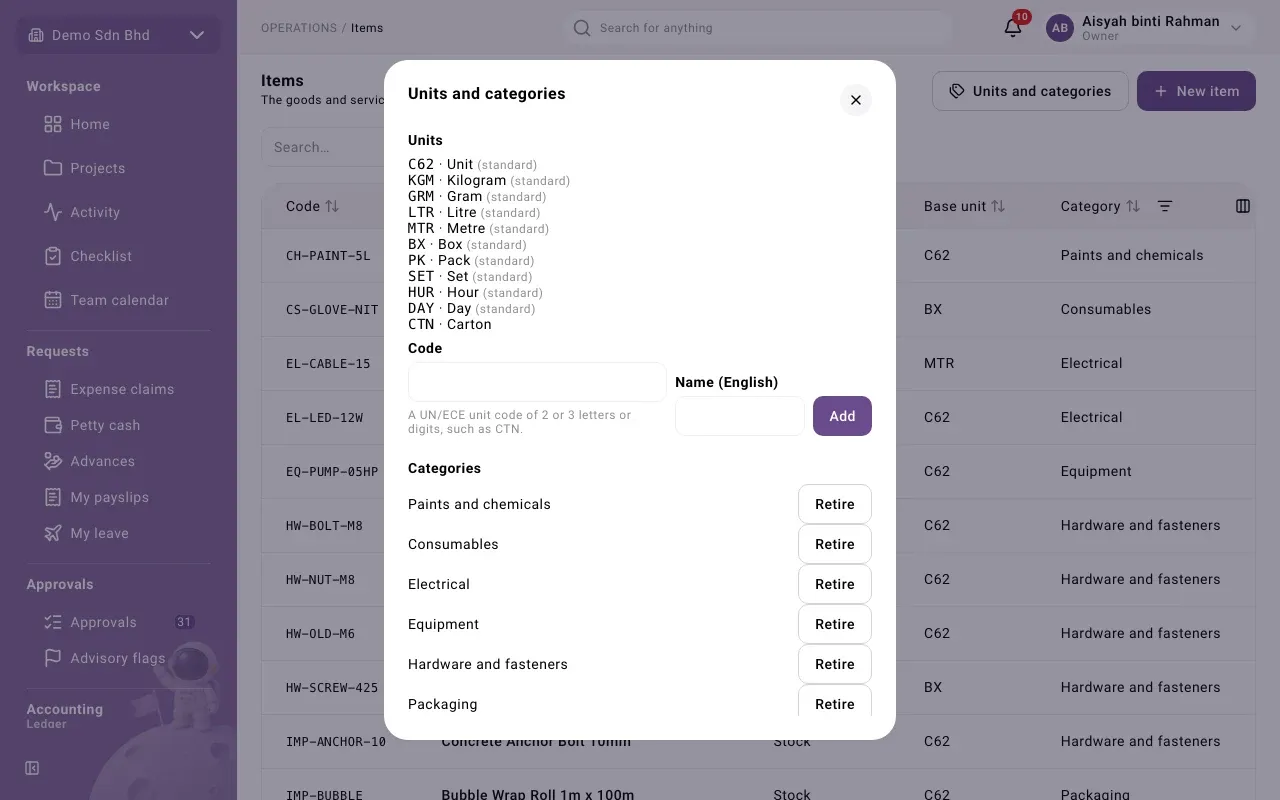
- Units lists the units you can use. Ones marked standard come with the system. To add one, enter a Code (a UN/ECE unit code of 2 or 3 letters or digits, such as CTN) and a Name (English), then select Add.
- Categories lists your item categories. To add one, enter a Code (lower-case letters, digits and underscores) and a Name (English), then select Add. Retire hides a category from new items; Restore brings it back.
Locations
Section titled “Locations”Open Operations → Inventory → Locations to see your warehouses, with Code, Name and Status.
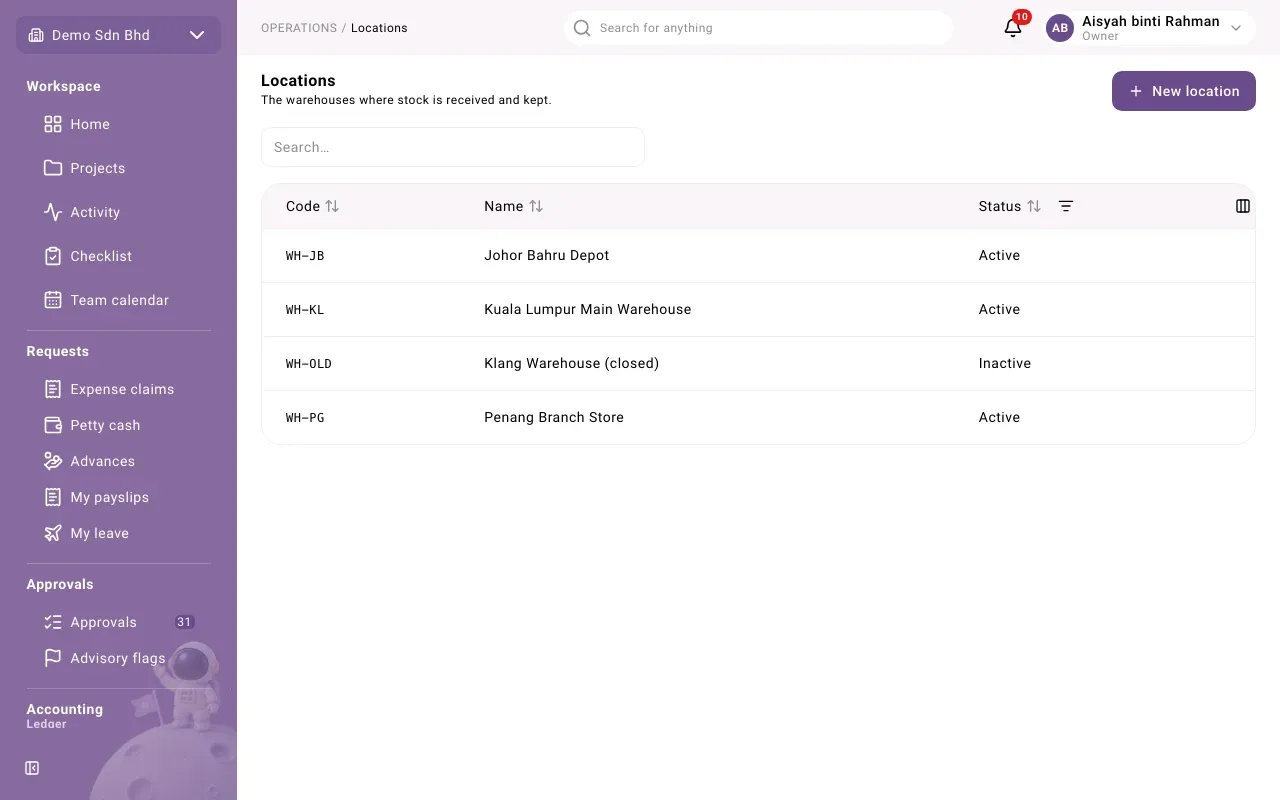
To add one, select New location and enter a Code (up to 20 characters) and a Name (English); the Malay and Chinese names are optional. Select a location to edit it, or clear Active to retire it. Every goods receipt, delivery and return names the location the goods come into or leave from.
Stock and costing
Section titled “Stock and costing”The Items and Locations screens do not show quantities on hand or stock values. Stock moves only through the documents described in Buying and Selling:
- you cannot deliver more than the location holds; you see “There is not enough stock at this location”;
- stock is valued by one costing method for the whole organization. Once stock has moved, the method cannot change.
Which costing method your organization uses, and where to see stock on hand, is a question for your administrator or accountant.