Finding sales documents
This page is for people your administrator has given access to Receivables. Exporting also needs access to exports; if you do not see Export, ask your administrator.
The Sales invoices page lists every invoice, credit note and debit note issued to customers, including drafts.
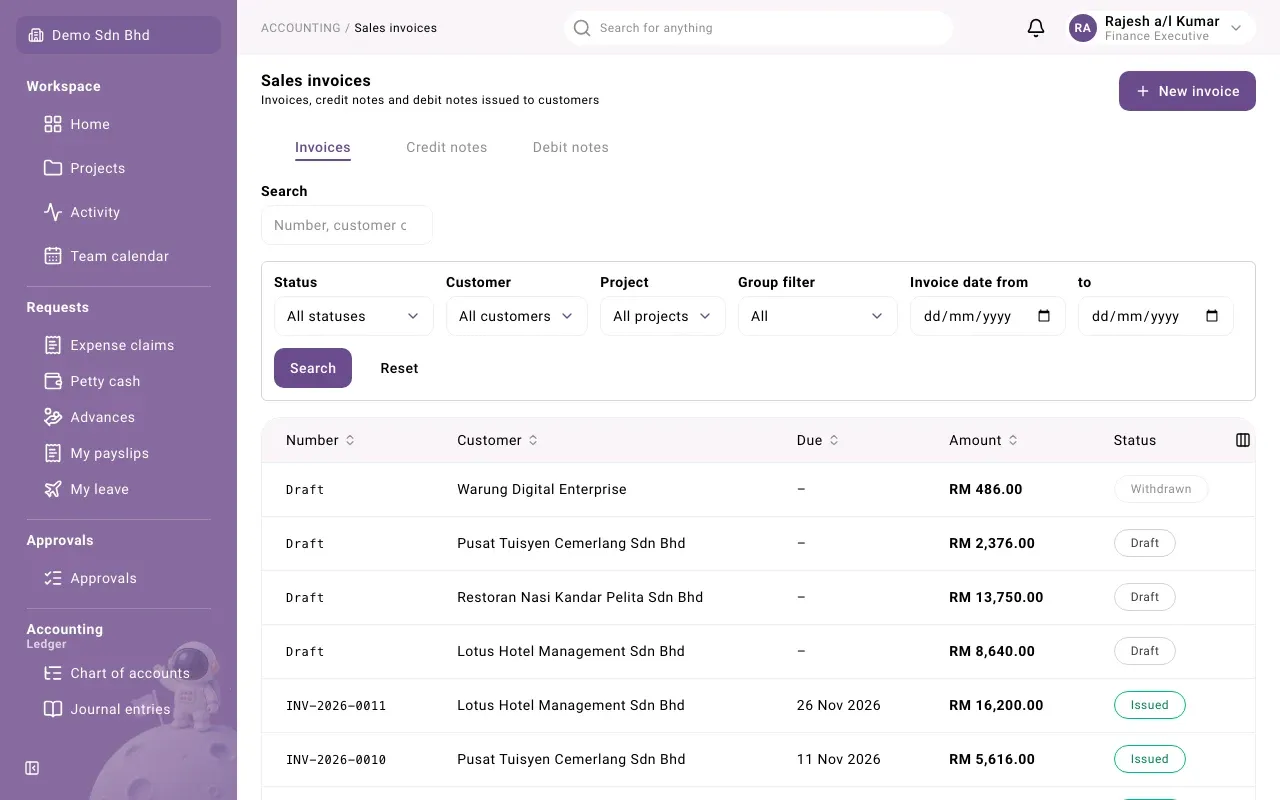
The tabs
Section titled “The tabs”| Tab | Shows | The new button is |
|---|---|---|
| Invoices | Sales invoices | New invoice |
| Credit notes | Credit notes | New credit note |
| Debit notes | Debit notes | New debit note |
The list
Section titled “The list”| Column | What it shows |
|---|---|
| Number | The document number, or Draft for a draft. A purple Group tag marks a document with a group company. |
| Customer | Who it was issued to |
| Due | The due date. A draft has none yet. |
| Amount | The total, with the base-currency amount underneath when the document is in another currency |
| Status | Where it is. See Sales document statuses. |
The columns button at the right of the header adds hidden columns: Date (the invoice date), Outstanding (what is still owed) and Project.
Select a column title with arrows (Number, Customer, Date, Due, Amount) to sort by it. Select it again to reverse the order.
Select a row to open the document in a side panel.
At the bottom, Rows per page sets how many rows you see (10, 25, 50 or 100), and the arrow buttons move between pages.
Search and filter
Section titled “Search and filter”- Search finds a document by number, customer or reference as you type.
- The advanced filter box narrows the list further. Choose any of these, then select Search:
| Filter | What it does |
|---|---|
| Status | One status, or All statuses |
| Customer | One customer, or All customers |
| Project | One project, or All projects. Shown when your organization uses projects. |
| Group filter | Group only or Non-group only documents |
| Invoice date from and to | A date range. If the start is after the end you see “The start is after the end”. |
Reset clears the advanced filter. If nothing matches, the list says “No documents match these filters.”
Export the list
Section titled “Export the list”- Select Export. The Export sales documents window opens.
- Choose the Format: CSV or XLSX (Excel).
- Under Columns, tick the columns you want. Use the arrows to change their order, and type in Heading to rename a column in the file.
- Select Export. The file downloads.
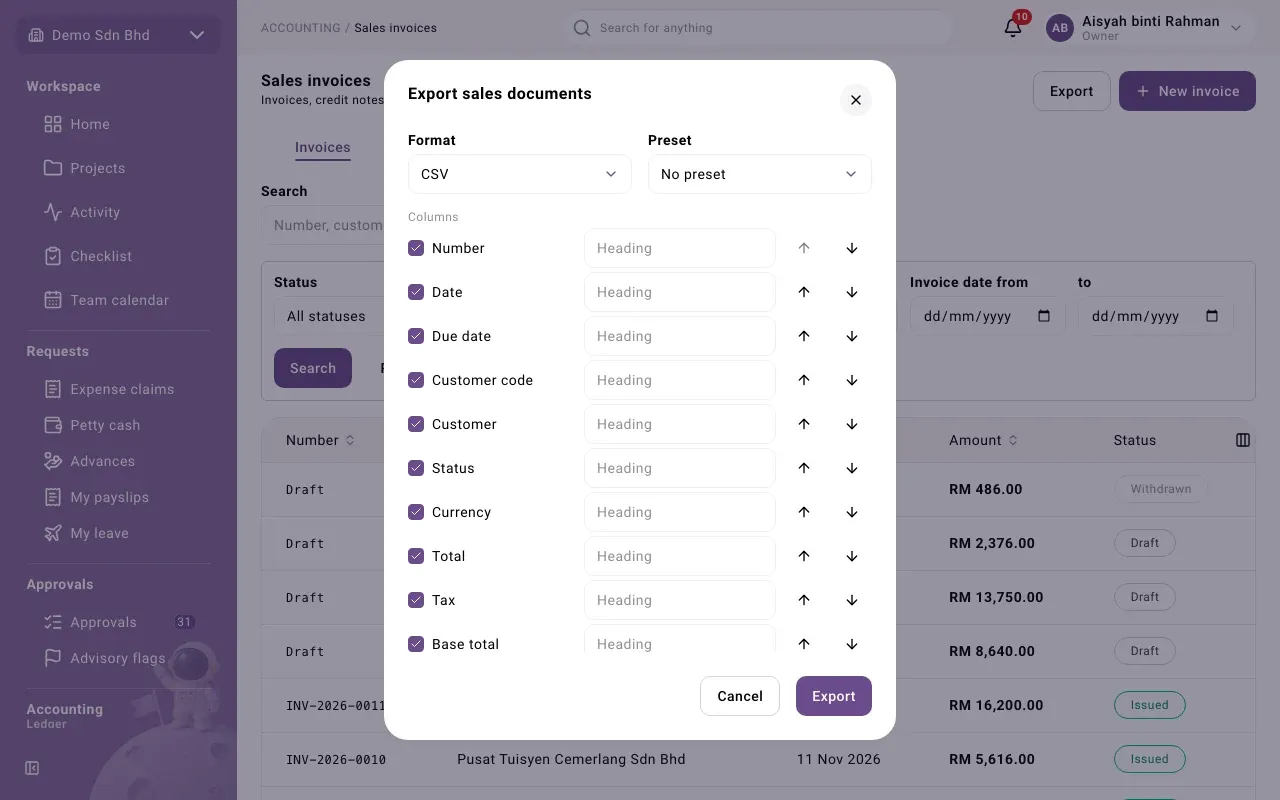
The export contains the documents that match the tab, search and filters you are looking at.
To reuse a choice of columns, choose them, give a Preset name and select Save as preset. Tick Share with the organization to let others use it. Next time, pick it from Preset.
For a list of issued invoices by date range, see also Export invoices in Statements, aging and analysis.