Fixed assets
The fixed asset register lists what your organization owns and uses for more than a year, such as computers, machinery and vehicles, with what each cost and how much of that has been depreciated. It lives under Accounting → Fixed assets.
Anyone your administrator has given access to fixed assets can read the register. Setting up classes and registering assets needs the right to manage assets.
The order of work is:
- Create the accounts you need in the chart of accounts.
- Create an asset class for each kind of asset.
- Post the purchase, as a supplier invoice or a journal, to the class’s cost account.
- Register the asset from that posted cost.
From then on, depreciation runs every month by itself.
Asset classes
Section titled “Asset classes”Open Fixed assets → Asset classes.
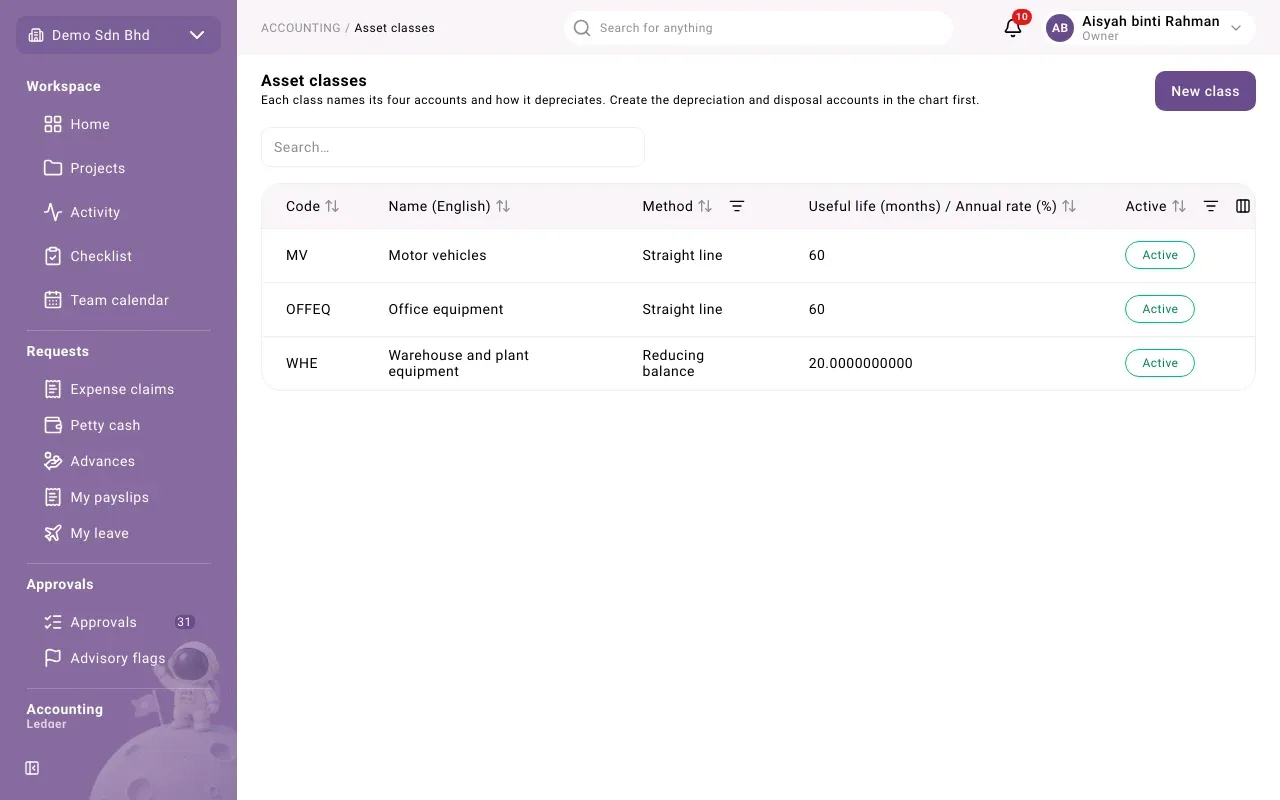
The list shows each class’s Code, Name (English), Method, its useful life or annual rate, and whether it is Active or Retired. Filter by Method and by status.
Create a class
Section titled “Create a class”Each class names its four accounts and how it depreciates. Create the depreciation and disposal accounts in the chart first.
- Select New class.
- Fill in the form and select Save.
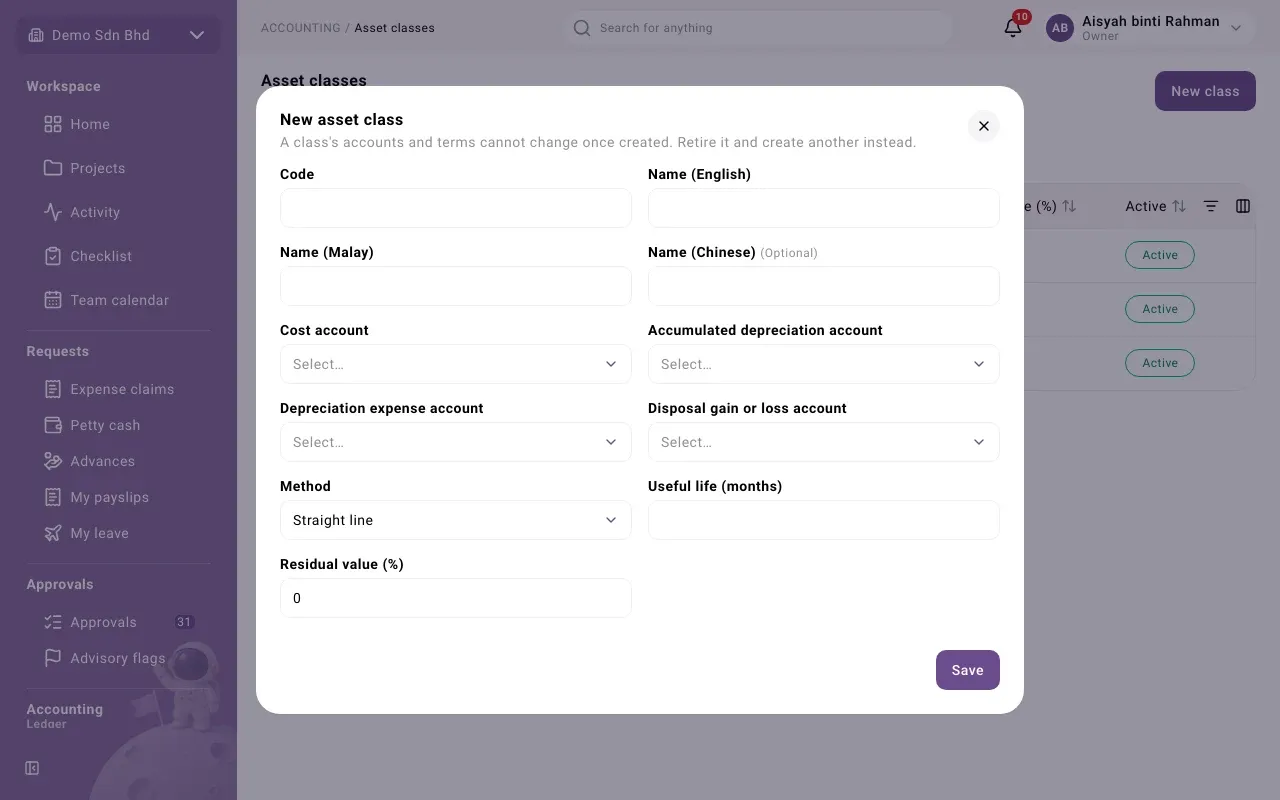
| Field | What to enter |
|---|---|
| Code | A short code, e.g. COMP |
| Name (English), Name (Malay) | The class’s names. Name (Chinese) is optional. |
| Cost account | The asset account the purchase is posted to |
| Accumulated depreciation account | The asset account that collects depreciation |
| Depreciation expense account | The expense account each month’s depreciation goes to |
| Disposal gain or loss account | Where any gain or loss on disposal goes |
| Method | Straight line or Reducing balance |
| Useful life (months) | For straight line, e.g. 60 for five years |
| Annual rate (%) | For reducing balance, e.g. 20 |
| Residual value (%) | The part of the cost expected to remain at the end, e.g. 0 |
Your accountant or tax adviser should confirm the method, life and rate for each class. This is book depreciation only; tax capital allowances are not worked out here.
The register
Section titled “The register”Open Fixed assets → Fixed assets.
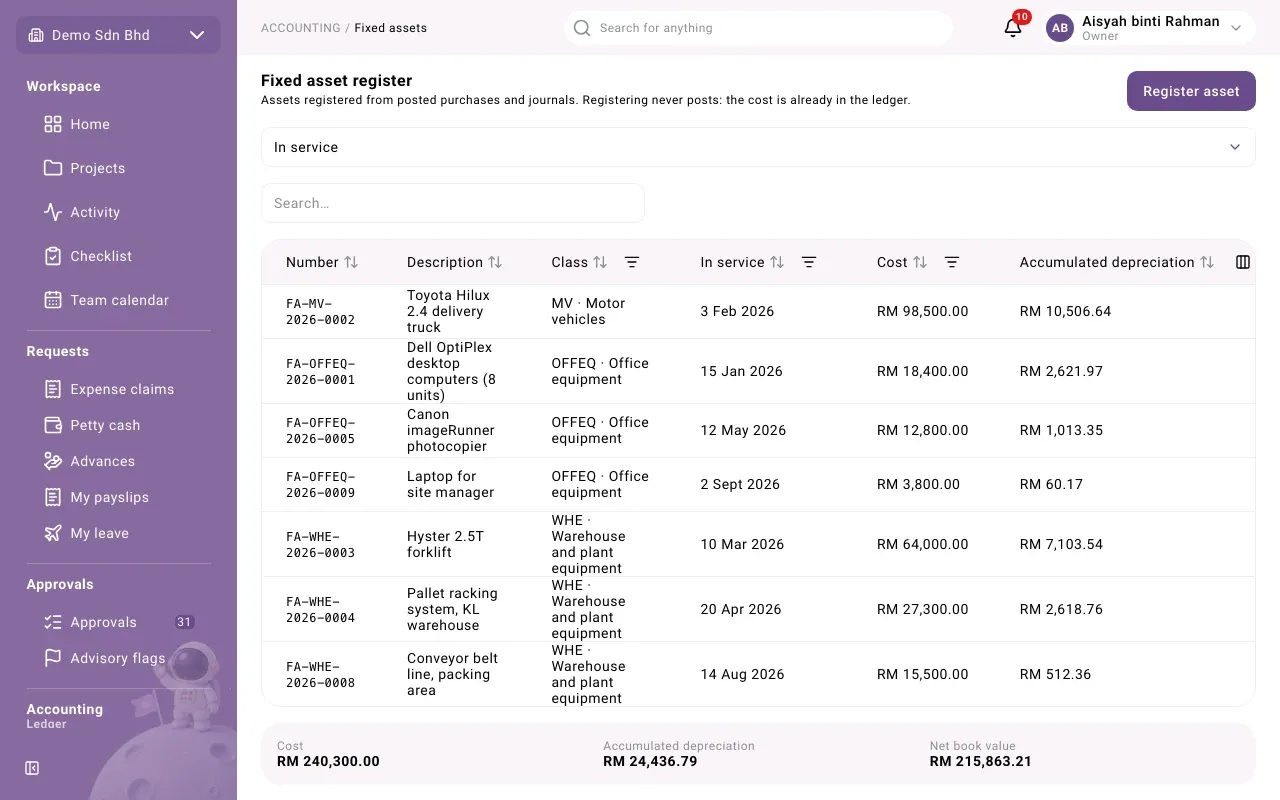
The register shows assets that are In service unless you change the status choice to Disposed or All. Each row shows Number, Description, Class, In service (the date), Cost, Accumulated depreciation and Net book value. Below the table are the totals of the three amounts. Filter by Class, the in-service date and the cost.
Register an asset
Section titled “Register an asset”Registering never posts: the cost is already in the ledger from the supplier invoice or journal.
- Select Register asset.
- Under Posted cost, choose the posted line, shown with its date, reference, description and amount. Only costs posted to a class’s cost account and not yet registered are listed.
- Check the Class (only classes using that cost account are offered), the Description and the In service date. They are filled in from the posted line.
- Optionally enter a Residual value. Leave it blank to use the class’s residual percentage.
- Select Save. You see “… registered” with the new asset number.
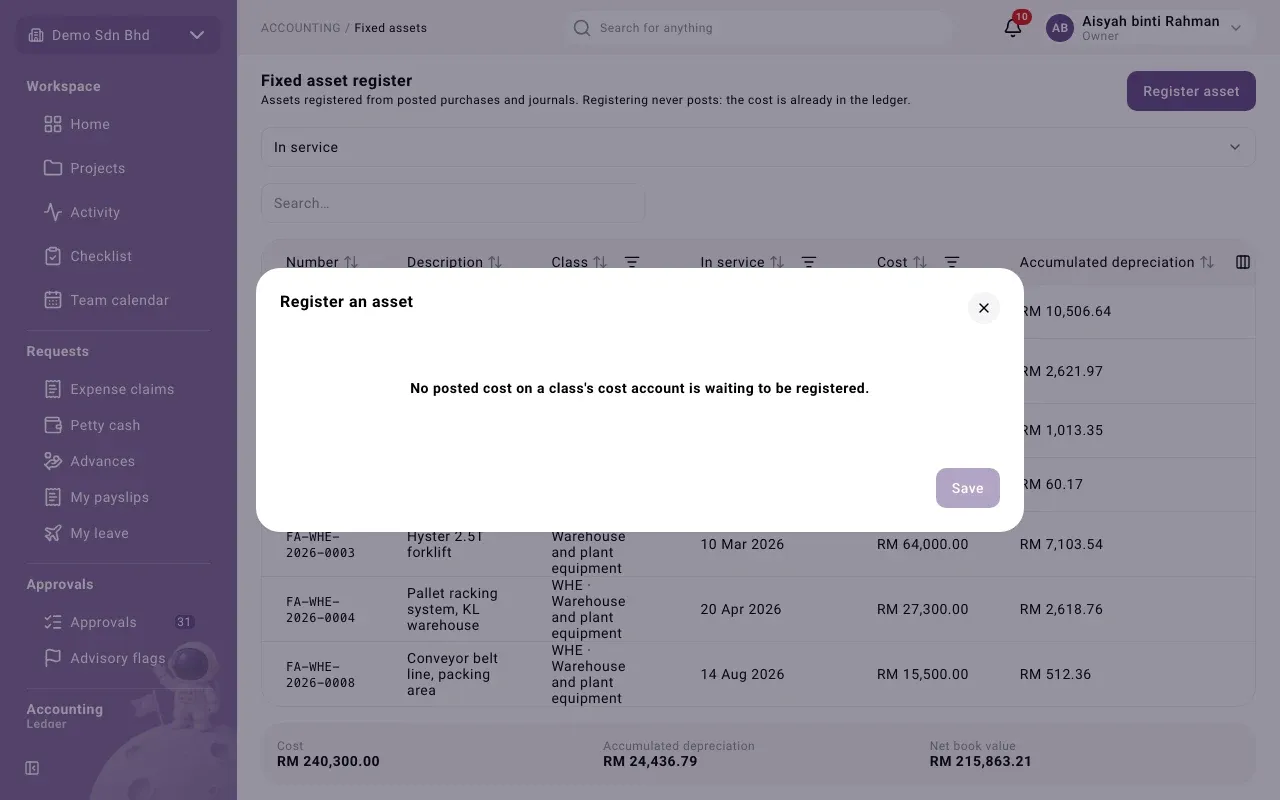
If the form says “No posted cost on a class’s cost account is waiting to be registered.”, post the purchase to the class’s cost account first, or check that it is not already registered.
A posted line can be registered only once. If it is already, you see “That line is already registered as an asset.”
The asset panel
Section titled “The asset panel”Select an asset to open it.
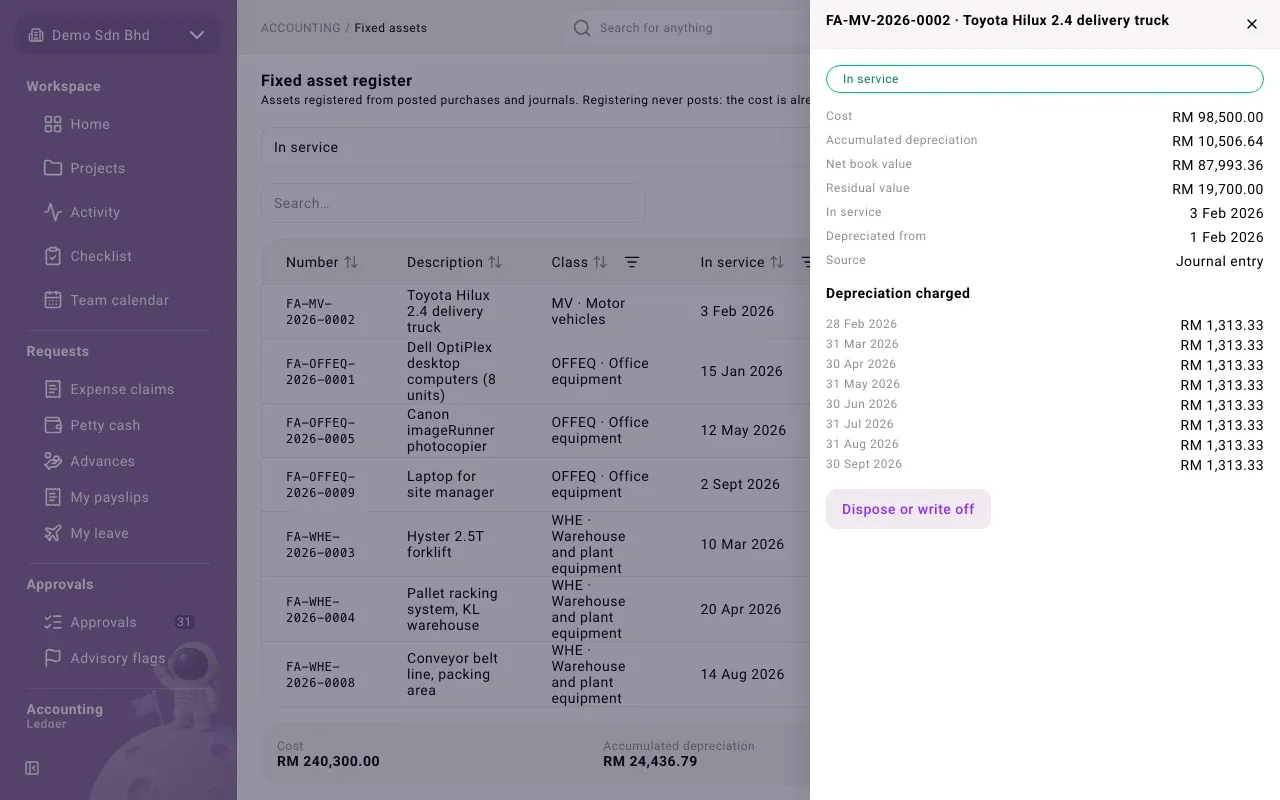
It shows its status, Cost, Accumulated depreciation, Net book value, Residual value, In service, Depreciated from and Source (Purchase invoice, Journal entry or Opening import). Under Depreciation charged is each month’s charge, or “Nothing charged yet.” Dispose or write off starts a disposal.
Register vs ledger
Section titled “Register vs ledger”The register should always agree with the ledger. Check it on the Register vs ledger tab of Asset reports.