Depreciation and disposals
Once an asset is registered, its cost is spread over its life by monthly depreciation. When you sell it, scrap it or lose it, a disposal takes it out of the books. Both are under Accounting → Fixed assets.
Anyone with access to fixed assets can see the runs and disposals. Running depreciation, preparing a disposal and approving one each need their own access, which your administrator gives. Disposals are approved by the Owner.
Depreciation runs
Section titled “Depreciation runs”Open Fixed assets → Depreciation.
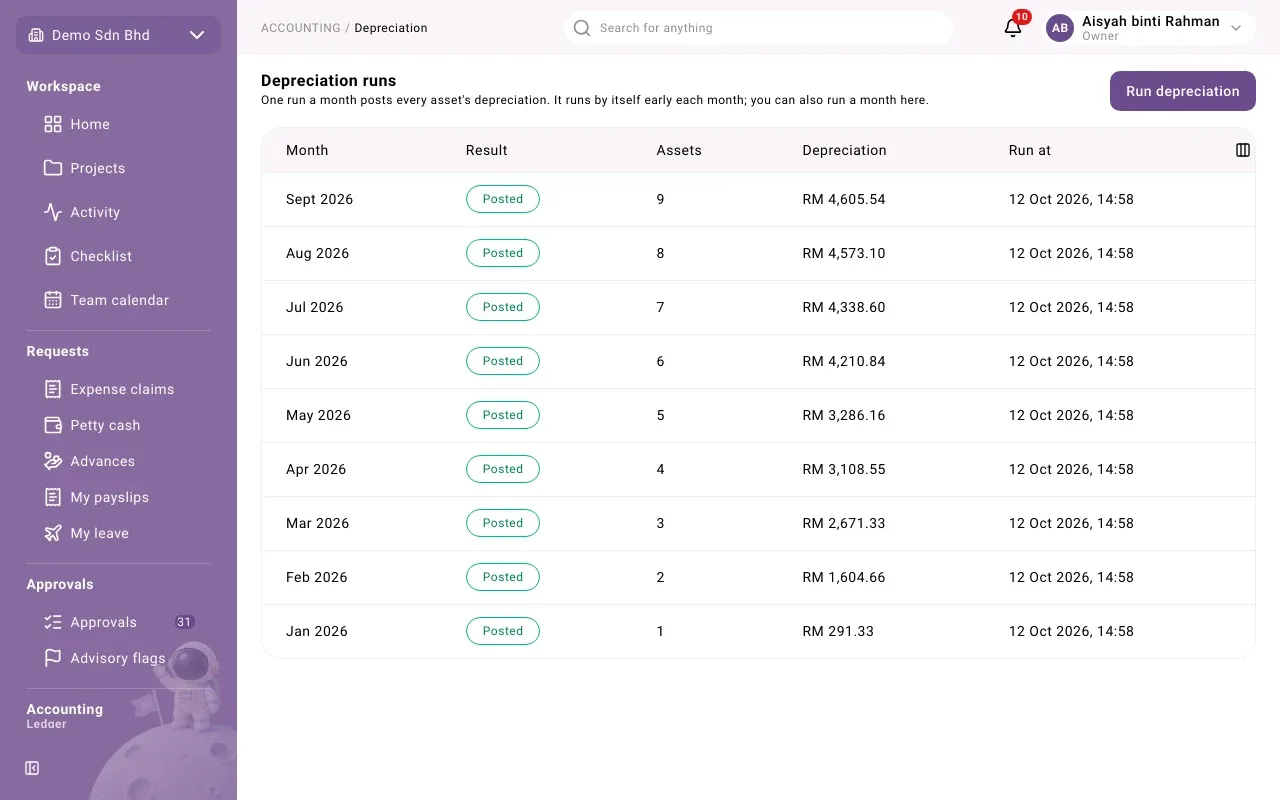
One run a month posts every asset’s depreciation in a single journal entry. It runs by itself early each month for the month before; you can also run a month here. Each row shows:
| Column | What it shows |
|---|---|
| Month | The month the run covers |
| Result | Posted, Nothing due (no asset had depreciation for that month) or Skipped: period closed |
| Assets | How many assets were charged |
| Depreciation | The total charged |
| Run at | When it ran, marked Scheduled if it ran by itself |
Depreciation starts in the in-service month and is charged in whole months. A month whose period is closed is skipped and flagged, never posted into.
Run a month by hand
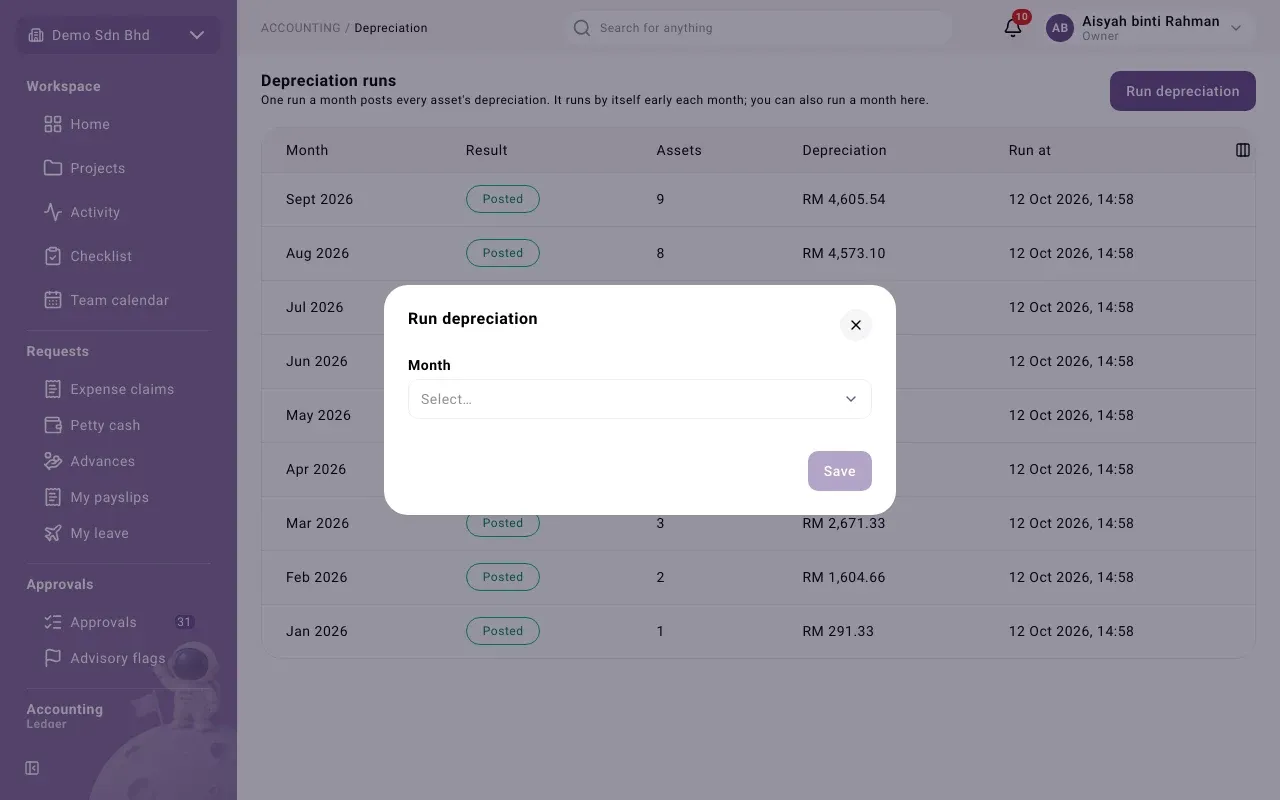
Section titled “Run a month by hand”- Select Run depreciation.
- Choose the Month. Only months that have started are listed.
- Select Save. You see “Depreciation for … run”.
| Message | What it means |
|---|---|
| “That month already has a depreciation run.” | It has already run, by itself or by hand |
| “A later month already has a depreciation run.” | Months are run in order; an earlier one cannot be run afterwards |
| “That month has not started.” | Wait until the month begins |
| “The fiscal period this would post into is not open.” | Ask finance to open the period, or leave it skipped |
Disposals and write-offs
Section titled “Disposals and write-offs”An approved disposal takes the asset out of the books. Use Sale when you sold it and Write-off when it is scrapped, lost or given away with nothing received.
Prepare a disposal
Section titled “Prepare a disposal”- Open the asset in the register and select Dispose or write off.
- Choose the Kind: Sale or Write-off.
- Enter the Disposal date and the Reason.
- Select Save. You see “Disposal prepared. Submit it from Asset disposals.”
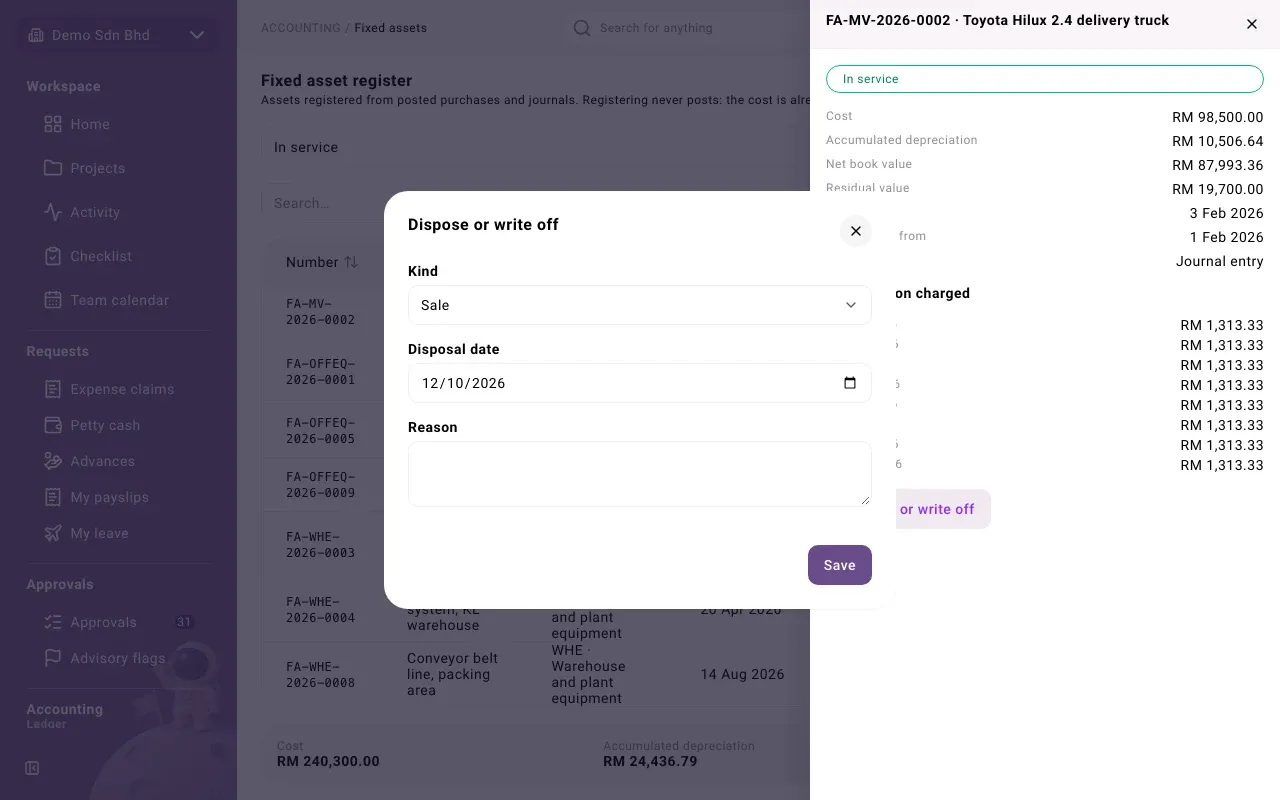
The disposal date must be in or after the last month already depreciated.
Submit and approve
Section titled “Submit and approve”Open Fixed assets → Asset disposals.
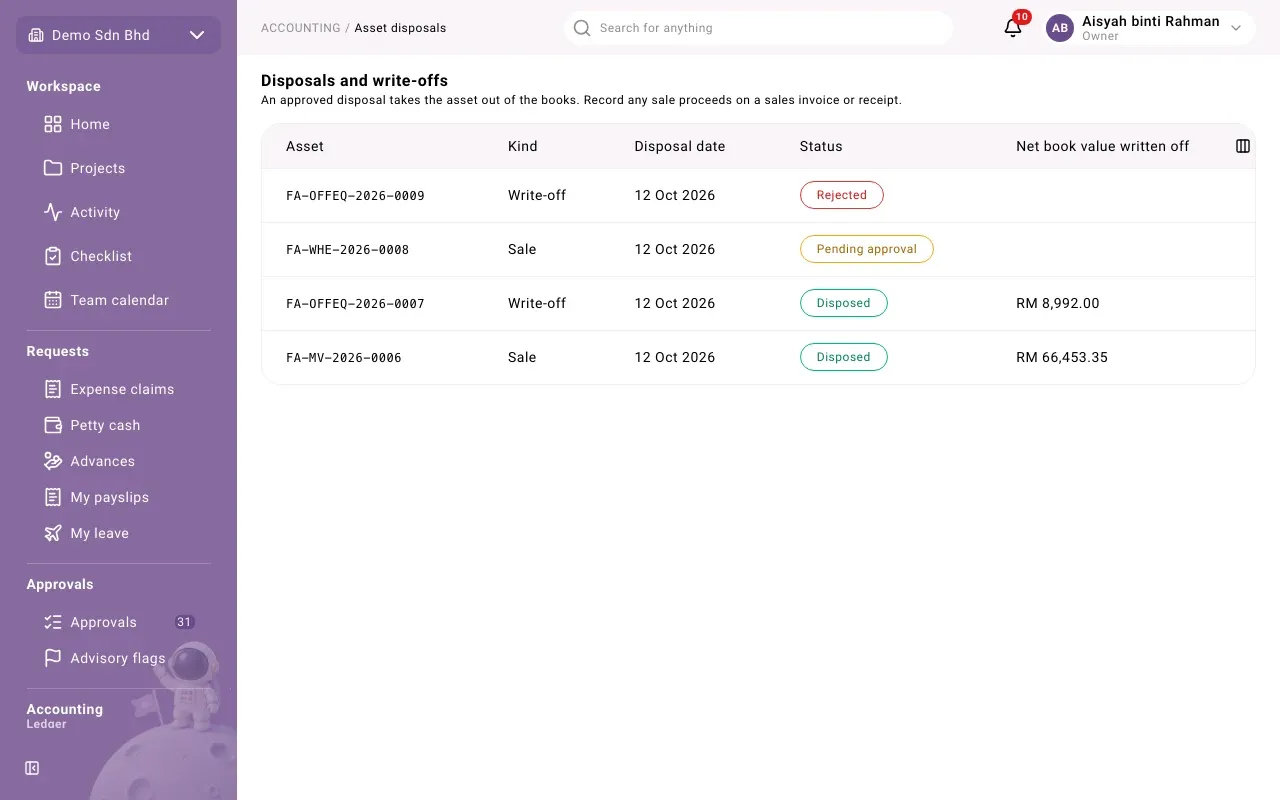
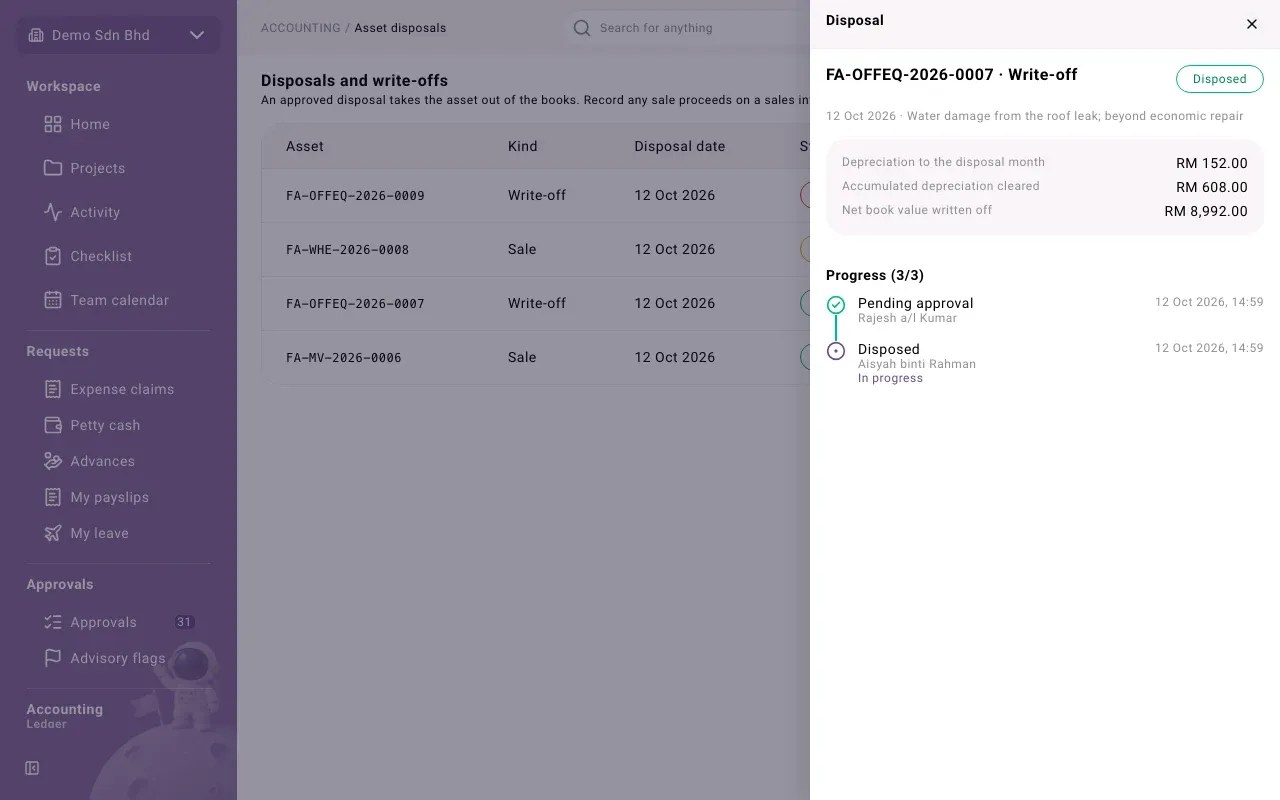
The list shows each disposal’s Asset, Kind, Disposal date, Status and Net book value written off. Select one to open it. The panel shows:
- Depreciation to the disposal month: the catch-up depreciation charged first;
- Accumulated depreciation cleared;
- Net book value written off, which goes to the class’s disposal gain or loss account;
- the action buttons and Progress.
| Status | What happens next |
|---|---|
| Draft | Its preparer selects Submit, or Withdraw (with a reason) to drop it |
| Pending approval | The Owner selects Approve and post, or Reject with a reason |
| Rejected | Its preparer selects Revise to make it a draft again |
| Disposed | Posted. The asset shows Disposed. |
| Withdrawn | Dropped before submission |
Sale proceeds
Section titled “Sale proceeds”The disposal does not record any money received. Record the sale proceeds on a sales invoice or receipt in Receivables, to the same disposal gain or loss account.
Problems
Section titled “Problems”| Message | What to do |
|---|---|
| “The asset already has a disposal in progress.” | Open it in Asset disposals and finish or withdraw it |
| “Depreciation is posted after that date. Date the disposal in or after the last depreciated month.” | Change the Disposal date |
| “The asset is disposed.” | It is already out of the books |