Leave setup
This page is for HR and administrators who manage leave. Open Leave setup from the sidebar. People who can only read leave reports see just the Balances and Leave taken tabs, covered in Leave balances and reports.
Nothing is set up for you: an organization starts with no leave types, no entitlements and no public holidays. Until you add them, employees have nothing to request.
Set up leave in this order
Section titled “Set up leave in this order”- Types: create the leave types you offer.
- Entitlement: for each paid type, set how many days a year people get.
- Public holidays: enter this year’s holidays.
- Working week: check which days are working days.
Leave types
Section titled “Leave types”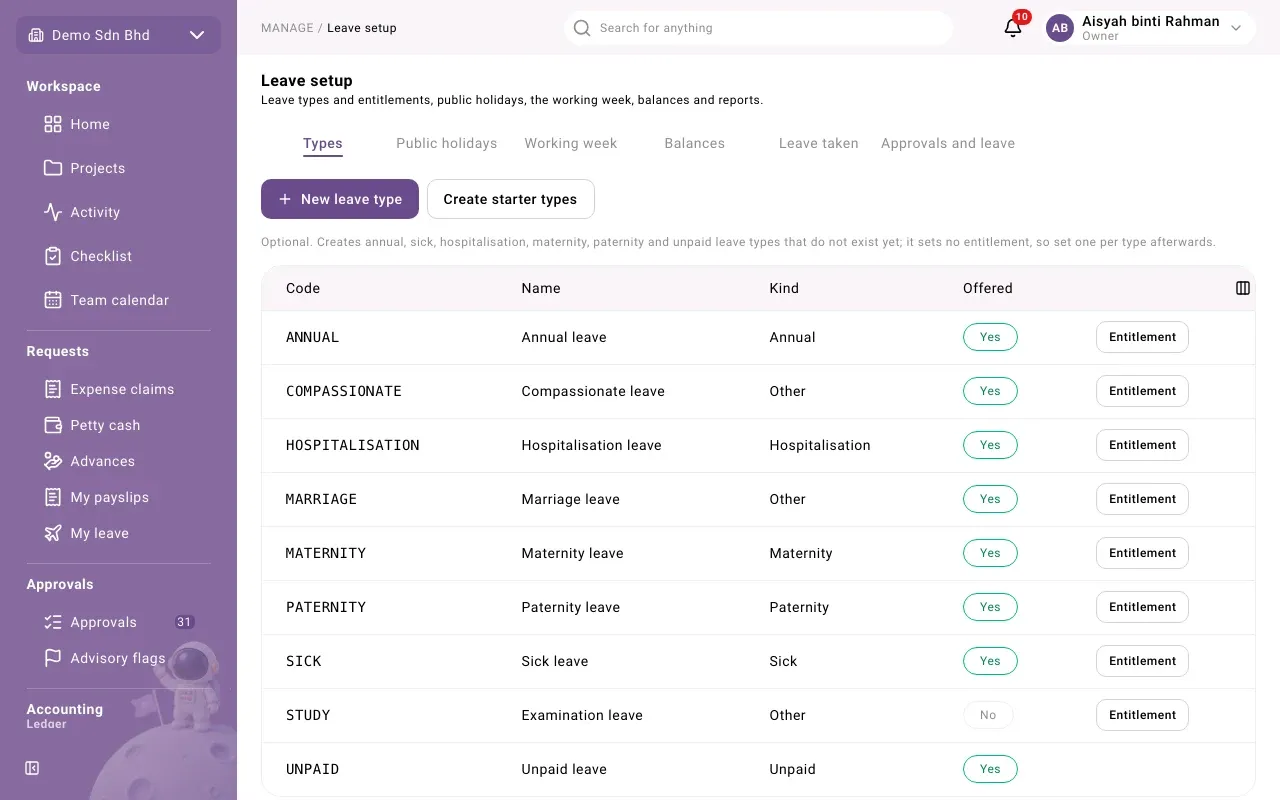
The Types tab lists each type with Code, Name, Kind and Offered.
Create starter types is optional. It creates annual, sick, hospitalisation, maternity, paternity and unpaid leave types that do not exist yet. It sets no entitlement, so set one per type afterwards. You will see “Created … leave types.”
To add or change a type:
-
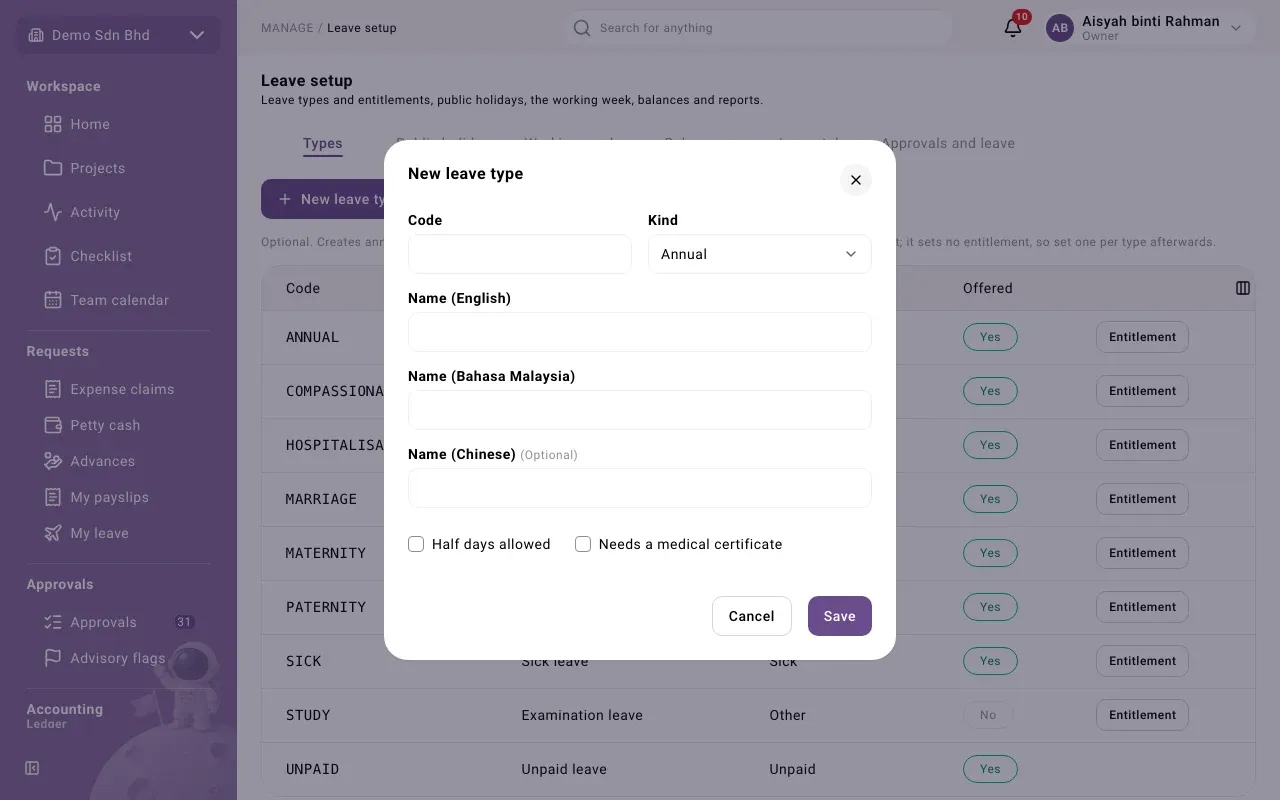
Select New leave type, or select a type’s row.
-
Fill in:
Field What to enter Code New types only: 1 to 20 letters, digits or _, starting with a letter Kind New types only: Annual, Sick, Hospitalisation, Maternity, Paternity, Unpaid or Other Name (English) and Name (Bahasa Malaysia) Both required Name (Chinese) Optional Paid Shown only for a new type of kind Other Half days allowed Tick if people may take half days Needs a medical certificate Sick and hospitalisation leave always need one Offered When editing: clear it to stop offering the type -
Select Save. You will see “Saved.”
Maternity and paternity leave are taken in whole consecutive days, not half days.
Entitlement
Section titled “Entitlement”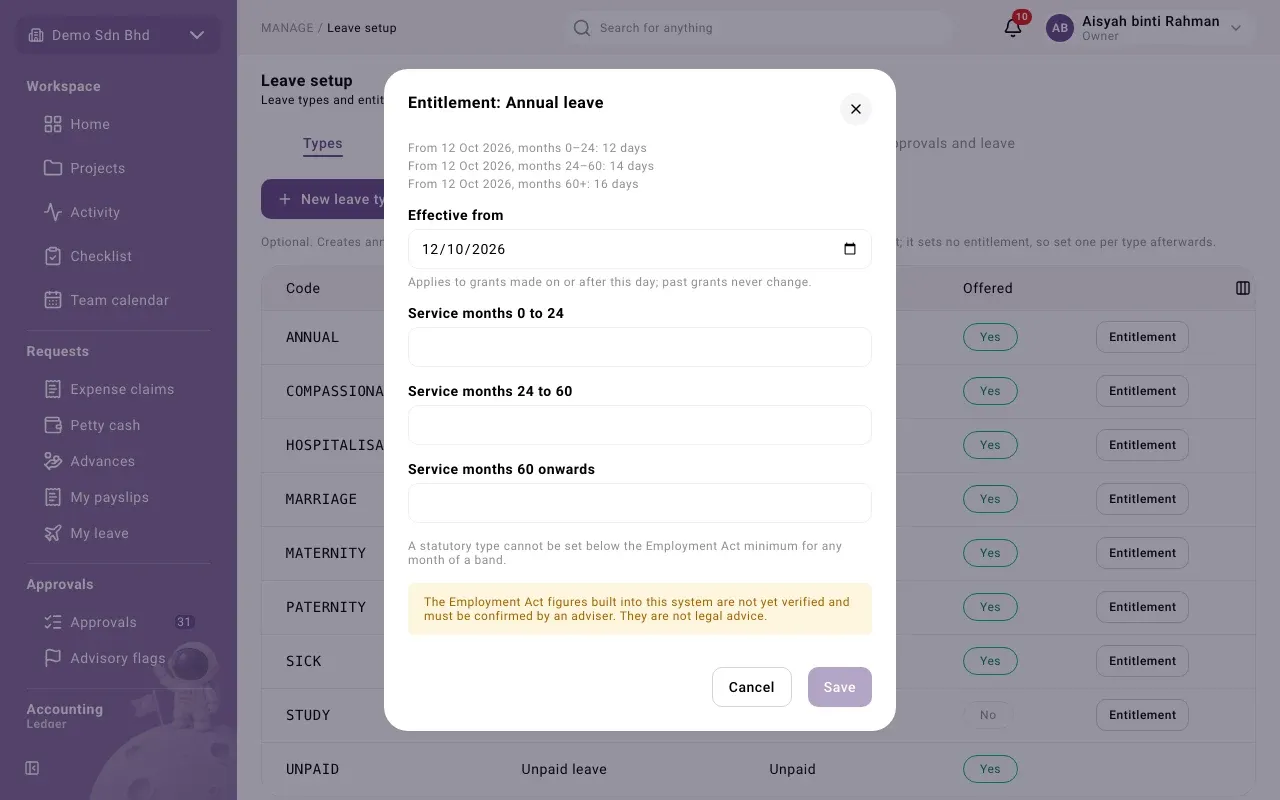
A paid type has an Entitlement button. The dialog lists the type’s existing rule sets, for example “From 1 Jan 2026, months 0–24: 8 days”, and lets you add a new one:
- Choose Effective from: today or a later day. The new rules apply to grants made on or after this day; past grants never change.
- Enter the days per year for each length-of-service band: Service months 0 to 24, Service months 24 to 60 and Service months 60 onwards. Use whole or half days, such as 8 or 8.5.
- Select Save.
Leave is then granted to each employee for the leave year from the rules in force. A type with no entitlement grants nothing.
Public holidays
Section titled “Public holidays”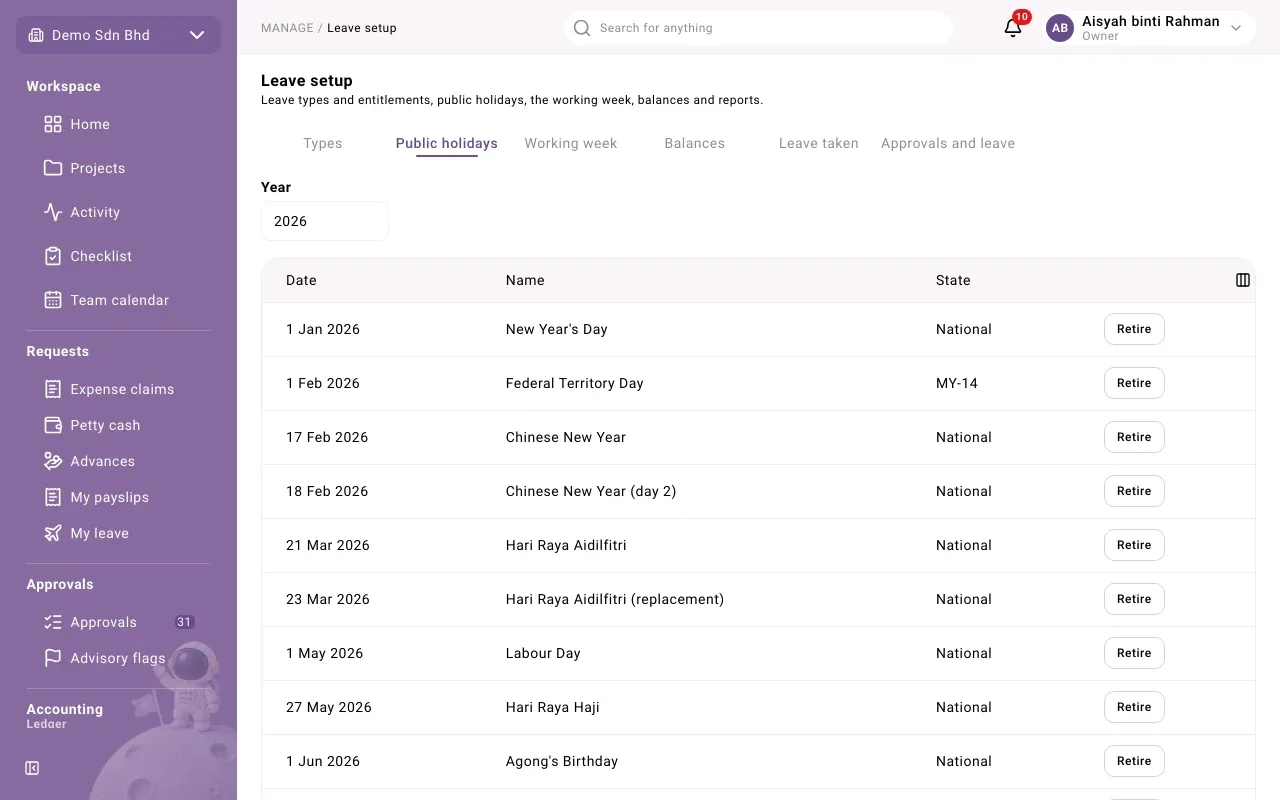
Public holidays are not counted as leave days. They are not filled in for you, because the dates change every year and vary by state.
- Set the Year to see that year’s holidays. If none are entered you will see “No public holidays are entered for … ; every working weekday counts as a leave day.”
- To add one, pick the Date, enter a state code such as MY-10 (leave it blank for a national holiday), and the Name (English) and Name (Bahasa Malaysia), and optionally Name (Chinese).
- Select Add holiday. You will see “Saved.”
Select Retire on a row to remove a holiday from the calendar.
Working week
Section titled “Working week”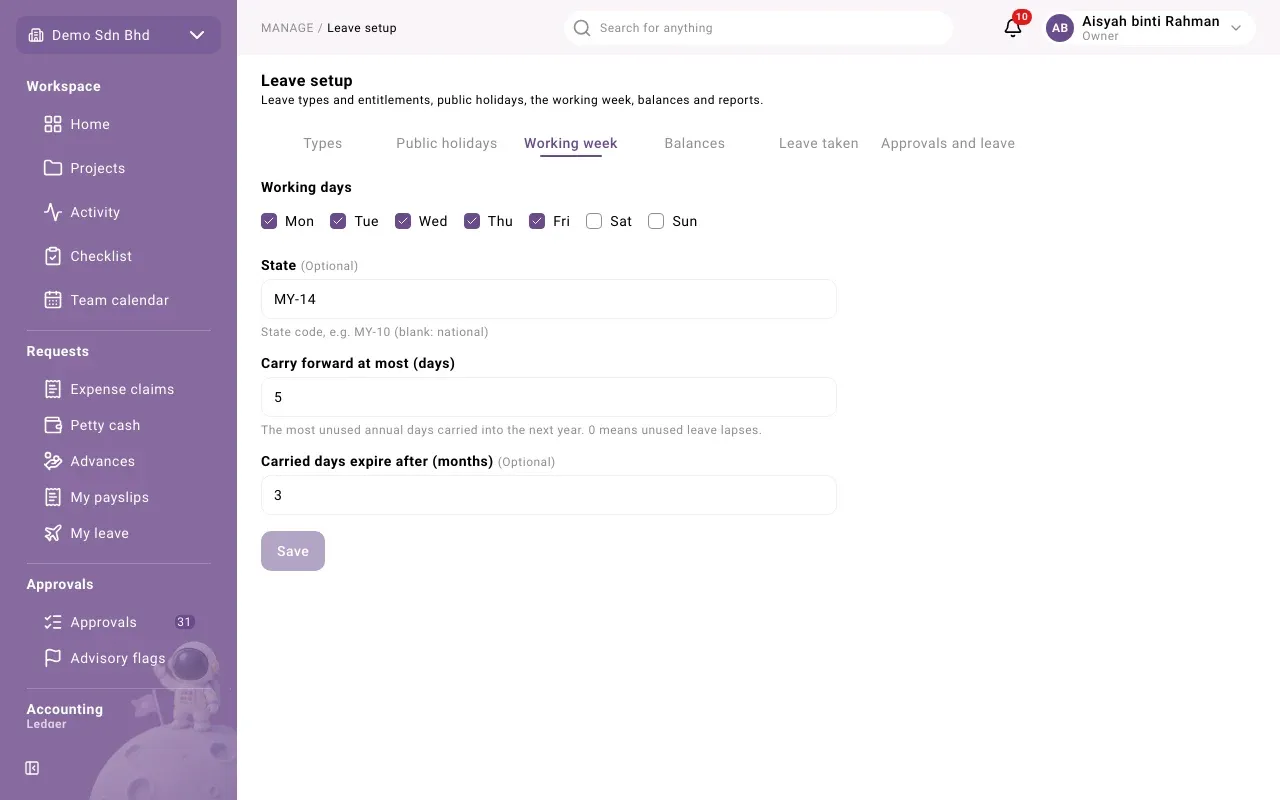
| Field | What to enter |
|---|---|
| Working days | Tick the days your organization works, Mon to Sun (one to seven days) |
| State | Optional: your state code, e.g. MY-10, or blank for national |
| Carry forward at most (days) | The most unused annual days carried into the next year. 0 means unused leave lapses. |
| Carried days expire after (months) | 1 to 12, or blank for never |
Select Save. You will see “Saved.”
The working week also drives payroll: with an empty unpaid leave divisor, a month’s working days come from it (see Payroll setup).
Problems
Section titled “Problems”- “Another leave type already has this code.” Choose another code.
- “A rule set cannot start before today.” Choose today or a later day.
- “This leave type already has a rule set from that date.” Choose another date.
- “That day is already a public holiday here.”