Journal entries
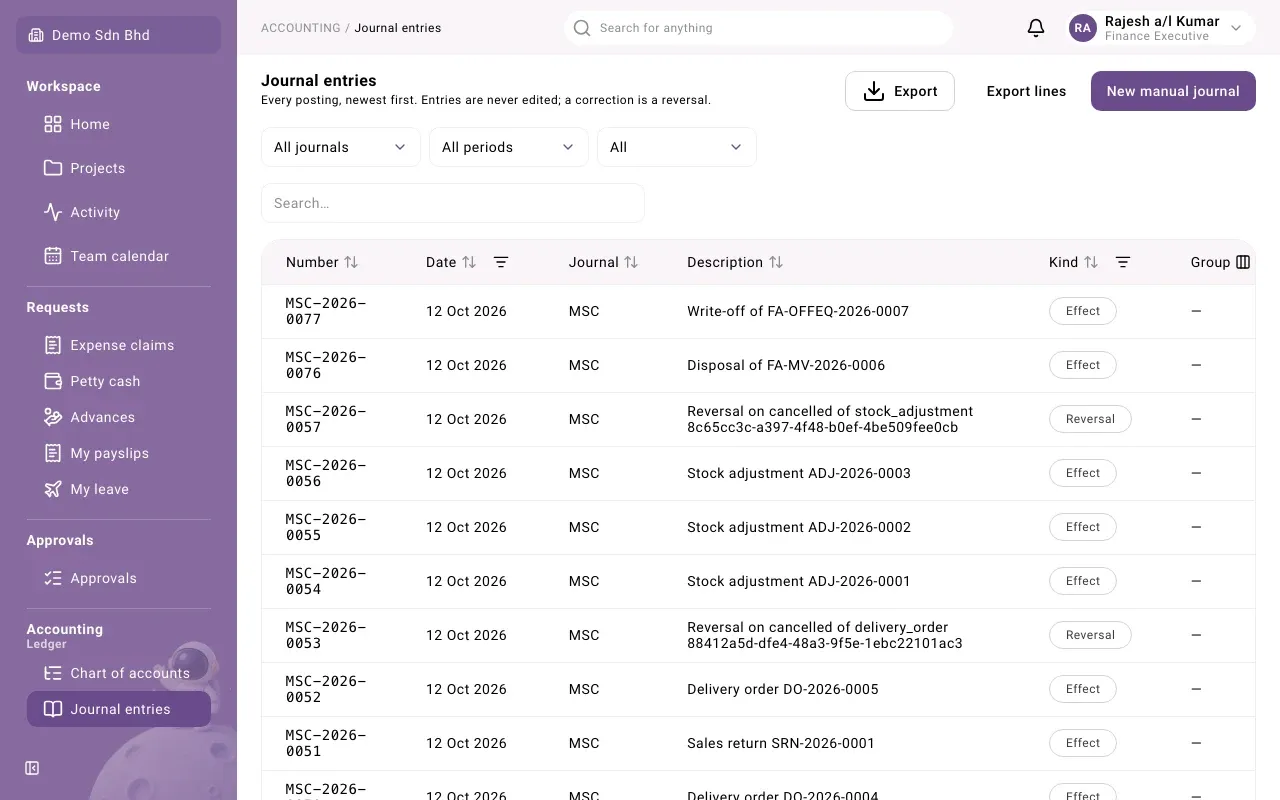
Journal entries lists every posting in your organization’s ledger, newest first. Use it to find an entry, see exactly which accounts it moved, and correct a manual entry by reversing it. Everyone with access to the accounting books can view it; posting and reversing are for people allowed to post manual journals.
Open Journal entries under Accounting in the sidebar.
The list
Section titled “The list”| Column | What it shows |
|---|---|
| Number | The entry number. Each journal numbers its own entries. |
| Date | The entry date, which decides the period it falls in |
| Journal | The code of the journal it was posted to |
| Description | What the entry is for |
| Kind | How it was made, see below |
| Group | Group for a dealing with another company in your group |
The Kind of an entry:
| Kind | Meaning |
|---|---|
| Manual | Posted by a person with New manual journal |
| Accrual | Posted by a document’s workflow when the expense or income is confirmed, for example when a claim’s category is verified |
| Payout | Posted by a document’s workflow when money leaves the organization |
| Reversal | Cancels an earlier entry |
| Year-end close | Moves the year’s result to retained earnings when a year is closed |
| Effect | Posted when an approved document takes effect without a control account, such as a delivery or a stock adjustment |
Filter and sort
Section titled “Filter and sort”- All journals narrows the list to one journal.
- All periods narrows it to one fiscal period.
- The group filter shows All, Group only or Non-group only entries.
- The Search… box finds entries by their text.
- Use the column headers to sort, and the Date and Kind column filters to narrow the list further.
Select Load more at the bottom to see older entries.
Open an entry
Section titled “Open an entry”Select a row. The entry opens in a side panel.
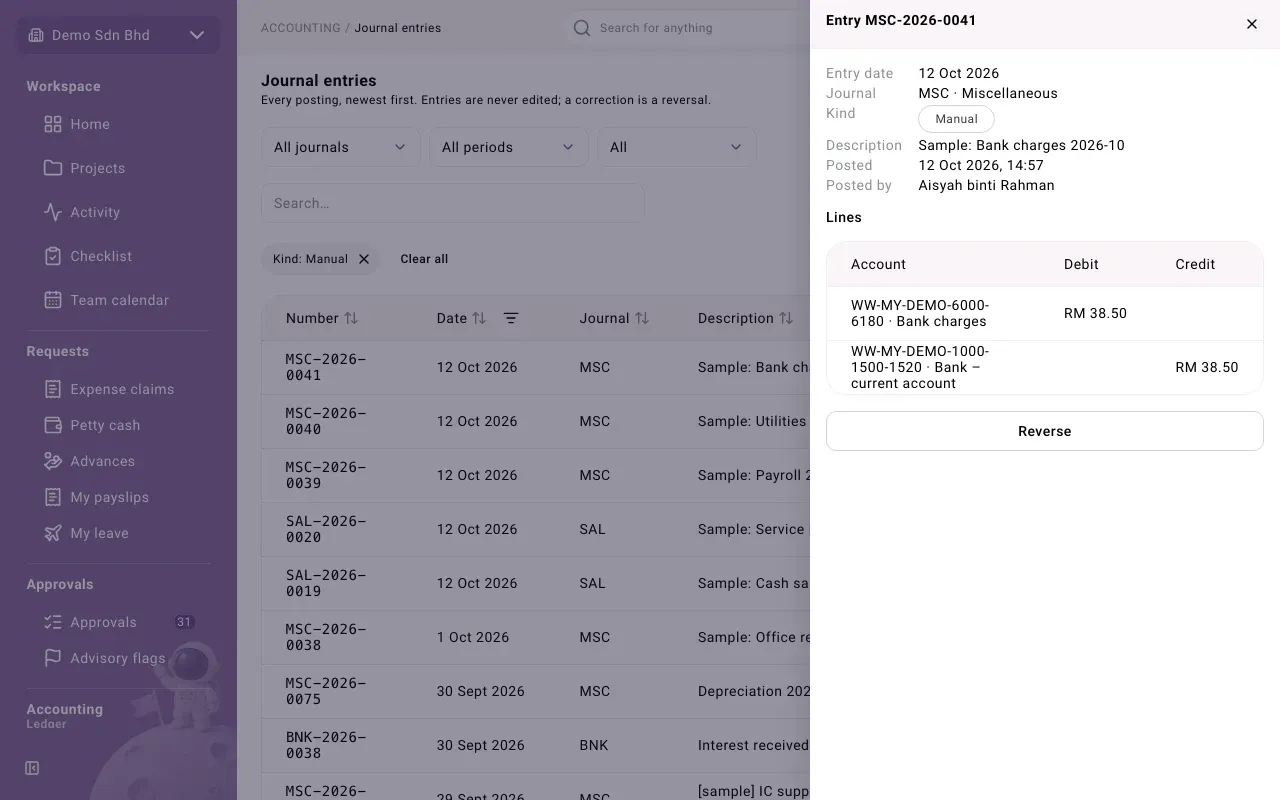
At the top you see the Entry date, Journal, Kind, Description, when it was Posted and who it was Posted by. An entry made by a document also shows its Source.
Under Lines each line shows the Account, the Debit and the Credit, with its memo and any analytic split (for example the project it was charged to, with a percentage). For an entry in a foreign currency, extra columns show the amounts in your base currency and the Rate used; a line tagged FX difference carries a rounding or exchange difference.
If the entry has been reversed, or is itself a reversal, a button such as Open: Reversed by … or Open: Reverses … takes you to the other entry.
Reverse a manual entry
Section titled “Reverse a manual entry”You can reverse a Manual entry that has not been reversed yet.
- Open the entry and select Reverse.
- Enter the Reason. It is kept on the record.
- Select Confirm.
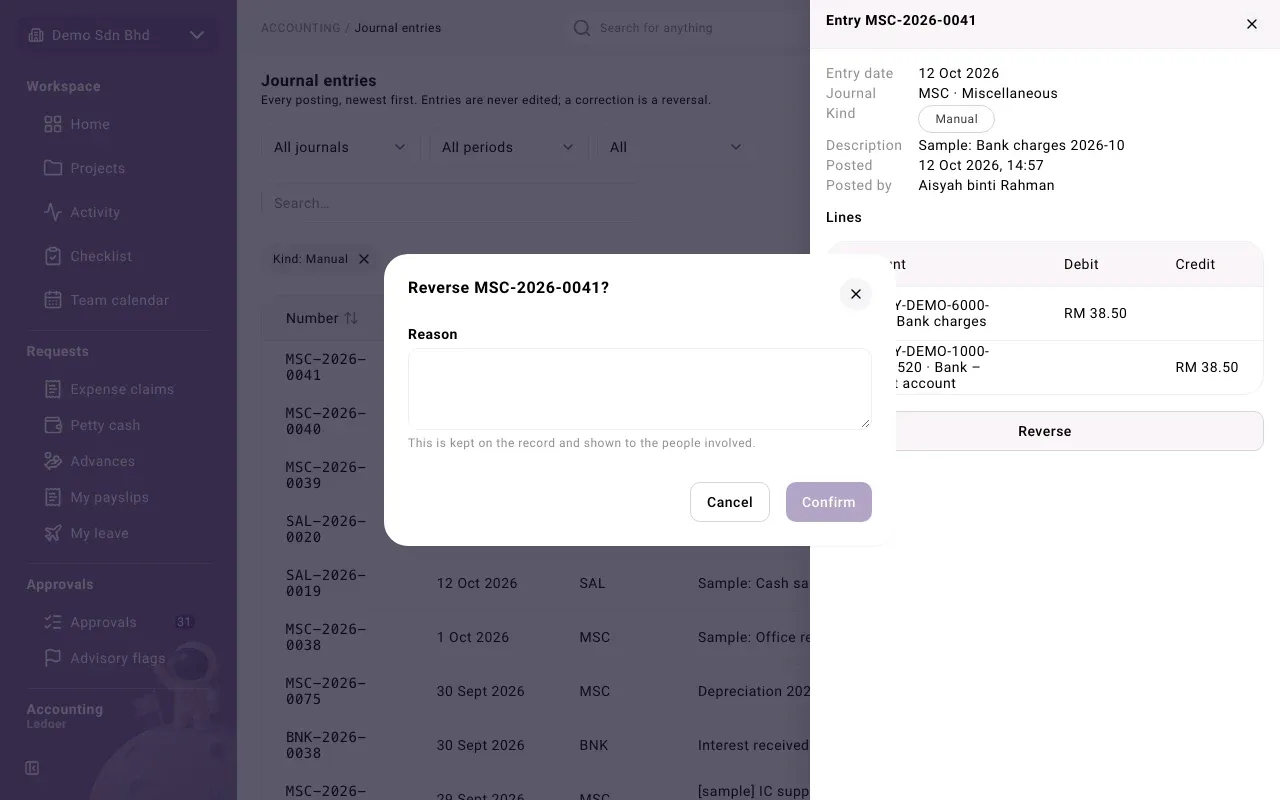
You will see “Posted reversal …”, and the new reversal entry opens. Both entries stay in the ledger. If the original was simply wrong, post a corrected entry afterwards with a new manual journal.
Accrual and Payout entries cannot be reversed here. The panel says “Posted by a workflow. Reverse it through its source document.” Go to that claim, invoice or payment and use its own actions.
Export
Section titled “Export”- Export downloads the entries you are looking at as CSV, Excel (XLSX) or PDF. If you see “Too many lines for this format”, narrow the filters or choose CSV.
- Export lines downloads the journal lines of the same entries. Choose the Format and the Columns; you can save your choice as a Preset.
Problems
Section titled “Problems”| You see | What to do |
|---|---|
| “No entries match these filters.” | Clear the journal, period and column filters. |
| “This entry was not found, or you cannot see it.” | The link is old or the entry is not in this organization. |
| No Reverse button | The entry is not manual, is already reversed, or you are not allowed to post. |