CRM accounts and contacts
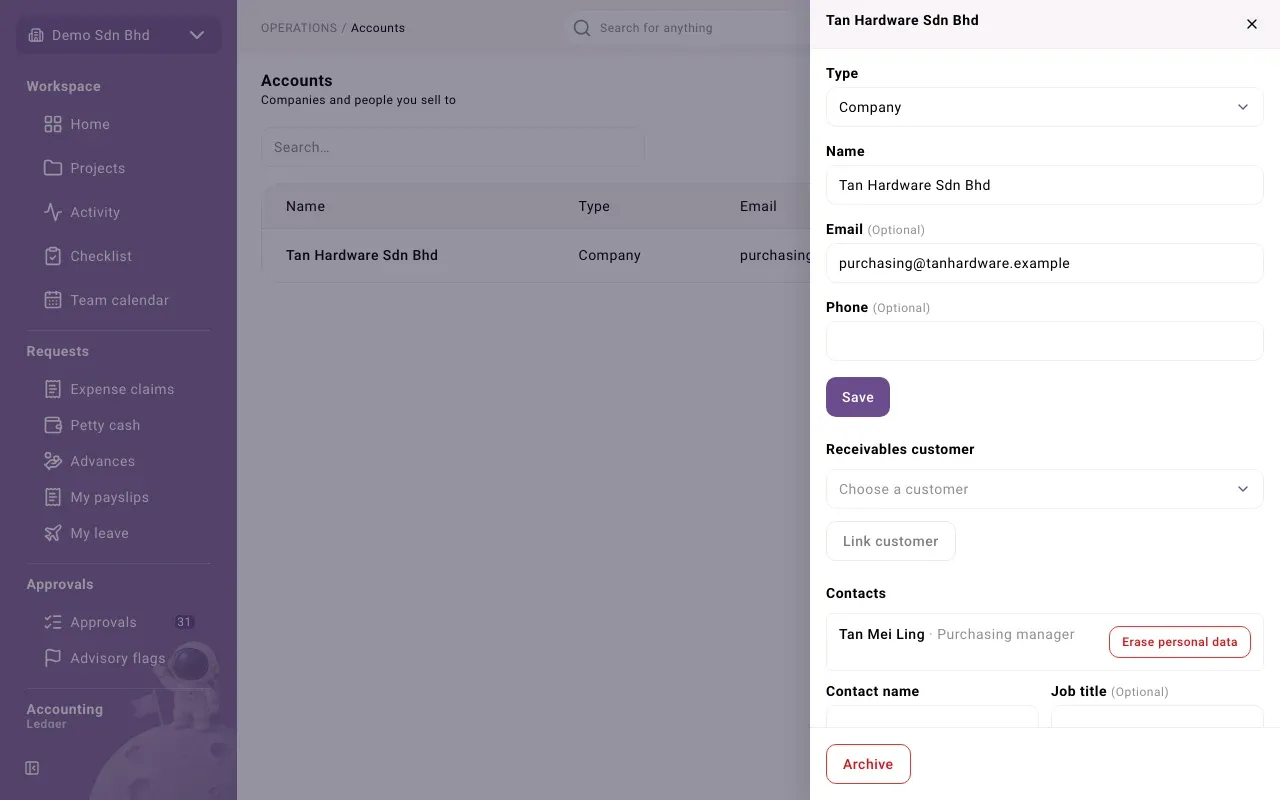
An account is a company or a person you sell to, or hope to. Each account holds its Contacts (the people you deal with there) and its Activities (calls, meetings, tasks and notes). Accounts are separate from your receivables customers; you can link the two when the account starts buying on credit.
This page is for people your administrator has given access to the CRM. You find it under Operations → Sales → Accounts. If you can see accounts but not the New account button, you can read them but not add them.
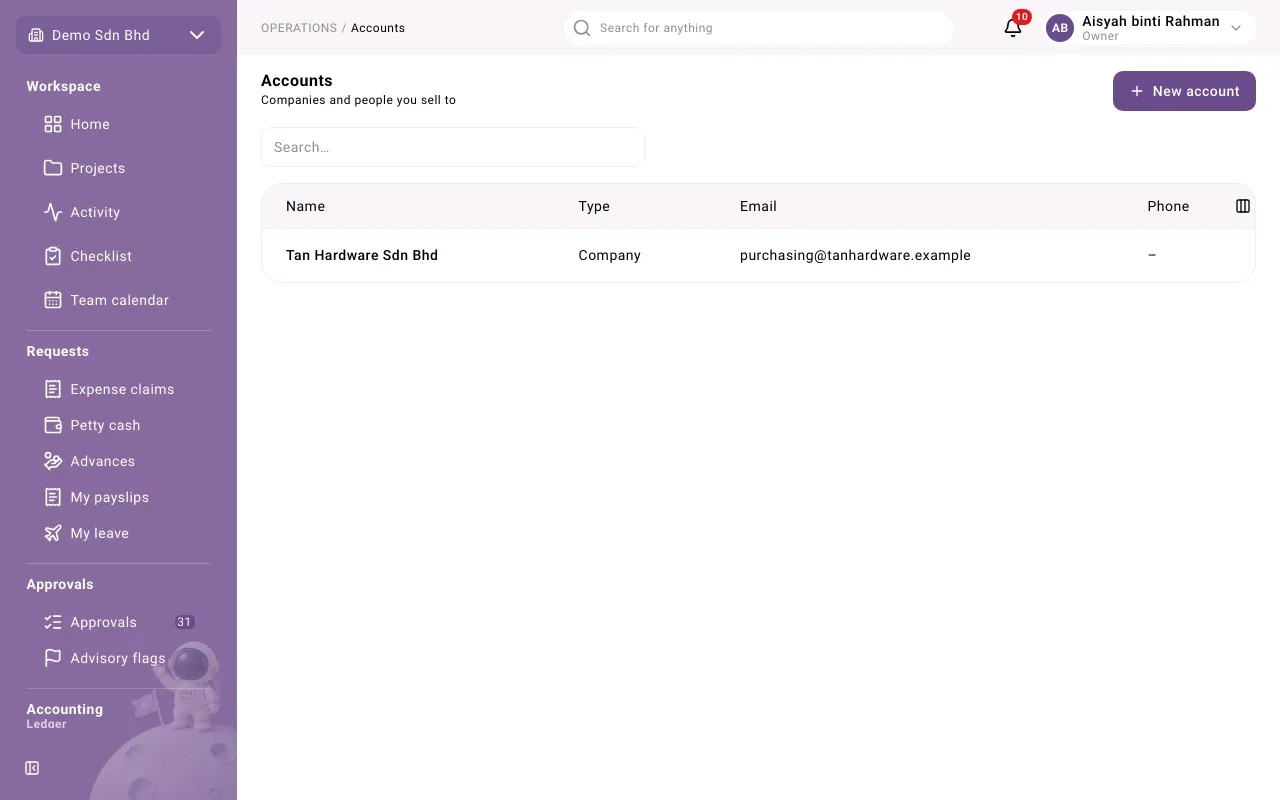
The list shows each account’s Name, Type (Company or Person), Email and Phone. Type in the search box to find an account by name. Select a row to open it in a side panel.
Add an account
Section titled “Add an account”- Select New account.
- Fill in the form and select Save. You will see “Saved”, and the account opens so you can add contacts.
| Field | What to enter |
|---|---|
| Type | Company for a business, Person for an individual customer |
| Name | The company’s or person’s name |
| Optional | |
| Phone | Optional |
To change an account later, open it, change the fields and select Save.
Contacts
Section titled “Contacts”Under Contacts, each person at the account is listed with their job title, email and phone. To add one, fill in Contact name and, if you know them, Job title, Contact email and Contact phone, then select Add contact. An account with nobody yet says No contacts yet.
Activities
Section titled “Activities”Activities is the account’s diary, newest first. To log one:
- Choose the Activity type: Call, Meeting, Task or Note.
- Write the Subject, for example “Called about the renewal” (up to 200 characters).
- Add a Due date if it is something still to do.
- Select Log activity.
When it is done, select Mark done beside it. A finished activity is shown struck through. Leads and opportunities have the same Activities section.
Link a receivables customer
Section titled “Link a receivables customer”When an account buys from you on credit, it also exists as a customer in Receivables. Under Receivables customer, choose the customer from Choose a customer and select Link customer. You will see “Customer linked”.
- Only active customers are offered.
- If the section says Receivables customers are not available to you., you do not have access to Receivables customers, or Receivables is not used by your organization. Ask your administrator.
- The CRM does not create the customer for you. Until you link them, the same company can exist both as an account and as a customer.
Archive an account
Section titled “Archive an account”Select Archive at the bottom of the panel and confirm. The account leaves the list. Its contacts, opportunities and activities are kept. You will see “Account archived”.
Erase personal data
Section titled “Erase personal data”People who hold the right to erase personal data (usually the owner and administrators) see Erase personal data on a contact, a lead, and an account whose type is Person. It is for a request from someone to have their details removed.
What is not erased:
- On a person account: its contacts (erase each one separately) and a linked receivables customer, which is kept as receivables data.
- On a lead: an account or contact it was converted into.
- Opportunity names. Do not put a person’s details in an opportunity name.
- Reasons written when a lead or opportunity changed stage. Do not write personal data in reasons.
A company account cannot be erased: it holds no personal data of its own. Erase its contacts instead. An erased record shows Erased in place of its name.
Problems
Section titled “Problems”| Message | What to do |
|---|---|
| “This record has changed since you opened it. Reload it and try again.” | Someone else saved it first. Reload the page, check their change, and make yours again. |
| “This record’s personal data was erased; it can no longer be edited or added to.” | The record was erased. Create a new one if the person comes back. |
| “This could not be loaded.” | Reload the page. If it keeps happening, tell your administrator. |