Custom fields
Custom fields let you record extra information the standard forms do not have, such as a customer’s region or a supplier’s vendor number. Open Custom fields under Manage. It is for administrators your organization has given access to manage custom fields.
The fields you add appear on the record’s form under More details.
The list
Section titled “The list”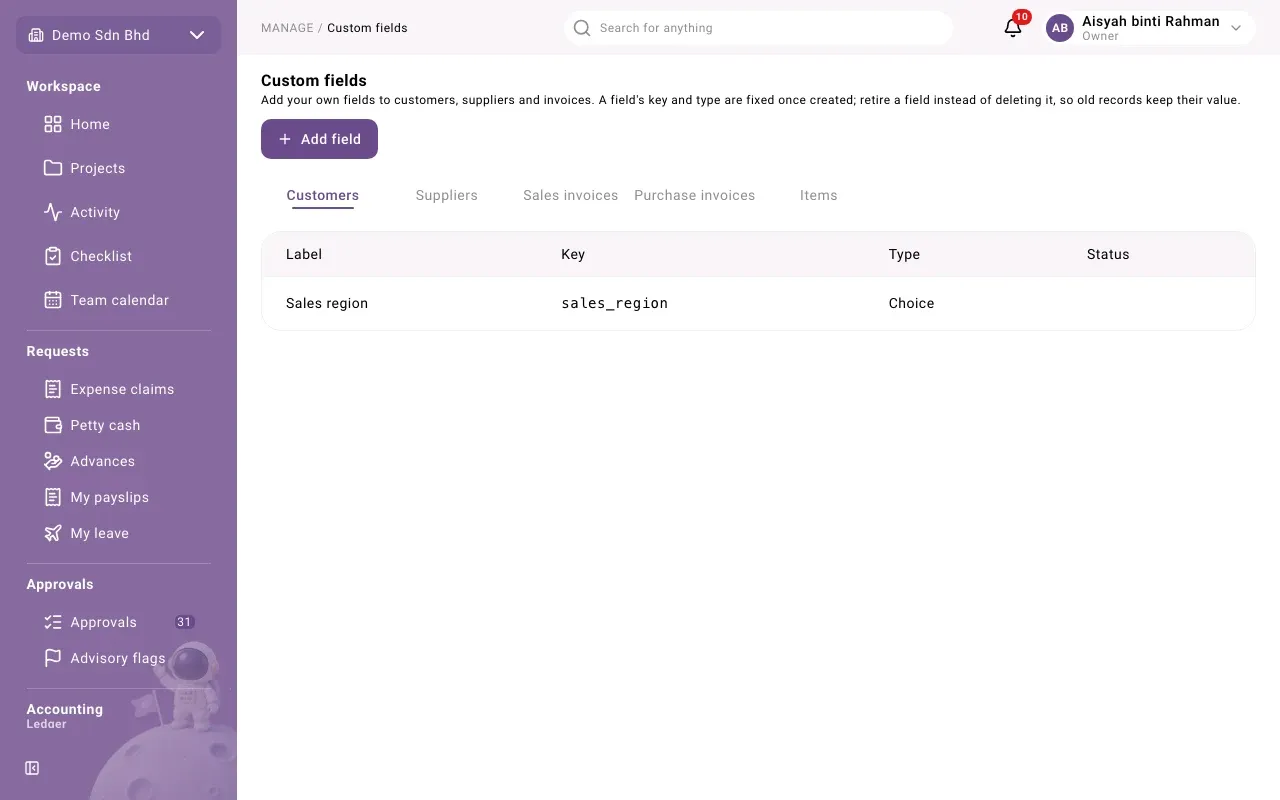
Choose a tab for what the field belongs to: Customers, Suppliers, Sales invoices, Purchase invoices or Items. The list shows each field’s Label, Key, Type and Status: a Required field must be filled in, and a Retired field is no longer offered.
Add a field
Section titled “Add a field”- Choose the tab, then select Add field.
- Fill in the form and select Save. You will see “Field saved”.
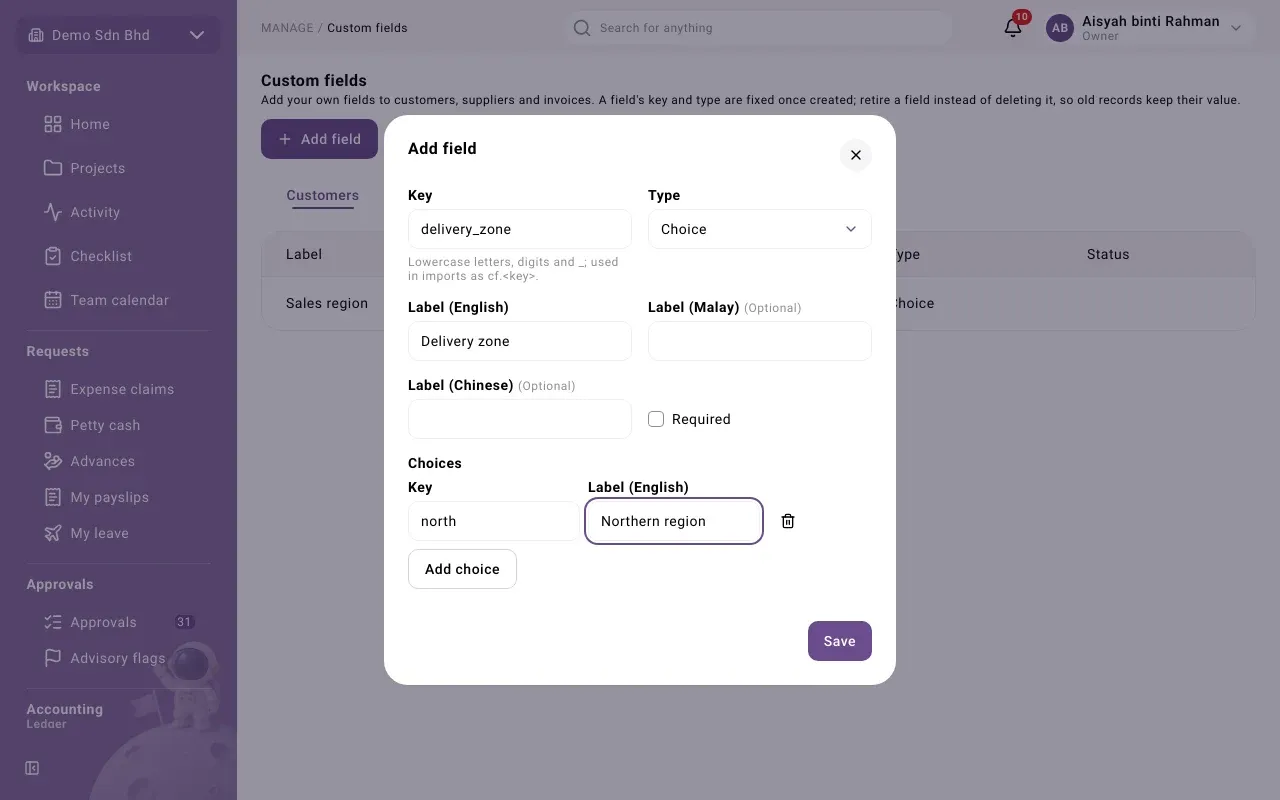
| Field | What to enter |
|---|---|
| Key | Lowercase letters, digits and _, for example region. Imports use it as cf.<key>, for example cf.region. |
| Type | Text, Number, Date, Yes or no or Choice |
| Label (English) | The name people see |
| Label (Malay), Label (Chinese) | Optional translations |
| Required | Tick if the field must be filled in |
For a Choice field, add each option under Choices with Add choice: a Key and a Label (English).
Change or retire a field
Section titled “Change or retire a field”Select a field in the list to open Edit field.
- You can change its labels, whether it is Required, and add new choices.
- Its Key and Type are fixed once created. A saved choice’s key cannot be changed or removed either.
- To stop using a field, untick Active and save. Retire a field rather than deleting it, so old records keep their value.
Where custom fields show up
Section titled “Where custom fields show up”- On the customer, supplier, invoice or item form, under More details.
- In imports, as a column named
cf.<key>. - On the Customers and Suppliers lists, Download CSV includes every custom field as
a
cf.<key>column, the same headings the imports read back. - On printed invoices: a custom field for sales invoices can be ticked under Extra lines at the top on the Invoices and credit notes layout in Document layouts.