Job grades and headcount
This page is for HR and administrators. Job grades needs access to manage grades; Headcount needs access to HR reports, and changing a position’s headcount or allowing one over it needs further access.
Job grades
Section titled “Job grades”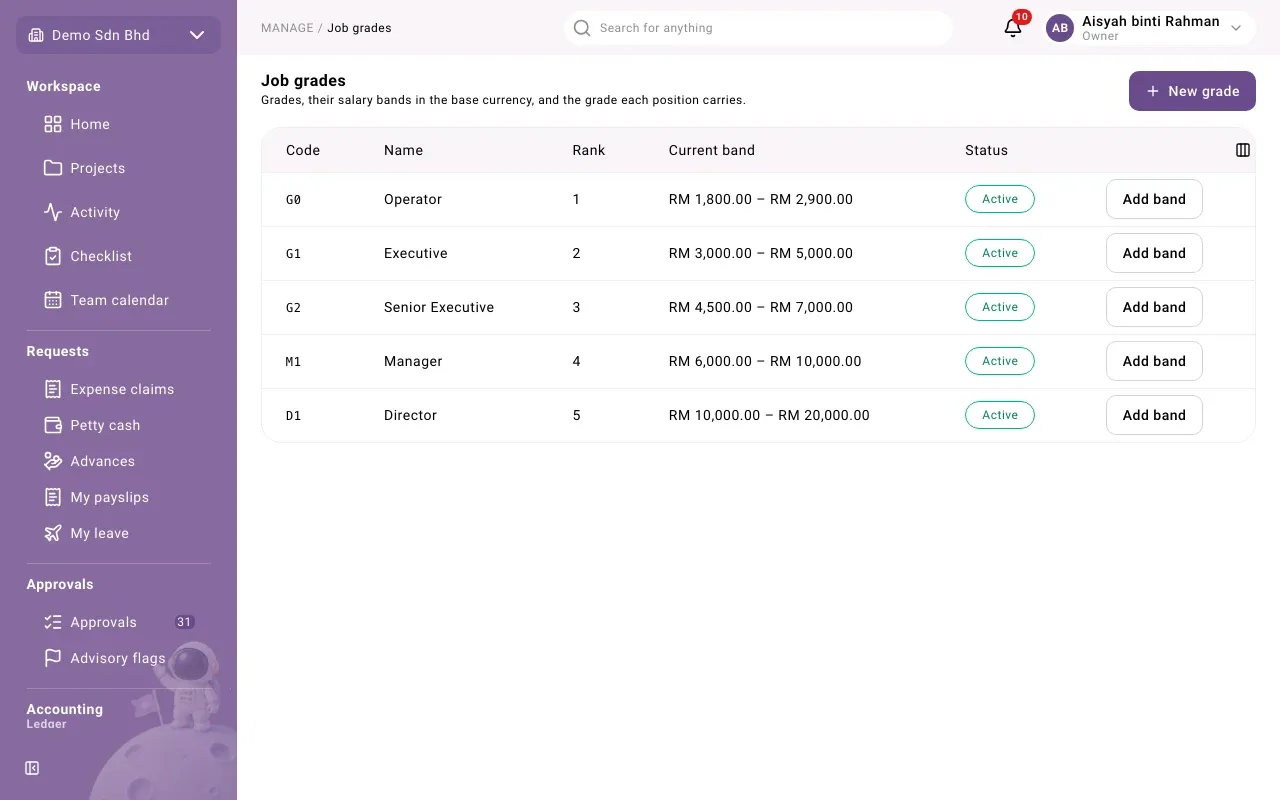
A job grade (for example G1 or M1) groups positions of similar level. Each grade has salary bands in your organization’s base currency. The grade belongs to the position, not the person: an employee’s grade is the grade of their primary seat.
Open Job grades. Each row shows Code, Name, Rank, the Current band (minimum to maximum) and Status (Active or Retired).
Add or edit a grade
Section titled “Add or edit a grade”-
Select New grade, or select a grade’s row to edit it.
-
Fill in:
Field What to enter Code New grades only: 1 to 16 letters, digits, - or _. It cannot be changed later. Name (English) and Name (Bahasa Malaysia) Both required, in Latin script Name (Chinese) Optional Rank A whole number from 1 to 999 -
Select Save. You will see “Grade saved”.
To retire a grade, edit it and clear Active (clear to retire the grade; it is never deleted). A retired grade takes no new band or position.
Add a salary band
Section titled “Add a salary band”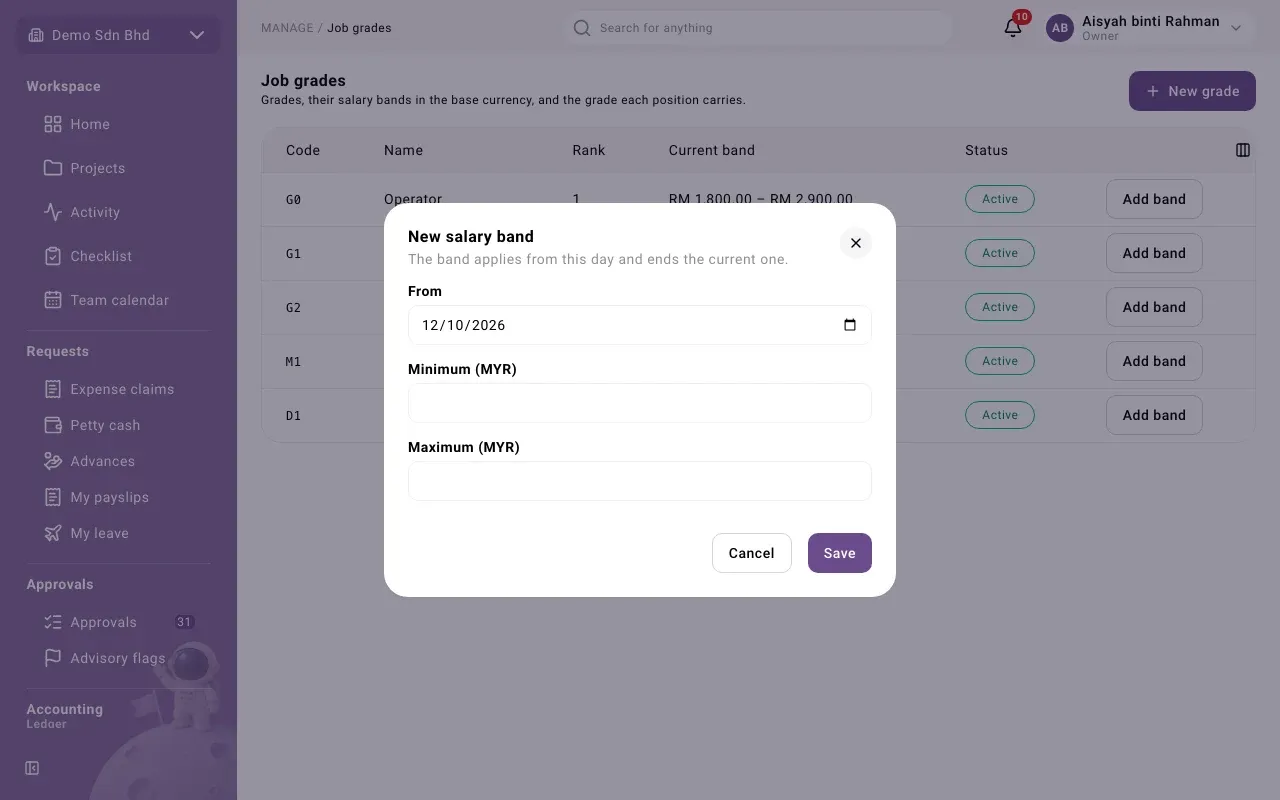
- Select Add band on an active grade.
- Enter From (the day the band starts), Minimum and Maximum, for example 2500.00 and 4000.00. The maximum must be at least the minimum.
- Select Save. You will see “Band added”.
The new band applies from that day and ends the current one. Bands of one grade cannot overlap.
Bands are a guide, not a block: a salary outside the band is allowed, and a payroll run lists it under Needs attention (see Payroll runs).
Headcount
Section titled “Headcount”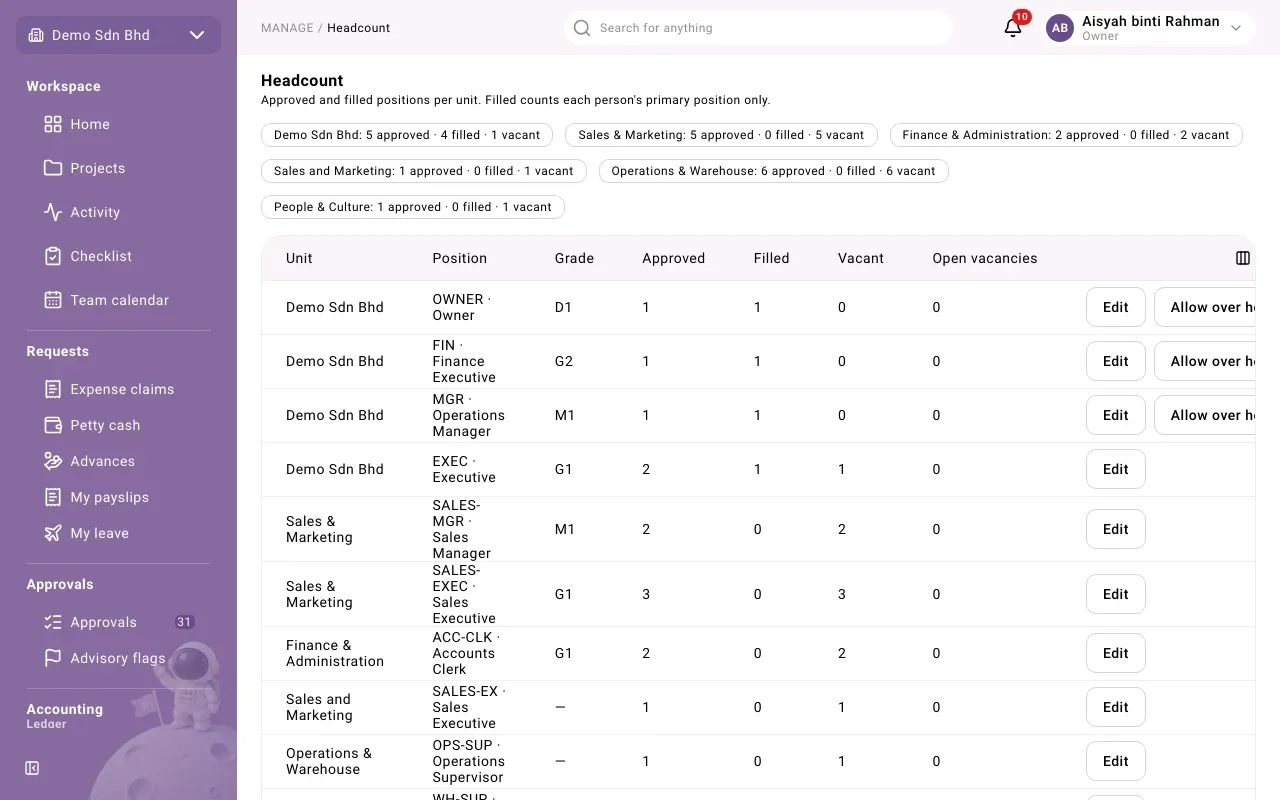
Headcount shows, for each unit and position, how many people are approved and how many seats are filled. Filled counts each person’s primary position only; acting and secondary assignments do not count.
At the top, each unit has a summary such as “Sales: 4 approved · 3 filled · 1 vacant”. The table has:
| Column | Meaning |
|---|---|
| Unit and Position | Where the seat is |
| Grade | The position’s grade, or — |
| Approved | The approved headcount |
| Filled | People holding it as their primary position |
| Vacant | Approved minus filled. “1 over” in red means more people than approved. |
| Open vacancies | Approved vacancies still needing people |
Below it, Open vacancies by age lists open vacancies with Still needed, Needed by and how long each has been Open for. Past its needed-by date, a vacancy is marked Overdue.
Change a position’s headcount or grade
Section titled “Change a position’s headcount or grade”- Select Edit on the row.
- Change Approved headcount (a whole number, 0 or more) and, if you manage grades, the Grade (or No grade).
- Select Save. You will see “Position saved”.
If you see “The approved headcount was saved, but the grade was not”, the headcount change stands; fix the grade and save again.
Allow one over headcount
Section titled “Allow one over headcount”Hiring or transferring someone into a full position is refused. An Owner can allow it for one person:
- Select Allow over headcount on a full position.
- Fill in Person to seat, Requested by (the member who asked; it cannot be you), From and a Reason. The reason is kept in the audit trail.
- Select Allow over headcount. You will see “Allowed; the assignment can be made now”.
Another member then records the hire or transfer.
Problems
Section titled “Problems”- “Another grade already has this code.” Choose another code.
- “This band overlaps another band of the same grade.” Start the new band after the last one, or choose another date.
- “You asked for this headcount override yourself; another Owner must allow it.” The requester and the Owner who allows it must be different people.
- “The position still has room for this, so no override is needed.” Record the hire directly.