Webhooks
A webhook is a message mcomtask sends to another system the moment something happens, for example when an invoice is issued. Instead of the other system asking “anything new?” every few minutes, mcomtask tells it. “A message names the record; your system fetches it with its API key.” So a webhook is normally used together with an API key.
The address that receives the messages is an endpoint, run by your developer or your software provider. Each message is signed with a secret, so the receiver can check it really came from your organization.
This page is for administrators. You find it under Manage → Integrations → Webhooks. How a receiver reads and checks a message is in the Public API reference on the mcomtask developer documentation site; ask your administrator for its address.
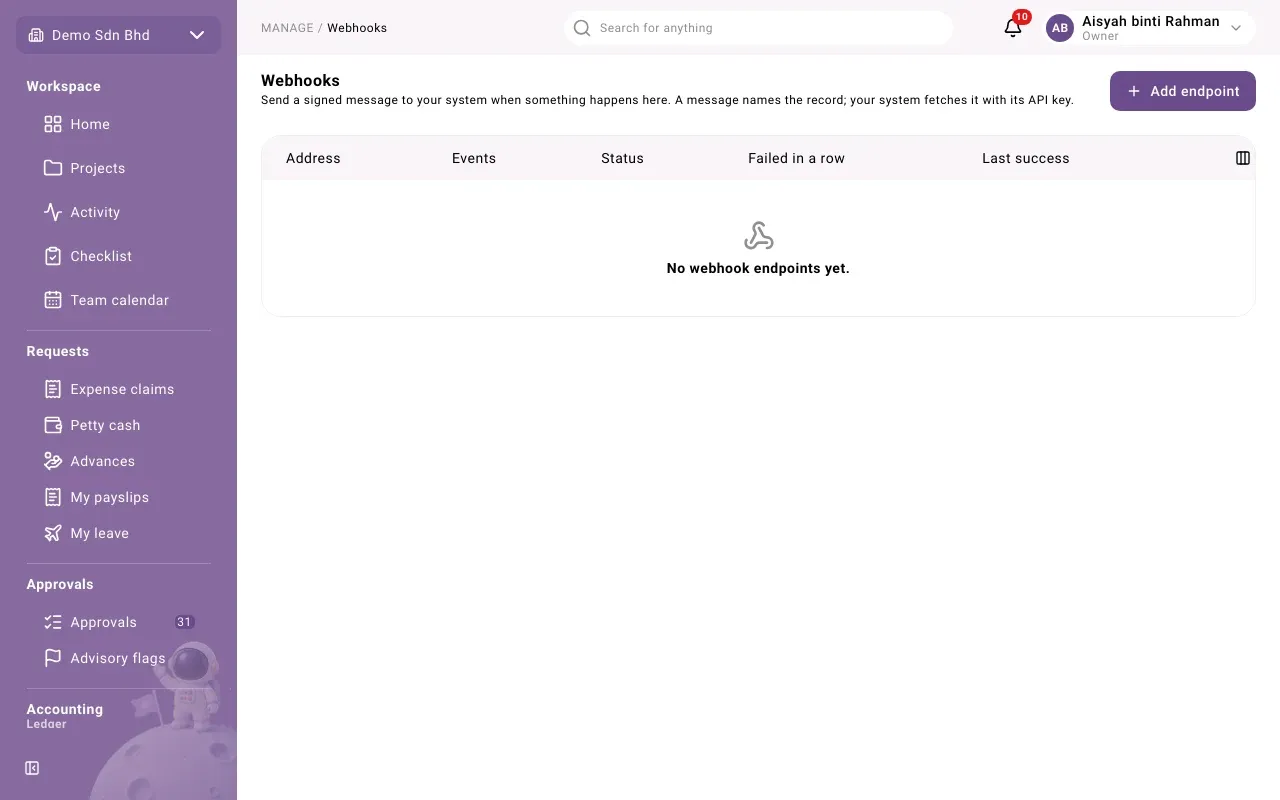
The list shows each endpoint’s Address, its Events, Status, how many deliveries Failed in a row, and its Last success. Select Open to see one.
Add an endpoint
Section titled “Add an endpoint”-
Select Add endpoint.
-
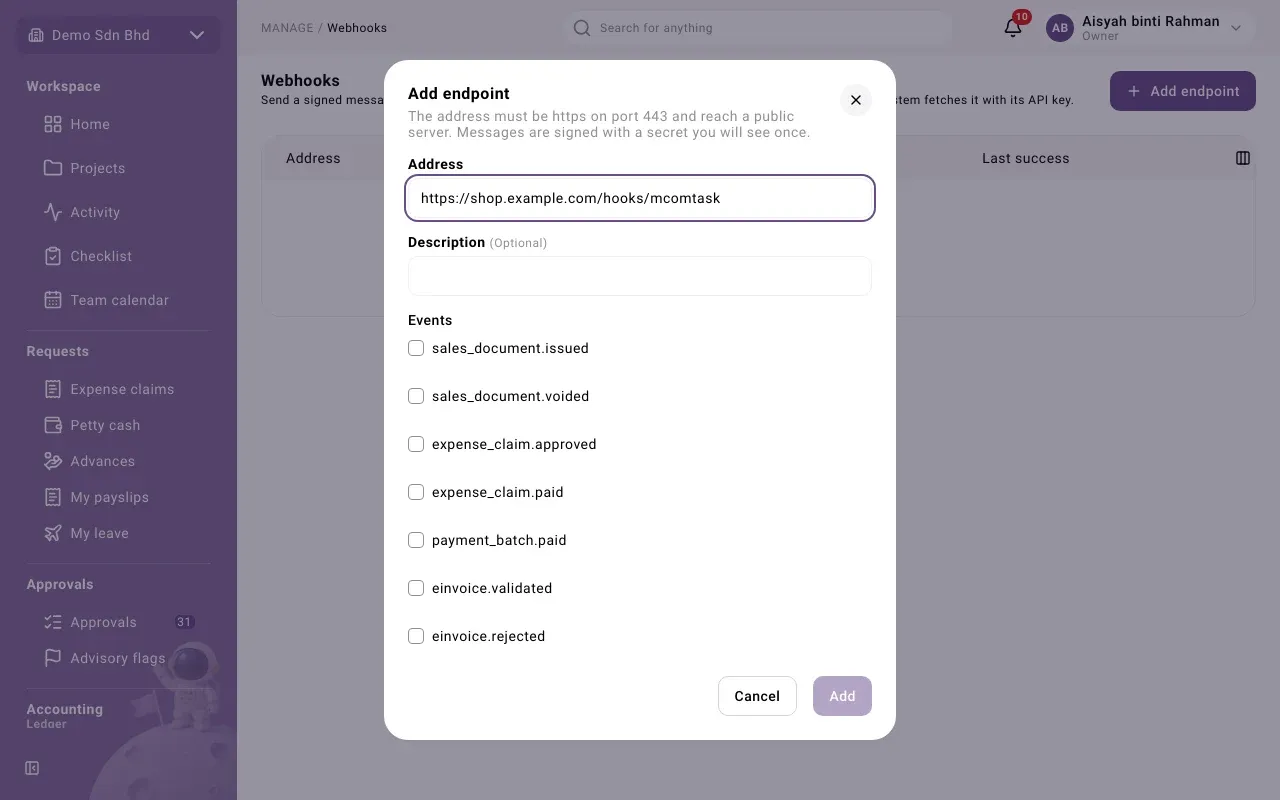
Fill in:
Field What to enter Address The full https address your developer gives you. “The address must be https on port 443 and reach a public server.” Description Optional: what it is for Events “Choose what this endpoint is told about.” They are listed by their technical names, for example sales_document.issuedorexpense_claim.paid. Tick only what the receiver needs. -
Tick the statement that data sent to a webhook endpoint leaves this organization’s Malaysian hosting and that the destination is yours or your processor’s.
-
Select Add.
The next dialog shows the signing secret once. Copy it with the copy button, give it to your developer through a safe channel, tick I have saved the key somewhere safe. and select Done. It cannot be shown again.
An endpoint’s page
Section titled “An endpoint’s page”The Status card shows the endpoint’s state and its events.
| Status | Meaning |
|---|---|
| Active | Messages are being sent |
| Paused | Nothing is sent until you resume it. Paused: the receiver said it is gone means the receiver asked to stop. |
| Disabled | Nothing is sent. Disabled after repeated failures or Disabled by an administrator says why. |
Actions:
- Send test event (active only): sends a test and tells you the result, for example “The receiver answered 200 in 120 ms.”
- Pause stops sending for now; Resume starts again. When resuming you can tick Also send what it missed since it stopped.
- Disable: “Nothing more is sent to it. You can resume it later.”
- Rotate secret makes a new signing secret and shows it once. “The old one keeps signing for 24 hours so you can deploy the new one without downtime.” If you think the secret leaked, tick Stop the old secret at once (a suspected leak).
The delivery log
Section titled “The delivery log”Delivery log lists the messages sent to the endpoint, with the event, when it was Created and its status. Filter it by status.
| Status | Meaning |
|---|---|
| Waiting | Not sent yet |
| Delivered | The receiver accepted it |
| Will retry | It failed; mcomtask tries again at Next attempt |
| Gave up | It failed too many times and will not be retried by itself |
Each row shows its Attempts, the receiver’s Response, and the Problem if it failed:
| Problem | What it usually means |
|---|---|
| Timed out | The receiver was too slow to answer |
| Certificate problem | The receiver’s https certificate is not valid |
| Could not find the address | The address is misspelt or the server is gone |
| Address not allowed | The address points at a private network, which is not allowed |
| Connection refused | The receiver’s server is not accepting connections |
| Receiver refused it | The receiver answered with an error |
| Our error | A problem on mcomtask’s side. Tell your provider. |
Once the receiver is fixed, select Replay on a failed or given-up message to send it again, or Replay all dead to resend every given-up message. “Every dead delivery goes back to being sent, with the same event id”, so the receiver can tell it has seen it before. You will see “Queued to send again.”