e-Invoices
Malaysian businesses in scope of e-Invoicing must send each invoice and credit note to LHDN (the Inland Revenue Board) through its MyInvois system, which checks it and gives it an e-Invoice UUID. Once e-Invoicing is switched on, mcomtask sends your documents automatically when you issue them; you do not upload anything yourself.
The e-Invoices page is for people your administrator has given access to e-Invoicing. Changing the settings, retrying and cancelling need further permission. You find it under Banking & tax in the accounting part of the menu.
Settings: switch e-Invoicing on
Section titled “Settings: switch e-Invoicing on”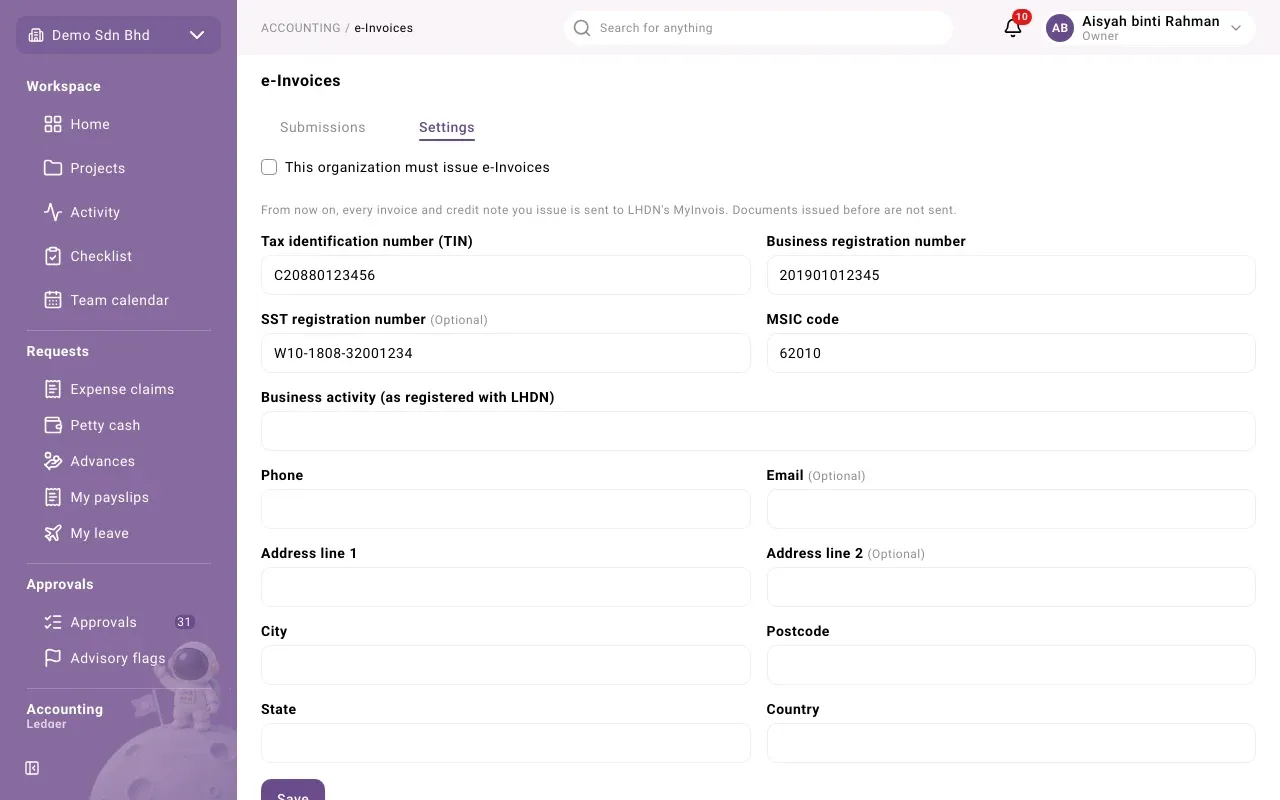
On the Settings tab, an administrator fills in the seller details LHDN needs: Tax identification number (TIN), Business registration number, SST registration number (optional), MSIC code, Business activity (as registered with LHDN), phone, e-mail, address and State. Then Save.
Ticking This organization must issue e-Invoices asks you to confirm: “From now on, every invoice and credit note you issue is sent to LHDN’s MyInvois. Documents issued before are not sent.” Others can see this tab but cannot change it.
If the tab says “This server talks to a local test double, not LHDN.”, nothing is really being sent to LHDN.
Submissions
Section titled “Submissions”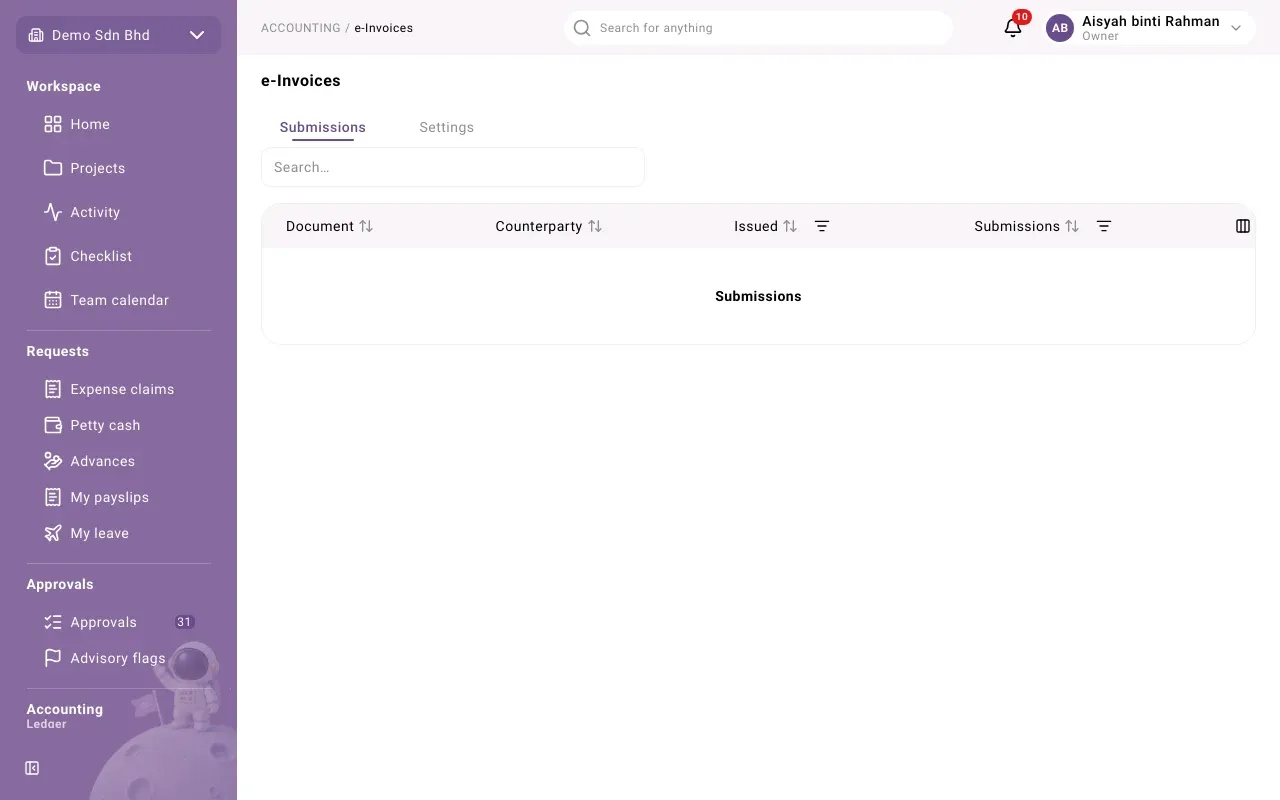
The Submissions tab lists every document sent, with its Document number, Counterparty, Issued date and status. You can search, filter by status and issue date, and sort by any column.
| Status | Meaning |
|---|---|
| Queued | Waiting to be sent |
| Sending | Being sent now |
| Awaiting validation | LHDN has it and is checking it |
| Valid | LHDN accepted it |
| Invalid | LHDN checked it and refused it |
| Not sent | It could not be sent; the reason is shown on the document |
| Cancelled | Cancelled at LHDN |
On the invoice itself
Section titled “On the invoice itself”Open the sales invoice or credit note (or a self-billed purchase invoice). Its e-Invoices section shows the status and, once Valid, the e-Invoice UUID, when it was Validated, the Validation link with Copy link, and “Can be cancelled until …”.
When something goes wrong
Section titled “When something goes wrong”Invalid
Section titled “Invalid”LHDN gives the reason, shown in the section. The document is not edited and resent. Instead, void it and issue a new one with the details corrected (usually the customer’s identification). The voided number stays in your numbering, with its reason.
Not sent
Section titled “Not sent”The section explains why. The app’s own messages:
| Message | What to do |
|---|---|
| LHDN’s 72-hour submission window closed. Void this document and issue a new one. | Void it and issue a new document |
| LHDN refused us as this organization’s intermediary. Authorize the intermediary in the MyInvois portal, then retry. | Fix it in the MyInvois portal, then select Retry |
| LHDN could not read the document. Contact support. | Contact support |
| The document is larger than LHDN accepts (300 KB). | Contact support |
| LHDN holds two copies of this document. Cancel the extra one in the MyInvois portal. | Cancel the extra copy in the portal |
| LHDN never confirmed whether it received this document before the 72-hour window closed. Check the MyInvois portal before issuing it again. | Use Record portal check (below) |
Retry appears only while a retry can still succeed.
Record portal check
Section titled “Record portal check”When LHDN may or may not hold the document, select Record portal check. Look the document up in the MyInvois portal, then choose It is not in the portal or It is in the portal, cancelled, and Record. “If it is still valid there, cancel it in the portal first.” The document can be voided after that, and the section shows who checked and when.
The buyer asks to reject it
Section titled “The buyer asks to reject it”If the buyer asks LHDN to reject a valid e-Invoice, the section shows “The buyer asked to reject this e-Invoice:” with their reason. Decide with your finance lead whether to cancel it.
Cancel a valid e-Invoice
Section titled “Cancel a valid e-Invoice”A valid e-Invoice can be cancelled at LHDN for 72 hours after validation.
- On the document, select Cancel e-Invoice.
- Enter the Reason (sent to LHDN).
- Select Cancel e-Invoice.
If cancelling is refused:
| Message | What to do |
|---|---|
| More than 72 hours have passed since validation. Issue a credit note instead. | Issue a credit note |
| A credit note refers to this e-Invoice. Cancel the credit note first. | Cancel the credit note, then this one |
| The e-Invoice is still being validated. Try again in a minute. | Wait and try again |