Who approves each step
Each approval state in a workflow has a list of approvers under Who approves. This page is for administrators who edit workflows.
Add or change an approver
Section titled “Add or change an approver”- Open the workflow, make sure a draft is open (Edit draft), and select the state.
- Under Who approves, select Add approver, or change an existing one.
- Fill in the approver’s fields, then Save draft and publish.
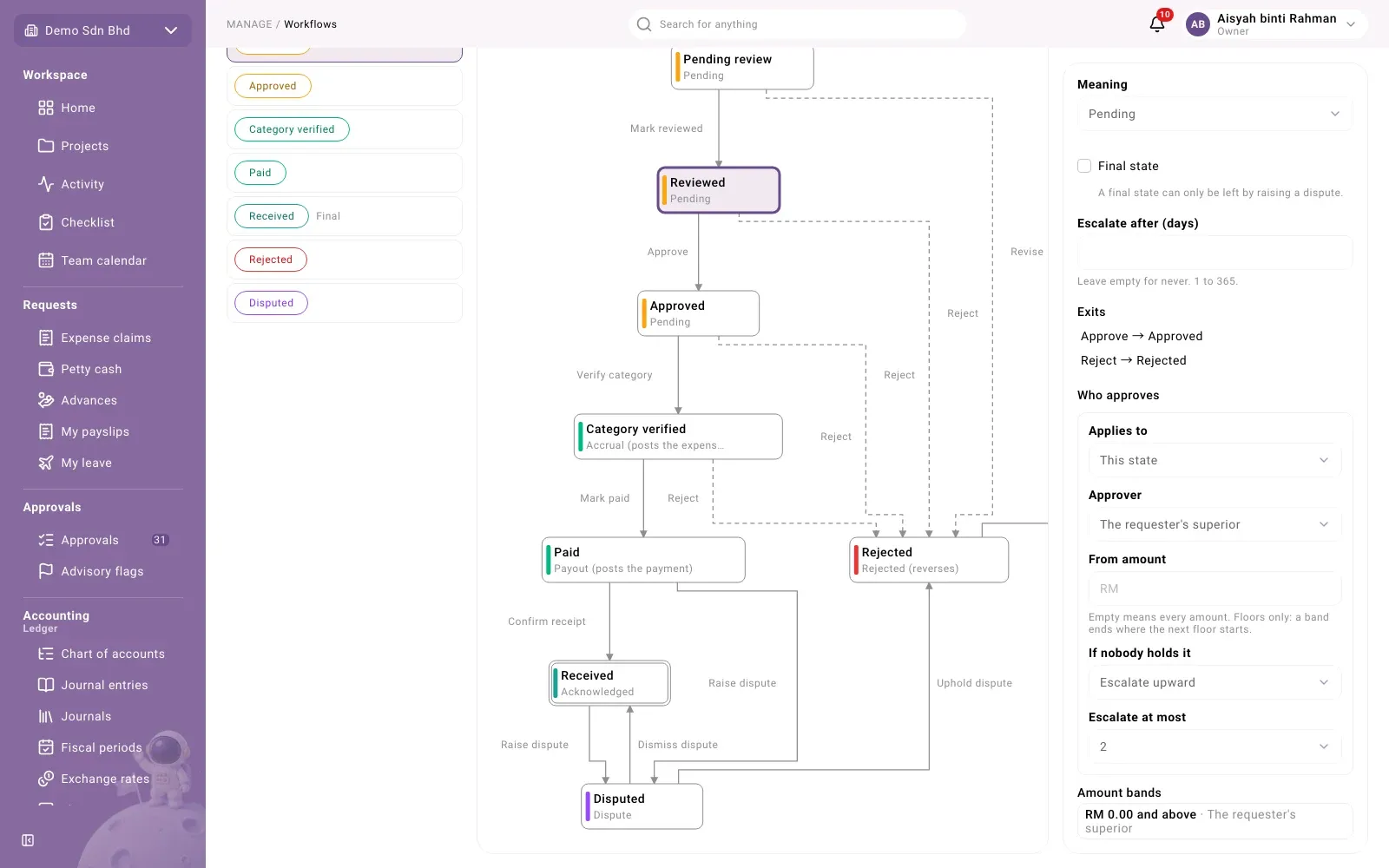
| Field | What to enter |
|---|---|
| Applies to | This state, or All states for someone who may act at every step |
| Approver | Who it is (see below) |
| Member, Position, Levels up or Charged to | Shown for the kinds that need it |
| From amount | The smallest amount this approver handles. Empty means every amount. |
| If nobody holds it | Escalate upward to the next person up, or Refuse |
| Escalate at most | How many levels up to look, 1 to 10. Not used with Refuse. |
Approver can be:
| Choice | Who it means |
|---|---|
| The requester’s superior | The person the requester reports to |
| The requester’s unit head | The head of the requester’s unit |
| Whoever holds a position | The current holder of the position you pick |
| A named member | One person, by name |
| A number of levels up | That many levels above the requester in the org chart |
| The approver of what the claim is charged to | Each project (or other account) chooses this step’s approver on the Project approvers screen |
With The approver of what the claim is charged to, the other approvers on the state are listed under Default approver (for projects that have not chosen one).
Prefer roles (superior, unit head, position) over named members: when someone leaves or moves, a role still points at the right person. To pick a position you need access to read the org structure; to pick what a claim is charged to you need access to the chart of accounts.
Amount bands
Section titled “Amount bands”When a state has several approvers with different From amount values, each one covers a band of amounts. A band ends where the next one starts. Amount bands under the approvers shows the result, for example “RM 0.00 and above · The requester’s superior”, or one line per band such as “… to below …” and “… and above”.
The bands must reach down to zero. If the lowest one starts above zero, Amount bands shows “Below …: nobody” and the draft cannot be published.
Check who would approve
Section titled “Check who would approve”Use Routing preview to test the published version before or after you change it.
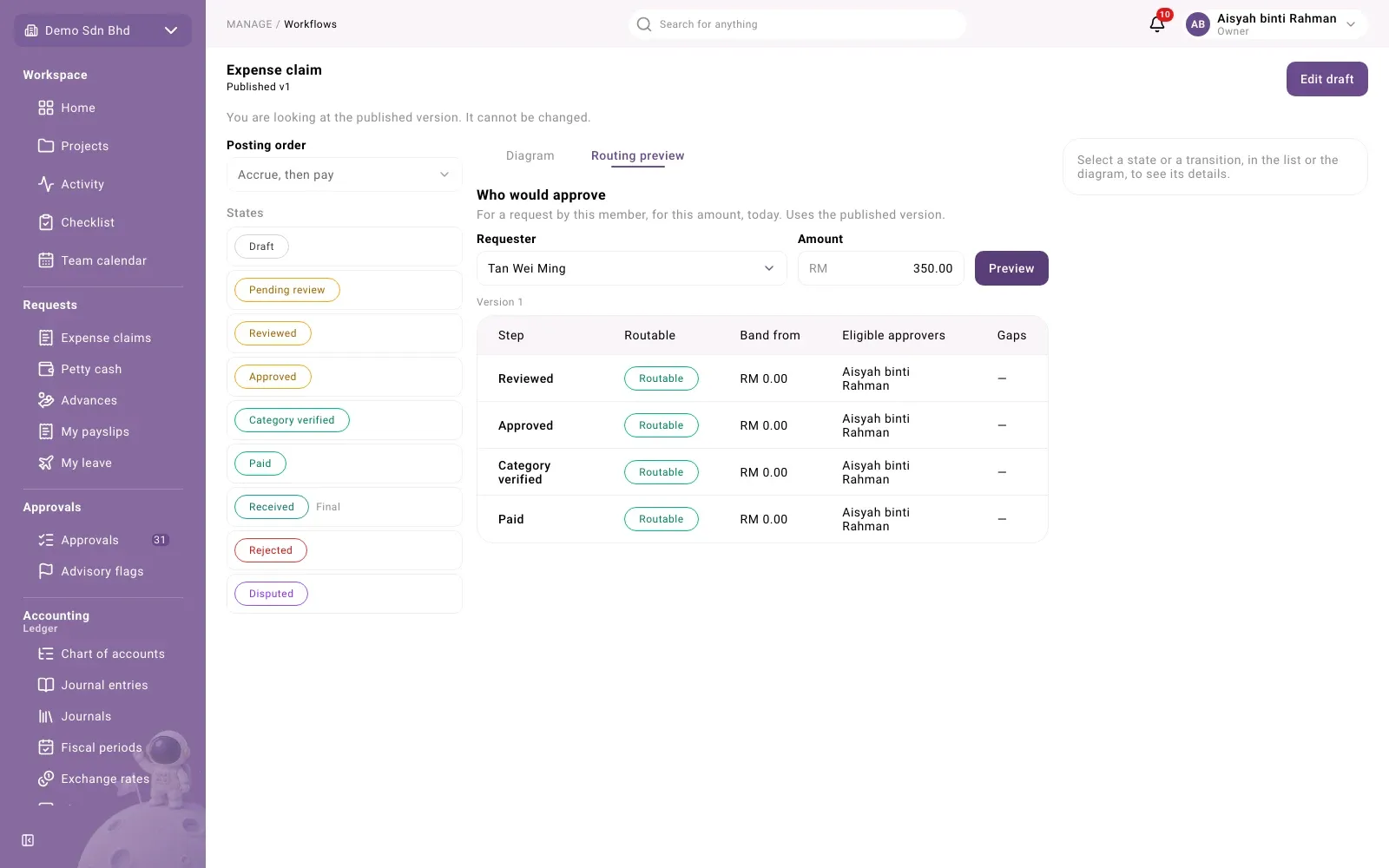
- Select the Routing preview tab.
- Choose the Requester and enter an Amount.
- Select Preview.
Each approval Step shows whether it is Routable or Nobody can approve, the band that applies (Band from), the Eligible approvers, and any Gaps. Common gaps:
| Gap | What to fix |
|---|---|
| “The requester has no primary position” | Give the person a primary position in the org chart |
| “The requester’s unit has no head” | Set a head for their unit |
| “Nobody holds the position” | Fill the position, or set If nobody holds it to Escalate upward |
| “Only the requester would approve” | Add another approver for this person’s requests |
| “No band reaches down to this amount” | Add an approver with an empty or lower From amount |
| “No approver for this account” | Choose one on Project approvers or add a default |