Notifications and delegations
Both are tabs in Settings (under Manage in the sidebar). Notifications is for everyone. Delegations appears only if your role lets you delegate approvals.
Notifications
Section titled “Notifications”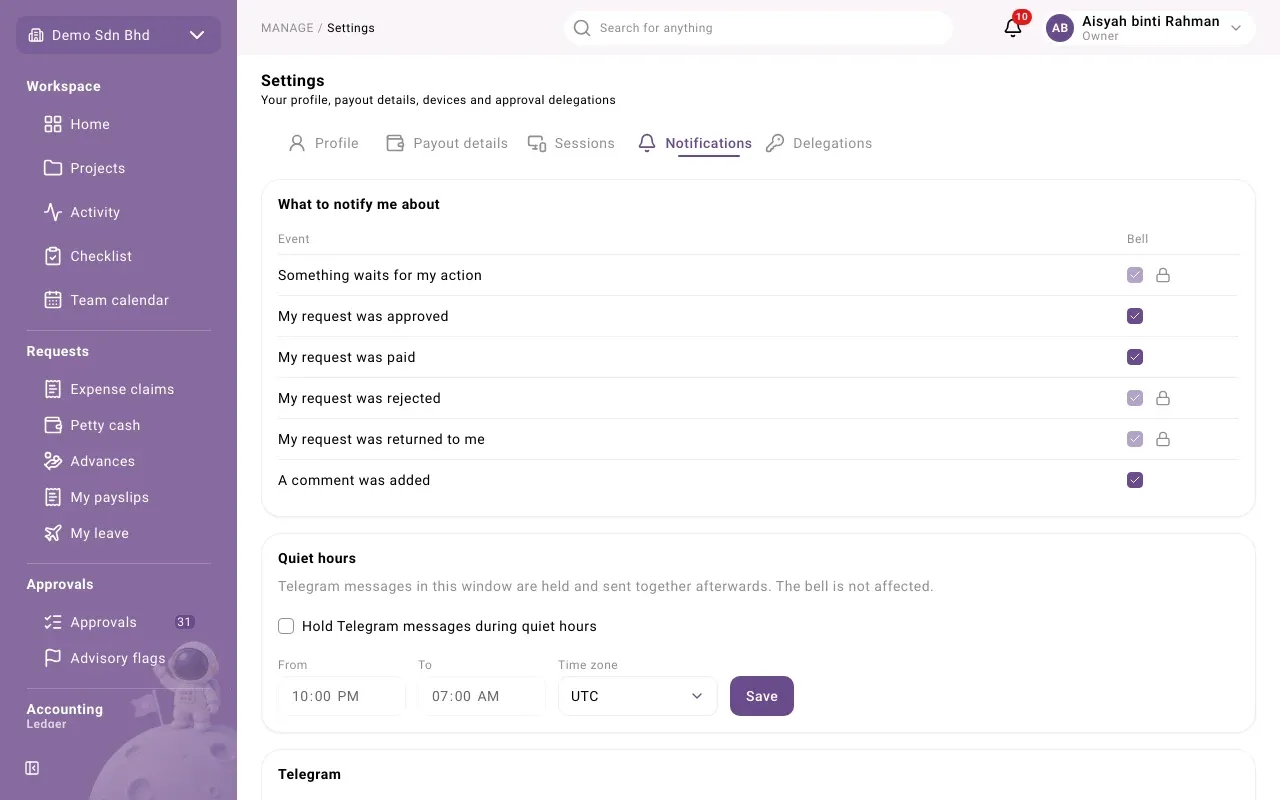
What to notify me about
Section titled “What to notify me about”A table of events, each with a Bell column (the notifications inside the app) and, where your organization uses Telegram, a Telegram column:
- Something waits for my action
- My request was approved
- My request was paid
- My request was rejected
- My request was returned to me
- A comment was added
Tick or untick a box; it saves straight away. A box with a lock “cannot be turned off, so you never miss something that needs you.”
Telegram
Section titled “Telegram”The Telegram card, the Telegram column and Telegram language appear only when Telegram is set up on your server.
- Select Connect Telegram. Telegram opens in a new tab; follow it to start the bot.
- Back in Settings, the card says Connected (or “Connected as @” your username).
- Select Send test message to check it works.
Select Disconnect to stop. If the card says Telegram “stopped working (the bot was blocked)”, select Reconnect.
- Quiet hours (always shown): tick Hold Telegram messages during quiet hours, set From, To and Time zone, and select Save. “Telegram messages in this window are held and sent together afterwards. The bell is not affected.”
- Telegram language: the language the bot speaks to you.
If the Telegram column is greyed out, either you have not connected Telegram yet, or “Your organisation has turned Telegram off.”
For administrators
Section titled “For administrators”Administrators also see the organization’s Telegram settings on this tab: Allow Telegram notifications, Show amounts in Telegram messages, and Telegram chats, where “A department can share one group chat for approvals that wait on its people, instead of messaging each approver.” If it says “Telegram is not set up on this server, so these switches have no effect yet”, ask your service provider.
Delegations
Section titled “Delegations”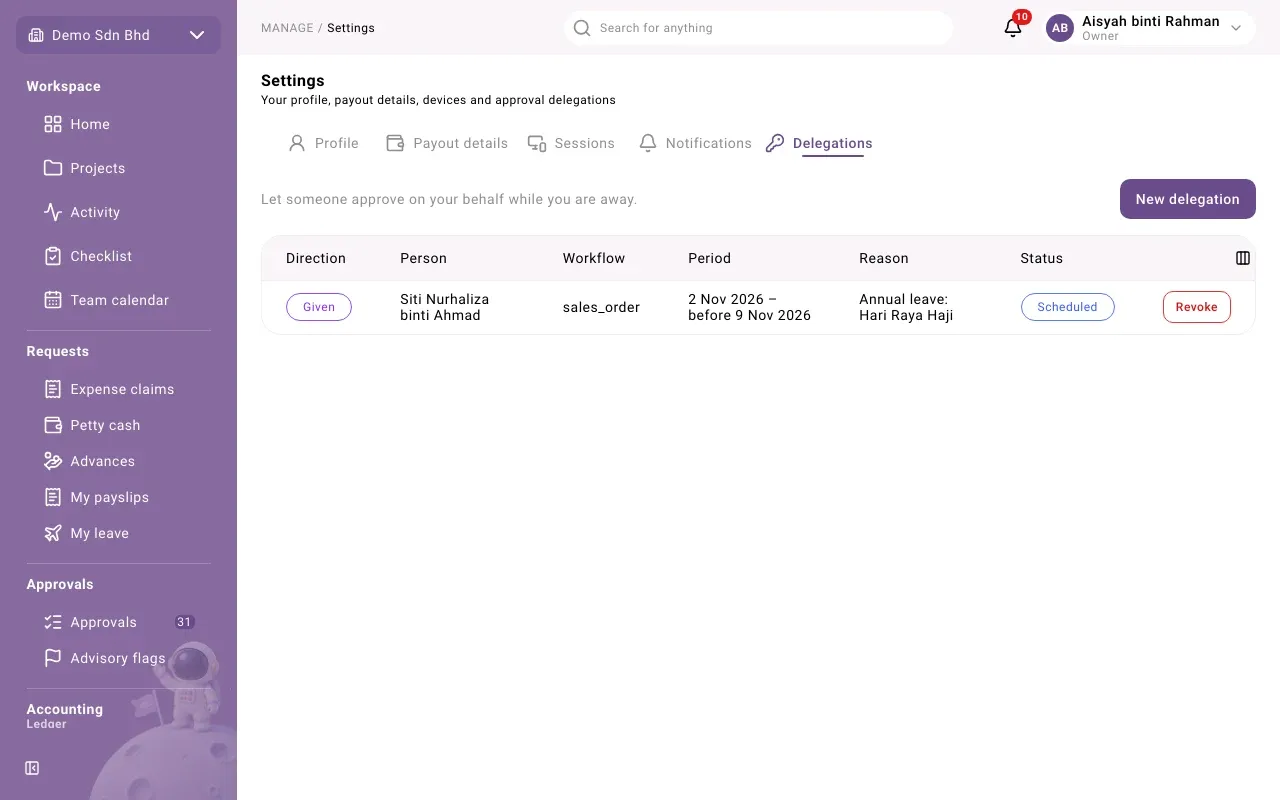
A delegation lets someone “approve on your behalf while you are away”. “The delegate approves with your limits. Every decision names you both.”
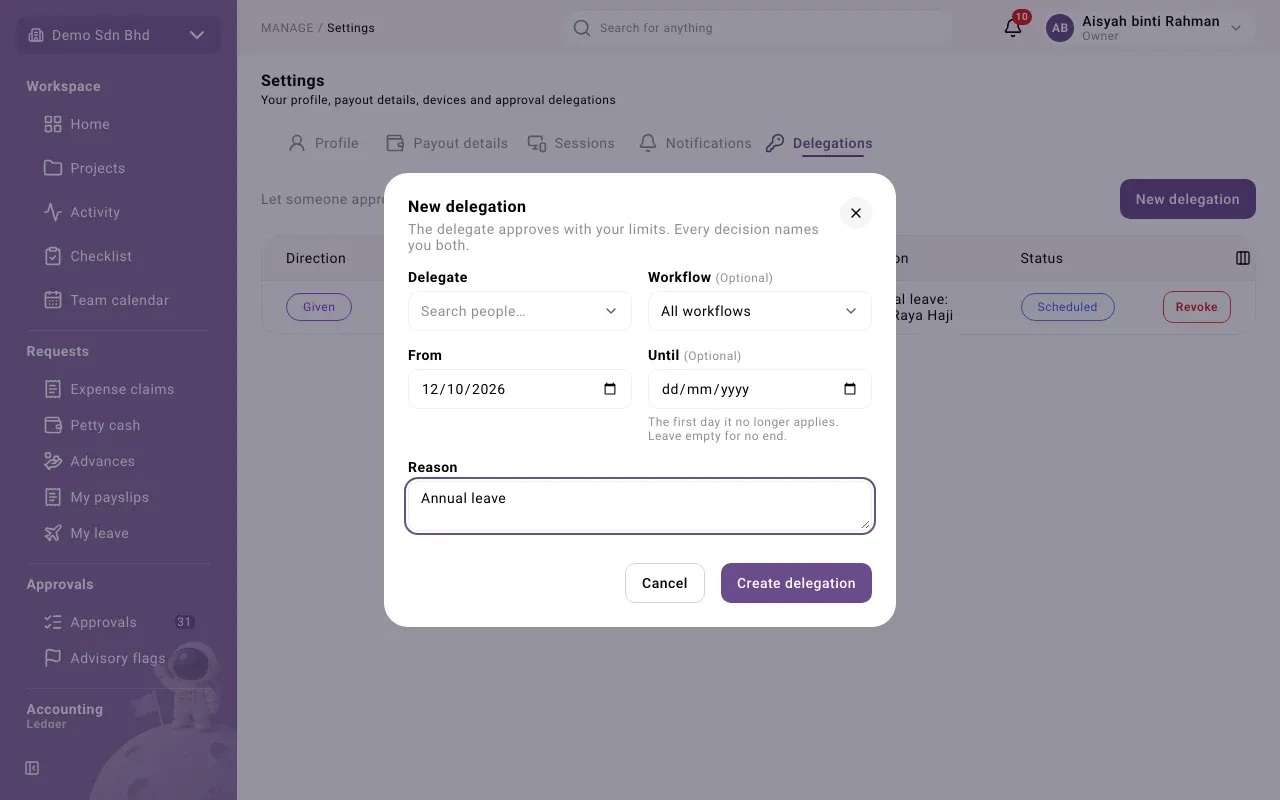
Create a delegation
Section titled “Create a delegation”-
Select New delegation.
-
Fill in:
Field What to enter Delegate Who approves for you (search by name) Workflow One kind of request, such as Expense claims or Petty cash spends, or All workflows. Optional. From The first day it applies, normally today Until “The first day it no longer applies. Leave empty for no end.” Reason Why, for example “Annual leave”, in English or Malay -
Select Create delegation. You see “Delegation created”.
The list
Section titled “The list”The list shows delegations you have Given and those you have Received, with the Person, Workflow, Period, Reason and Status:
| Status | Meaning |
|---|---|
| Scheduled | Starts on a later date |
| Active | In effect now |
| Ended | Its period is over |
| Revoked | Cancelled before it ended |
To cancel one you gave, select Revoke; there is no confirmation step. You cannot revoke a delegation you received; ask the person who gave it.