Approving claims
Claims reach you because your role or position is responsible for a step. You see them in two places.
- Approvals lists everything waiting for your decision: Claims, Advances, Petty cash spends, Petty cash top-ups and Vacancies. Use the chips to filter.
- On Expense claims, the My approvals tab shows claims waiting for you.
Review a claim
Section titled “Review a claim”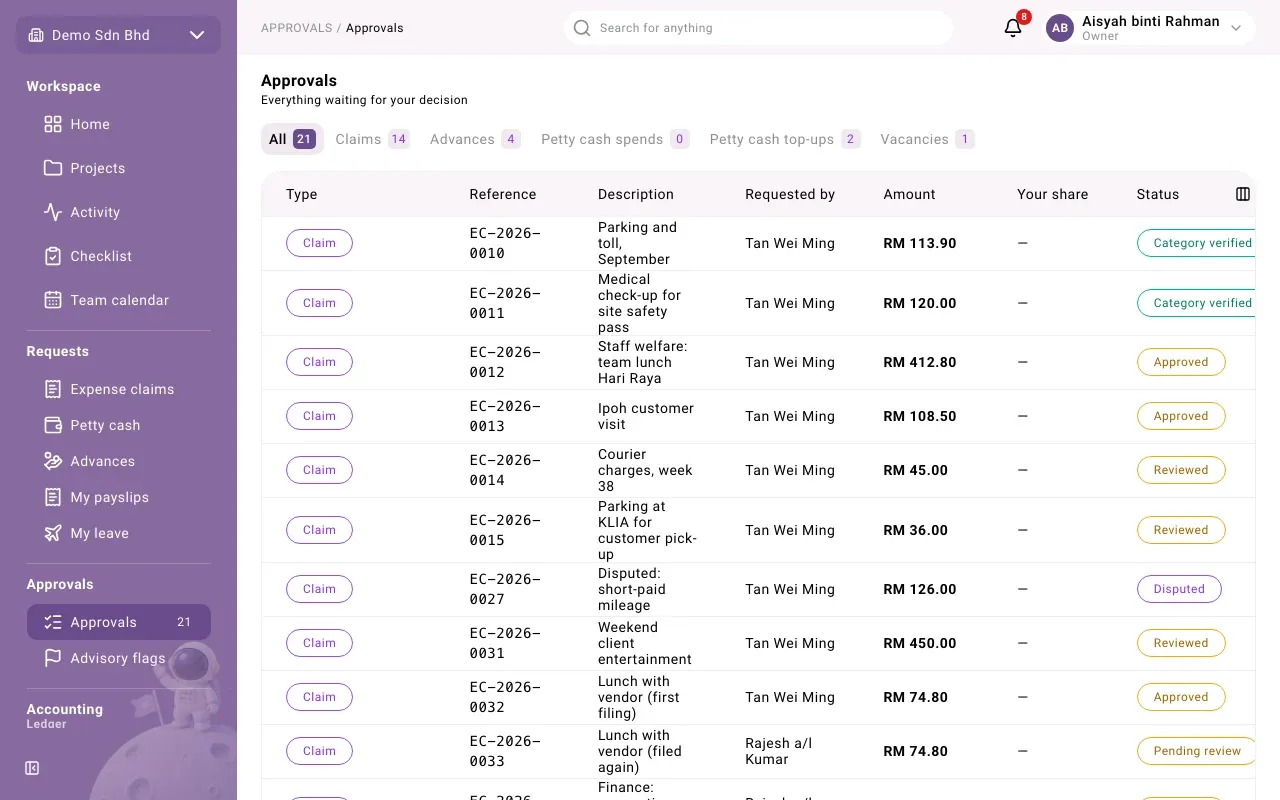
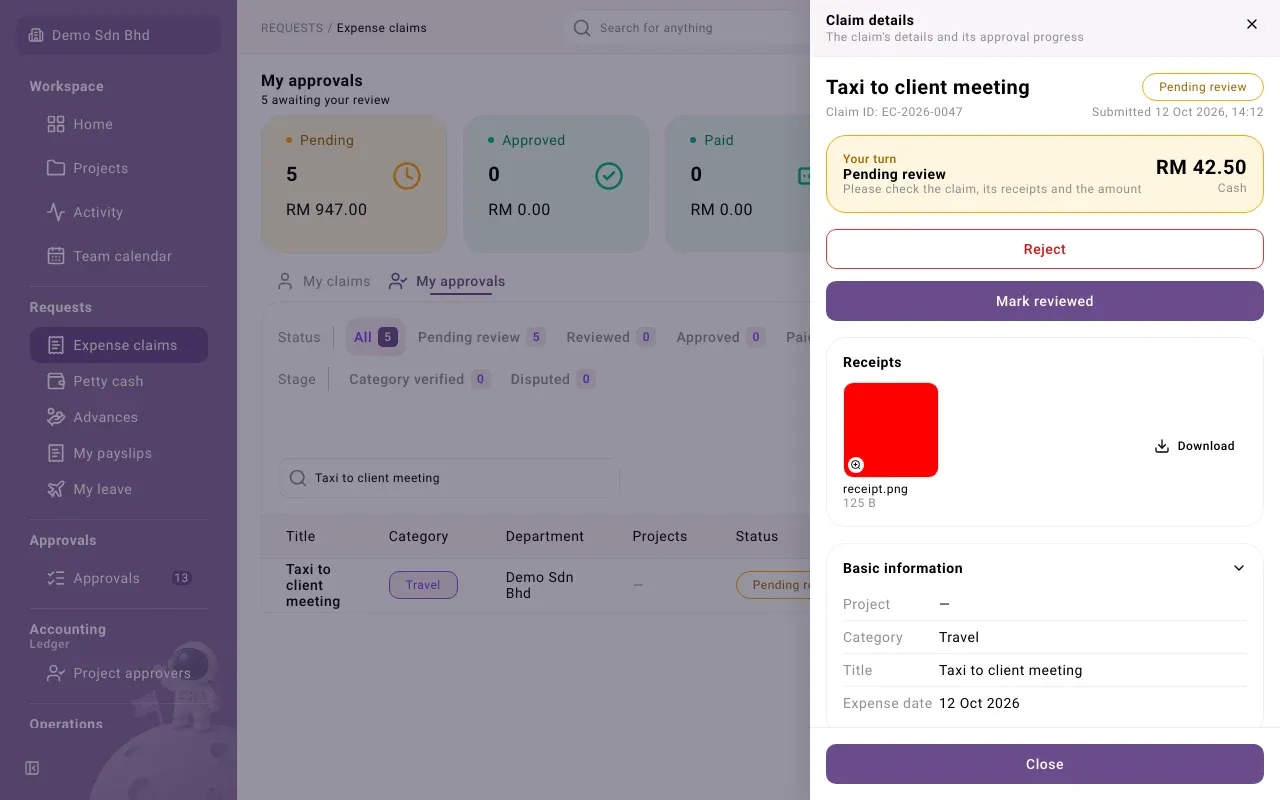
- Open the claim. A Your turn banner appears: “Please check the claim, its receipts and the amount”.
- Check:
- the Title, Purpose and Expense date
- each Receipt: select Download to view it
- the amount against the receipts
- Possible duplicate receipt warnings on a line
- Fix what you are allowed to fix:
- Set project for line if the claimant did not know the project. You can also add the claimant to the project.
- Set category for line, for finance users. The category decides the account the expense posts to.
- Select the action button for your step, such as Mark reviewed, Approve or Verify category.
If a claim spans several projects, Sign-off by project shows who has signed and who it is still Waiting for.
Reject a claim
Section titled “Reject a claim”Select Reject and give a clear reason; the claimant sees it and can revise. Use Comments if you only need to ask a question first.
Next and previous
Section titled “Next and previous”Use Previous claim and Next claim to move through your list without closing the panel.
If you cannot act
Section titled “If you cannot act”You can only act on steps you have been granted. If you were meant to approve but see no button, the claim may be at a different step, or your administrator has not granted you that step.