API keys
An API key lets another system, such as your online shop, a reporting tool or a program your developer wrote, read your records in mcomtask or post to them without a person signing in. “A key never holds more than the person who made it”: it acts as you, narrowed to what you choose.
To tell another system when something happens here, use webhooks as well.
This page is for administrators. You find it under Manage → Integrations → Integrations. Turning the public API on and off, and making keys, are separate permissions, so you may see only one of the two cards.
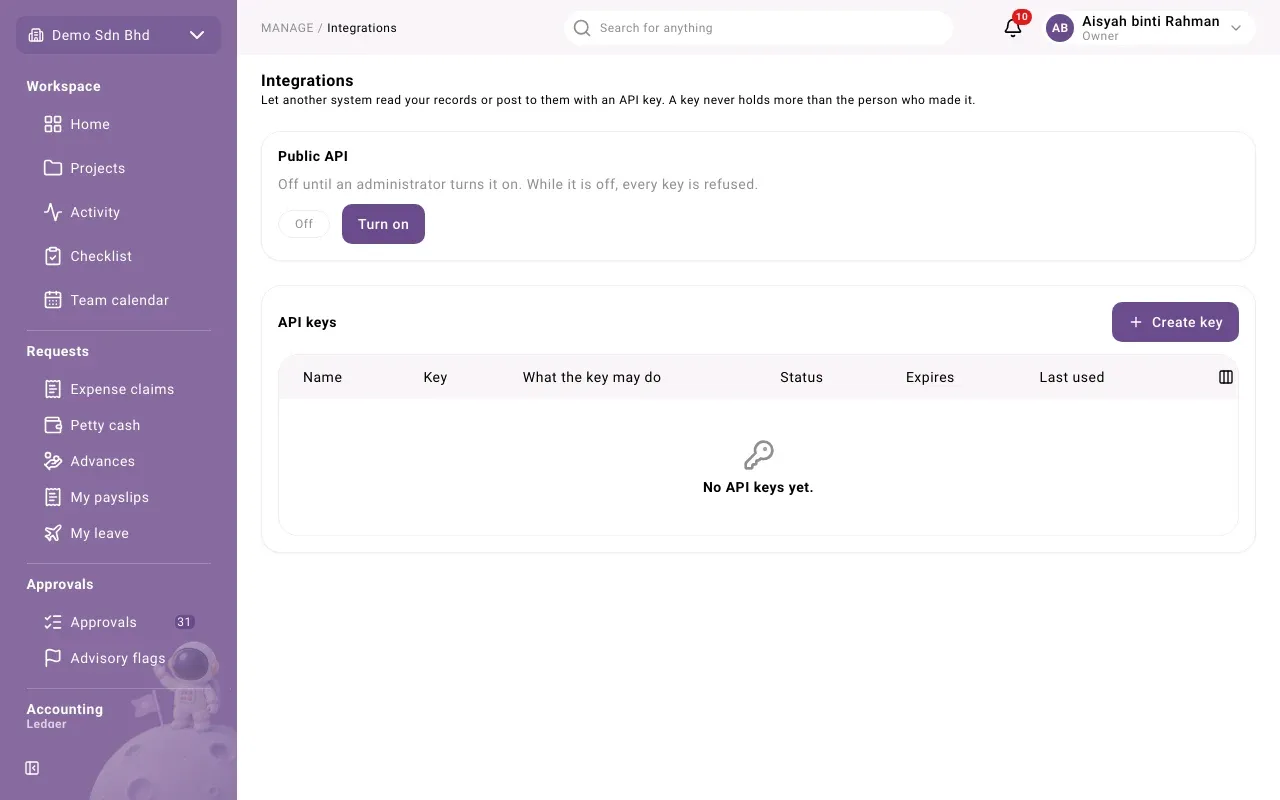
Turn the public API on
Section titled “Turn the public API on”The Public API card shows On or Off. It is “Off until an administrator turns it on. While it is off, every key is refused.” If it shows Suspended by the service provider, contact your provider.
- Select Turn on.
- Read the statement and tick it: “I understand that data sent to a key’s holder or a webhook endpoint leaves this organization’s Malaysian hosting, and that the destination is mine or my processor’s.”
- Select Turn on. You will see “Public API turned on.”
Turn off stops every key at once, without deleting them. Turn it back on to let them work again.
Create a key
Section titled “Create a key”-
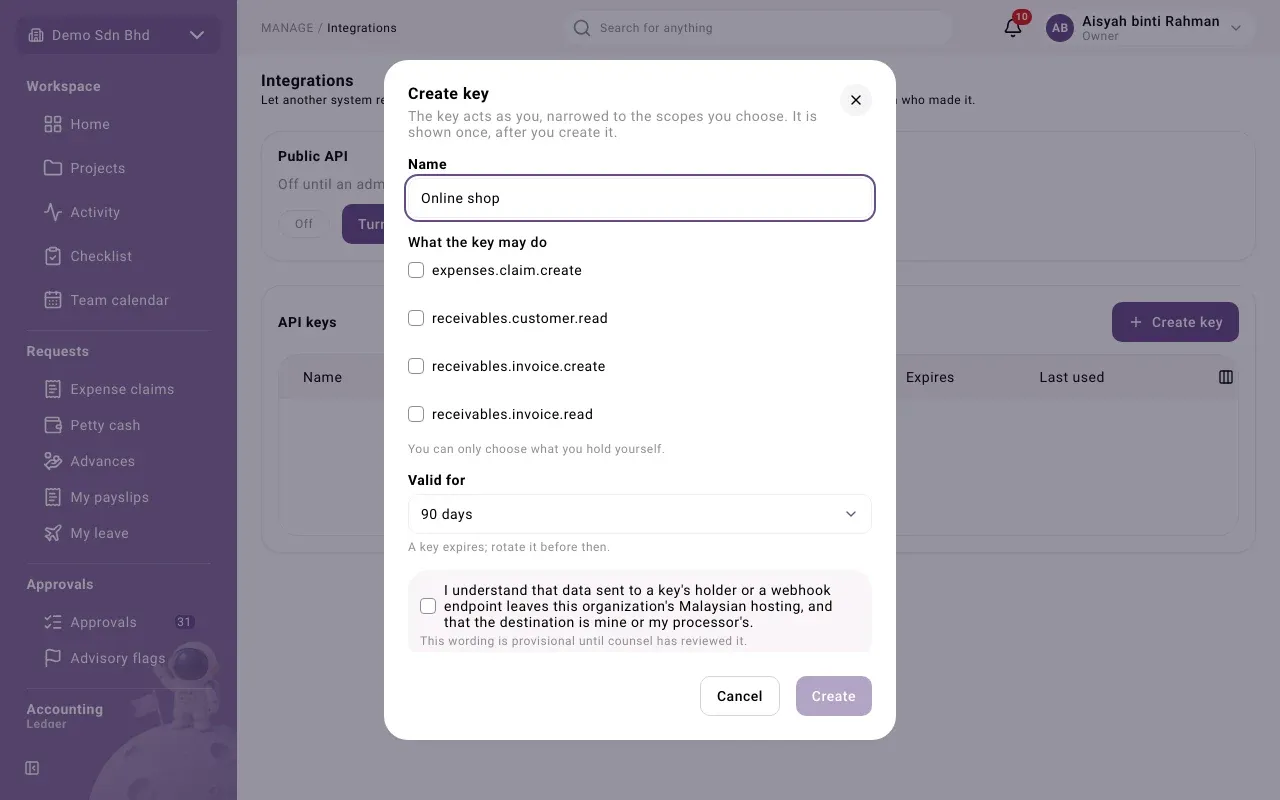
Under API keys, select Create key.
-
Fill in:
Field What to enter Name What uses it, for example “Online shop” (up to 100 characters) What the key may do Tick each permission the system needs, and nothing more. They are listed by their technical names, such as one for reading customer invoices; your developer will tell you which they need. “You can only choose what you hold yourself.” Valid for 30, 90, 180 or 365 days. “A key expires; rotate it before then.” -
Tick the same statement about data leaving Malaysian hosting.
-
Select Create.
Copy your key now
Section titled “Copy your key now”The next dialog shows the key. “This is the only time the key is shown. It cannot be shown again; if it is lost, rotate it.”
- Select the copy button beside the key. You will see “Key copied.”
- Paste it straight into the other system, or into your organization’s password manager.
- Tick I have saved the key somewhere safe. and select Done.
The keys list
Section titled “The keys list”Each key shows its Name, the start of the Key (so you can tell keys apart), What the key may do, Status, Expires and Last used.
| Status | Meaning |
|---|---|
| Active | Working |
| Expired | Past its date. Make a new key. |
| Revoked | Stopped by someone |
| Unused for 90 days | Shown next to the status. Check whether the key is still needed, and revoke it if not. |
Rotate or revoke a key
Section titled “Rotate or revoke a key”- Rotate makes a new key now and shows it once, as above. “The old one keeps working for 24 hours so you can deploy the new one without downtime.” Rotate before a key expires, and when someone who knew it leaves.
- Revoke stops the key at once. “This cannot be undone.” Use it when a key may have leaked. You will see “Key revoked.”
Problems
Section titled “Problems”| Message | What to do |
|---|---|
| “An API key cannot hold that permission.” | Some permissions are never given to keys. Leave that one out. |
| The other system is refused | Check the Public API card is On and the key is Active and not expired. |