Employee records
This page is for HR and administrators who have been given access to Employees. Some actions on it, such as the identity document and the salary, need further access; if you do not see a button described here, you do not have that access.
An employee record is separate from a person’s login. Most employees have both, but you can keep a record for someone with no login, and a member with no employee record (an outside approver, say) is still a valid member.
The Employees page
Section titled “The Employees page”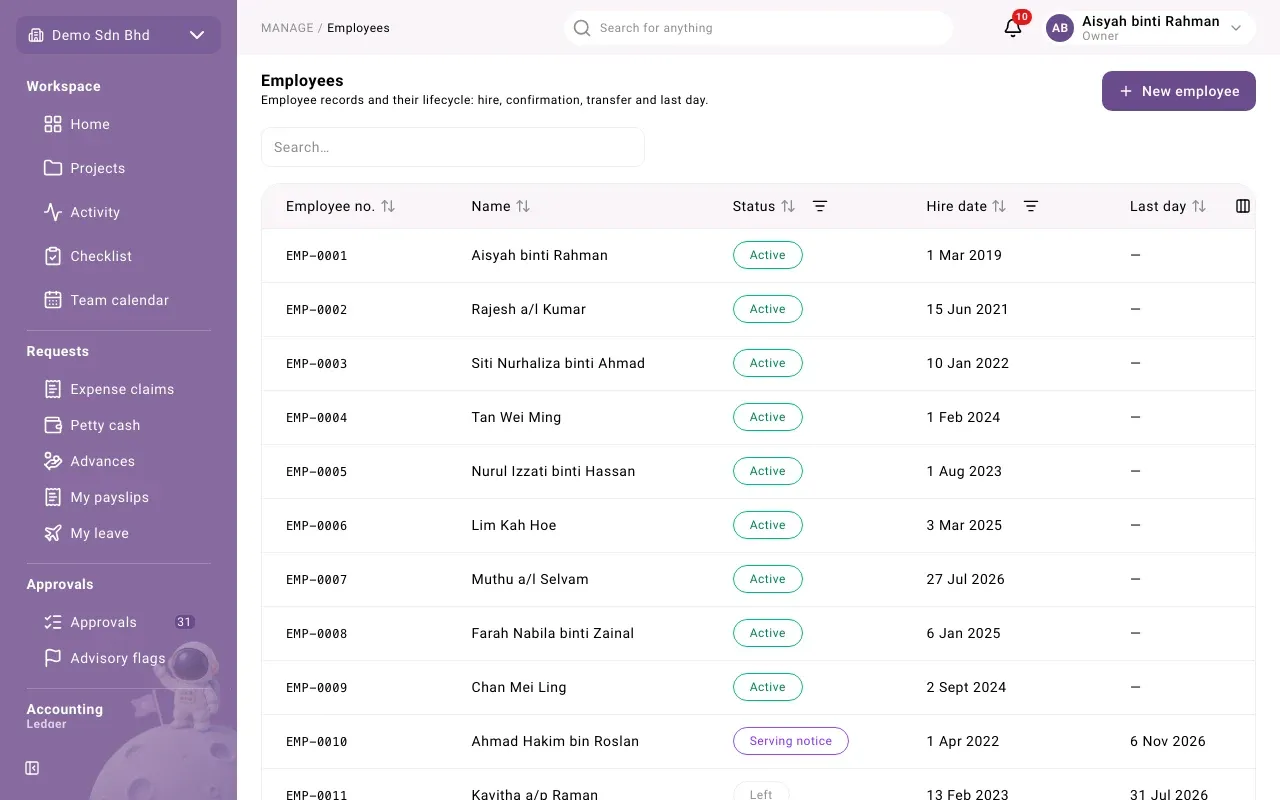
Open Employees from the sidebar. Each row shows Employee no., Name, Status, Hire date and Last day. Search by name or number, sort by a column, or filter by Status or a range of hire dates. Select a row to open the record.
| Status | Meaning |
|---|---|
| Not hired yet | The record exists but no hire is recorded |
| Active | Hired and working |
| Serving notice | A last day has been recorded and has not passed yet |
| Left | The last day has passed |
You never edit a status directly. It follows from the events you record (hire, last day and so on), and every event stays in the record’s History.
Add an employee
Section titled “Add an employee”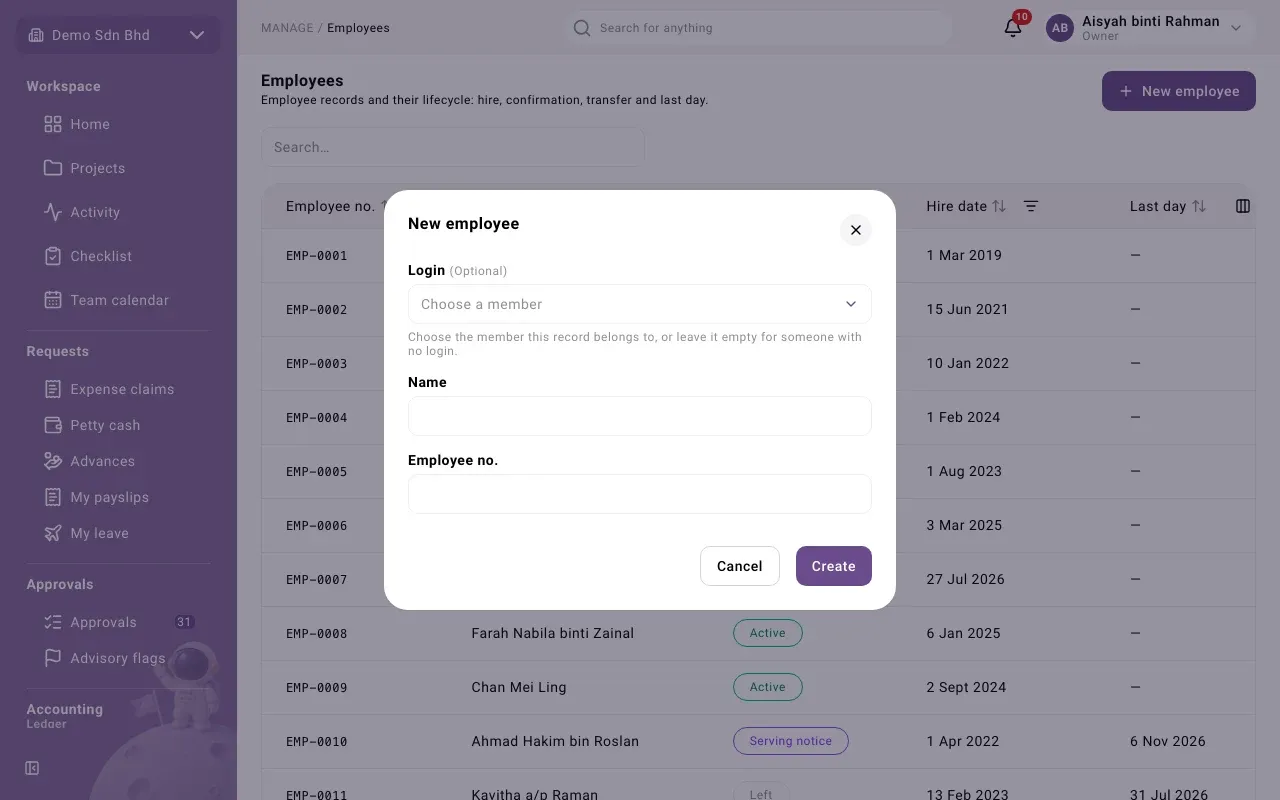
-
Select New employee.
-
Fill in:
Field What to enter Login Optional. Choose the member this record belongs to, or leave it empty for someone with no login. Name Only when you leave Login empty: the person’s name, in English or Bahasa Malaysia Employee no. The employee number. It is required. -
Select Create. You will see “Employee record created” and the record opens with the status Not hired yet.
The employee record
Section titled “The employee record”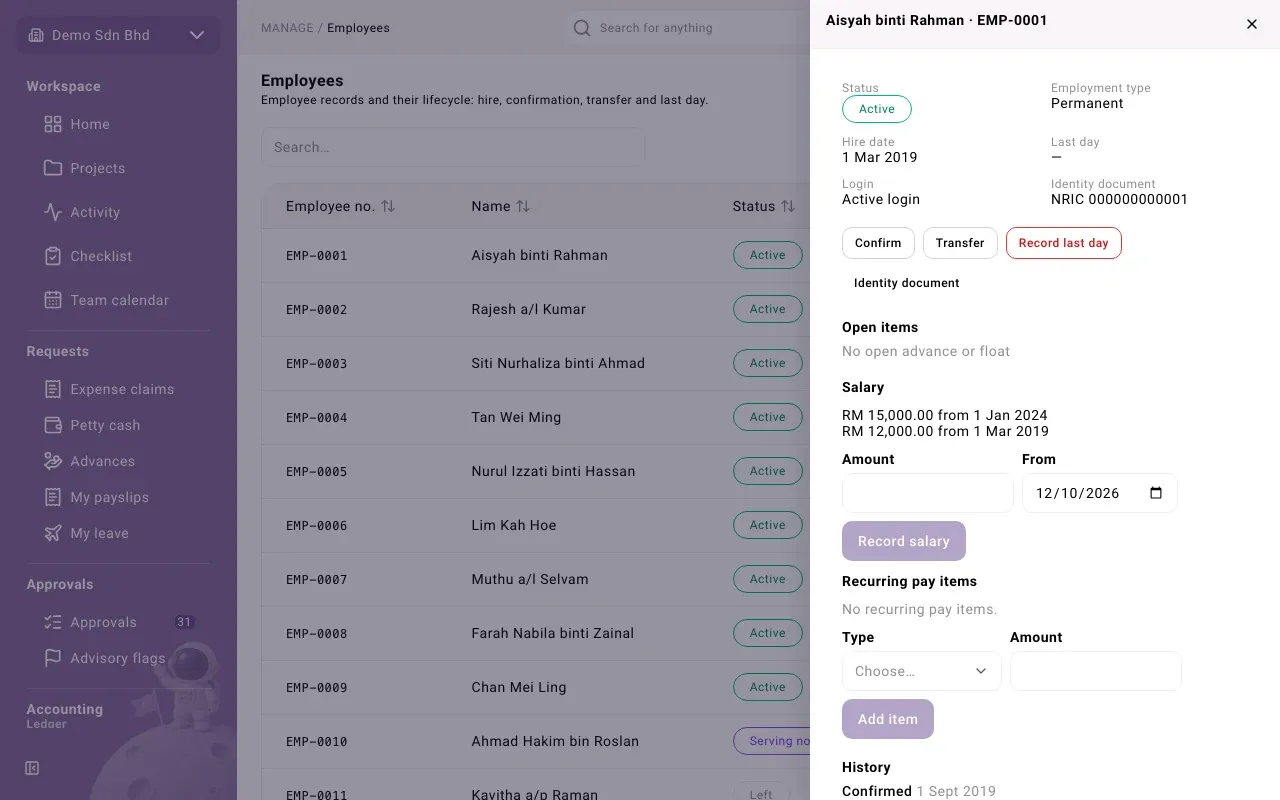
The record opens in a side panel titled with the name and employee number. It shows:
- Status, Employment type, Hire date and Last day
- Login: Active login, Login ended or No login
- Identity document: the kind and number. People without access to personal data see Hidden instead of the number.
- Open items: for people allowed to approve a last day, whether the person still holds an advance or a petty cash float (see Recording a last day)
- Salary and Recurring pay items, for people with payroll access (see Payroll setup)
- History: every event with its date and reason, newest first
The buttons depend on the status and on your access.
Record a hire
Section titled “Record a hire”Use Record hire for a record that is Not hired yet, and Record rehire for someone who has Left and is coming back. A rehire keeps the employee number.
-
Select Record hire (or Record rehire).
-
Fill in:
Field What to enter First day The first day of work Employment type Permanent, Contract, Probation or Part-time. It starts at Probation. Fills vacancy Optional. If this hire fills an open vacancy, choose it; otherwise leave No vacancy. Reason Optional -
Select Save. You will see “Hire recorded”.
Linking the hire to a vacancy counts it towards that vacancy’s fill. See Vacancies.
Confirm an employee
Section titled “Confirm an employee”For an Active employee, select Confirm to record the confirmation (for example at the end of probation). Enter Confirmed on, choose the Employment type from that day, add a reason if you like and select Save. You will see “Confirmation recorded”.
Transfer an employee
Section titled “Transfer an employee”Transfer moves the person’s primary seat in the org chart. It is offered only while they have an active login.
- Select Transfer.
- Choose From (today or a later day) and the New seat. Seats come from the org chart; you need access to the org structure to see them.
- Optionally choose the vacancy the transfer fills under Fills vacancy, and give a reason.
- Select Save. You will see “Transfer recorded”.
A seat can be full. If the position has no room left in its approved headcount, the transfer is refused; see Headcount for how an Owner allows one more.
Identity document
Section titled “Identity document”People allowed to see personal data have an Identity document button. Choose the Document (NRIC, Passport, Other or None), enter the Number and select Save. The dialog reminds you that this is personal data, shown only to members allowed to see it.
Problems
Section titled “Problems”- “Enter the name, or choose a member.” Either pick a Login or type a Name.
- “Another employee has this number.” Employee numbers are unique; choose another.
- “This person already has an employee record.” Search the list for them instead.
- “The position is at its approved headcount…” The new seat is full. See Headcount.
- No Transfer button. The person’s login has ended, or the record is not Active or Serving notice.
- No seats in New seat. Ask an administrator for access to the org structure, or check that the seat exists and is active in the org chart.