Project approvers
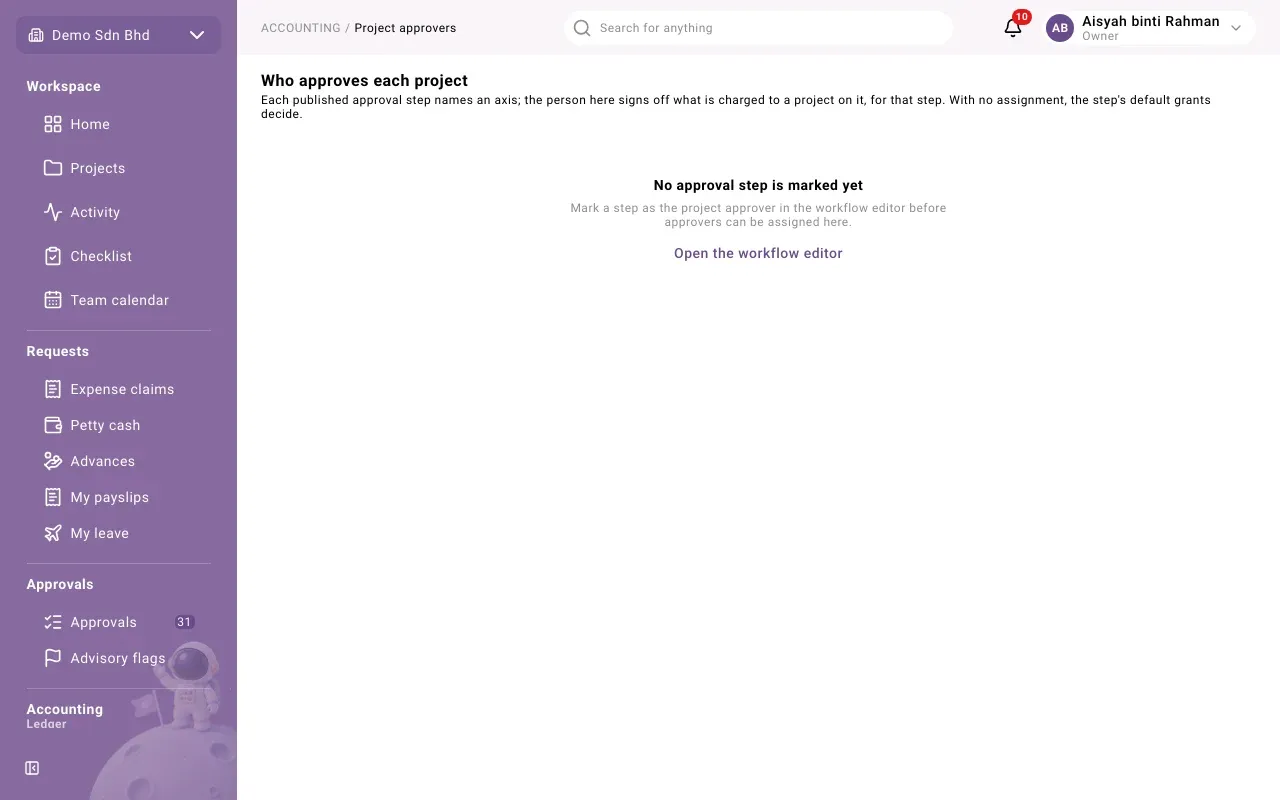
Project approvers sets who approves the part of an expense claim that is charged to each project (or other analytic account). Open it under Accounting. You need access to both the ledger and the workflows to see it, and access to publish workflows to change it.
Before you start
Section titled “Before you start”A step only appears here once it uses The approver of what the claim is charged to in the workflow editor and that version is published. Until then the page says No approval step is marked yet, with a link, Open the workflow editor.
The grid
Section titled “The grid”The page, Who approves each project, has one card per axis (for example projects). Each row is an account on that axis, with its Code and Name; a Retired account is marked. Each column is a step that is set up this way, such as “Reviewed”.
A cell shows:
- the approvers chosen for that project and step. When there are amount bands, each later band starts with “from” and its starting amount;
- Default: … or Default: any of … when the project has not chosen one, so the step’s default approvers decide;
- No default when the step has no default approver either.
Change a project’s approver
Section titled “Change a project’s approver”- Select the text in the cell. Change approver for … — … opens.
- For the first band, add one or more approvers. For each, choose A position, A named member, Claimant’s superior, Claimant’s unit head or A number of levels up, then select Add approver.
- To have someone else approve larger amounts, select Add band, enter the Starting amount and add their approvers. Each band’s amount must be greater than the previous one. Use Remove band to take one out.
- Select Save.
Use the default removes this project’s own choice, so the step’s default approvers decide again.
What happens next
Section titled “What happens next”- The change applies from today.
- Any one approver in a band may sign. Which band applies depends on the project’s share of the claim.
- The previous approvers stay on record, under History.
History
Section titled “History”Select the clock button in a cell (History: …) to see everyone who has been the approver for that project and step, with Since, To and, where it applies, Withdrawn dates.