Customers
This page is for people your administrator has given access to Receivables. Anyone with that access can look up customers; adding and editing them needs a separate permission, so if you do not see New customer or Edit customer, ask your administrator.
A customer is anyone the company sells to. Every sales invoice, credit note, debit note and receipt belongs to one customer, and the customer’s details are what appear on the invoice.
The Customers page
Section titled “The Customers page”Open Customers under Receivables in the side menu.
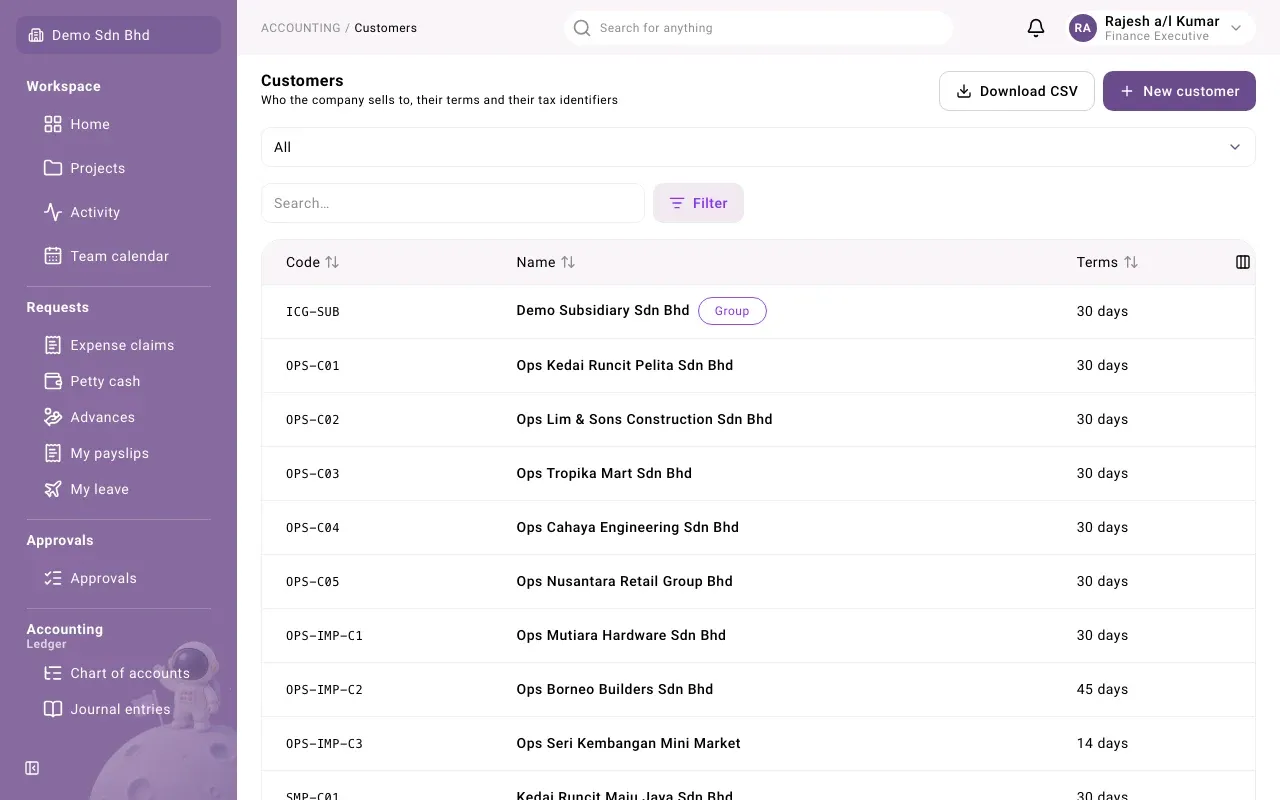
The list shows each customer’s Code, Name and Terms. A purple Group tag means the customer is another company in your group: dealings with it are group transactions and are eliminated in consolidation.
To find a customer:
- Type in Search….
- Use the drop-down above the search box (it shows All) to see Group only or Non-group only customers.
- Select Filter to filter by Currency or Status (Active or Inactive), or to sort.
- Use the columns button at the right of the table header to show more columns, such as TIN, Currency and Status.
Download CSV saves the customers you are looking at as a spreadsheet file, including any extra fields your organization has added. If you also have access to exports, an Export button lets you choose the format and columns.
Add a customer
Section titled “Add a customer”- Select New customer.
- Fill in the form. Only the code and the name are needed to save; the rest can be added later.
- Select Save. The new customer opens.
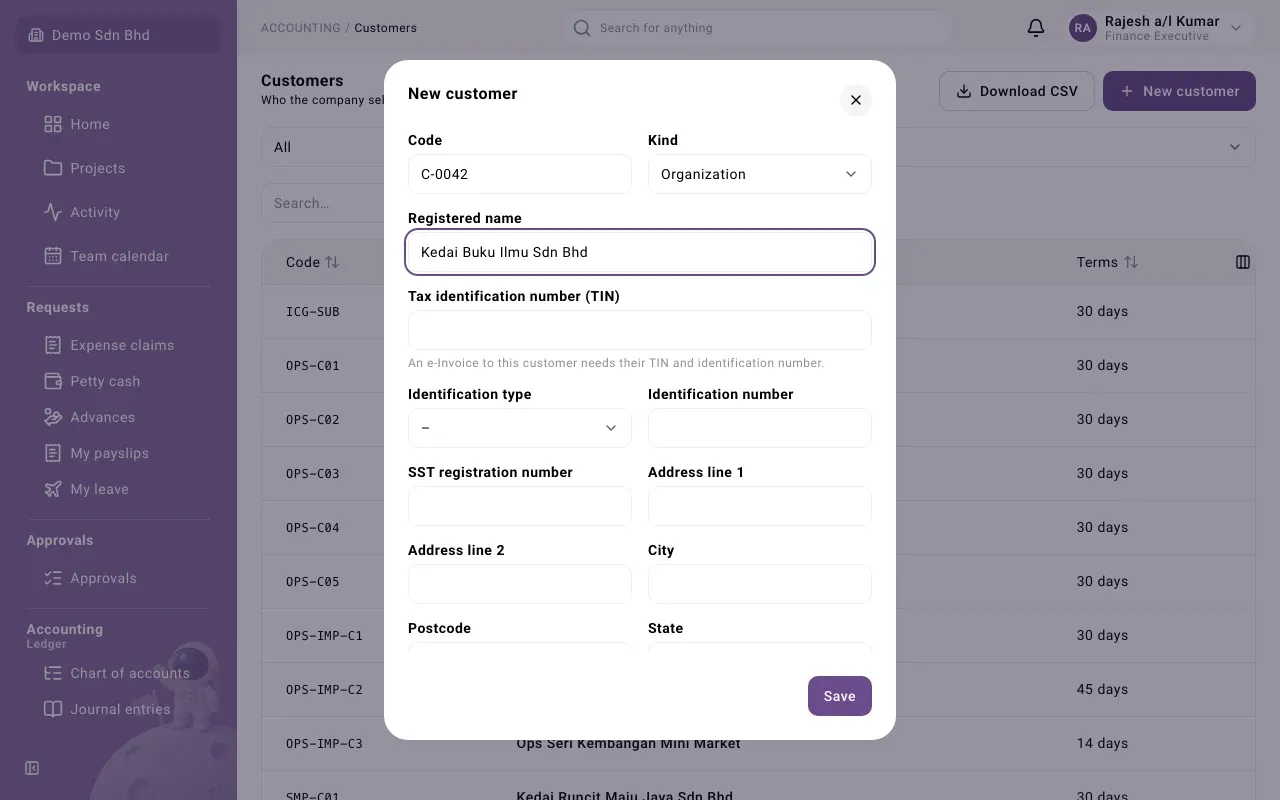
| Field | What to enter |
|---|---|
| Code | A short code of your own, such as C-0042. No two customers can share a code. |
| Kind | Organization or Individual |
| Registered name | The name as registered, for example with SSM. This is the name on invoices. |
| Tax identification number (TIN) | The customer’s TIN, if you have it |
| Identification type | Business registration (SSM), MyKad (NRIC), Passport or Armed forces ID |
| Identification number | The number for the type you chose |
| SST registration number | The customer’s SST number, if they have one |
| Address line 1, Address line 2, City, Postcode, State | The billing address |
| Country | A two-letter country code, such as MY |
| Email and Phone | How to reach the customer |
| Payment terms (days) | How many days the customer has to pay, for example 30. New invoices start with this. |
| Currency | A three-letter code, such as MYR. New invoices start with this. |
| Default income account | The income account new invoice lines use for this customer, if you want one |
| Default tax code | The tax code new invoice lines use for this customer, if you want one |
If your administrator has added extra fields for customers, they appear at the bottom of the form.
If you see “Another customer already has this code”, choose a different code.
Look at a customer
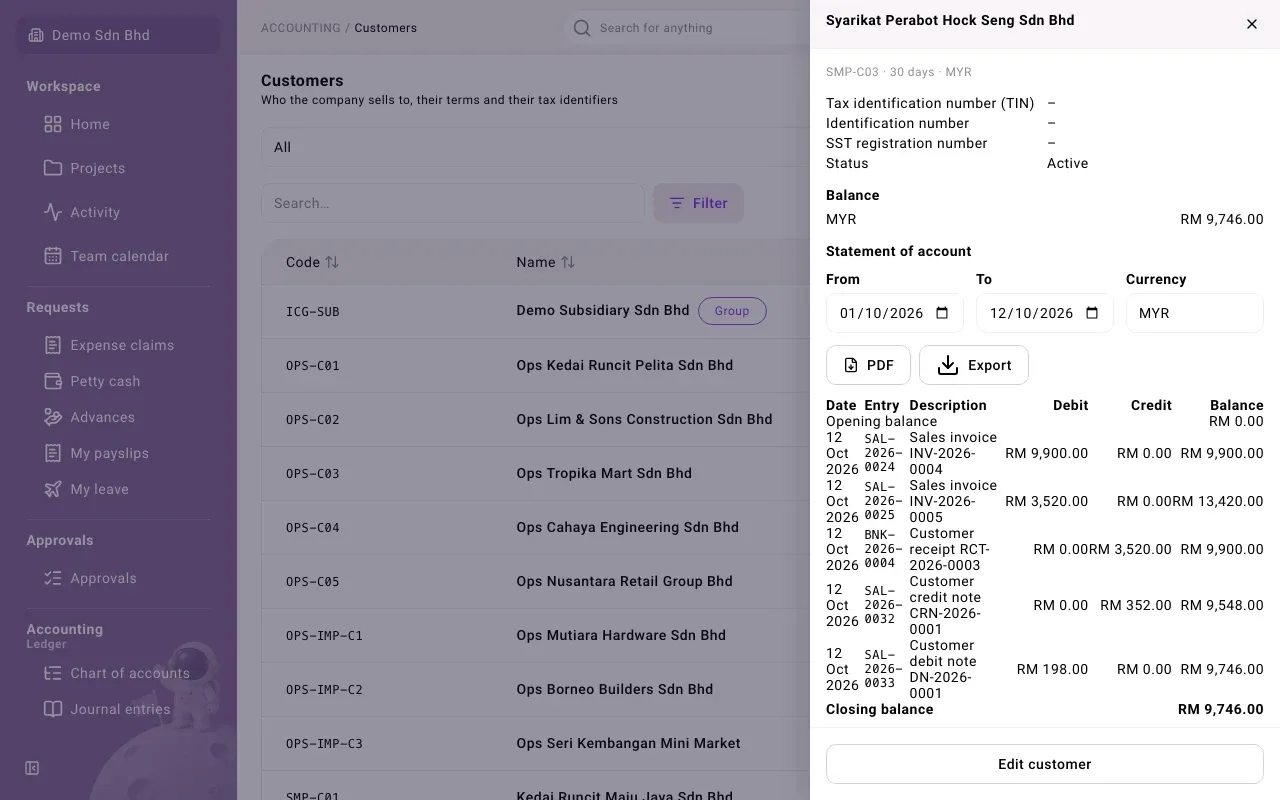
Section titled “Look at a customer”Select a customer in the list. A side panel opens with:
- the code, payment terms and currency;
- the Tax identification number (TIN), Identification number, SST registration number and Status;
- Balance: what the customer owes, per currency, or “Nothing outstanding.”;
- Statement of account: every entry for this customer in a date range. See Statements, aging and analysis.
- Archived documents, if your organization brought settled documents over from a previous system. These are kept read-only under their old numbers and are not in the books.
Change a customer
Section titled “Change a customer”- Open the customer and select Edit customer.
- Change what you need and select Save.
Changing a customer does not change invoices already issued: an issued invoice keeps the customer details it was issued with.
Inactive customers
Section titled “Inactive customers”Customers are never deleted. A customer can be Inactive; the form has no setting for this, so ask your administrator how a customer is made inactive in your organization.
An inactive customer does not appear when you create a new invoice, but you can still record their payments against invoices that are open. Their receipt must then be applied in full to those invoices (see Customer receipts).