Working with trade documents
Requisitions, purchase orders, goods receipts, purchase returns, quotations, sales orders, deliveries and sales returns all work the same way. This page explains what they share; the Buying and Selling pages cover what is special about each.
You see a list if your administrator has given you access to that kind of document.
The list
Section titled “The list”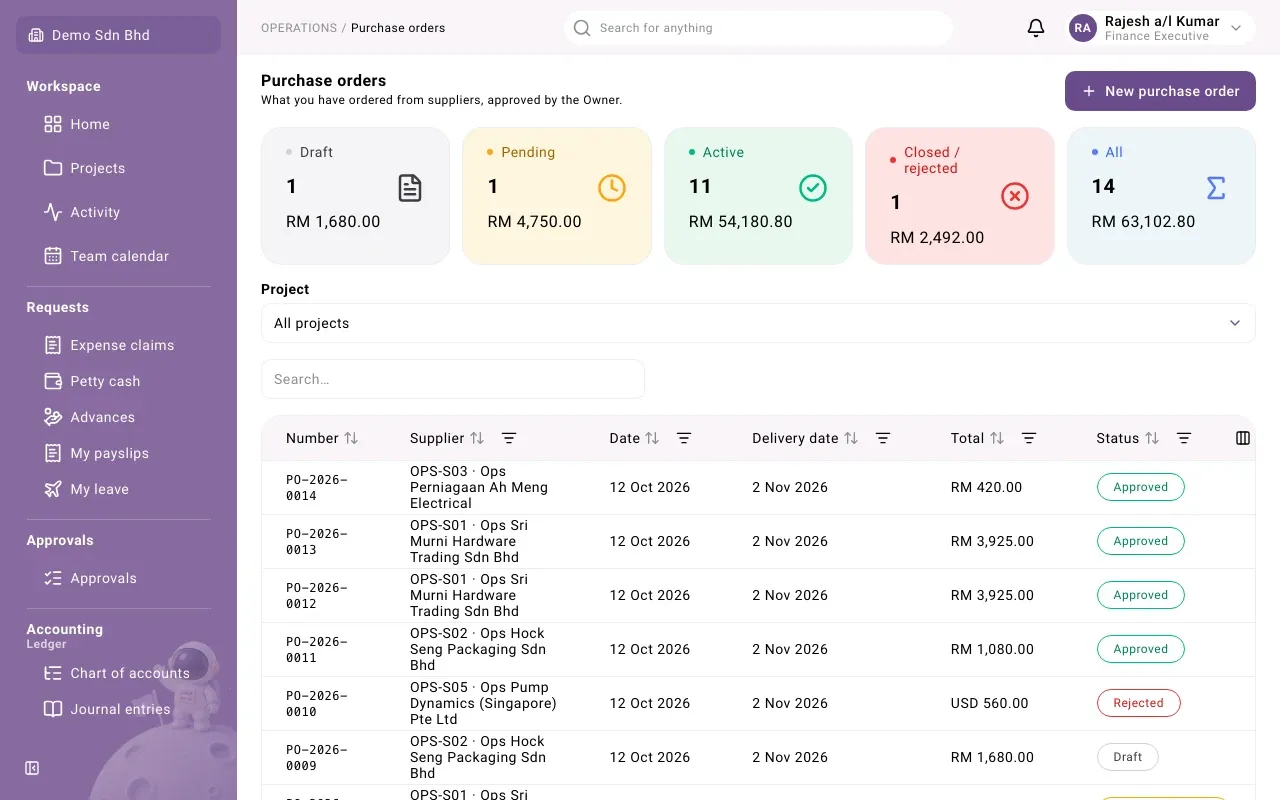
Each list has the same parts:
- Summary cards: Draft, Pending, Active, Closed / rejected and All, each with a count and a value in your base currency. Select a card to show only those documents. If the list is long you see “Counts cover the first 200 rows only; narrow the list for exact figures.”
- Project, if you have access to the ledger: pick a project to see only its documents, or All projects.
- The table: Number, Supplier or Customer, Date, a due date, Total and Status. The due date column is named for the document: Needed by on a requisition, Delivery date on an order, Valid until on a quotation. A Project column can be shown from the column menu.
- Search, sort and filters: filter by Status, the supplier or customer, the date, the due date and the total.
- Export downloads the list you are looking at. Choose the Columns, rename a Heading if you like, pick a Format and select Export. You can Save as preset to reuse a column choice.
Select a row to open the document in a side panel.
The document panel
Section titled “The document panel”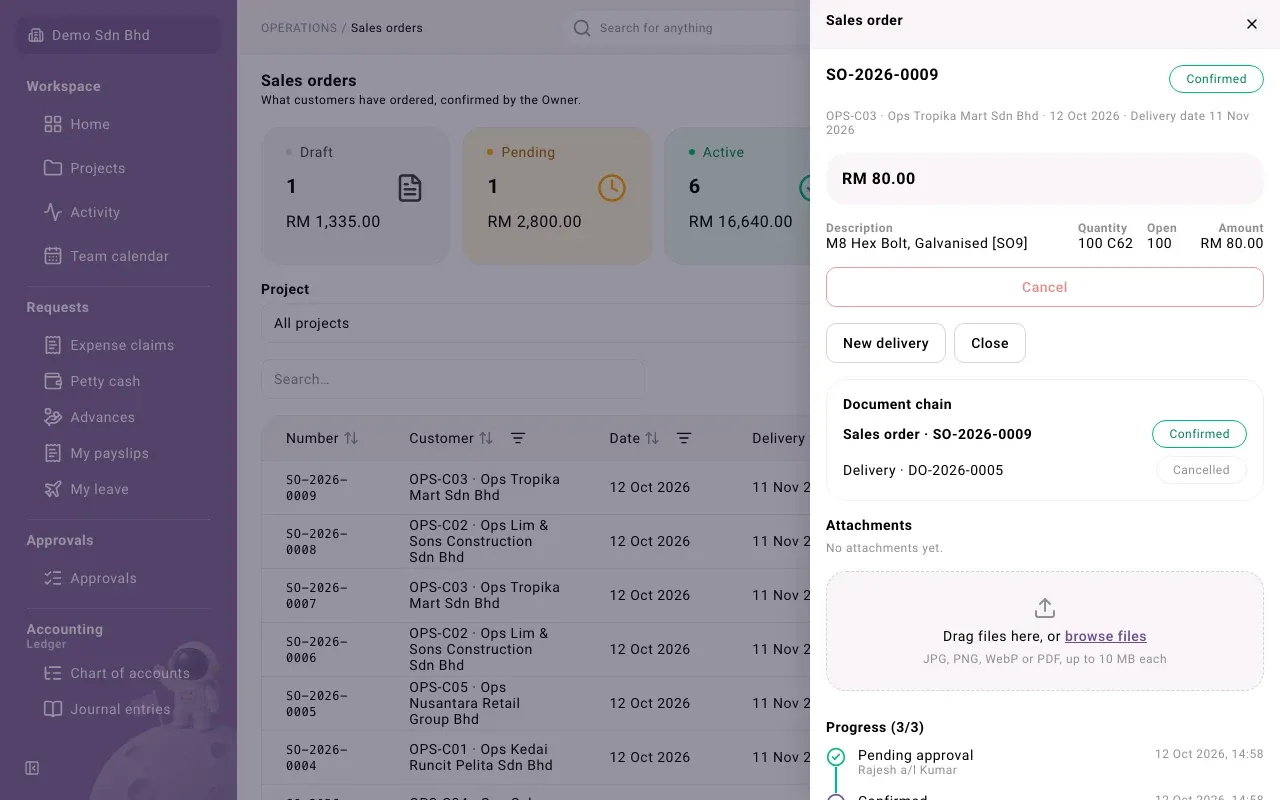
From top to bottom, the panel shows:
- The document number and its status.
- The supplier or customer, the date and the due date.
- A note if the document is finished: “Fulfilled: nothing is left open.” when every line has been drawn in full, or “Closed: …” with the reason when someone closed it. A quotation past its date says “This quotation’s validity has passed. Issue a new one.”
- The total, and the lines with Description, Quantity, Open (what is left for the next step) and Amount.
- The action buttons for the current status, such as Submit, Approve or Reject. Only the buttons you may use are active; hover over a greyed-out one to see why.
- PDF, on purchase orders and quotations once they are past draft.
- The button for the next document in the chain, such as New goods receipt.
- Close, on approved purchase orders and confirmed sales orders.
- Document chain, once the document has a source, a follow-on document or an invoice.
- Attachments: supporting documents such as a quote or a delivery note. You can add more later but not remove them.
- Progress: every decision so far, by whom and when, with any reason given.
If you prepared a draft requisition, order, quotation or sales order, Edit draft at the bottom reopens the form. Only the person who prepared a draft can edit it.
Statuses
Section titled “Statuses”| Status | Documents | What it means |
|---|---|---|
| Draft | All | Saved but not sent on. Only its preparer sees Edit draft. |
| Pending approval | Requisitions, purchase orders, sales orders | Waiting for the approver |
| Approved | Requisitions, purchase orders | Approved; the next document can be started from it |
| Confirmed | Sales orders | Approved by the Owner; deliveries can be started from it |
| Issued | Quotations | Sent to the customer; a sales order can be started from it |
| Rejected | Requisitions, purchase orders, sales orders | Sent back with a reason. Its preparer selects Revise to make it a draft again. |
| Withdrawn | Requisitions, orders, quotations | The preparer withdrew the draft |
| Cancelled | All | Cancelled after approval or posting, with a reason |
| Received | Goods receipts | Posted: the goods are in stock |
| Returned | Purchase returns | Posted: the goods have gone back to the supplier |
| Delivered | Deliveries | Posted: the goods have left stock |
| Received back | Sales returns | Posted: the goods are back in stock |
Actions that need a reason
Section titled “Actions that need a reason”Reject, Withdraw, Cancel and Discard (which throws away a draft receipt, delivery or return) each ask for a Reason. The reason is kept on the record and shown to the people involved.
Closing an order
Section titled “Closing an order”An approved purchase order or a confirmed sales order stays open until every line has been received or delivered. If the rest will never come, for example the supplier has stopped making an item, close it:
- Open the order and select Close.
- Under Why close it?, give the reason.
- Select Close the document.
The order shows “Closed: …” with your reason, and nothing more can be drawn from it.
Problems
Section titled “Problems”| Message | What to do |
|---|---|
| “That is more than is left open on the source line.” | Lower the quantity to what the Open column shows. |
| “The source document is not approved.” | Wait for the source to be approved, then try again. |
| “The source document is closed.” | The source was closed or fulfilled. Start a new one if more is needed. |
| “Other documents draw from this one. Cancel them first.” | Cancel the receipts or deliveries made from this document before cancelling it. |
| “An invoice is posted against this document. Void the invoice first.” | Ask finance to void the invoice before you cancel. |