Payroll runs
This page is for payroll administrators: people allowed to read, prepare or approve payroll runs. By default only the Owner has these permissions.
Do the Payroll setup first.
The Payroll runs page
Section titled “The Payroll runs page”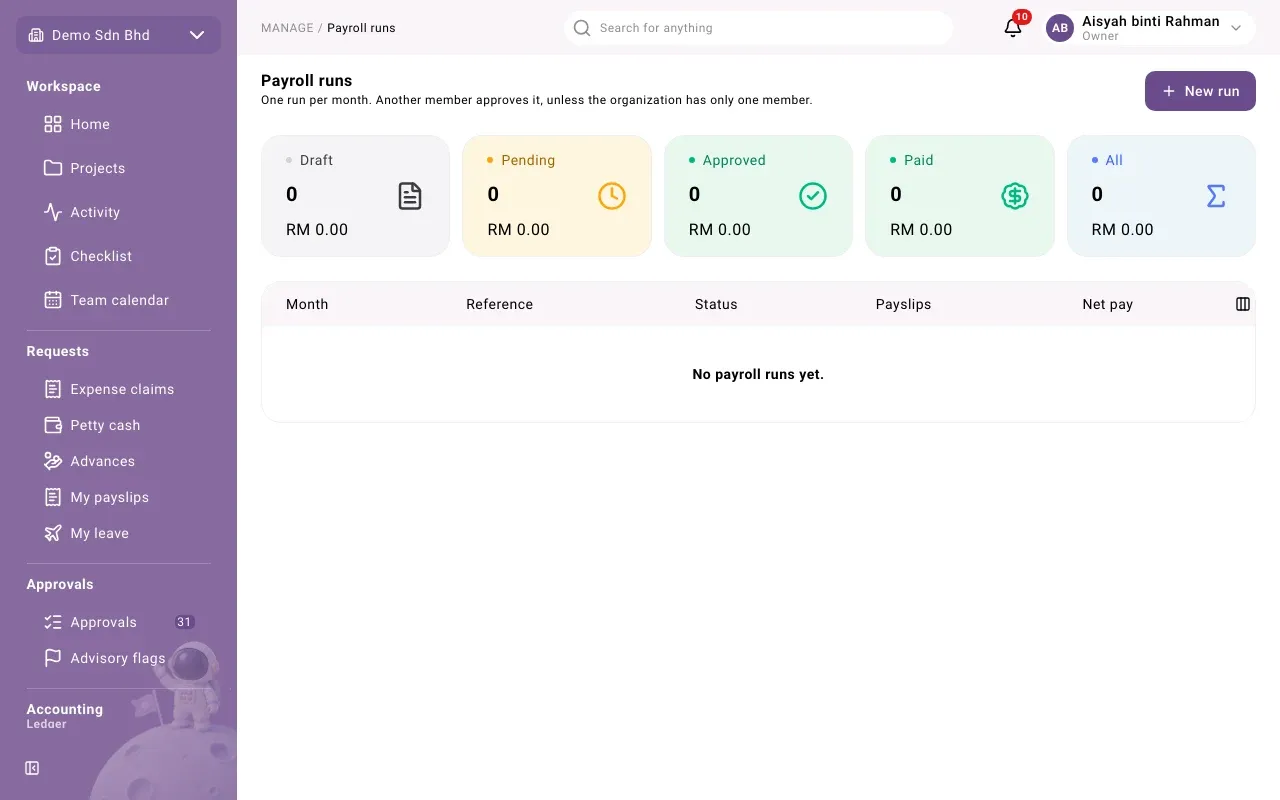
There is one run per month. Another member approves it, unless the organization has only one member. The cards at the top (Draft, Pending, Approved, Paid, All) total net pay by status; select one to filter the list. Each row shows Month, Reference, Status, Payslips and Net pay.
| Status | Meaning |
|---|---|
| Draft | Prepared; can still be changed and recalculated |
| Awaiting approval | Submitted; the figures are frozen |
| Approved | Approved and posted to the ledger; payslips are waiting to be paid |
| Paid | Every payslip with net pay has been paid |
| Rejected | Sent back by the approver; it can be revised |
| Voided | Withdrawn as a draft, or voided after approval |
Prepare a run
Section titled “Prepare a run”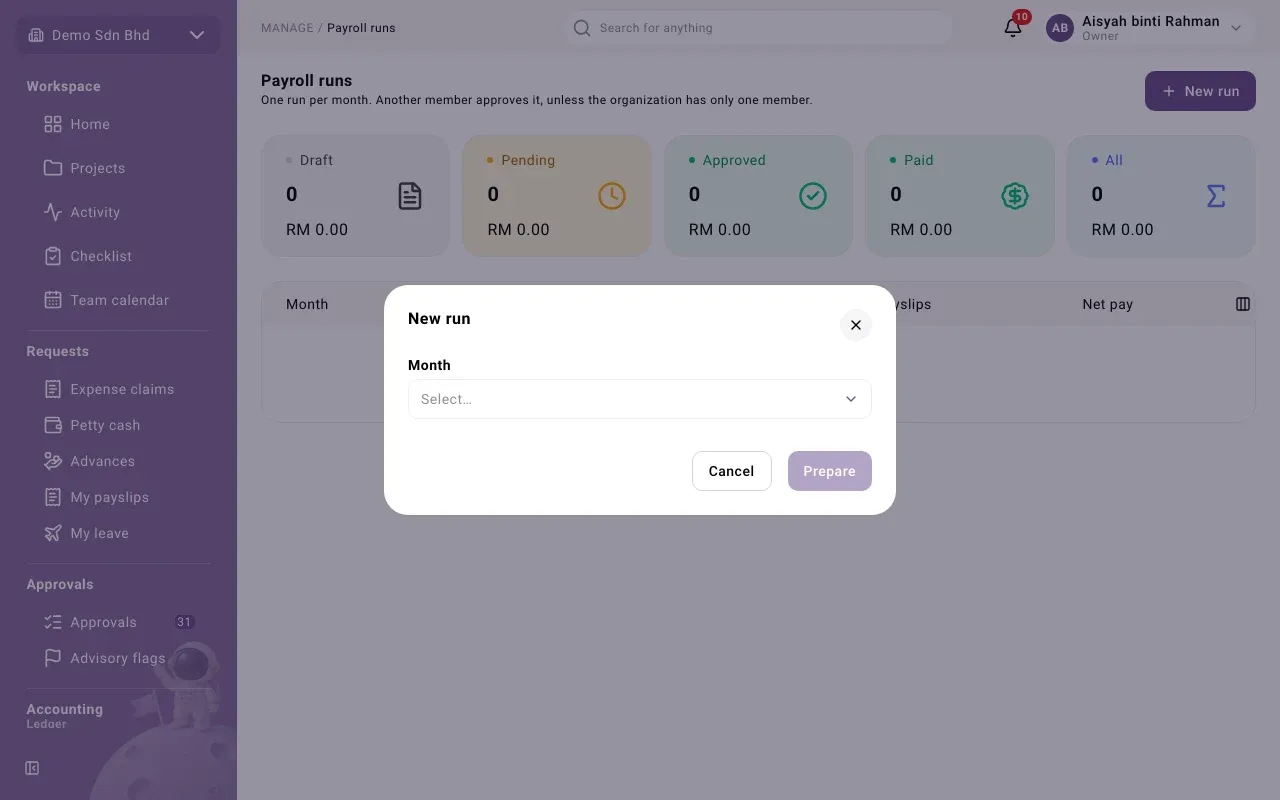
- Select New run.
- Choose the Month.
- Select Prepare. The run opens as a Draft.
Preparing calculates a payslip for everyone employed for any part of the month: the basic salary (prorated for a mid-month start, last day or salary change), recurring items in force, and a deduction for approved unpaid leave in the month.
Check and adjust the draft
Section titled “Check and adjust the draft”The run page is titled with its reference and month. Check each section:
Needs attention lists people who will not be paid as expected, for example someone who “has no login, so no payslip”, “has no salary in force, so no payslip”, “is paid outside their grade’s salary band”, or “has no bank details yet: not payable in a batch”. These are warnings, not blocks. Fix what you can (record a salary, ask the person to add their bank details) and select Recalculate. If it says “Nothing needs attention.”, carry on.
Entered on this run lists amounts you added by hand. To add one:
-
Select Enter an amount.
-
Fill in:
Field What to enter Employee Someone with a payslip in this run Kind Statutory amount, One-off item or Adjustment Contribution For a statutory amount: EPF, SOCSO, EIS or PCB Type For a one-off item: a one-off pay item type Amount Whole sen, e.g. 120.00. Only an adjustment can be negative. Description Required for an adjustment, e.g. the reason for a correction -
Select Save. The run is recalculated.
Use Remove to take an amount off again. Recalculate also picks up salary, item and leave changes made since you prepared the run.
Payslips lists each employee’s Gross pay, Deductions, Net pay and Status (Paid or Unpaid). Select a row to see the payslip: each line, the totals, how the basic was worked out (days employed and the divisor), and whether it is paid. Use Print for a copy.
Submit and approve
Section titled “Submit and approve”The buttons at the top of the run are the moves you are allowed to make. In a standard setup:
| Button | Who | What happens |
|---|---|---|
| Submit | The preparer | Sends the draft for approval. The payslips are frozen. |
| Withdraw | The preparer | Abandons a draft, with a reason; it becomes Voided |
| Approve | The approver | Approves the run |
| Reject | The approver | Sends it back, with a reason |
| Revise | The preparer | Turns a rejected run back into a draft |
| Void | The approver | Voids an approved run, with a reason |
A greyed-out button shows why when you point at it. The person who prepared a run never approves it, and nor does anyone who entered an amount on it. In an organization with only one member, that member may approve their own run with a reason; the run then says “Approved by the organization’s only member, as a recorded sole-owner exception.”
On approval, the run posts to the ledger: salary expense, deductions payable and the net pay owed to each employee. Employees then see their payslips under My payslips (see Leave and payslips).
Pay the payslips
Section titled “Pay the payslips”Net pay is not paid from the run page. Each approved payslip becomes a payment waiting under Payment batches, where finance puts it in a batch with other employee payouts, gets the batch approved, uploads the bank file and marks it paid. Only payslips whose bank details have been verified can go into a batch.
When the batch is marked paid, each payslip shows Paid and “Paid in batch …”, and once every payslip with net pay is paid the run shows Paid. A payslip still waiting says “Not paid yet.”
Problems
Section titled “Problems”- “Choose the payout method, the salary expense account and the deductions payable account in the payroll settings first.” Fill in the settings on Payroll setup.
- “That month already has a payroll run that is not voided.” Open that run from the list.
- “A payroll run is for the current month or an earlier one.” Choose another month.
- “This payroll run pays nobody. Set employees’ salaries first.”
- “Deductions exceed gross pay on one or more payslips.” Correct their inputs before submitting.
- “You entered an input on this payroll run, so someone else must approve it.”
- Someone is missing from the payslips. Check Needs attention: they may have no login or no salary in force.
- “An amount is in whole sen: at most two decimals.” Enter the amount with two decimals at most.