Buying: requisitions to returns
Buying runs through four screens under Operations → Procurement: Requisitions, Purchase orders, Goods receipts and Purchase returns. The supplier’s invoice is then entered in Payables. See From request to invoice for the whole chain and Working with trade documents for the parts every list and panel shares.
Each screen needs its own access, which your administrator gives. Most employees can raise a requisition; ordering and receiving are usually for finance or the storekeeper.
Requisitions
Section titled “Requisitions”A requisition asks for goods or services. Your superior approves it; finance then orders it.
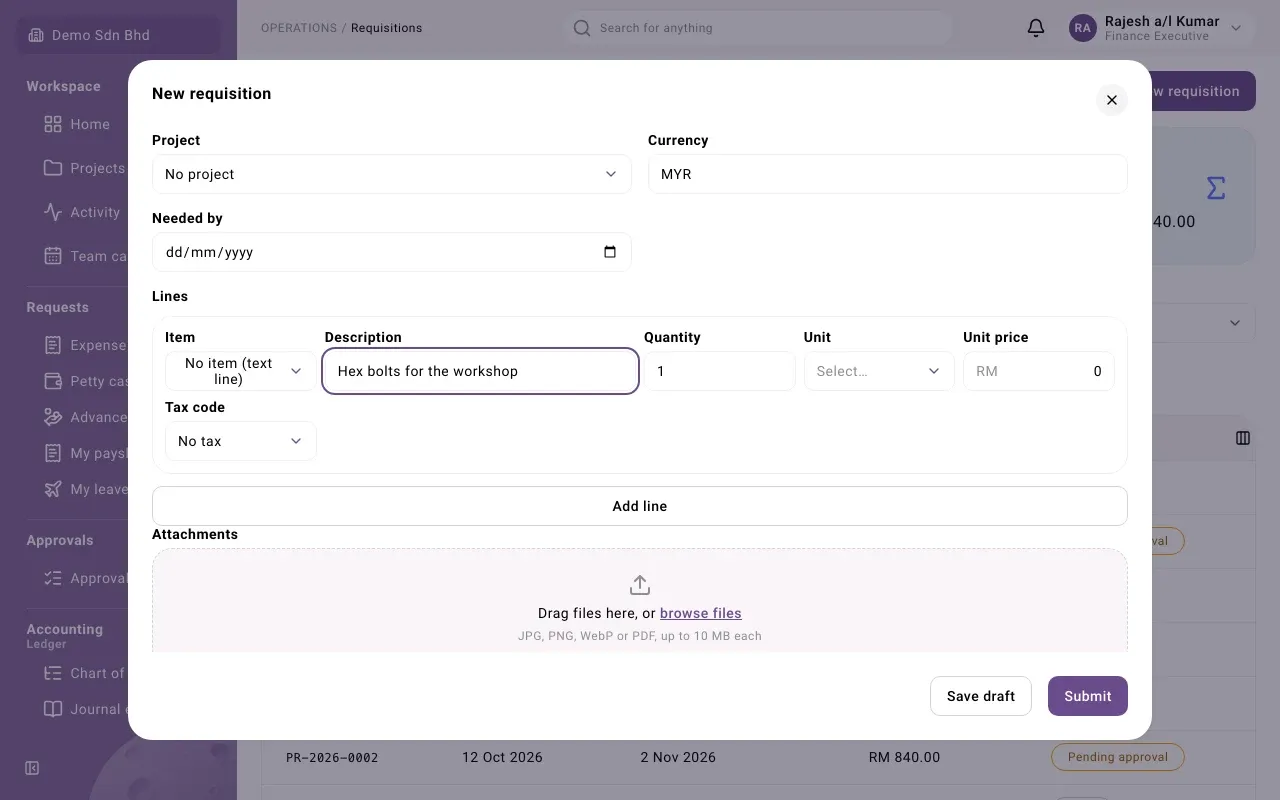
- Open Requisitions and select New requisition.
- Fill in Needed by and the lines (see Lines below). A requisition has no supplier.
- Select Submit to send it for approval, or Save draft to finish later.
The requisition shows Pending approval. Your superior, as set up by your administrator, opens it and selects Approve or Reject. You never choose your approver. If it is rejected, open it, read the reason under Progress, select Revise, fix it and submit again.
Purchase orders
Section titled “Purchase orders”A purchase order is what you order from a supplier. The Owner approves it.
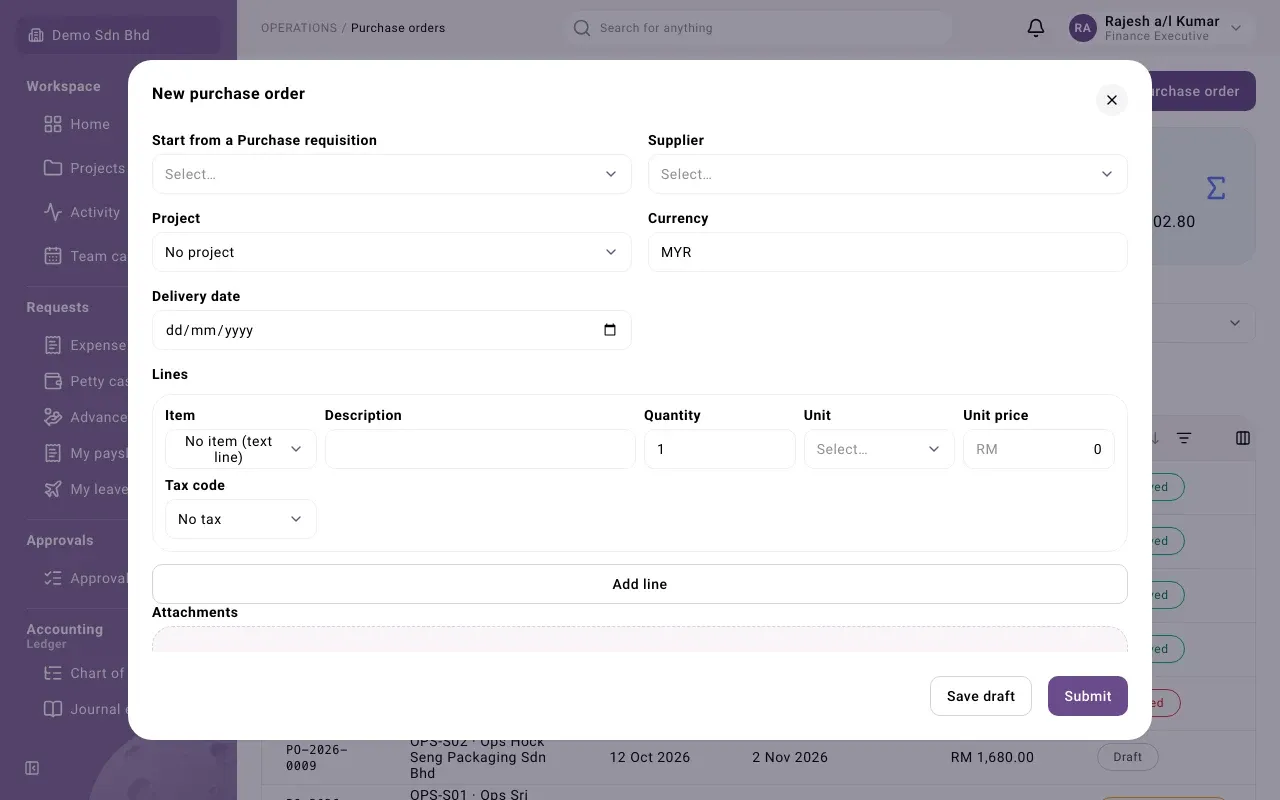
- Open an approved requisition and select New purchase order, or open Purchase orders and select New purchase order.
- If you started from the list, use Start from a Purchase requisition to copy an approved requisition’s open lines. You can also leave it empty and order directly.
- Choose the Supplier. The Currency follows the supplier; change it if needed. If it is not your base currency, enter the Exchange rate to your base currency, e.g. Exchange rate to MYR.
- Enter the Delivery date, check the lines and add any Attachments, such as the supplier’s quote.
- Select Submit. The order shows Pending approval until the Owner selects Approve.
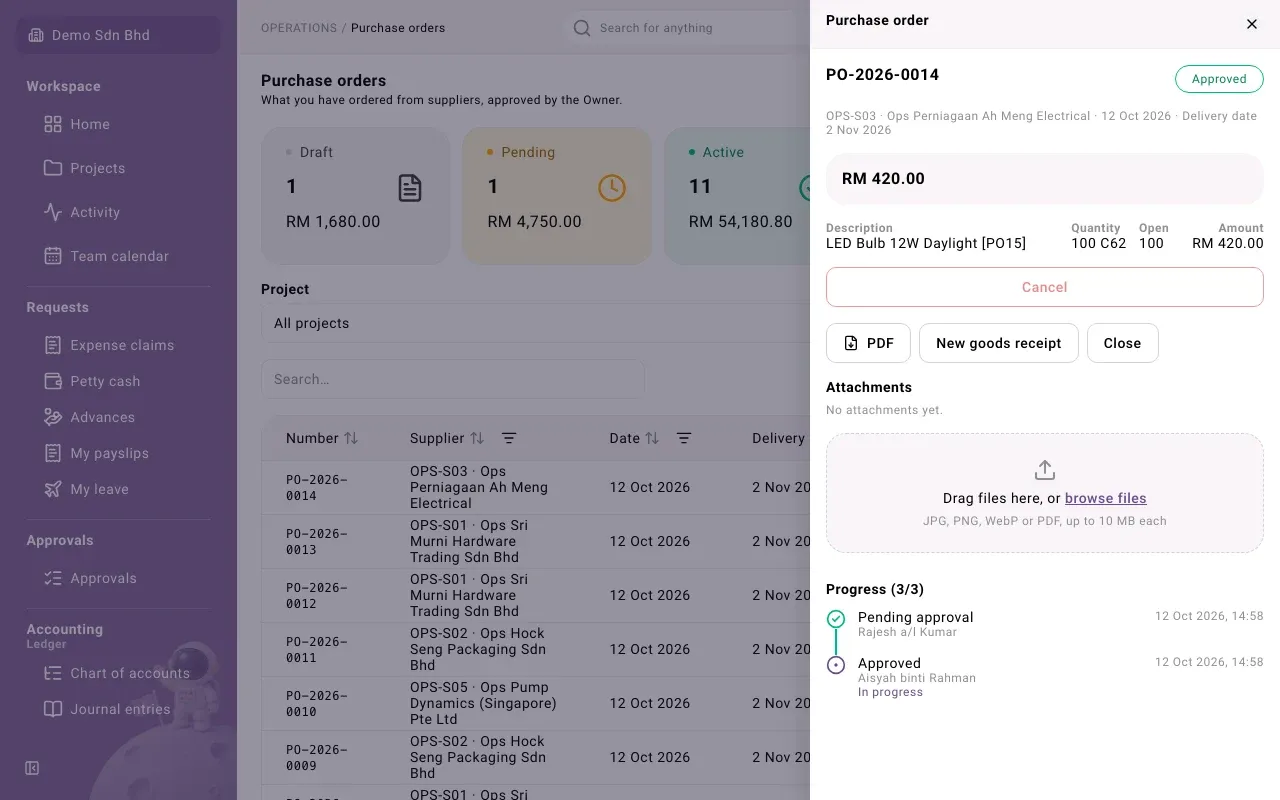
Once approved, the order panel offers PDF to download the order for the supplier, New goods receipt and Close.
Requisitions, purchase orders, quotations and sales orders all use the same lines.
| Field | What to enter |
|---|---|
| Item | An item from your item list, or No item (text line) for something not in it. Picking an item fills in its name, unit and tax code. |
| Description | What the line is for |
| Quantity | How many |
| Unit | The item’s base unit or one of its other units |
| Unit price | The price of one unit, in the document’s currency |
| Tax code | The tax code, or No tax |
Select Add line for another line, or Remove line (the cross) to drop one. Above the lines, Project charges the whole document to a project, or No project.
Goods receipts
Section titled “Goods receipts”A goods receipt records what arrived against a purchase order. Receiving posts straight away: the goods go into stock at the location you choose.
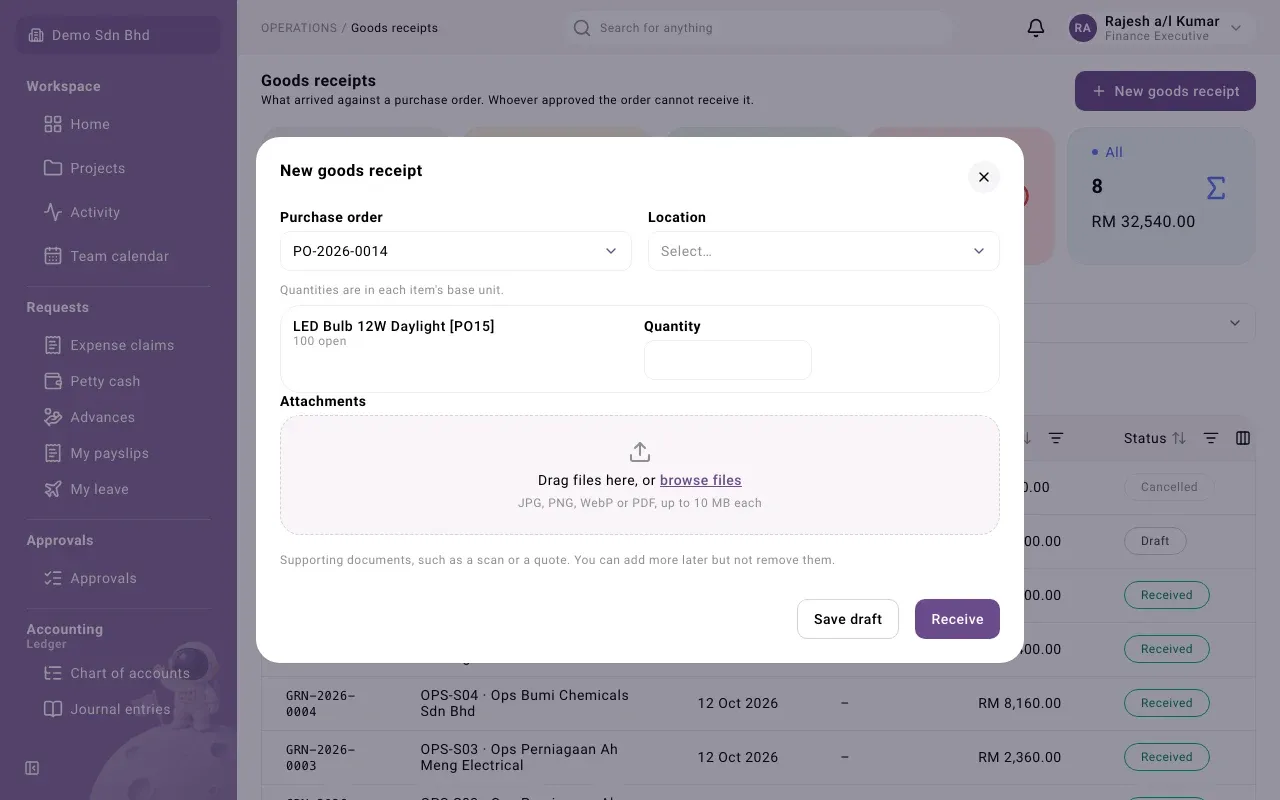
- Open the approved purchase order and select New goods receipt. (From Goods receipts, select New goods receipt and choose the Purchase order.)
- Choose the Location the goods go into.
- For each line, the form shows the description and how much is open, such as “10 open”. Enter the Quantity that arrived, in the item’s base unit. Leave a line empty if none of it came.
- For a tracked item, enter the Serial numbers, separated by commas (one per unit), or the Batch number and optional Batch expiry.
- Add Attachments such as the delivery note.
- Select Receive, or Save draft to check it first. A draft is posted later with Receive in its panel, or thrown away with Discard.
The receipt shows Received. Whatever is still open on the order can be received later.
Entering the supplier’s invoice
Section titled “Entering the supplier’s invoice”When the supplier’s invoice arrives, finance enters it in Payables and links each line to its Receipt line. When the invoice is approved, it is checked against what was received and the order price; a mismatch stops the approval with “The invoice does not match what was received.” Until it is entered, the receipt appears under Goods received not invoiced in Operations reports.
Purchase returns
Section titled “Purchase returns”A purchase return sends goods from a receipt back to the supplier. Like a receipt, it posts straight away.
- Open the goods receipt and select New purchase return, or select New purchase return on the Purchase returns list and choose the Goods receipt.
- Choose the Location the goods leave from.
- Enter the Quantity going back for each line, with serial or batch numbers if the item is tracked.
- Select Return, or Save draft.
The return shows Returned. Finance then enters the supplier’s credit note in Payables on the Return line.
If the goods that receipt brought in have already been issued, the return is refused with “The goods this receipt brought in have already been issued, so it cannot be returned or cancelled.”
Cancelling a receipt or return
Section titled “Cancelling a receipt or return”A posted receipt or return is final for its preparer. Only the Owner can Cancel it, with a reason; the stock and the ledger entry are reversed, not erased. A receipt that has an invoice posted against it cannot be cancelled until the invoice is voided.