Getting started
Accept your invitation
Section titled “Accept your invitation”Your administrator invites you from Team and sends you a link. The app does not email it for them, so it reaches you however they choose to send it. The link opens Join your organization.
- Open the full link from the invitation. A link that is cut off shows “This invitation link is incomplete”.
- Enter your Full legal name, as on your IC or passport, in English or Bahasa Malaysia.
- Set a Password. If you already have an account, leave it blank; your existing password stays unchanged.
- Select Accept invitation, then Go to sign in.
If the page says the invitation is not valid, has already been used, or has expired or been withdrawn, ask your administrator for a new one.
Sign in
Section titled “Sign in”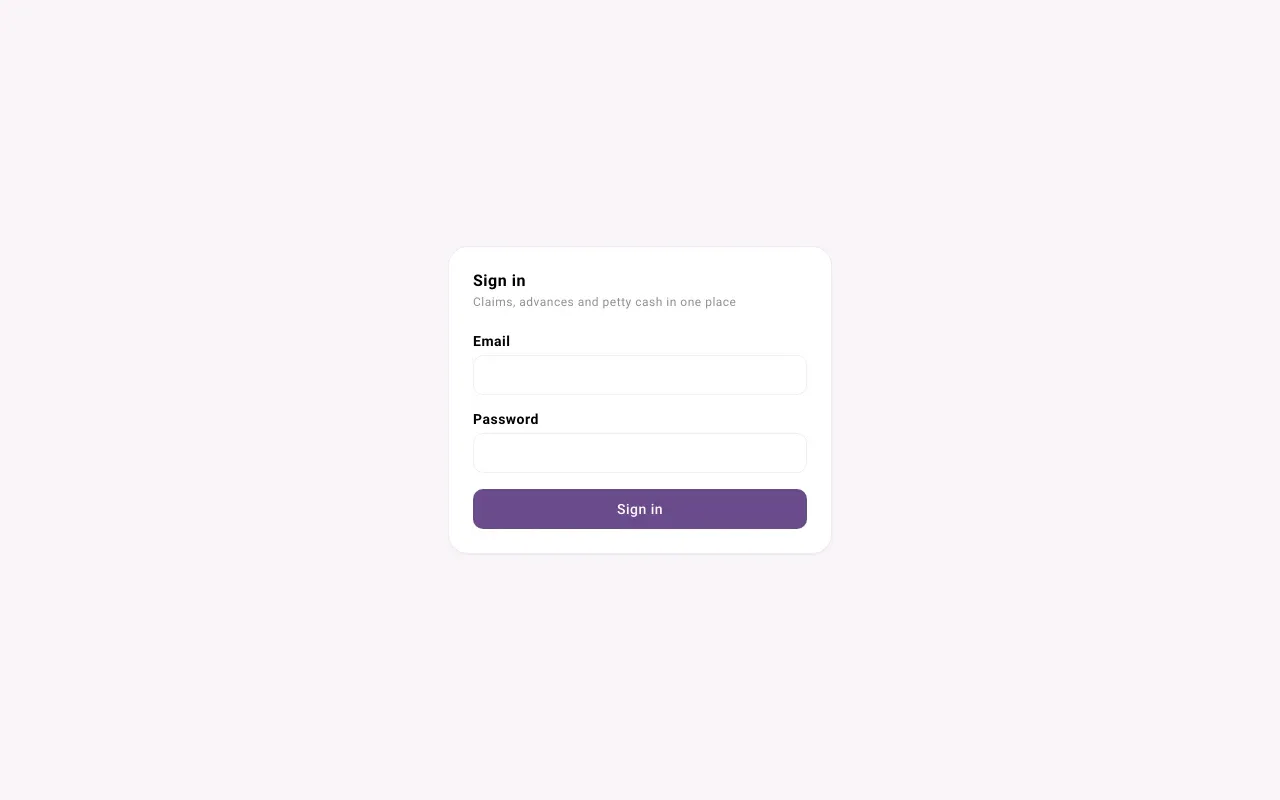
- Open the sign-in page and enter your Email and Password.
- If your account uses two-step sign-in, enter the 6-digit Authentication code from your authenticator app.
- If you belong to more than one organization, Choose an organization. You can switch later from the sidebar.
| Message | What to do |
|---|---|
| Email or password is incorrect | Check both and try again. |
| Your account is not an active member of any organization | Ask your administrator for an invitation. |
| Your organization has been suspended | Nothing has been deleted. Ask your administrator to contact the service provider. |
Your first screen
Section titled “Your first screen”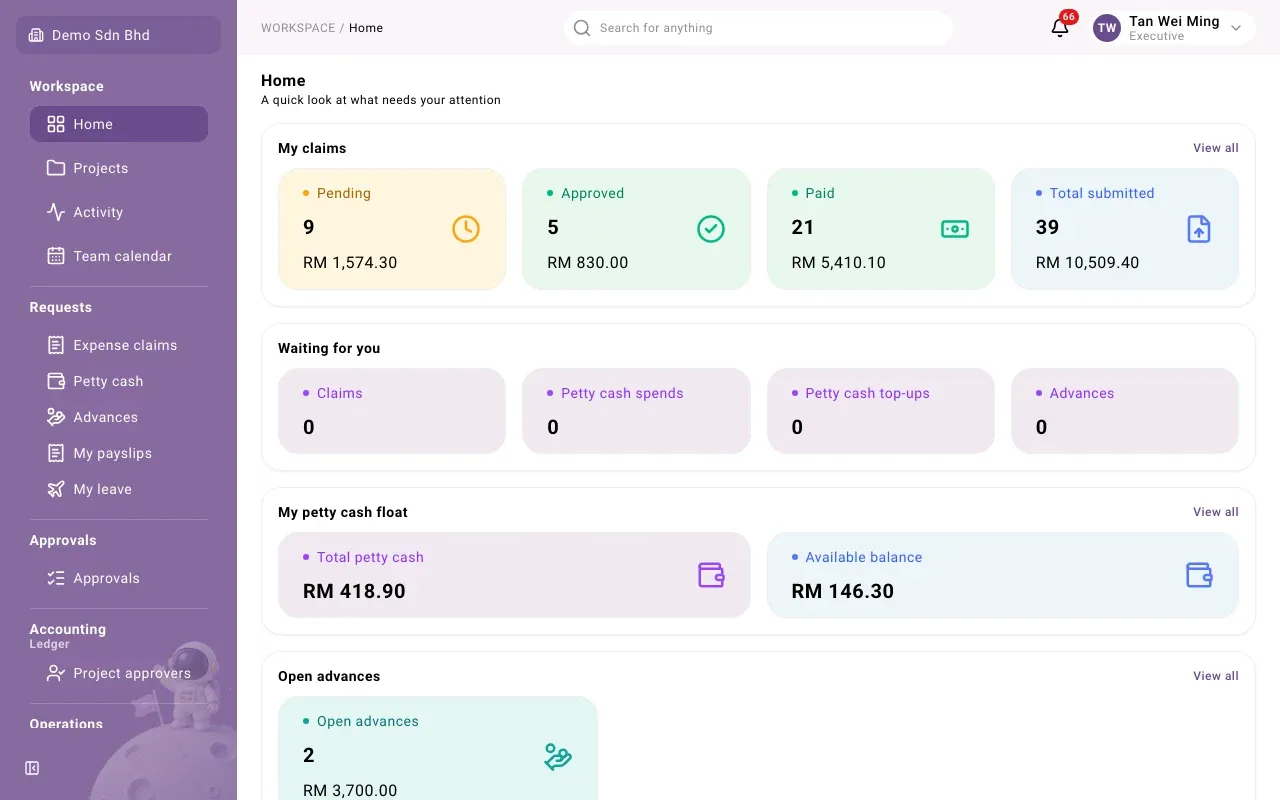
After signing in you land on Home: your claims, what is waiting for you, your open advances and recent activity. If Home says “Nothing to show yet”, your role has no access to any module yet; ask your administrator to grant one.
Next: find your way around.