Your account settings
Settings holds the things that belong to you rather than to the organization: your photo, where your claims are paid, and the devices you are signed in on. Everyone can open it.
Open Settings under Manage in the sidebar. Payout details and Sessions are also in the Account menu. The tabs are Profile, Payout details, Sessions, Notifications and, if you can delegate approvals, Delegations. The last two are on Notifications and delegations.
Profile
Section titled “Profile”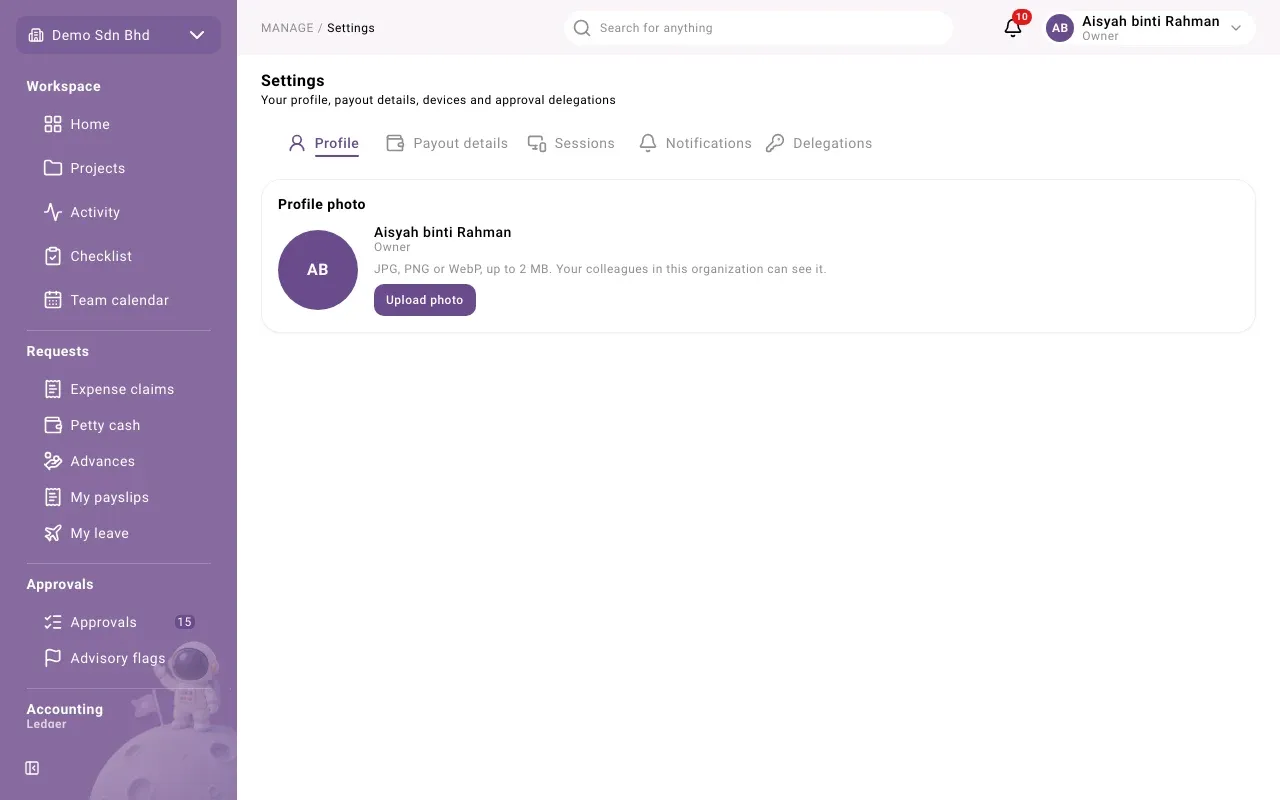
Profile shows your name, job title and Profile photo. Your colleagues in this organization can see the photo.
- Upload photo (or Change photo): choose a JPG, PNG or WebP image of up to 2 MB. You see “Photo updated”.
- Remove photo: removes it at once. You see “Photo removed”.
If the buttons are greyed out with “You can’t upload files with your current role”, ask an administrator.
Your name and job title are not changed here. Ask your administrator if they are wrong.
Payout details
Section titled “Payout details”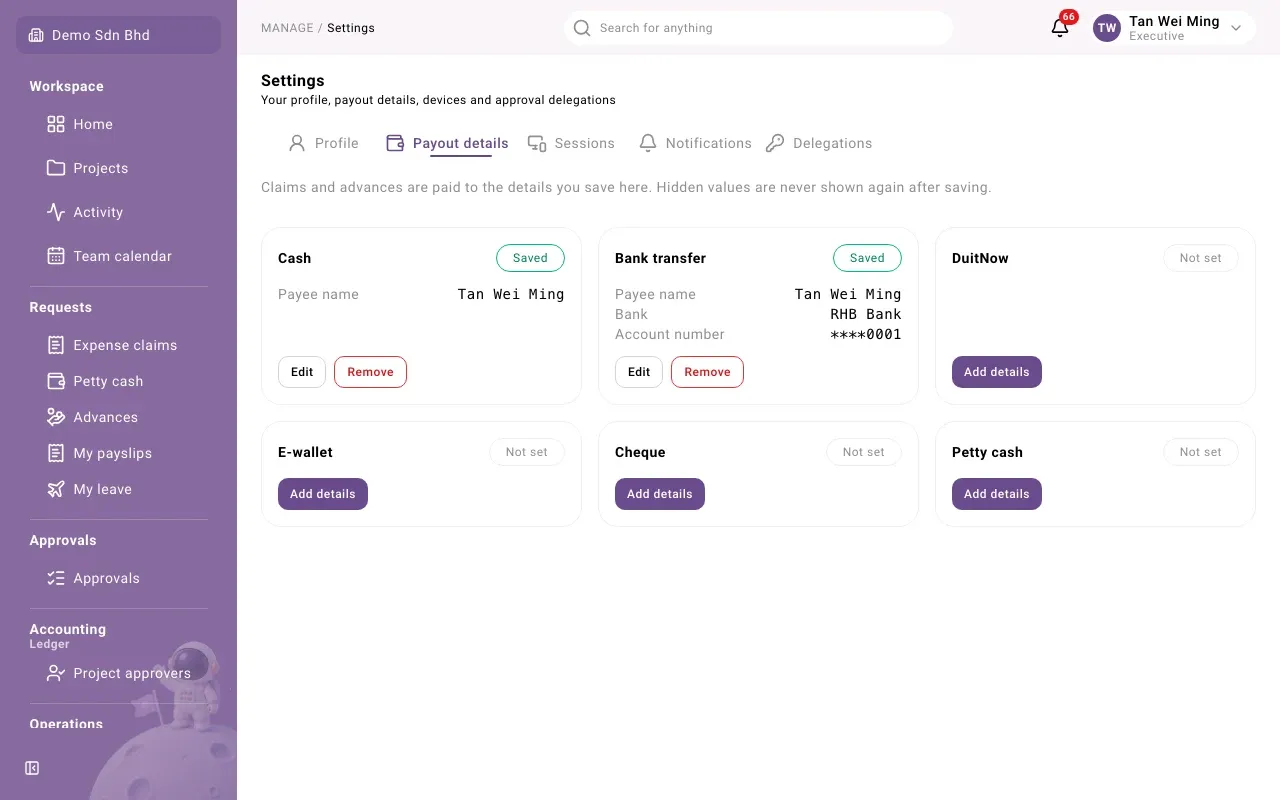
“Claims and advances are paid to the details you save here.” There is one card for each payout method your organization offers, such as a bank transfer or an e-wallet. Each card shows:
| Tag | Meaning |
|---|---|
| Not set | You have not saved details for this method |
| Saved | Your details are saved and complete |
| Needs update | Something in your saved details is no longer accepted; the card lists what |
Some methods say No details needed for this method; you can use them as they are.
Add or change your details
Section titled “Add or change your details”- Select Add details (or Edit) on the card.
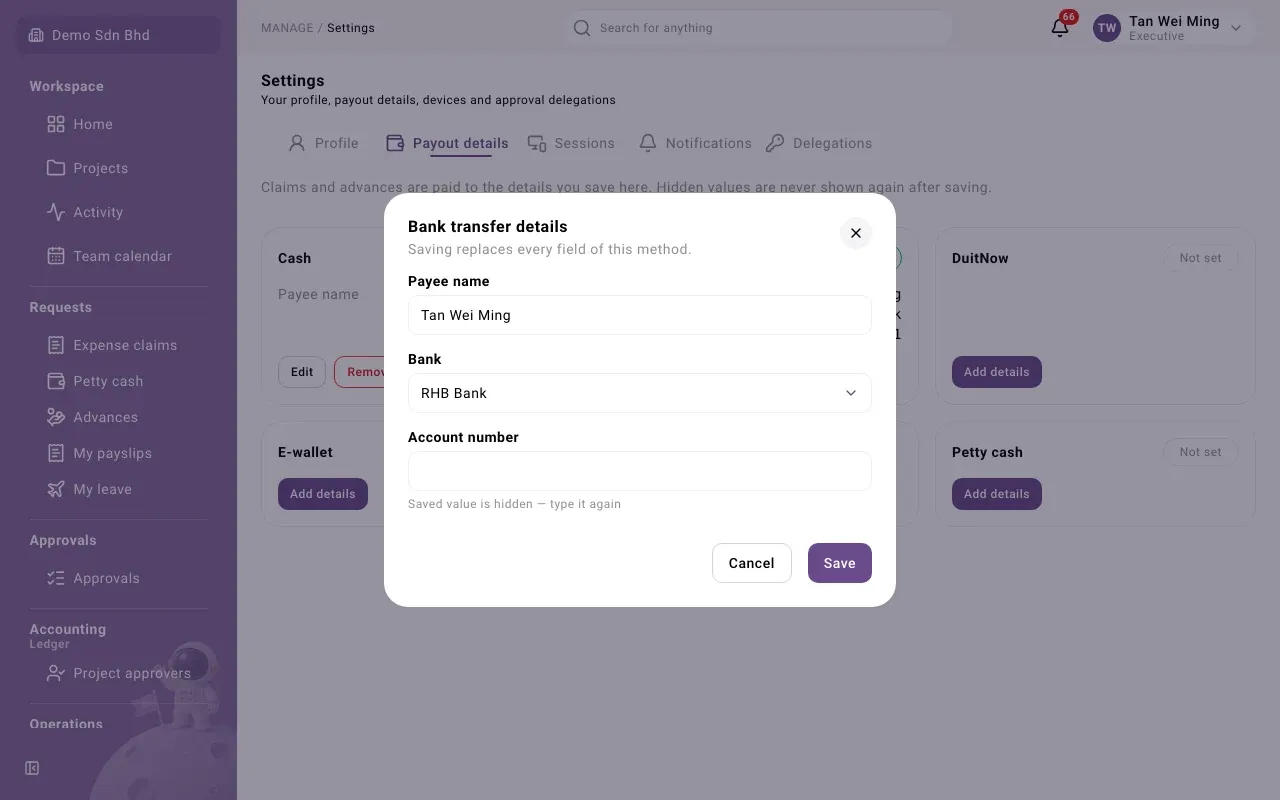
- Fill in the fields the method asks for. They are set by your administrator, for example a bank name and account number.
- Select Save. You see “Payout details saved”.
To delete your details for a method, select Remove, then Remove again. “Payouts already made keep the details they were paid with.”
If the tab says No payout methods yet, “An administrator has not set up any payout method.”
Sessions
Section titled “Sessions”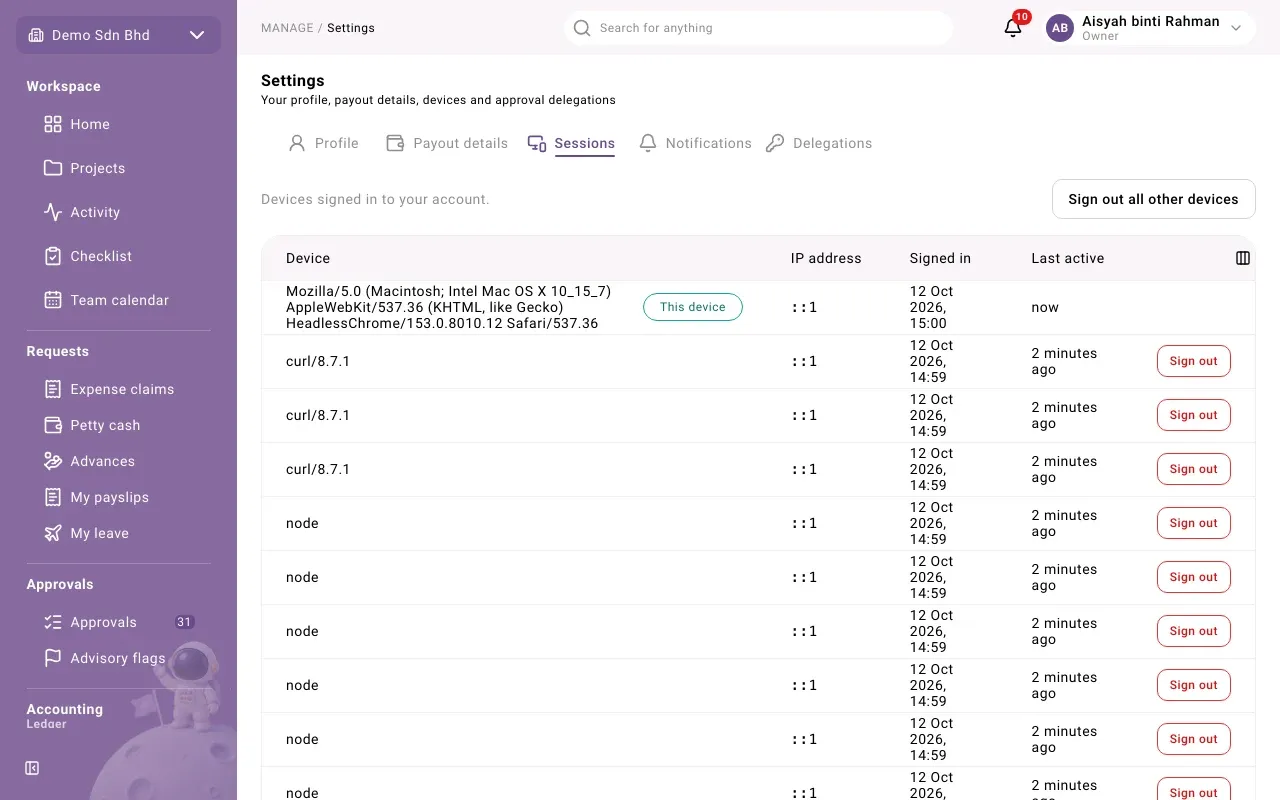
Sessions lists the “Devices signed in to your account”, with the Device, IP address, when you Signed in and when it was Last active. The one you are using is tagged This device.
- Sign out on a row signs that device out. You see “Signed out that device”.
- Sign out all other devices signs out everything except this one.
Do this if you lose a phone or laptop, or see a device you do not recognise. Then tell your administrator.
Sign-in security
Section titled “Sign-in security”There is no screen in Settings to change your password or set up two-step sign-in. If your account uses two-step sign-in, you enter the code from your authenticator app when you sign in (see Getting started). Ask your administrator about password changes.