Activity and notifications
mcomtask keeps you informed in two ways. The notification bell tells you about things that concern you personally: something waiting for your action, or a request of yours that has moved. The Activity page is the organization-wide record of what happened, for the people allowed to read it.
Notifications
Section titled “Notifications”Everyone has the bell at the top right of every page, beside your name. A red number on it shows how many notifications you have not read yet.
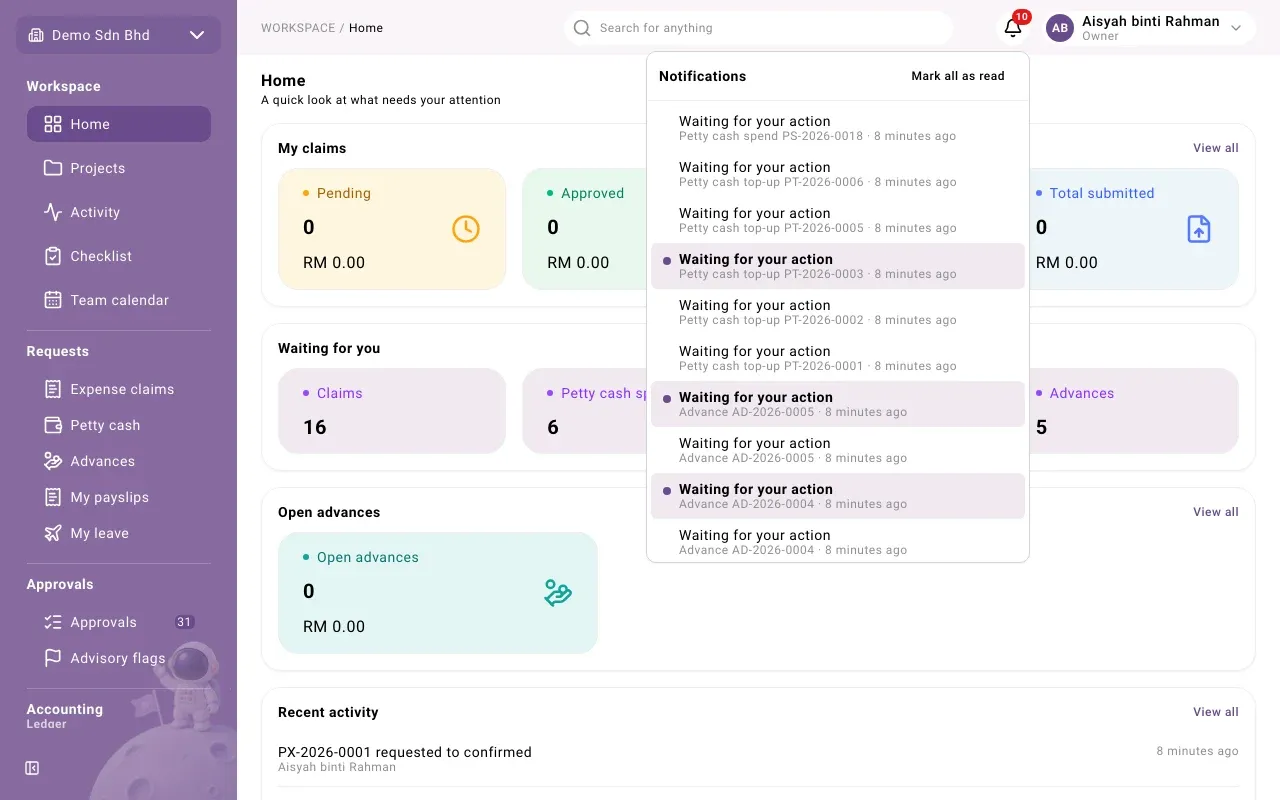
Select the bell to open Notifications. The newest are at the top, and unread ones are highlighted with a dot. Each one tells you what happened, the record and its reference, and how long ago it happened.
| Notification | What it means |
|---|---|
| Waiting for your action | A record needs you, for example a claim to approve |
| Your request was approved | Your request was approved |
| Your request was paid | Your request was paid |
| Your request was rejected | Your request was rejected; open it to see why |
| Your request was returned to you | Your request came back to you to fix |
| … commented | Someone added a comment to a record; their name is shown |
| An API key is about to expire | One of your organization’s API keys will soon stop working |
| A webhook endpoint was disabled | mcomtask stopped sending events to one of your webhook addresses |
The records can be a Claim, an Advance, a Petty cash spend, a Petty cash top-up, a Leave request, an API key or a Webhook endpoint.
- Select a notification to open its record. It is marked as read.
- Select Mark all as read to clear the count without opening each one.
When there is nothing new you see “You’re all caught up”.
The Activity feed
Section titled “The Activity feed”Activity in the sidebar is for people your administrator has allowed to read the organization’s activity. It is read-only.
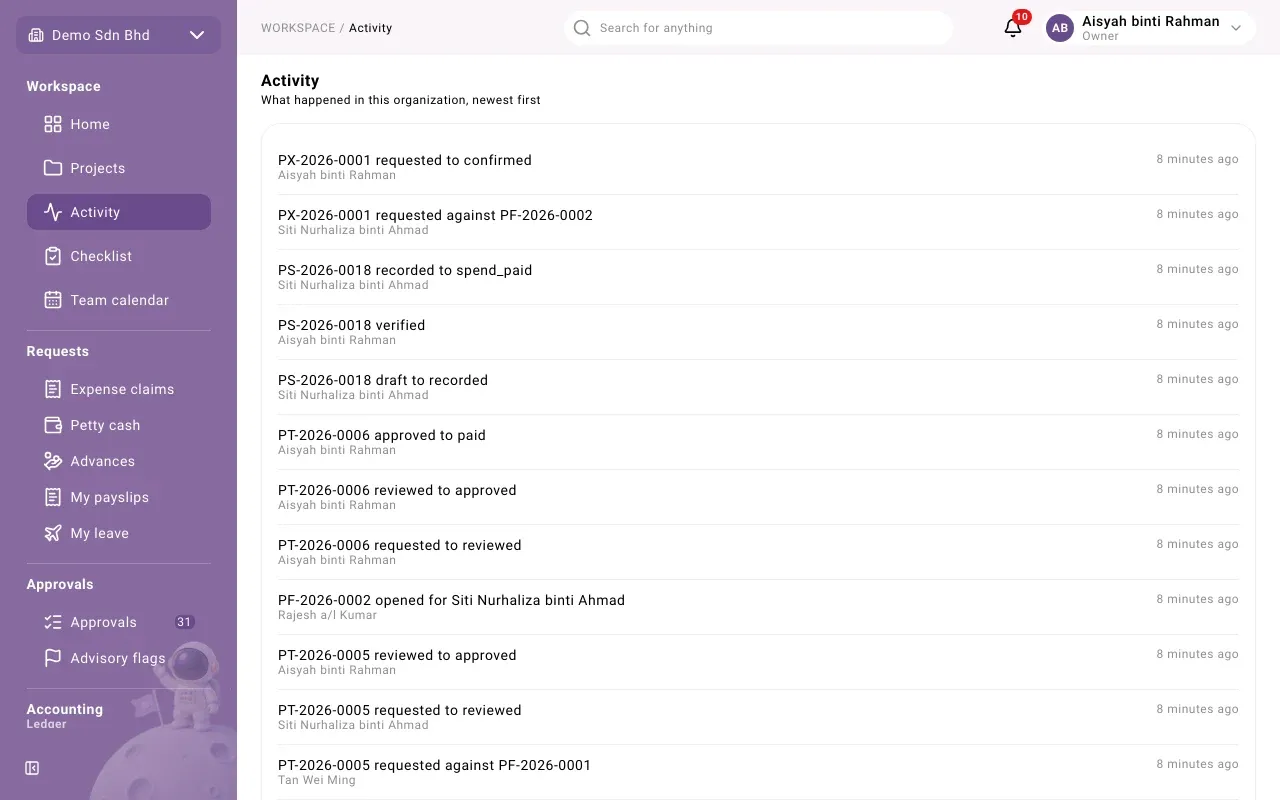
The feed lists “What happened in this organization, newest first”. Each item shows:
- what happened, as recorded at the time
- who did it: a member’s name, System for something mcomtask did by itself, or Service provider for an action taken by the company that runs mcomtask for you, such as creating or suspending the organization
- when, as a relative time such as “2 hours ago”. Point at it to see the exact date and time.
Select Load more at the bottom to see older activity. A new organization shows “No activity yet”.
The feed is a summary for people. For the full detail of a single record, open the record itself: claims, entries and checklists each keep their own history.